
Open Split Screen Player on Android, choose a layout with two regions, and use “Web/stream” in each region to open a different URL. Both stay visible on the same screen.
Choose a layout with two regions
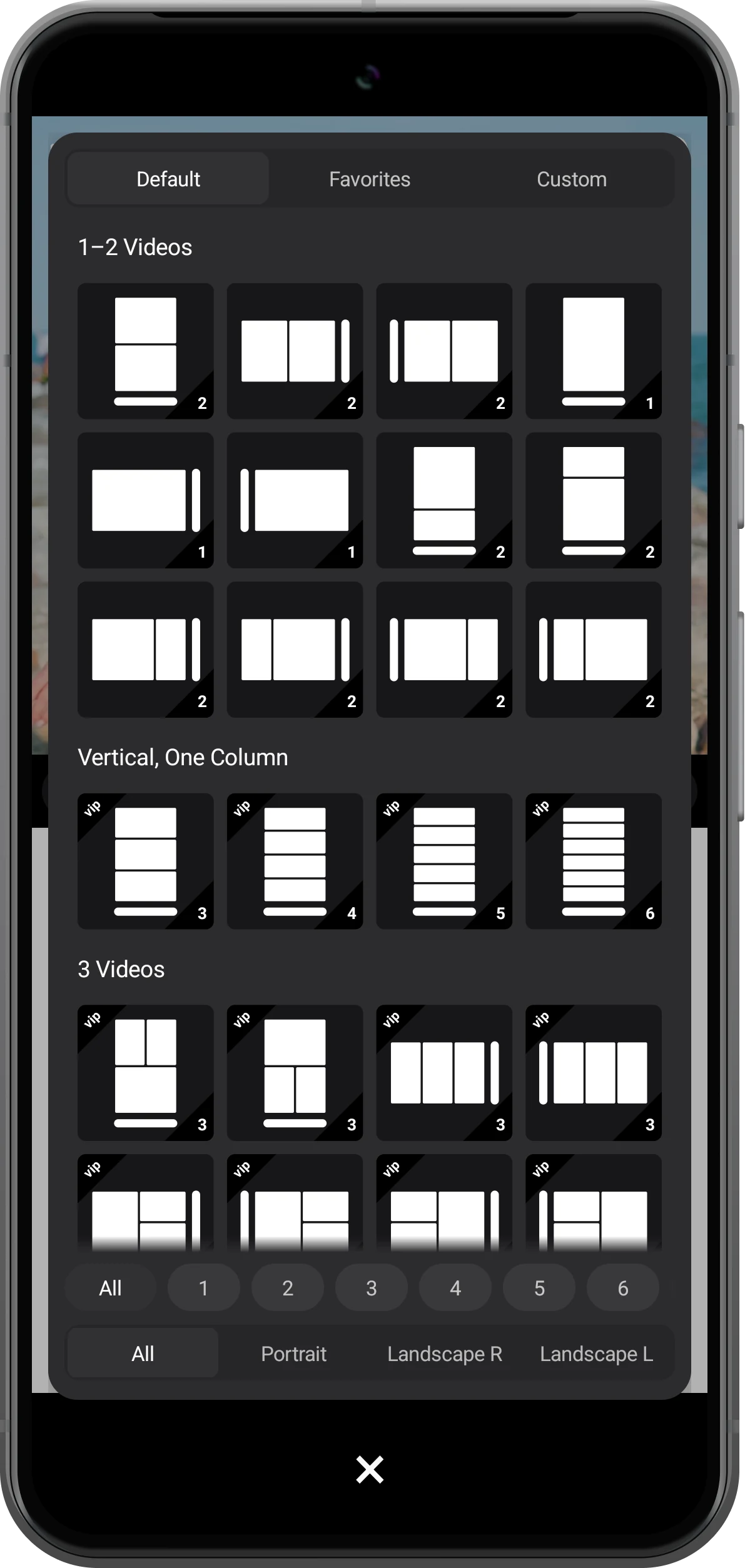
Open the layout picker in the toolbar and choose the highlighted layout with two stacked regions. In portrait, each region keeps the width of the phone for easier reading.
Choose a landscape layout for a side-by-side view. On a tablet, “Custom” also lets you give the page you are reading more room.
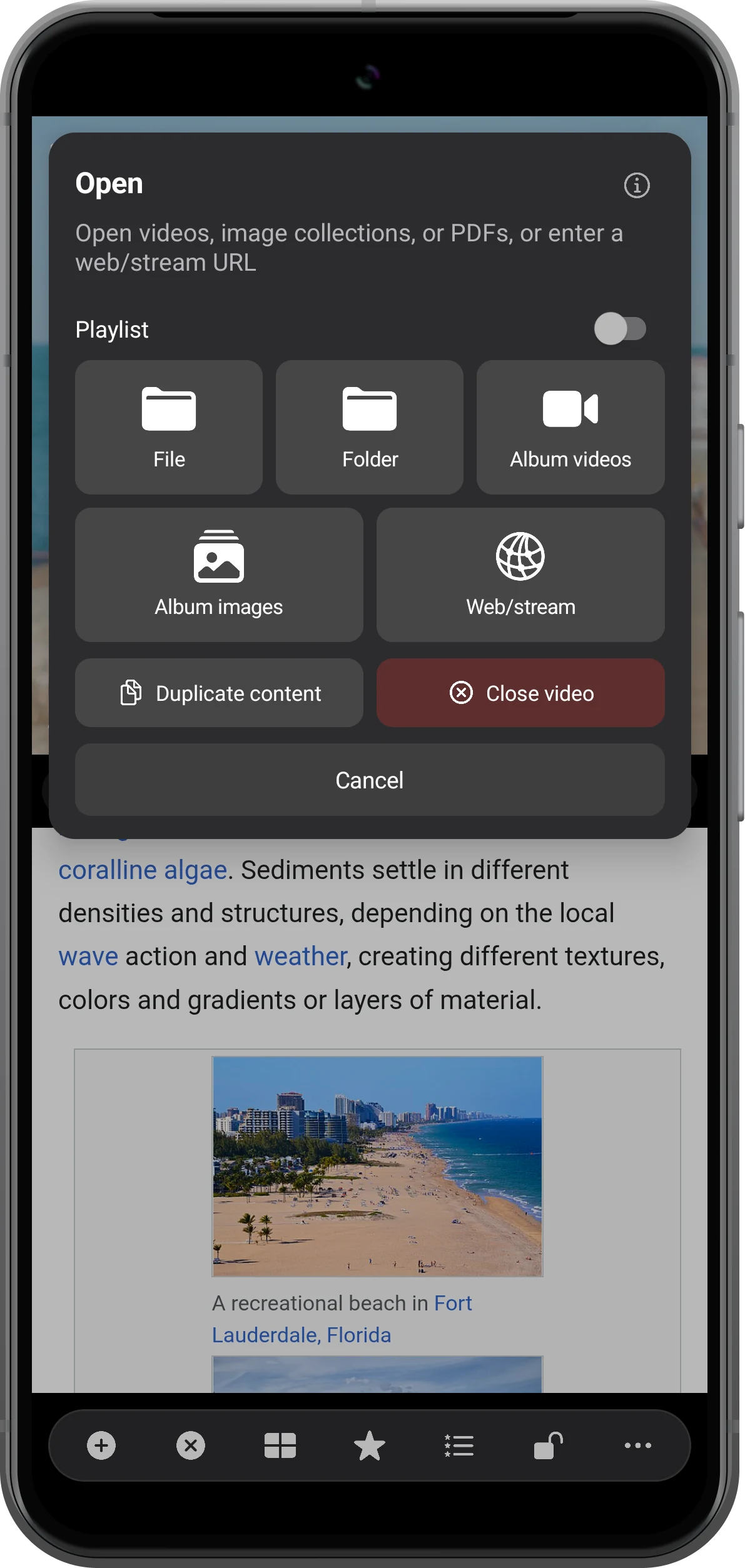
Open the web option in the first region
Tap the plus button in the first empty region, then choose “Web/stream” from “Open”. Each region can open its own content.
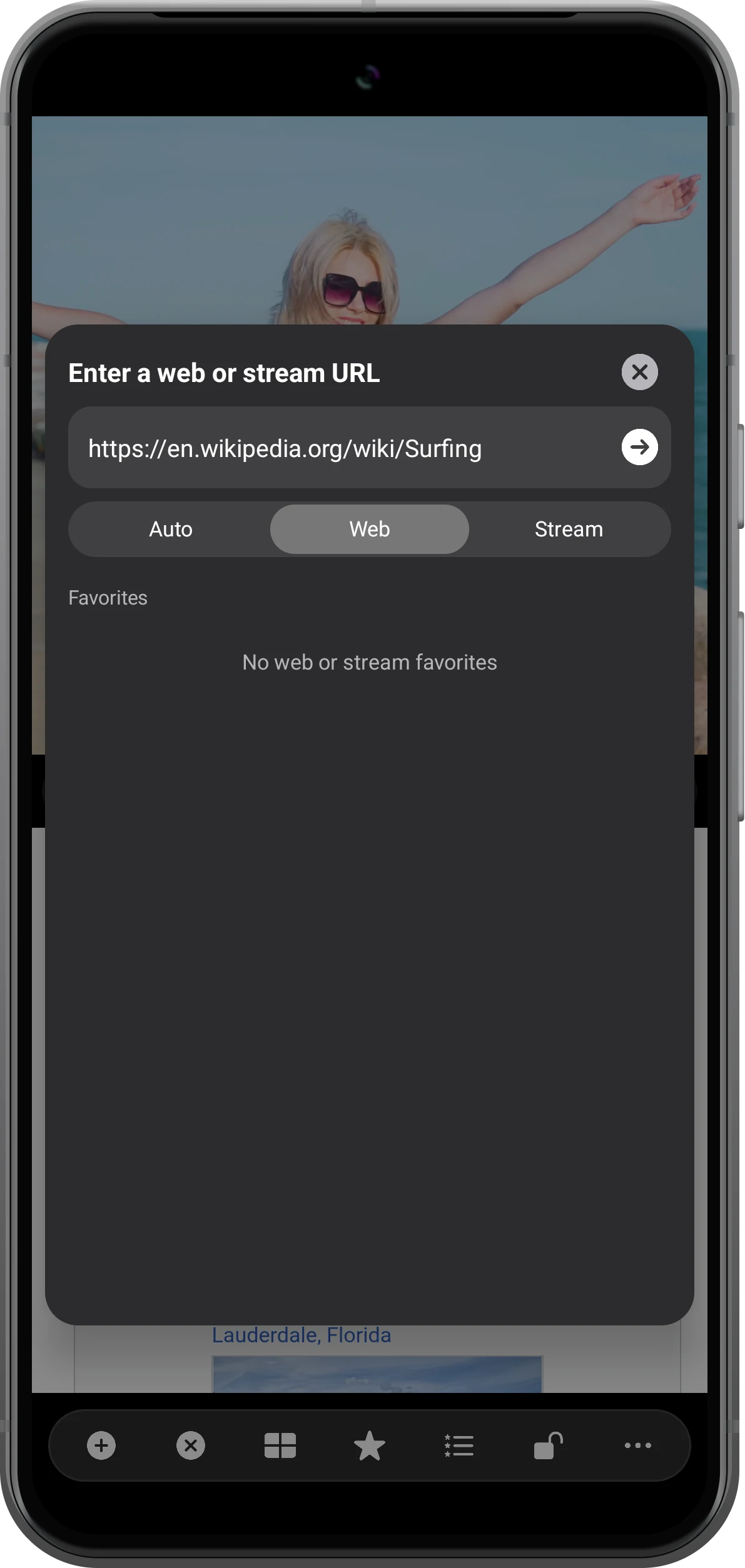
Enter the address and open it as a web page
Enter or paste the page URL. Set the link type to “Web”, then tap the arrow beside the address. The page opens inside this region.
For example, open an article first and keep a second reference beside it as you read.
Open the second page and scroll independently
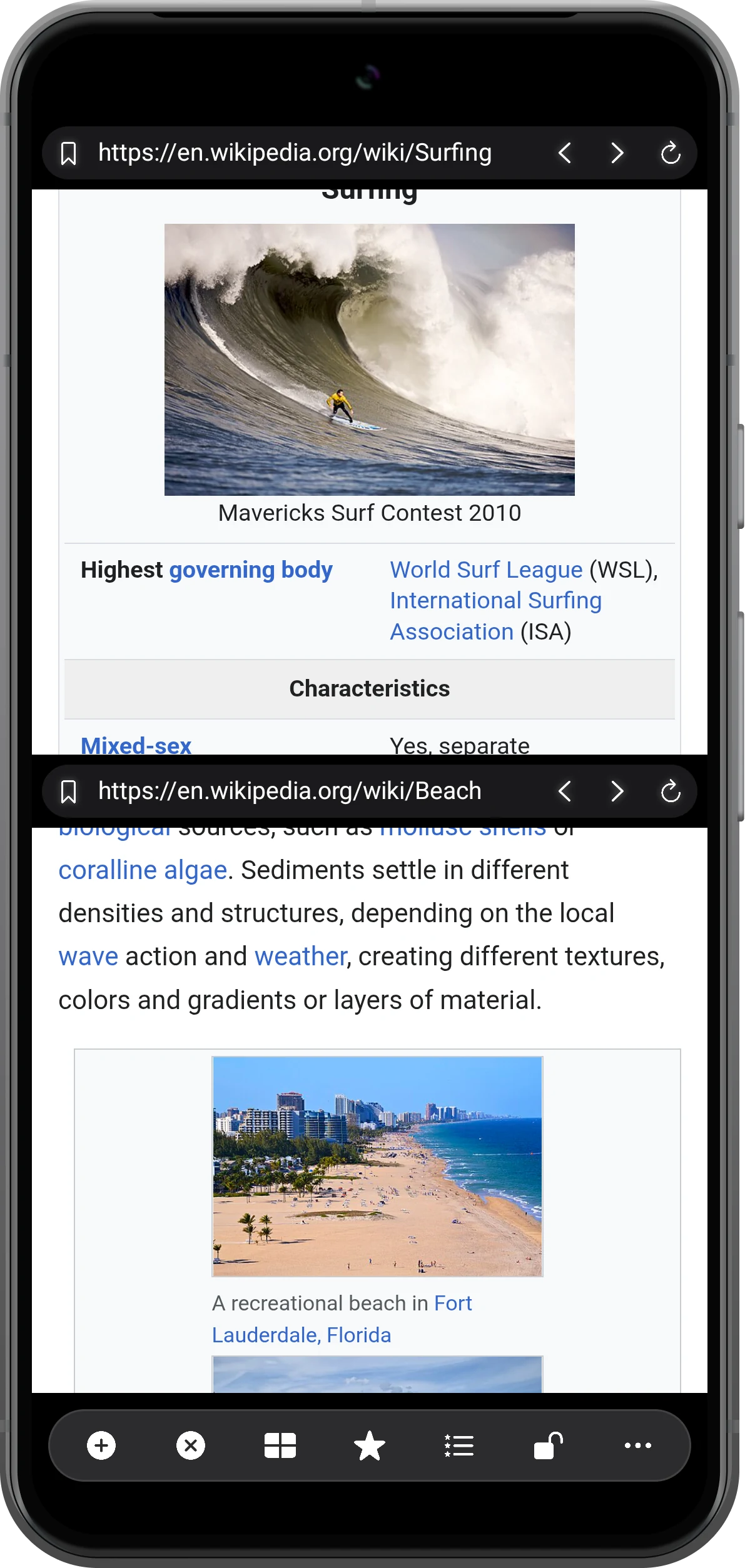
Repeat the “Web/stream” steps in the second region with another URL. Scroll within the upper region to read the first page, or within the lower region to read the second. Each keeps its own position.
Use “Bookmark” in the toolbar to save this combination, then reopen it from “Bookmarks” later.
More possibilities
Make the layout work for what you are doing
Split Screen Player can also open videos, images, PDFs, and audio in separate regions. Choose a layout that gives each source enough room.
Give each page the space it needs
There are 144 built-in layouts with up to 36 regions. Two regions are usually a comfortable starting point for reading; “Custom” lets you adjust their positions and sizes.
Replace one page with a video
Keep a demonstration video on one side and the written lesson or instructions on the other.
See the tutorialWatch and compare multiple videos
Use every region for video when you want to compare clips: three stacked rows in portrait or a four-video grid in landscape, with separate sound controls.
See the multi-video guideFrequently asked questions
Does this open two separate apps?
The regions open web pages or media inside Split Screen Player. You can browse two sites or combine a local video with a web page; these regions do not embed the interfaces of other apps.
Can videos in two web pages play at the same time?
Web players depend on the site’s playback rules, autoplay settings, and content protection. Simultaneous playback across two websites is not guaranteed. Use a multi-video layout for several local files instead.
Can I browse sites that require a login?
Login and browsing depend on the site’s support for an in-app browser. Some services require their own app or the system browser. Split-screen viewing does not bypass a site’s login, subscription, or content protection requirements.
Does web browsing require VIP?
Web browsing is a VIP feature, and layouts marked VIP also require a paid plan. The app is free to download; see the in-app offer for current features and pricing.
Can I use it offline?
Videos, images, and PDFs already saved on your device can open offline. Web pages normally need an internet connection; offline availability depends on the page.
Split Screen Player
Keep both pages in view
Download Split Screen Player, choose a two-region layout, and try it with the content you want to keep in view.

