
Choose a split-screen layout, tap + in each region, and add a video from your gallery or files. Each clip has separate playback and sound controls. You can start with two videos and add more when you need them.
Choose two or three video regions
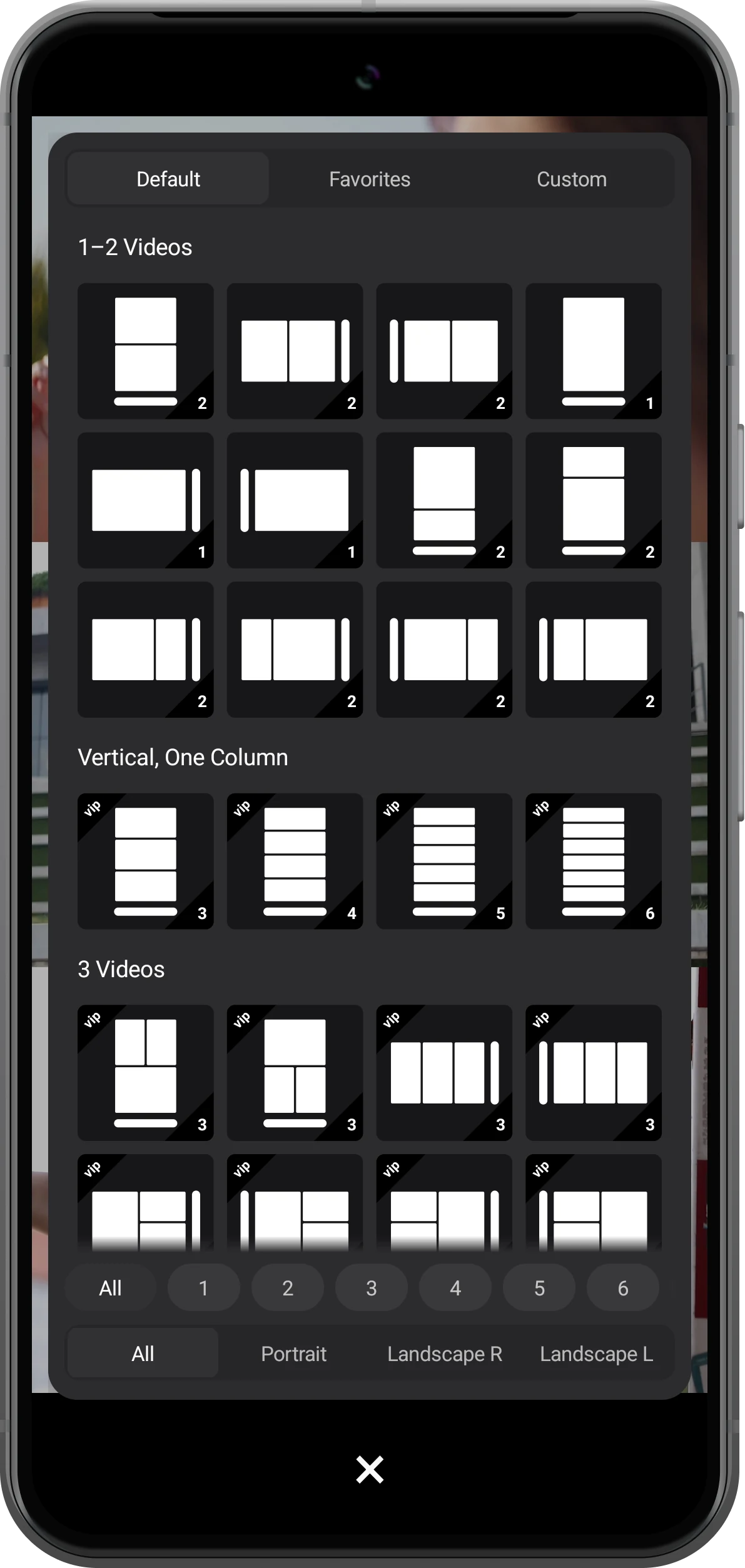
Tap the four-square layout icon in the toolbar. The first group offers stacked and side-by-side layouts for two videos. For three clips, choose the outlined three-row thumbnail in the vertical single-column group.
The small strip in each thumbnail shows where the toolbar sits. Use the number and orientation filters at the bottom to narrow the choices.
Add a video to each region
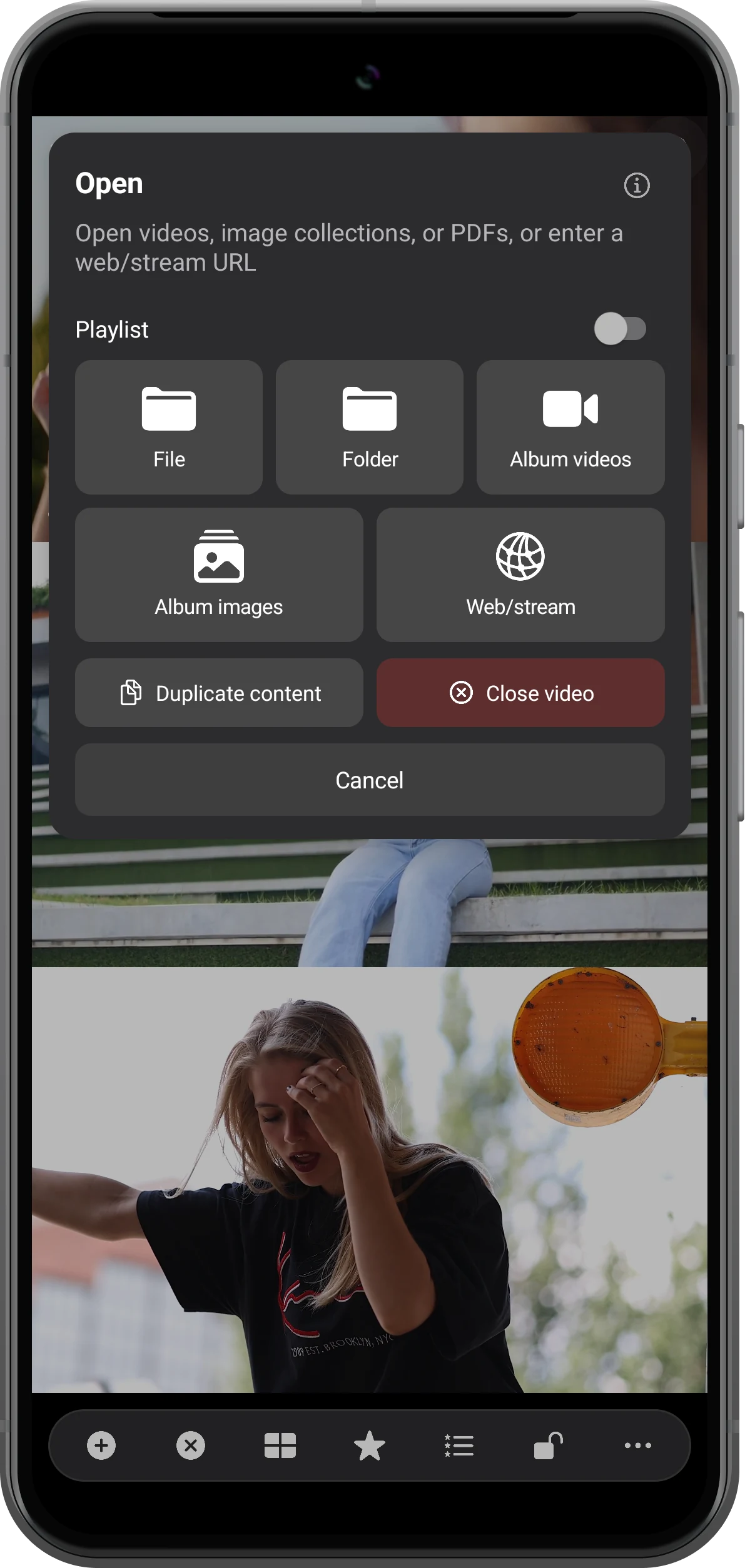
Tap + in an empty region. In Open, choose Album videos and select a clip. Repeat for the other regions. Use File for a video saved elsewhere on the device.
To replace a clip, tap its picture and then + in its controls. Playlist lets several clips play one after another within the same region.
Control playback and choose what you hear
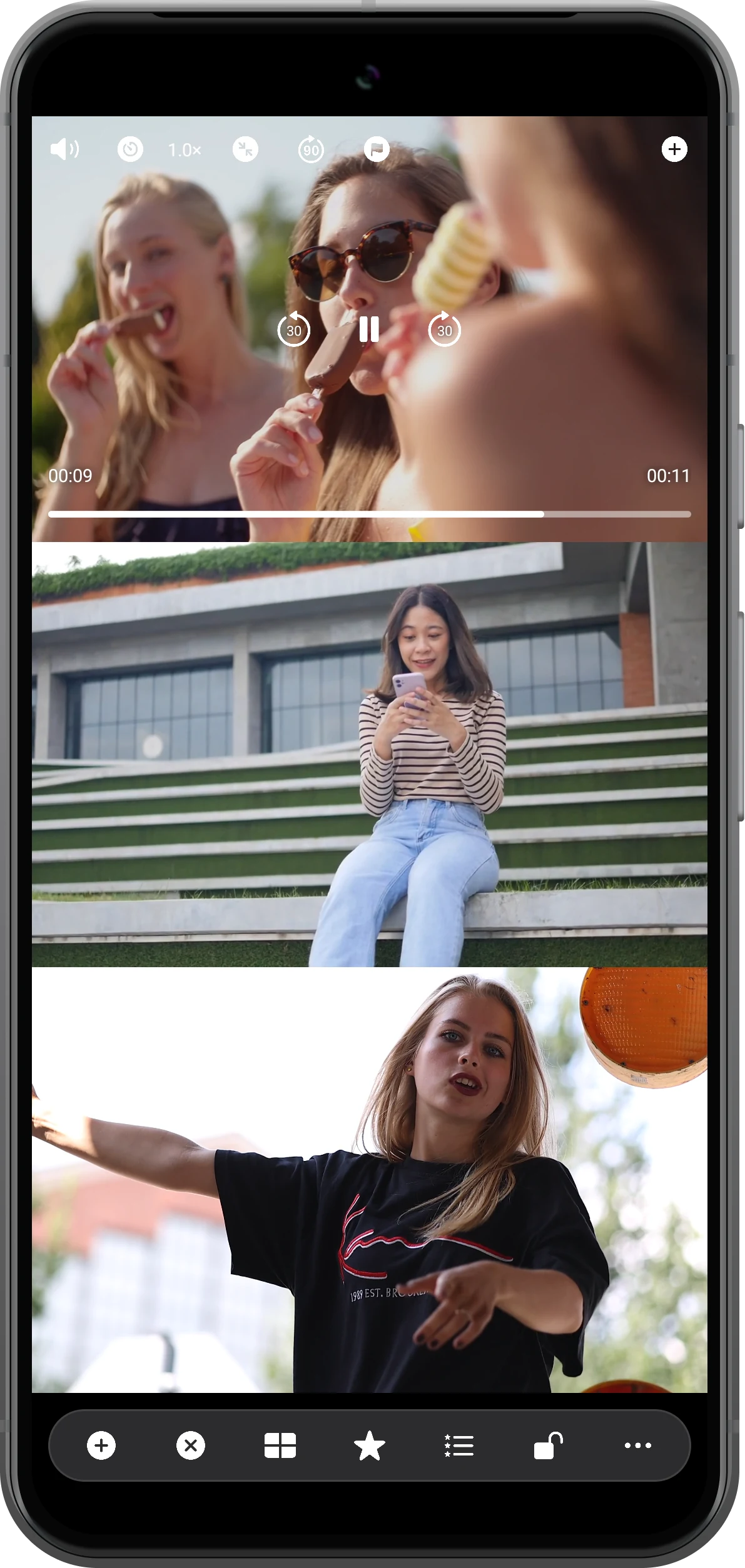
Tap a video to reveal its controls. Use the center button to play or pause it, and drag the timeline to another moment. Other clips can keep playing independently.
Mute the clips you do not want to hear with their speaker buttons. Use the speed button to slow down a movement you are comparing.
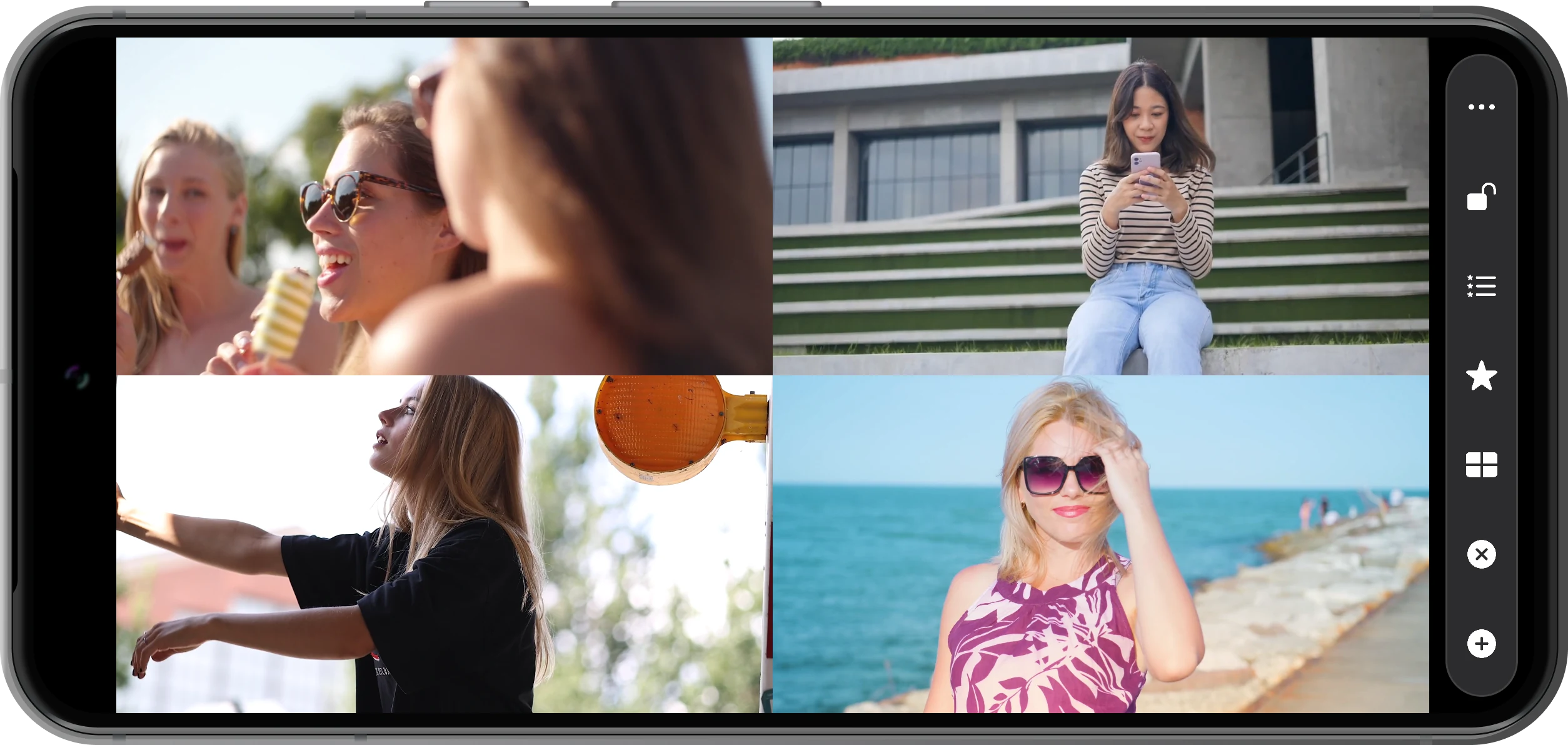
Switch to a landscape 2×2 grid
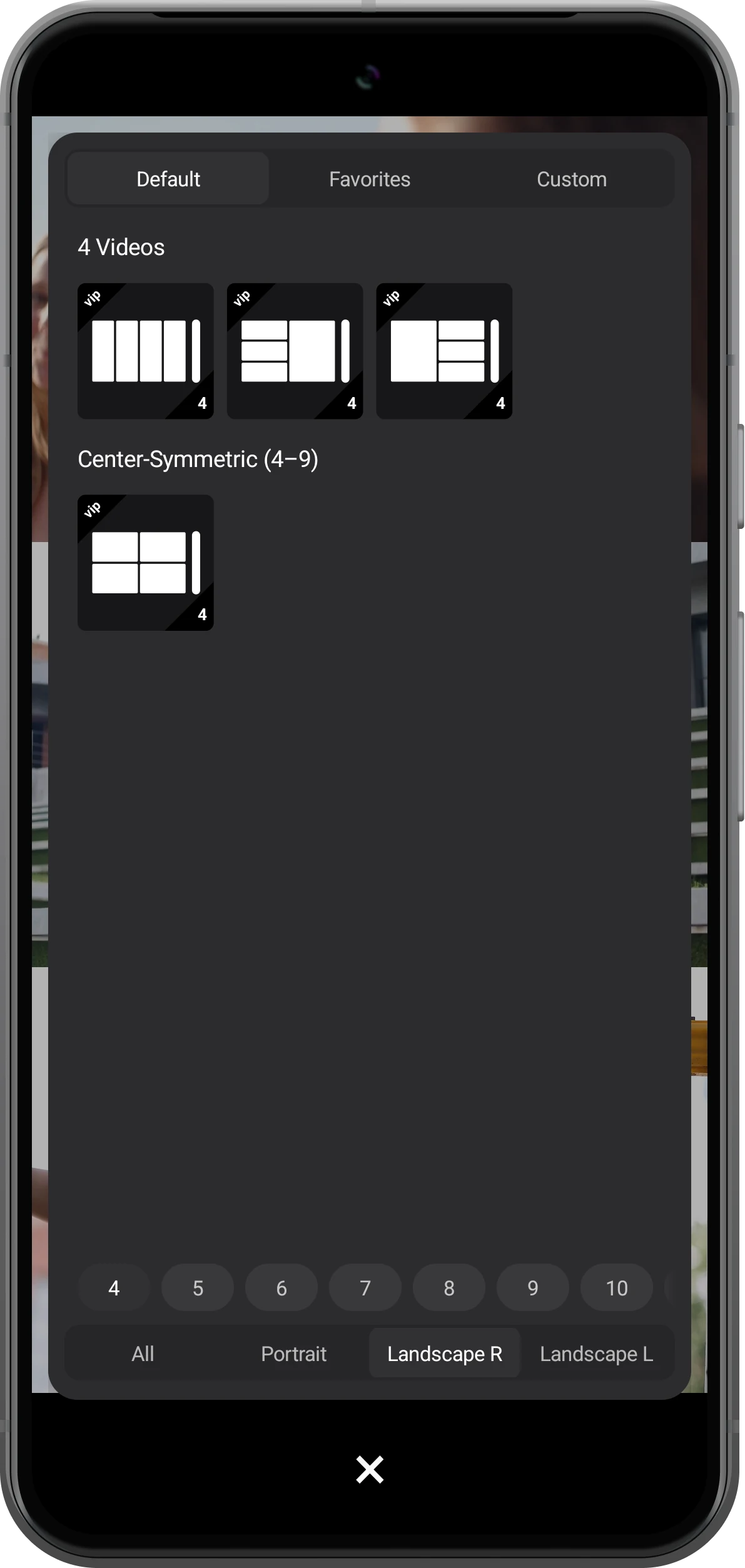
Open the layout picker, select 4 in the number filter, and choose Landscape R. Select the two-by-two thumbnail in the center-symmetry group.
The strip on the right of the thumbnail represents the toolbar. Hold your device horizontally to view the four regions.
Add the fourth clip and save the combination
The first three videos remain available after the layout change. Tap + in the empty region and add a fourth clip.
Tap the star, Bookmark, to save the current videos and layout. Later, open Bookmarks beside it to restore this combination.
More possibilities
Build the split screen that fits your viewing
Keep a reference beside your own recording, review camera angles, or watch a lesson with its supporting material.
144 layouts, with up to 36 videos at once
Choose stacked rows, side-by-side views, a four-video grid, or a denser arrangement. Tablets give each picture more room. Smooth playback depends on the device, codec, and resolution, so add videos gradually.
Give the main picture more space
Open Custom in the layout picker to create your own arrangement. Move regions, resize them, and divide the screen with lines to balance the main video and its references.
How to resize and rearrange split-screen videos on an Android phone or tabletCombine videos, images, PDFs, and web pages
Each region can hold a different kind of content: videos, audio, image collections, PDFs, or web pages. You can also open HLS (M3U8) and RTSP stream links.
How to watch a video while browsing the web on AndroidOpen local MP4, MOV, MKV, and WebM files
Add recordings from your gallery or open files from a folder. Support for a particular file depends on its video and audio codecs, not just its filename extension.
Compare the same moment or share the result
Sync Points help align recordings that began at different times. When you want to share several pictures as one video, use split-screen video export with your local clips.
How to sync videos with different start times on AndroidFrequently asked questions
Can I start with just two videos?
Yes. Choose a two-region layout and add one video to each region. You can keep them stacked or side by side, with separate playback and sound controls.
Does it work on tablets?
Yes. The same app supports phones and tablets. A larger screen is useful for reviewing several angles or reading reference material beside a video.
Do I have to merge the videos first?
No. Split-screen playback keeps the clips separate. A playlist plays clips sequentially in one region; a split-screen layout shows different clips at the same time.
How do I remove black bars?
Choose Fill and Crop in the video scaling settings. It fills each region by cropping the edges when the shapes differ. Use Fit when seeing the whole original frame matters more.
Can it display two separate streaming apps?
This guide covers content opened inside Split Screen Player. It does not embed other apps. Playback from a web page depends on that website and its restrictions.
Is the app free?
The app is free to download, with basic video playback and free layouts. Layouts marked VIP, custom-layout use, bookmarks, and other advanced features require membership.
Now that you can play videos together, try these next
View all guidesSplit Screen Player
Keep the videos you want to watch on one screen
Start with two clips, then try three stacked rows or a four-video grid. Download the version for your device from the App Store or Google Play.

