
Tap the star-shaped Bookmark button and wait for confirmation. Later, open Bookmarks from the bottom toolbar and choose the saved entry to restore it.
Save the current workspace
Arrange your clips and use the star-shaped Bookmark button. Wait for the confirmation that the current layout and panes were bookmarked before leaving the workspace.

Close the visible videos if needed
To check restoration, use Close All and review the confirmation before proceeding. Closing videos clears them from the workspace; it does not delete their source files.
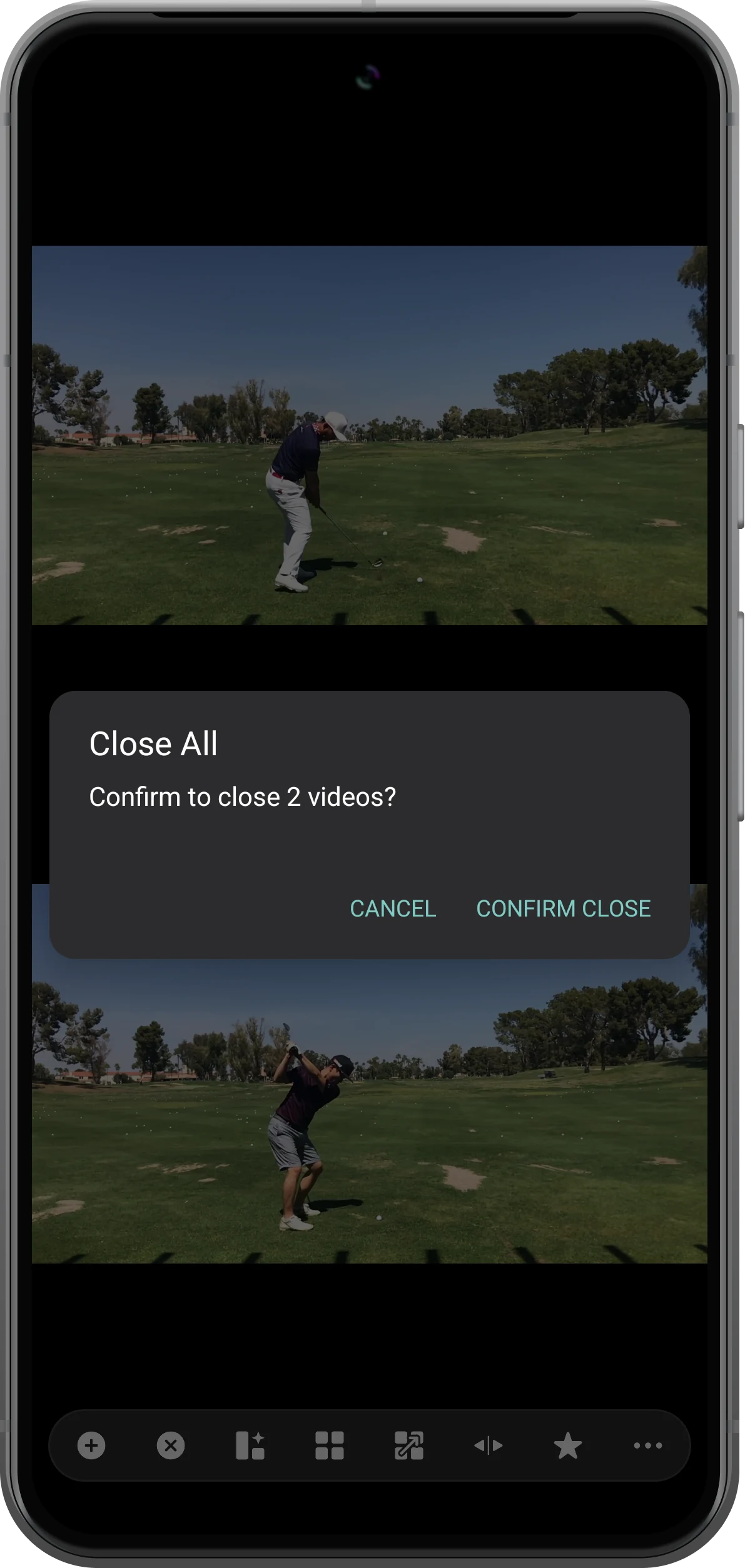
Choose the saved bookmark
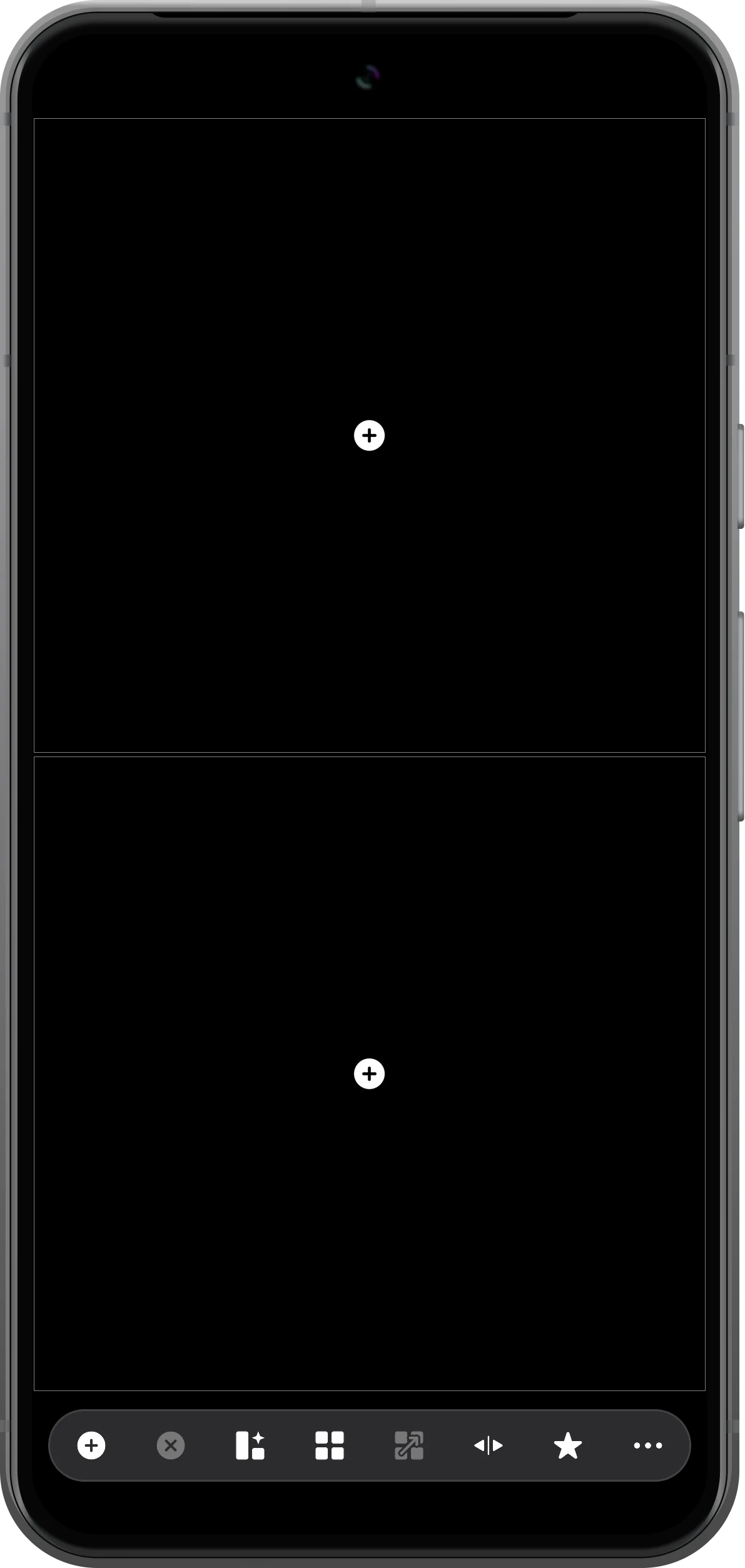
From the empty workspace, open Bookmarks using the list-and-star button in the bottom toolbar. Find the entry by its preview and saved time, then tap it.
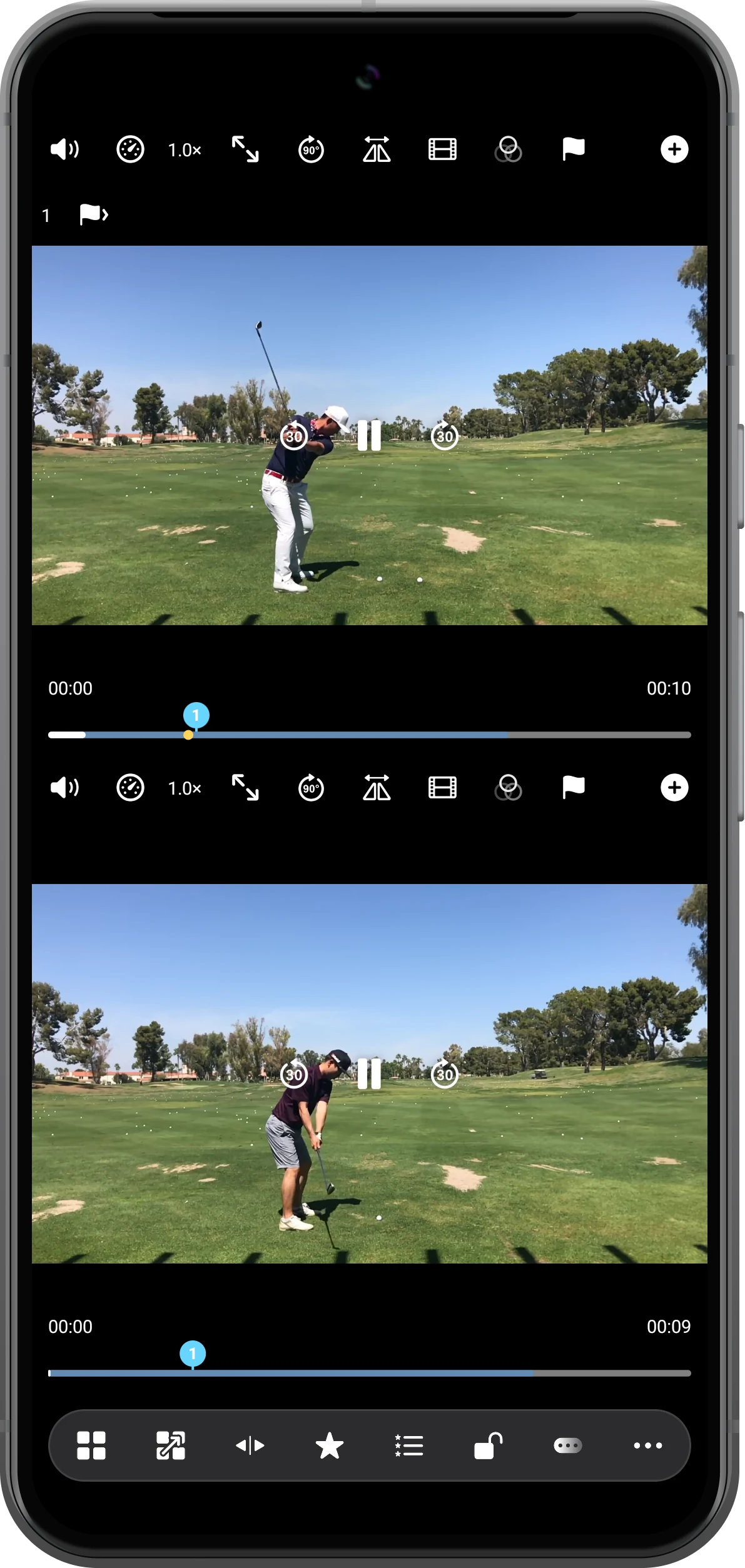
Check the restored arrangement
Wait for the media to load. Confirm the layout, video sources, and any saved review markers. This example restores the two visible golf views with checkpoint and sync markers.
More possibilities
Useful details
Check these details as you follow the steps.
Keep the original files accessible
Moving or deleting a source, or revoking its permission, can prevent restoration. Keep important review media in a stable location.
Use the right kind of saved result
A bookmark reopens an editable workspace. A comparison image is a PNG, while video export renders a playable file.
Frequently asked questions
Does Close All erase my videos?
No. It closes the currently displayed media in the player. The source files remain in their storage location.
Is a bookmark a backup of the source files?
No. Keep separate copies of valuable media. A workspace bookmark should not be treated as a replacement for a file backup.
Split Screen Player
Try this with your own media
Open Split Screen Player and follow the steps with files you want to use.

