
Open Gallery from the toolbar. In Content, use Add to choose local videos. Select a composition in Template, customize the frames in Style, then use the star button to save a bookmark.
Choose videos for the gallery
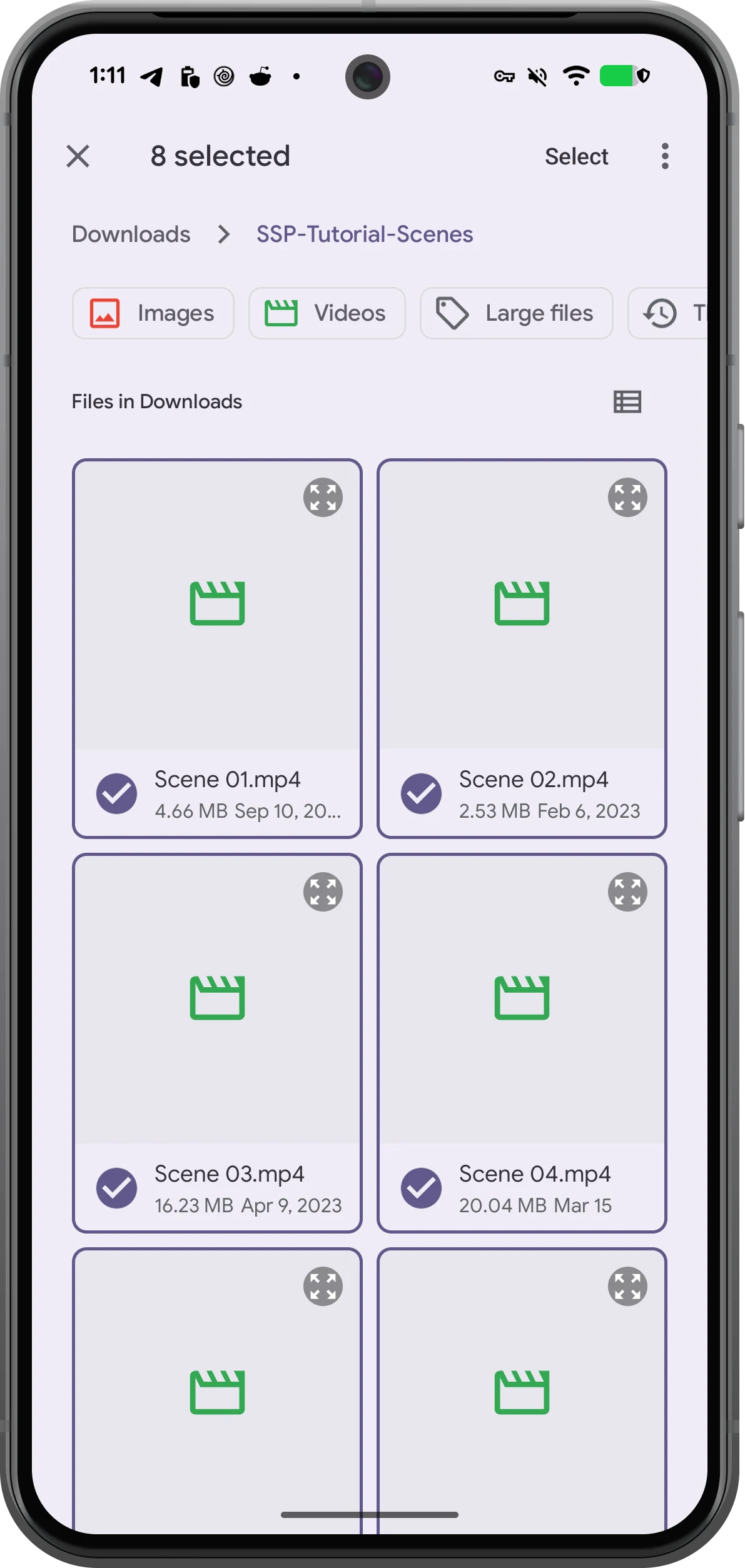
Tap Gallery to open the editor. Existing videos can become the first frames. In Content, choose Add → File, select your clips and confirm. To remove a frame you do not want, select it in the preview and choose Remove frame in Content.
Choose a composition
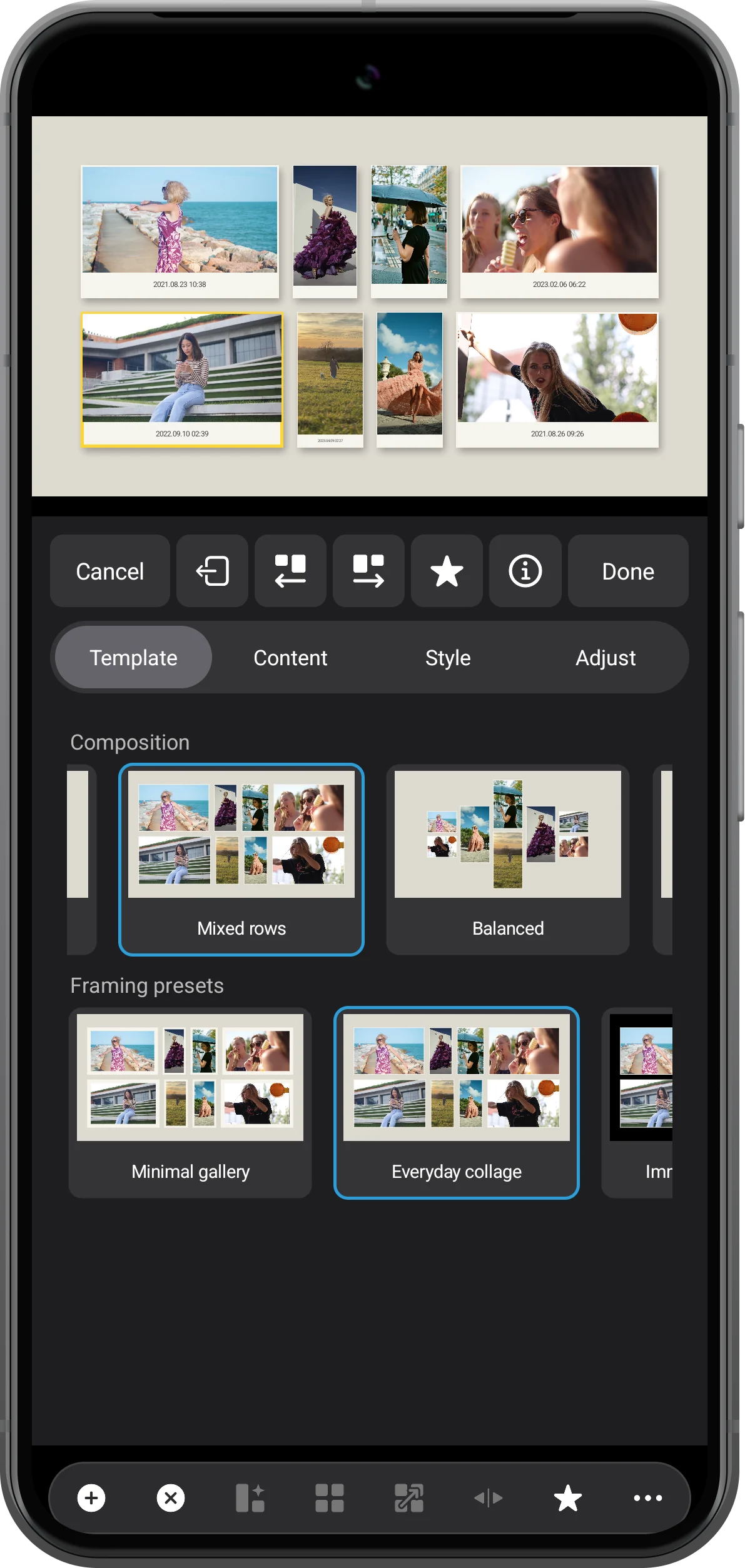
Open Template and select Mixed rows under Composition. Try the previous-layout and next-layout arrows to explore arrangements. Choose a framing preset as a starting point; the example uses a mixture of wide and tall clips.
Customize frames and background
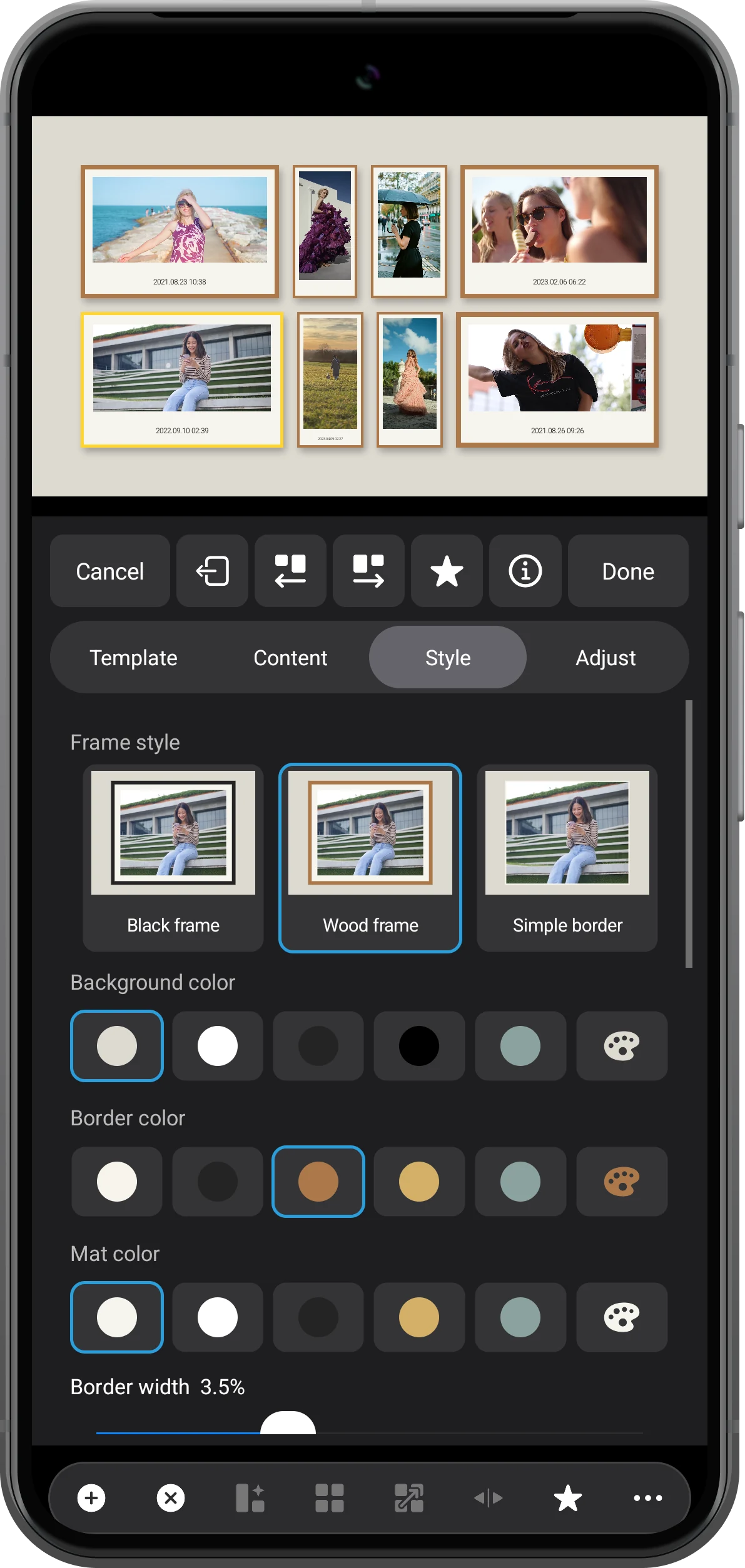
Open Style and choose Wood frame. Adjust Background color, Border color and Mat color to suit your clips. The style controls change the gallery appearance. To change just one frame’s dimensions or position, select it in the preview and open Adjust.
Save the gallery and reopen it later
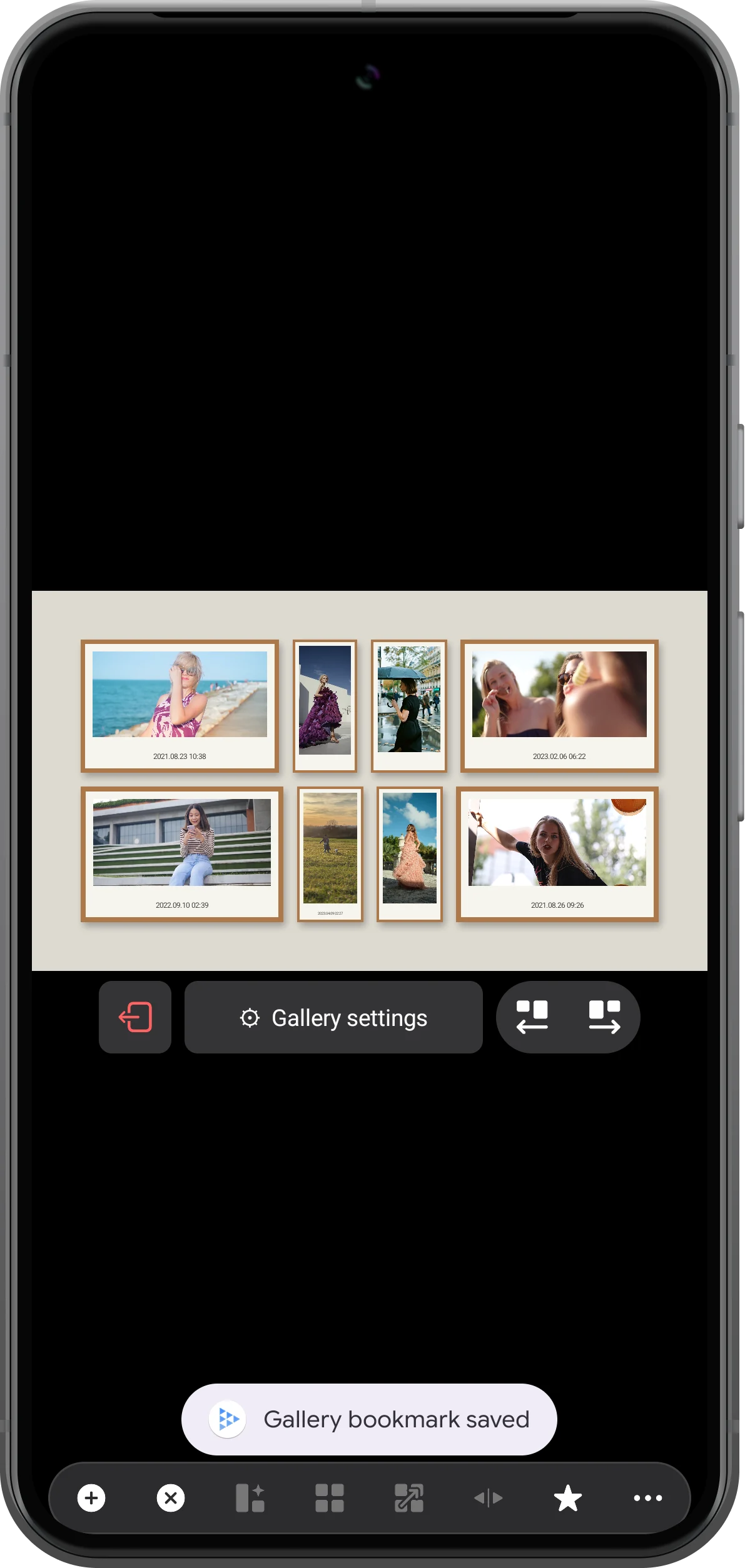
Use the star button in the editor to save the gallery as a bookmark. After the saved confirmation, you can exit the gallery and open that entry from the toolbar’s bookmark list. Keep the source files available. The example was checked by saving, exiting, and restoring the wall.
More possibilities
Useful details
Check these details as you follow the steps.
A landscape canvas on a portrait phone
The gallery uses a wide canvas. In a portrait workspace it appears with space above and below; those margins do not indicate missing media. Check the complete composition before changing individual frames.
Control the sound separately
Content contains audio controls. Select Mute all for a silent wall, or choose the selected frame’s audio when one clip should provide the soundtrack. Several clips in this example have no audio track.
Frequently asked questions
Does the gallery save a finished video file?
No. A gallery bookmark stores a scene you can reopen in the player. It is different from exporting a combined video file.
Can the gallery include photos as well as videos?
Yes, photo frames are available with Premium. Use the photo source in Content → Add. For several photos inside one frame, follow the separate photo-slideshow tutorial so grouping and playback order are configured deliberately.
Split Screen Player
Try this with your own media
Open Split Screen Player and follow the steps with files you want to use.

