
Add Save Current Split Screen to the bottom toolbar, arrange and pause your videos, then tap the button. Choose a destination in Android’s share sheet and open the saved image.
Add the image-saving button
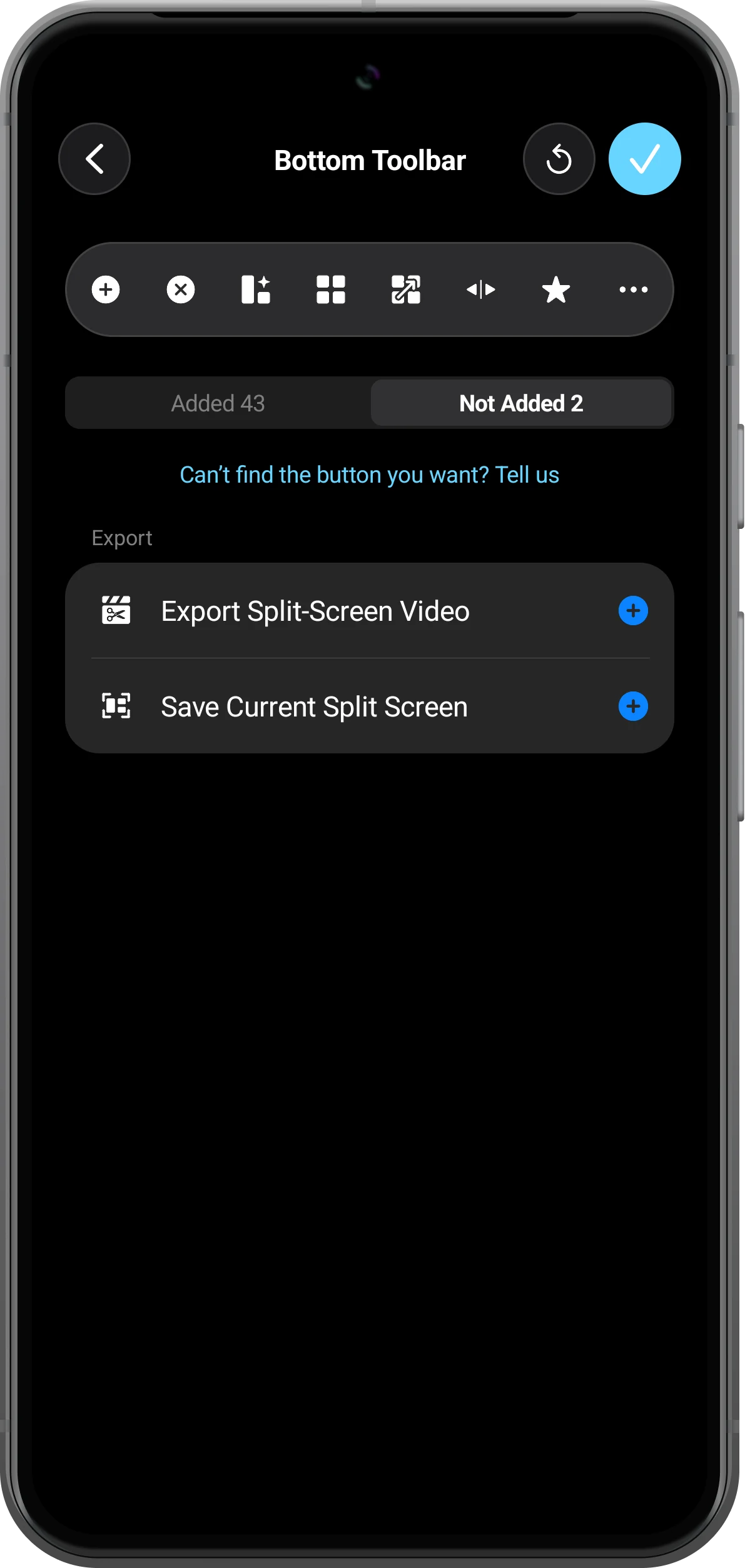
Open More → Customize Home Bottom Toolbar. Find Save Current Split Screen in the available actions and add it, then return to the workspace.
Prepare the comparison
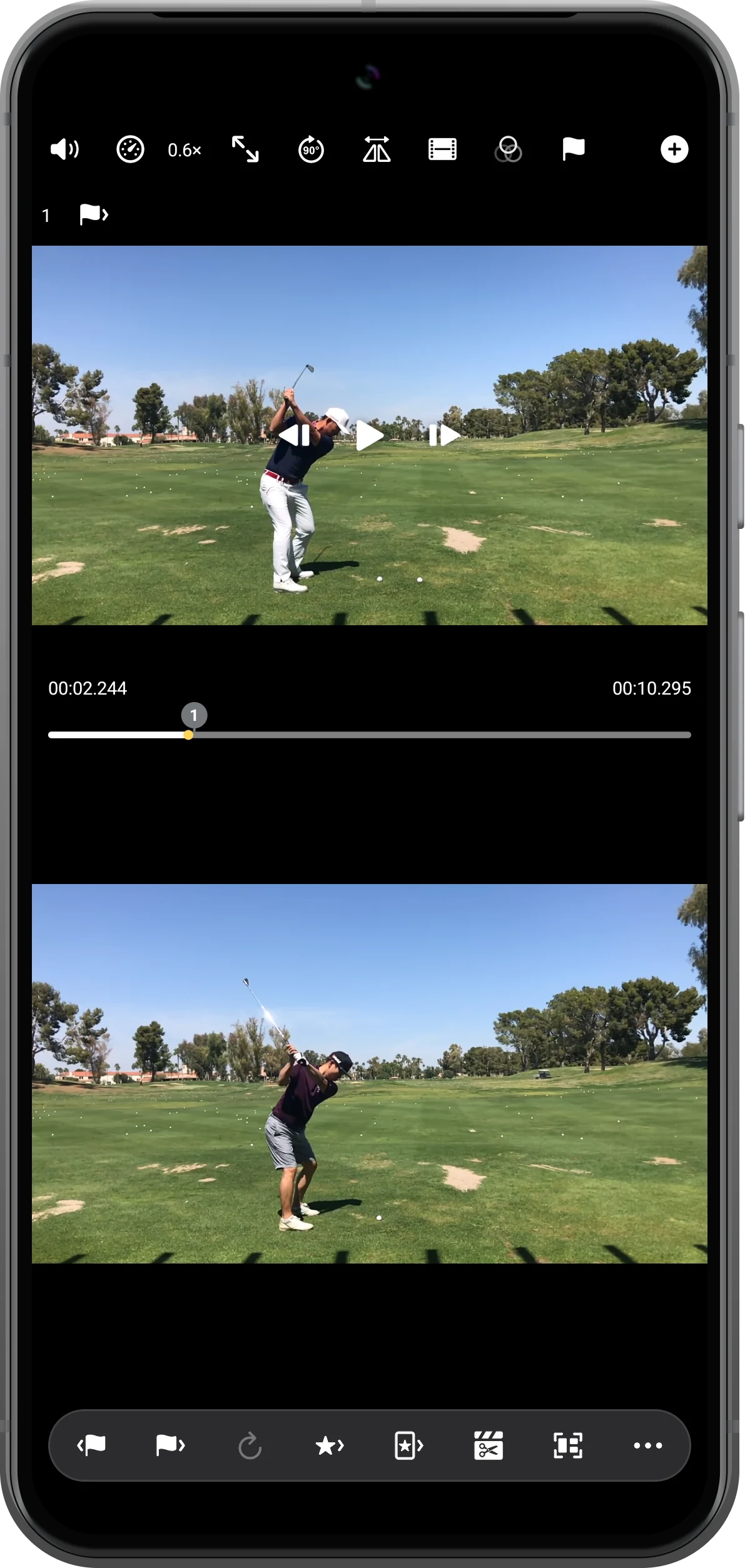
Load both clips, choose the layout, and pause at the moments you want to compare. Check cropping and orientation before saving; the resulting picture follows the current split-screen composition.
Save through the share sheet
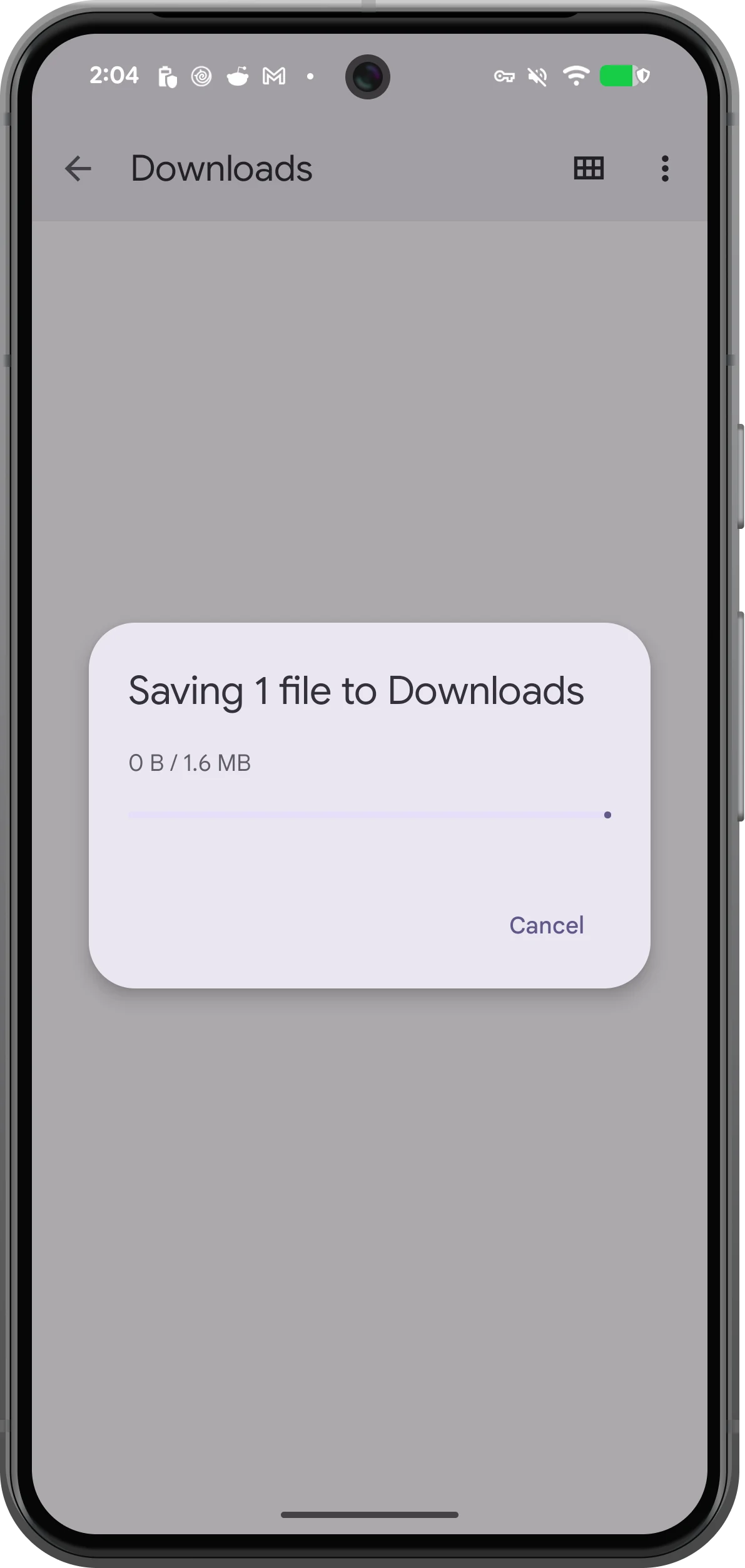
Tap Save Current Split Screen. Choose a suitable save or sharing app. Here, Files by Google saves the image to Download; the options shown depend on the apps installed on your phone.
Open and inspect the PNG
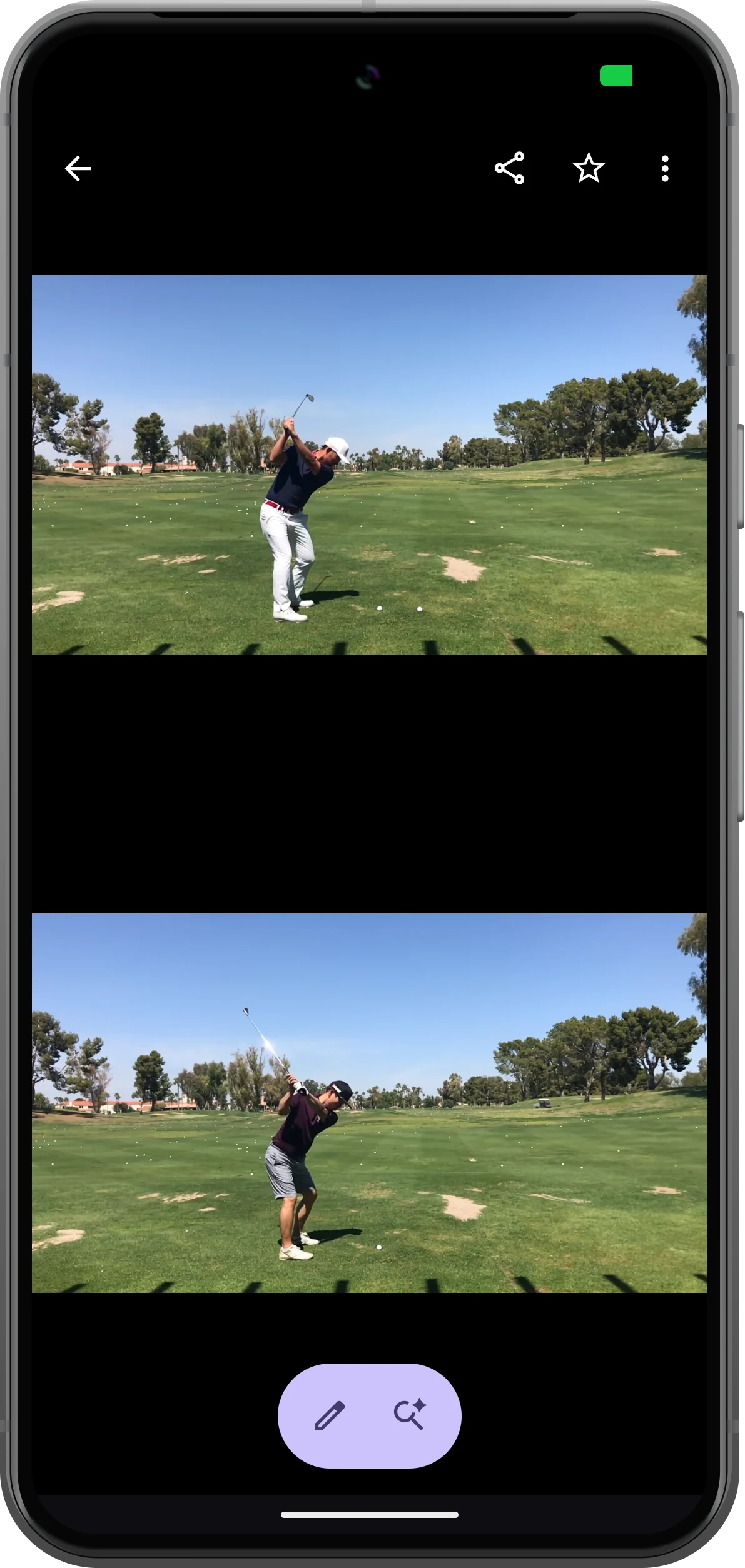
Open the saved file from its destination. Check that both video frames appear and that player buttons are absent. Keep this PNG for a lesson, review note, or message.
More possibilities
Useful details
Check these details as you follow the steps.
Pause before capturing
Pausing makes it easier to choose a specific pose in each video. Use frame controls or checkpoints when a small timing difference matters.
Save a workspace separately
The image is a finished still. If you want to change the clips or continue playback later, also save a workspace bookmark.
Frequently asked questions
Does this button create a video?
No. It creates a static comparison image. Use Export Split-Screen Video when you need a file that plays.
Why is my save destination different?
Android’s share sheet depends on installed apps. Choose an available destination, then verify that the image was actually saved there.
Split Screen Player
Try this with your own media
Open Split Screen Player and follow the steps with files you want to use.

