
Open Export Split-Screen Video from the toolbar. Check the range and clip framing, select output settings, tap Start Export, and save the completed result to Gallery or Files.
Check the start and duration
Open the exporter after arranging your videos. Review the Start position and Duration even when Full is selected, because the current playback position can affect the available range.
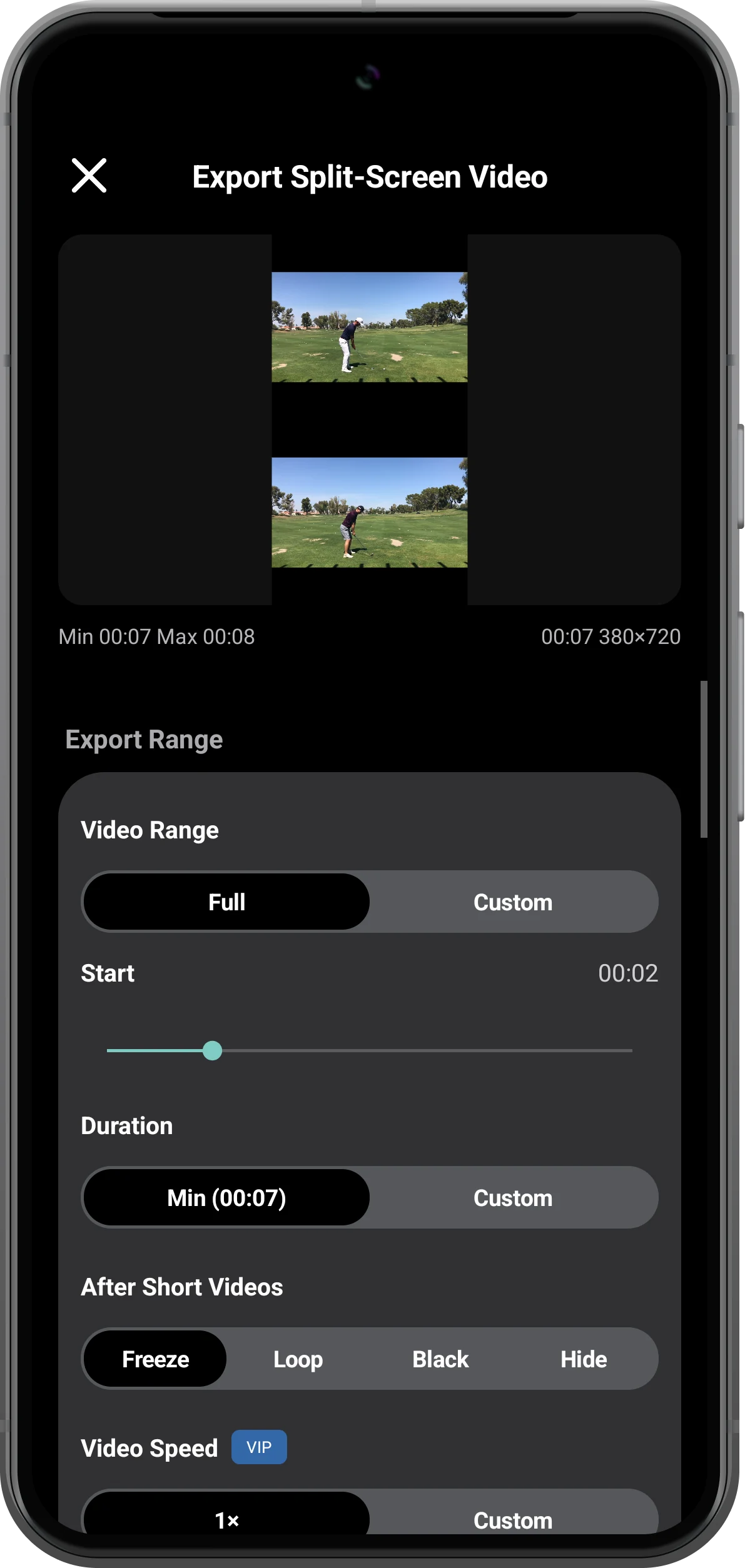
Inspect each clip’s framing
In the framing controls, choose Fit to retain the full image or Fill to crop to the region. Use Adjust Crop if needed, and choose what happens after a shorter clip ends.
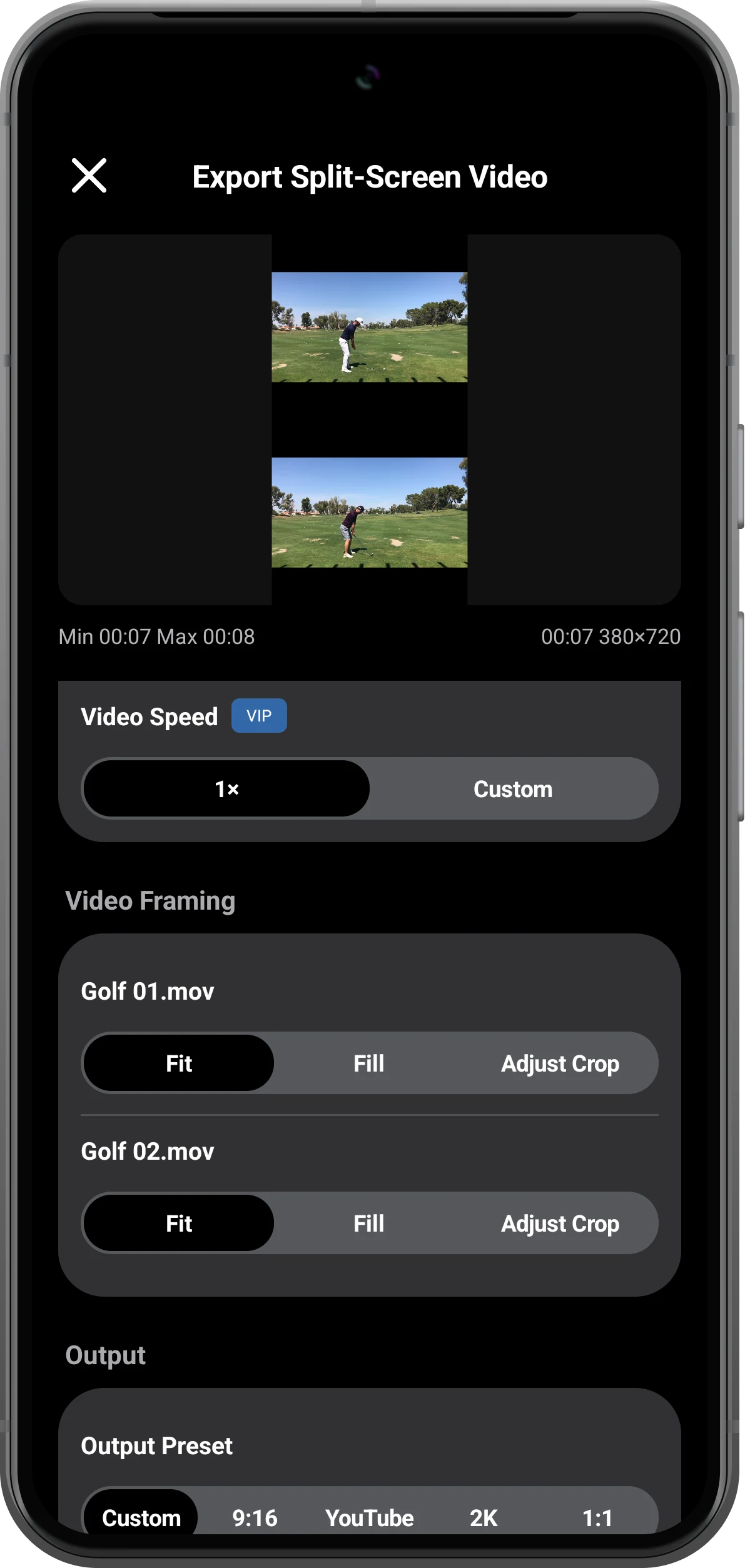
Choose output and audio settings
Use Current Layout to retain the arrangement. This example selects 720p, 30 fps, the recommended bitrate, and All Unmuted Videos. Check the audio warning: these golf files contain no sound.
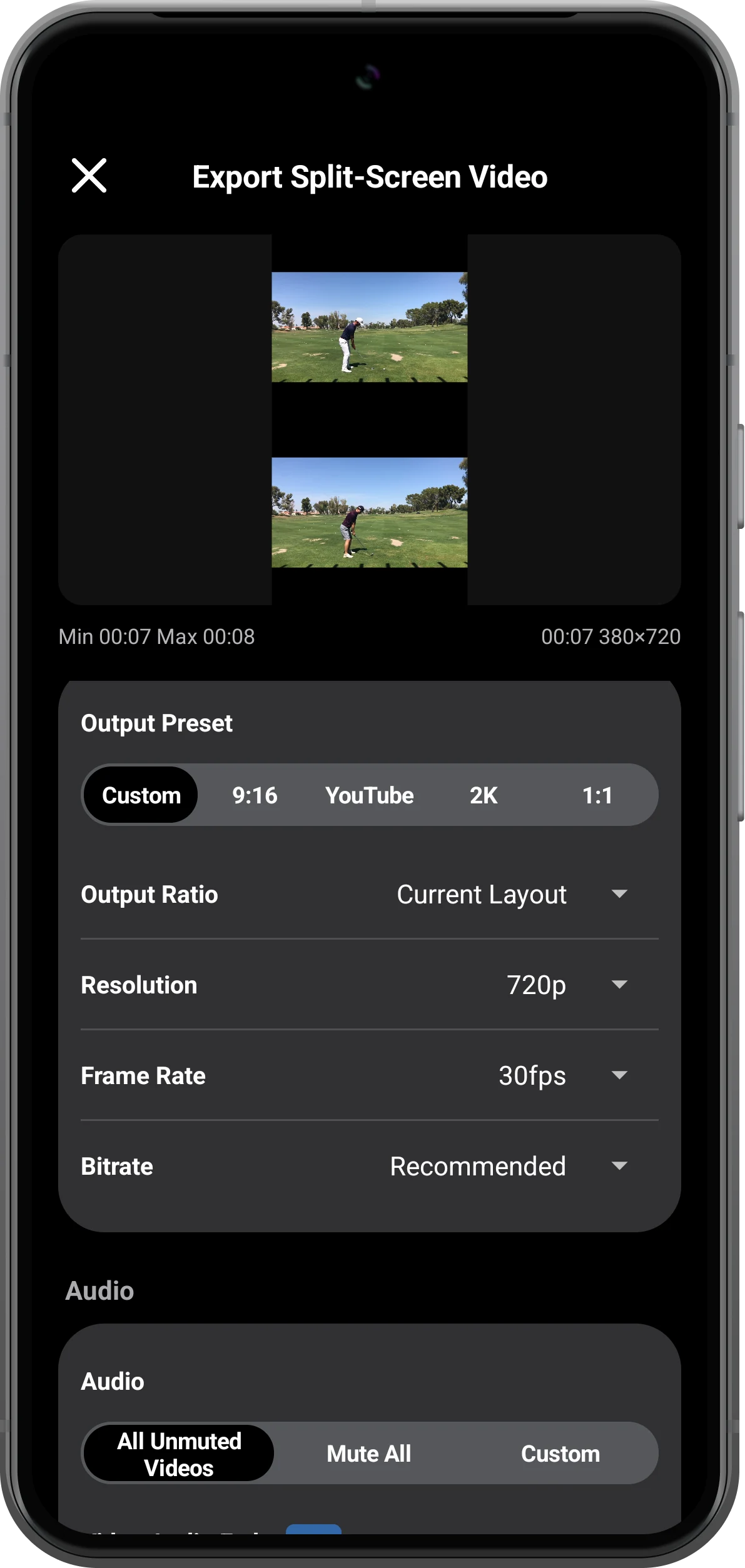
Export, preview, and save
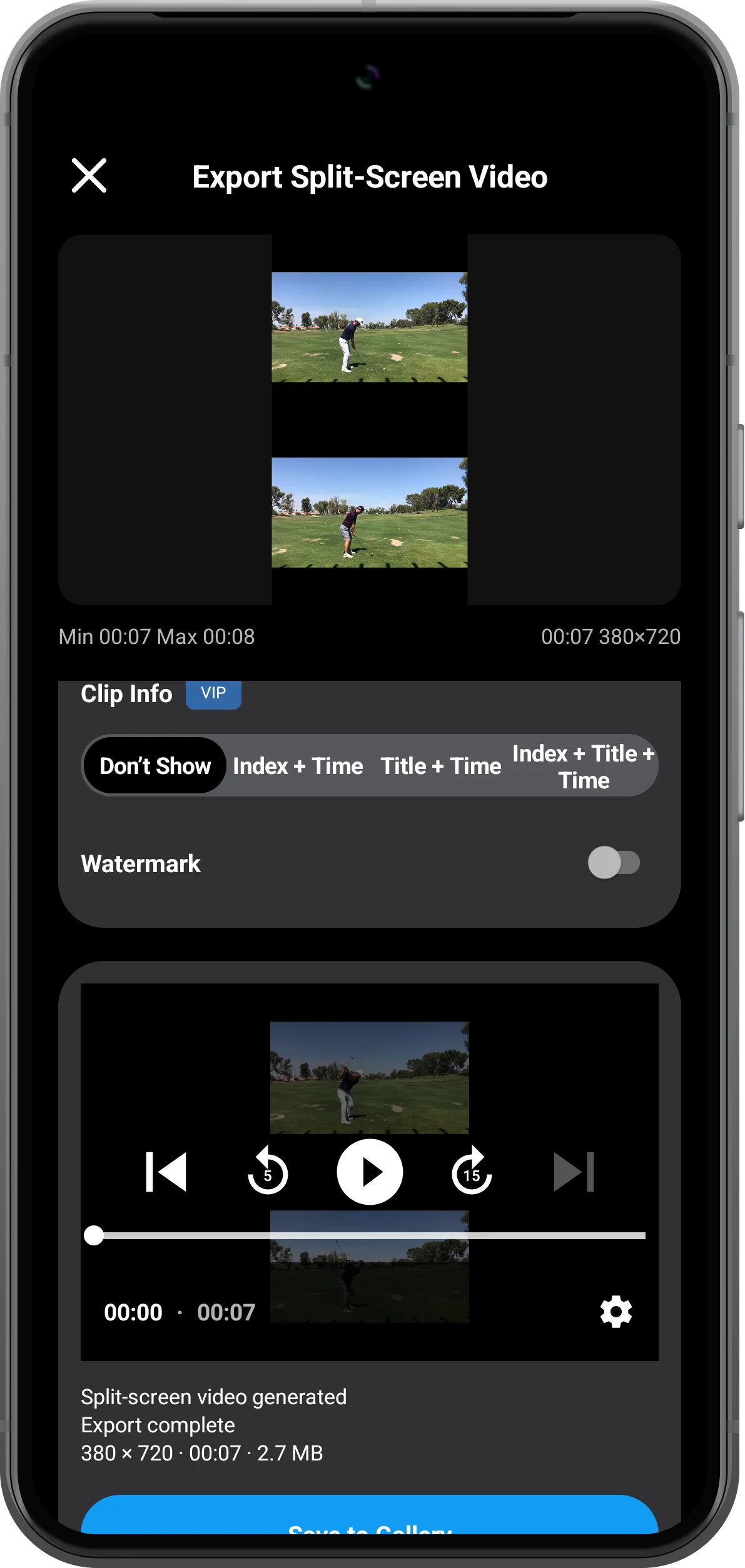
Tap Start Export, review the confirmation, and wait for Export complete. Preview the result, then choose Save to Gallery or another destination. Open the saved file to verify both panes and the duration.
More possibilities
Useful details
Check these details as you follow the steps.
Resolution follows the canvas shape
The example produced a 380 × 720 video because the split-screen canvas is tall. A 720p selection does not force every layout into a 16:9 frame.
Silent sources produce silent output
All Unmuted Videos can only use audio that exists in the sources. Muting and audio selection cannot create a soundtrack for silent clips.
Frequently asked questions
Is saving the workspace the same as exporting?
No. A bookmark restores the editable arrangement. Export renders a new video file that other players can open.
Do all export settings require Premium?
No. The basic output path is separate from advanced options. The app marks restricted settings; check them before choosing higher resolution, frame rate, or custom audio.
Split Screen Player
Try this with your own media
Open Split Screen Player and follow the steps with files you want to use.

