
In Split Screen Player on Android, load one video into each of two regions, then open Overlay Comparison. Select the upper video, set its opacity to about 50%, adjust its scale and position, and seek each clip to the same phase of the movement.
Add Overlay Comparison to the toolbar
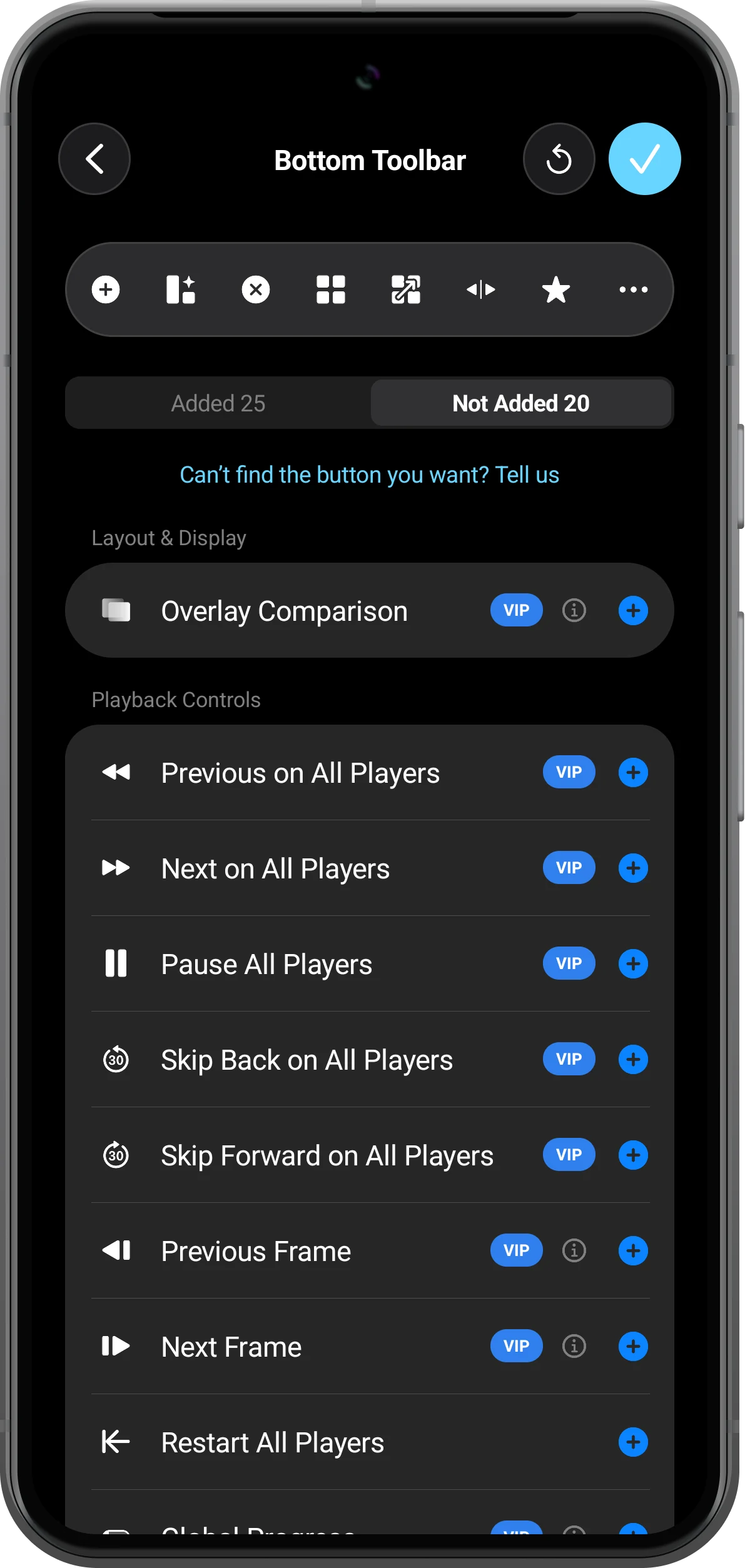
Open More (…) to enter Settings, then choose Customize Home Bottom Toolbar. Under Not Added, find Overlay Comparison, tap its plus button, and finish with the checkmark at the top right.
If it is already under Added, return to the player. Scroll the toolbar to find it when you have many buttons.
Open one golf video in each region
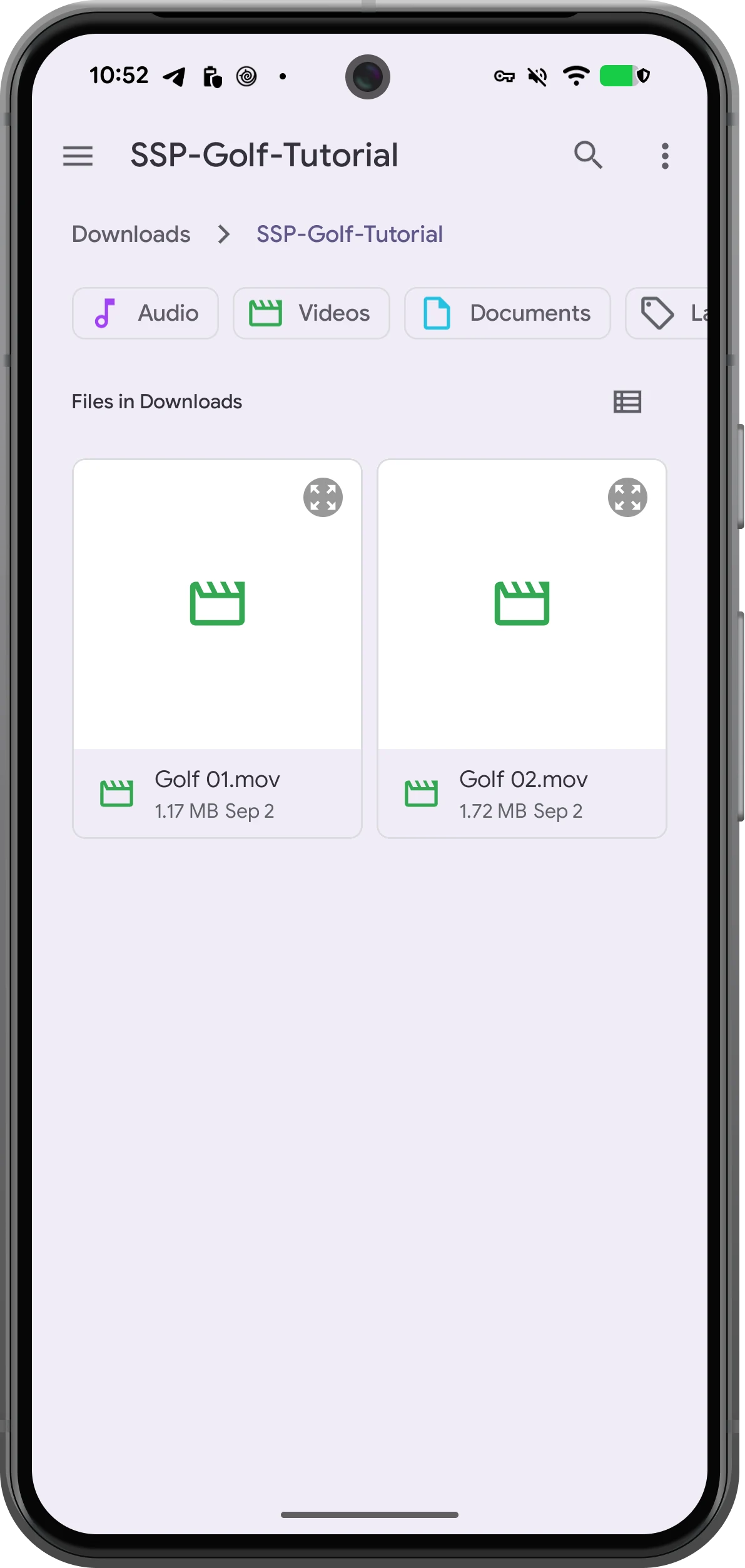
Choose a layout with two regions using Choose Layout. Tap the plus in the first region, choose File, and open the first clip. Repeat in the second region with the other clip.
The example keeps Golf 01.mov and Golf 02.mov in one folder so they are easy to select individually. Album videos is another option for clips in your photo library.
Overlay the videos at 50% opacity
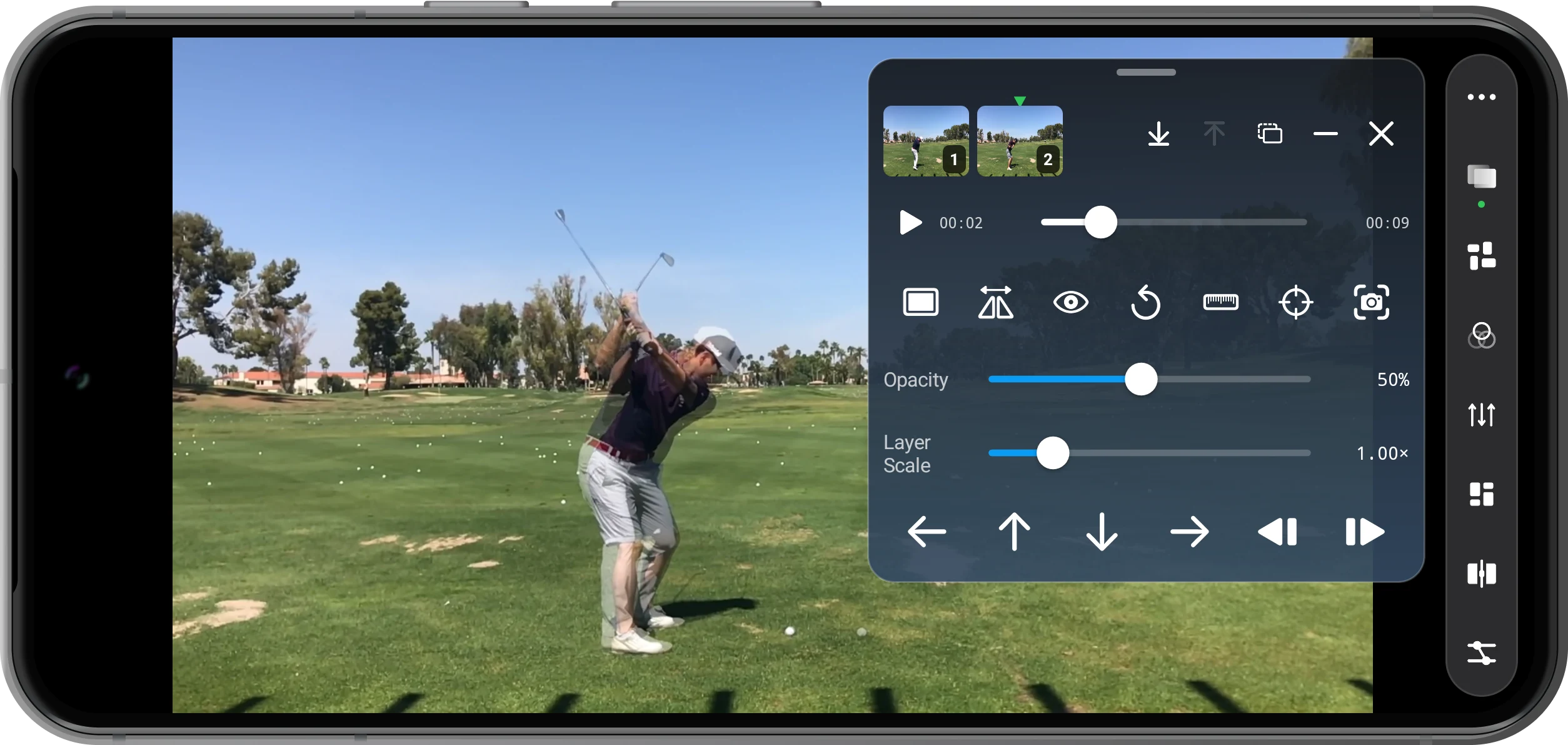
For landscape footage, choose a landscape layout first, then tap Overlay Comparison in the toolbar. The two thumbnails at the top of the panel represent your clips. Select the upper layer and set Opacity to about 50%.
Lower opacity reveals more of the clip underneath; higher opacity emphasizes the selected layer. Keep the base layer opaque. Drag the panel by its top handle to keep it away from the golfer.
Match the framing and position
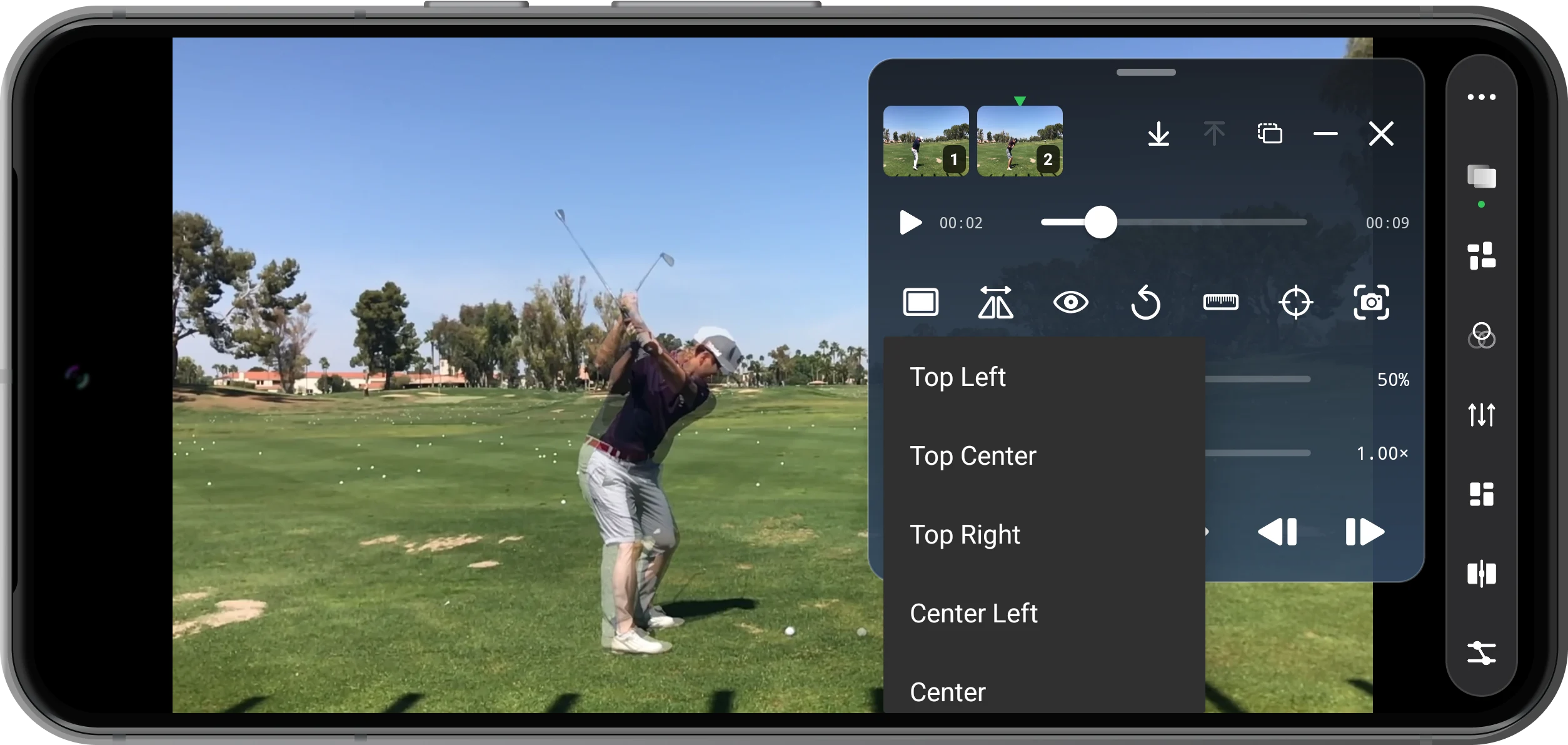
Select the layer you want to adjust. Start with Center under Alignment, then use Layer Scale and the nudge arrows to match the subject size, feet, or another fixed reference.
These clips have similar framing, so 1.00× is a useful starting point. Use the mirror control if one source is reversed. Scale, position, and mirroring help visual alignment but cannot remove perspective differences between camera positions.
Match the action, not just the timestamps
Select each clip in turn, pause it, and seek to the same phase of the movement—for example, the top of the backswing. Fine-tune with the previous- and next-frame buttons. Different recording start times mean the matching moment may have different timestamps.
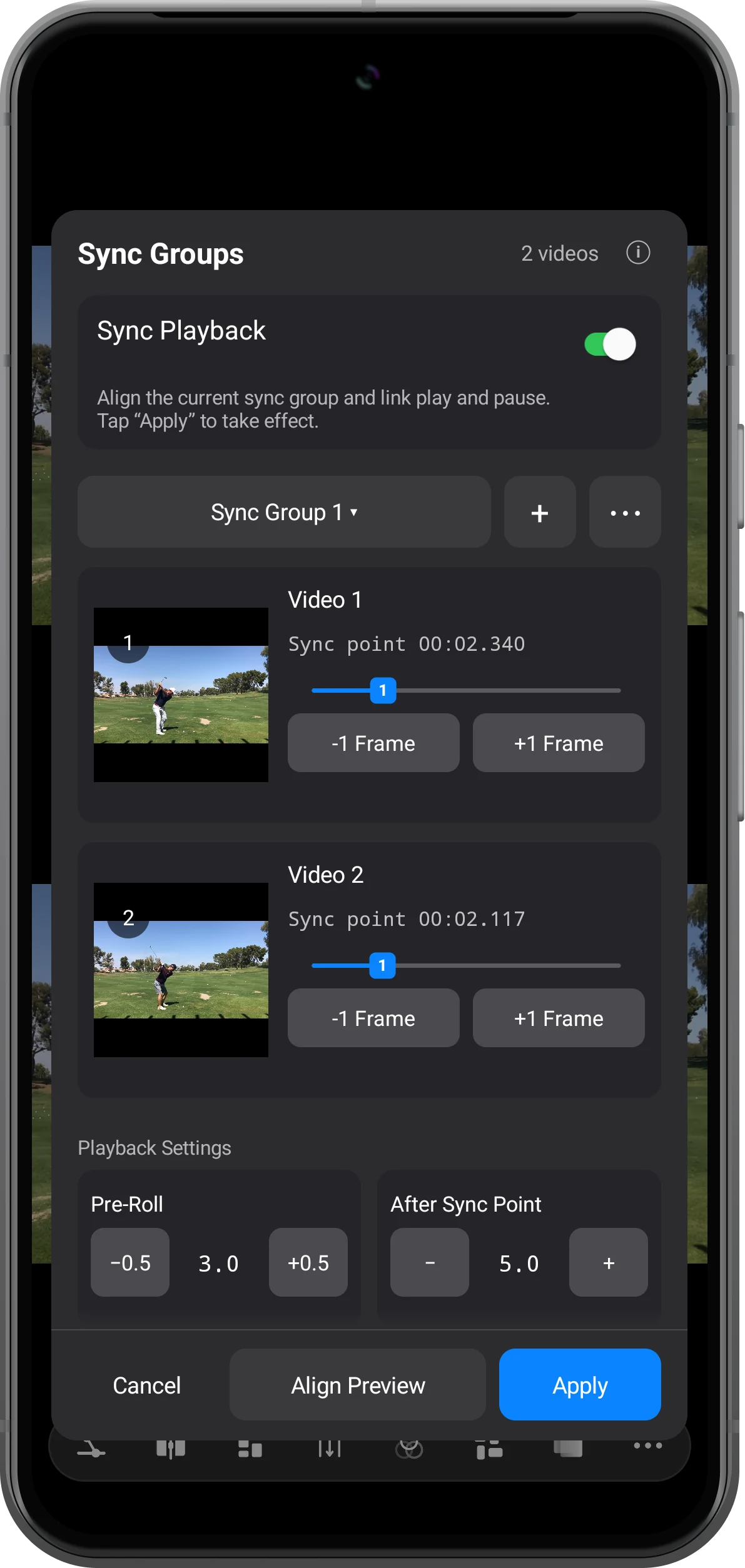
To play the clips together, open Time Sync in the panel, set a corresponding Sync point for each video, enable Sync Playback, and tap Apply. The times shown are examples for these clips, not values to copy for every video.
Minimize the panel and inspect the comparison
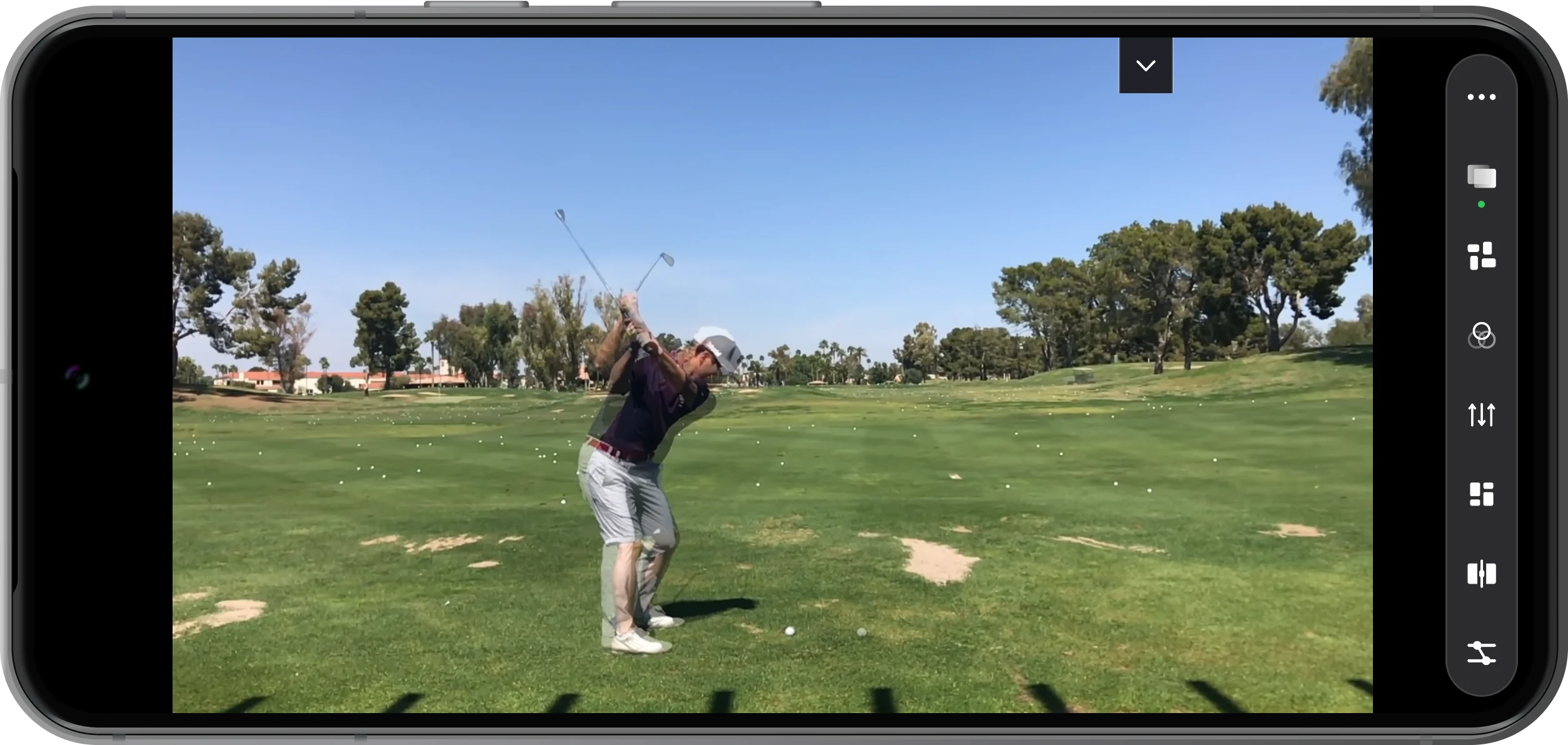
Tap the minus button to minimize the controls and inspect differences in body angle, arm position, and club position. Tap the collapsed floating control to reopen the panel whenever you need to adjust a layer.
Select a layer again and use layer visibility or A/B Blink to help distinguish the clips. Exit Overlay Comparison when you want to return to the split-screen view.
More possibilities
Make your overlay comparison easier to read
An overlay is only the starting point. Camera angle, reference points, and timing all affect what the comparison tells you.
Keep the camera position consistent
When comparing practice sessions, keep camera height, distance, and direction consistent. Align the feet or a fixed background reference before comparing the body and club; a camera-position change can look like a technique change.
Inspect one phase at a time
Compare the setup, then the top of the backswing or frames around impact. Swings with different tempos may not remain aligned throughout the clip, so seek again for the phase you want to study.
Use split screen to review the whole motion
A transparent overlay helps reveal positional differences. Returning to side-by-side playback makes each complete movement easier to follow. Use both views in the same review session.
See how to play two videos togetherFrequently asked questions
Is this picture-in-picture or a video overlay?
This uses transparent layers on a shared canvas, so you can see through the upper video to the one underneath. Picture-in-picture usually places a smaller, opaque video window over another video.
Does Overlay Comparison require Premium?
Yes. Overlay Comparison is marked VIP in the toolbar settings and requires an active Premium entitlement. Check the app’s Premium screen for the current options.
Will the app automatically align the two golf swings?
This workflow uses manual alignment: you choose corresponding moments and adjust sync points, scale, and position. Making a layer transparent does not automatically recognize a swing phase or correct camera perspective.
Why can I only see one video?
Make sure both regions contain a video and the upper layer is selected. At 100% opacity it can cover the lower video; at 0%, or when hidden, the upper video is invisible. Restore its visibility and start at about 50%.
Does this change my source videos or create a merged video file?
These controls change the display and playback positions in the player without overwriting your source clips. Completing an overlay preview does not itself create a new merged video file; this guide covers comparison and review.
Split Screen Player
Start with two clips from similar viewpoints
Load your clips, open Overlay Comparison, start at 50% opacity, and align the framing and movement one step at a time.

