
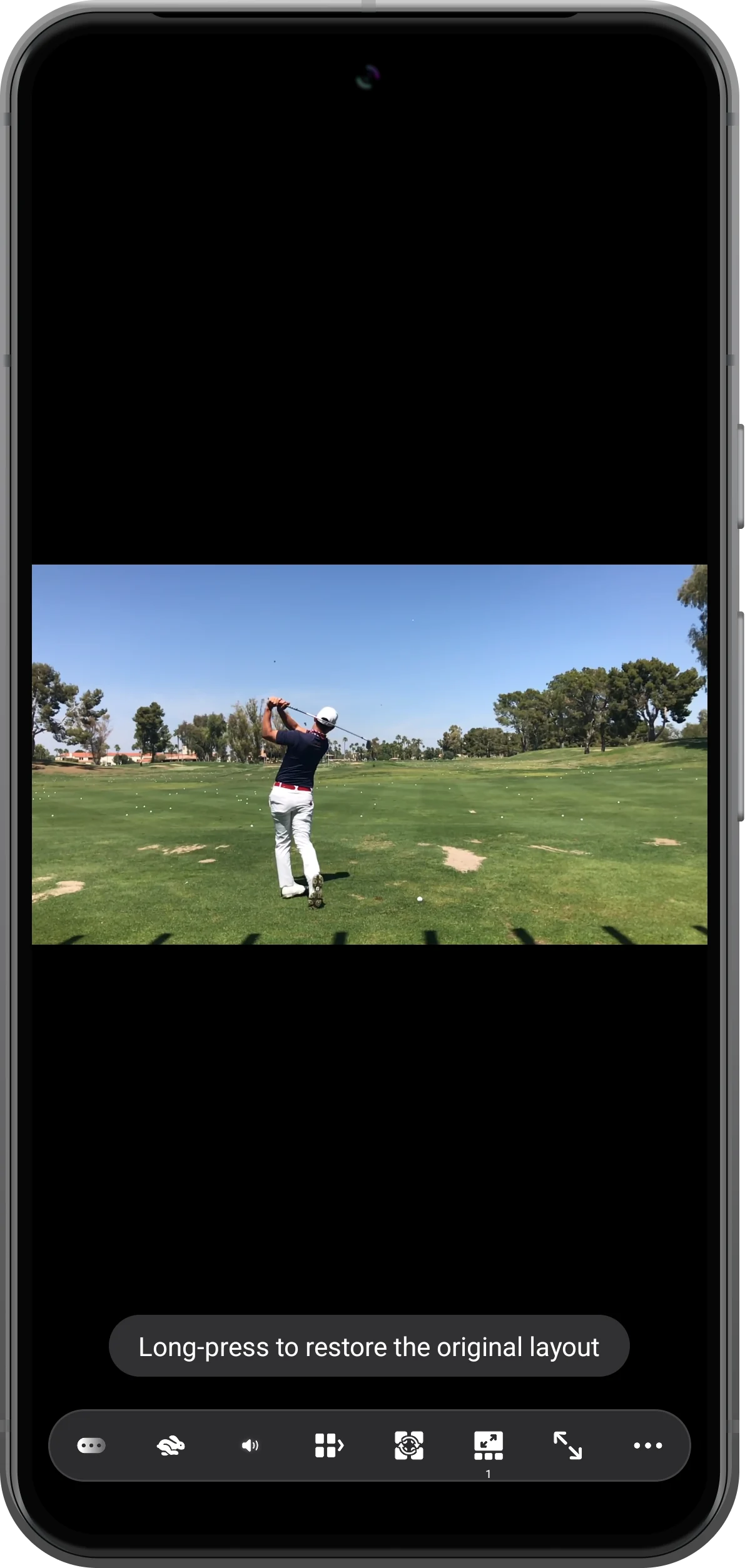
Use Cycle Maximized Pane in the bottom toolbar to enlarge each occupied pane in turn. Long-press the same button to restore the original layout.
Start with the full workspace
Check that both clips are loaded in your chosen layout. The maximize control acts on the occupied panes of this workspace.

Enlarge the first pane
Tap Cycle Maximized Pane, shown with outward arrows inside a frame. The first occupied pane expands, and the toolbar shows its index.
Move to the next enlarged pane
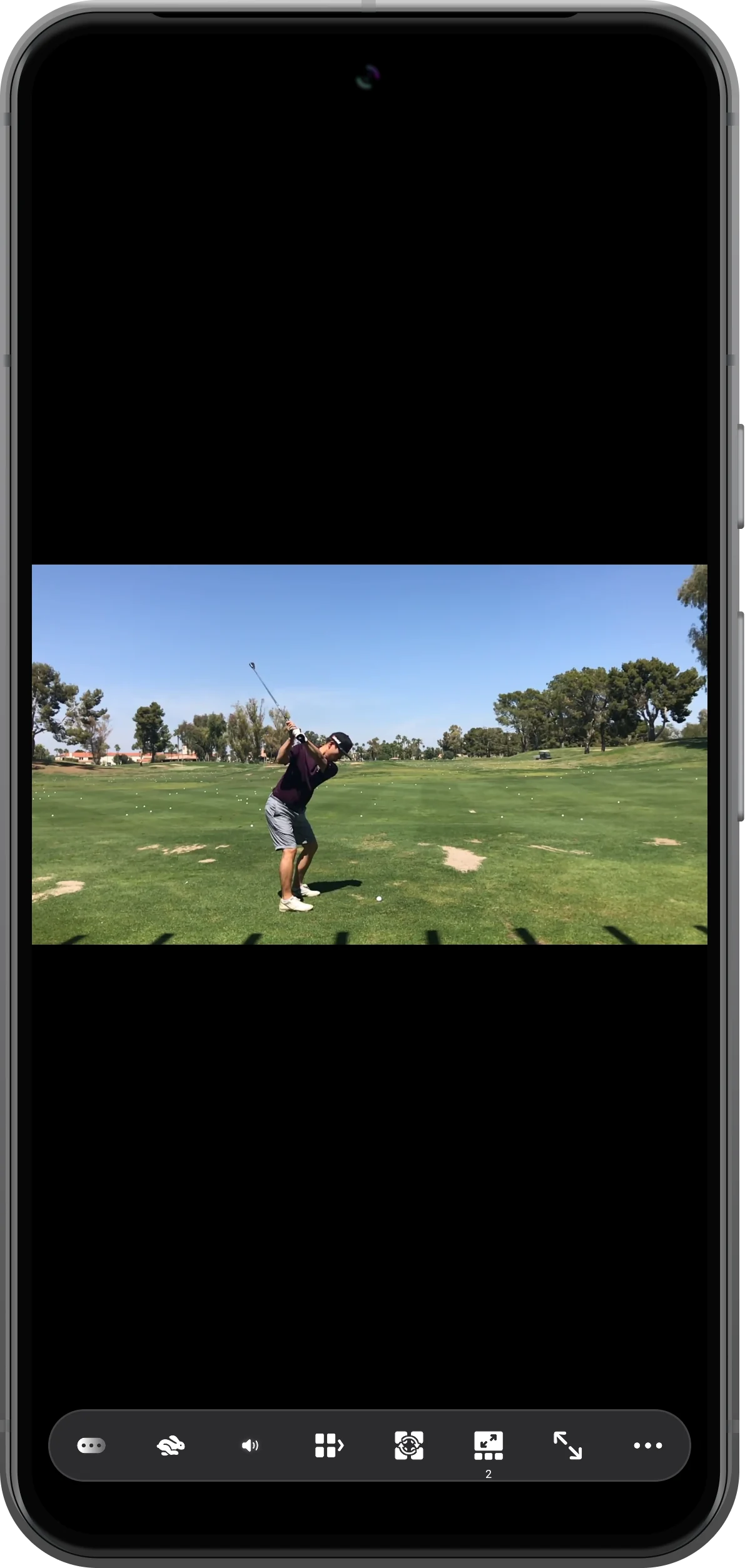
Tap the same button again to inspect the next occupied pane at full size. In this two-video example, the toolbar index changes to 2.
Restore the split-screen layout
Long-press the same maximize button. Both videos return to their original regions. You can continue the comparison with the layout intact.

More possibilities
Useful details
Check these details as you follow the steps.
Use it for a closer inspection
Maximizing helps reveal small details that are hard to see in a dense layout. It changes the viewing area, not the source resolution.
Save important arrangements separately
Use a workspace bookmark when you want to reopen the same sources and layout later. Maximizing is a viewing control, not a bookmark action.
Frequently asked questions
Do I need to load the videos again?
No. Returning from maximization restores the existing arrangement; you do not need to reopen each source.
Is this the same as Fill?
No. Fill crops a video within its region. Maximizing temporarily expands the region to use the workspace.
Split Screen Player
Try this with your own media
Open Split Screen Player and follow the steps with files you want to use.

