
Enable Playlist in a pane’s Open menu and select multiple album videos. Repeat in another pane, then use Next on All Players or Previous on All Players from the bottom toolbar.
Enable a playlist in one pane
Tap the pane’s plus button and turn on Playlist in Open. Choose Album videos. The selection will become a sequence inside that pane instead of one clip per region.
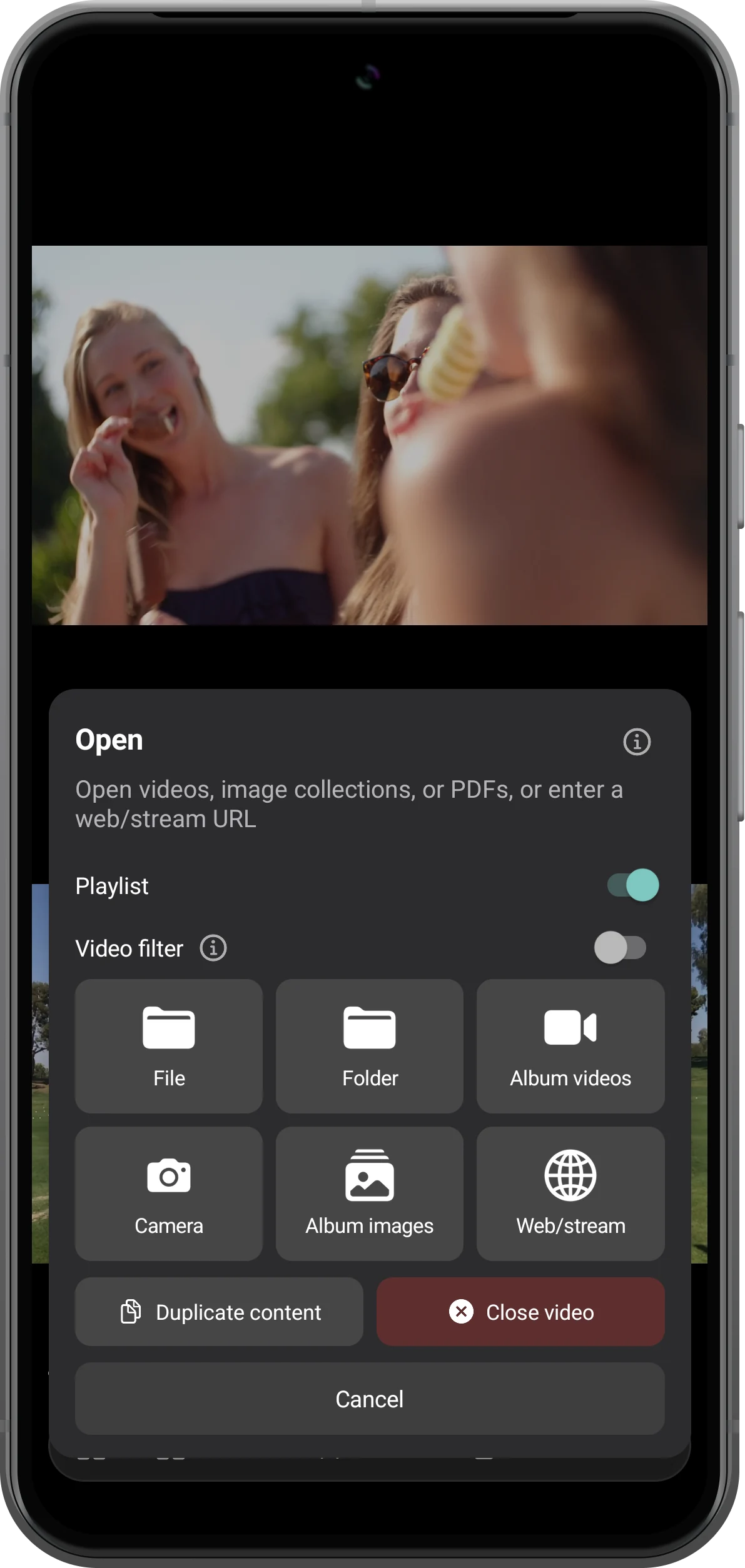
Select the clips for that pane
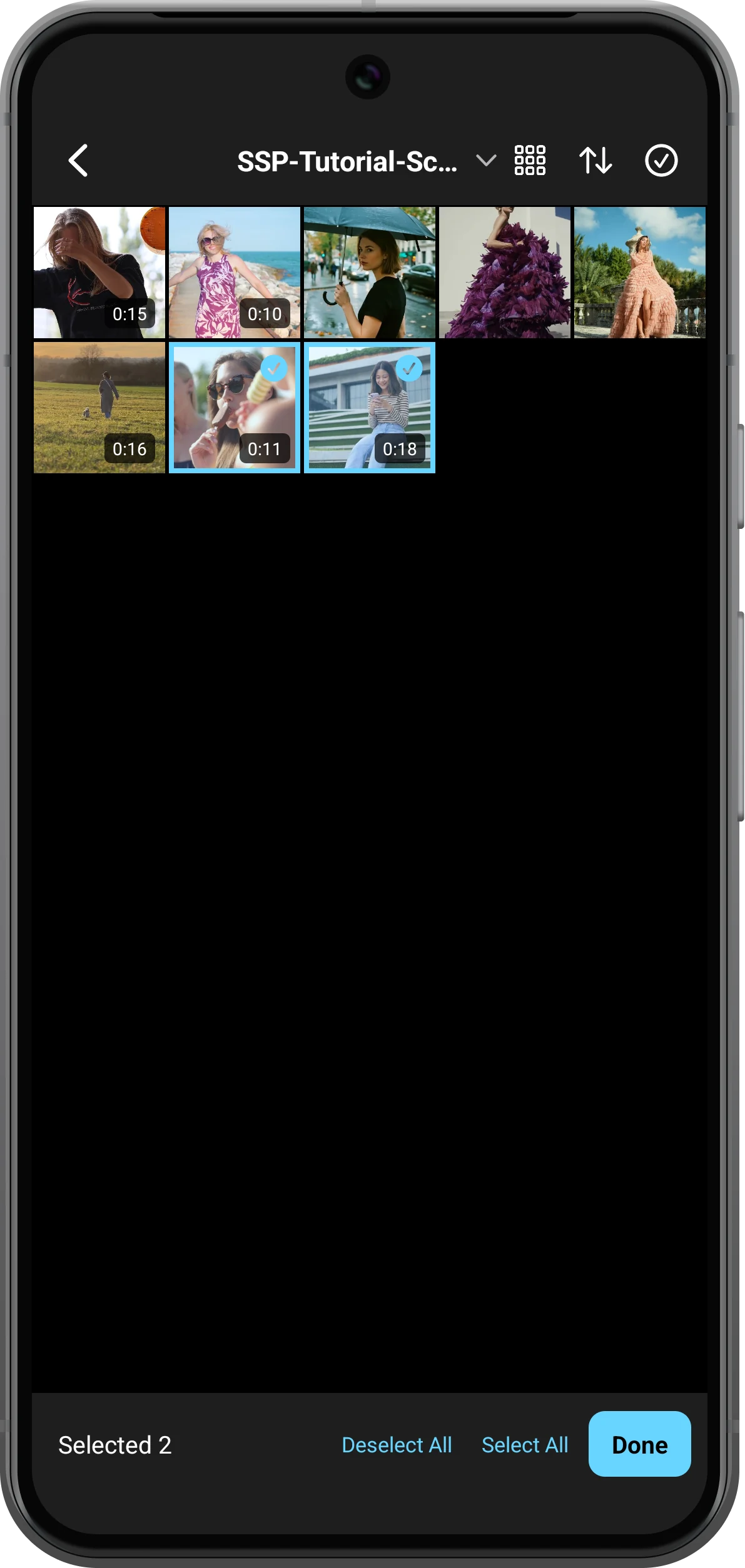
Choose the desired album, select two videos, and tap Done. Repeat for the second pane with a different pair. Review the resulting list order instead of assuming it follows your tapping order.
Inspect each playlist
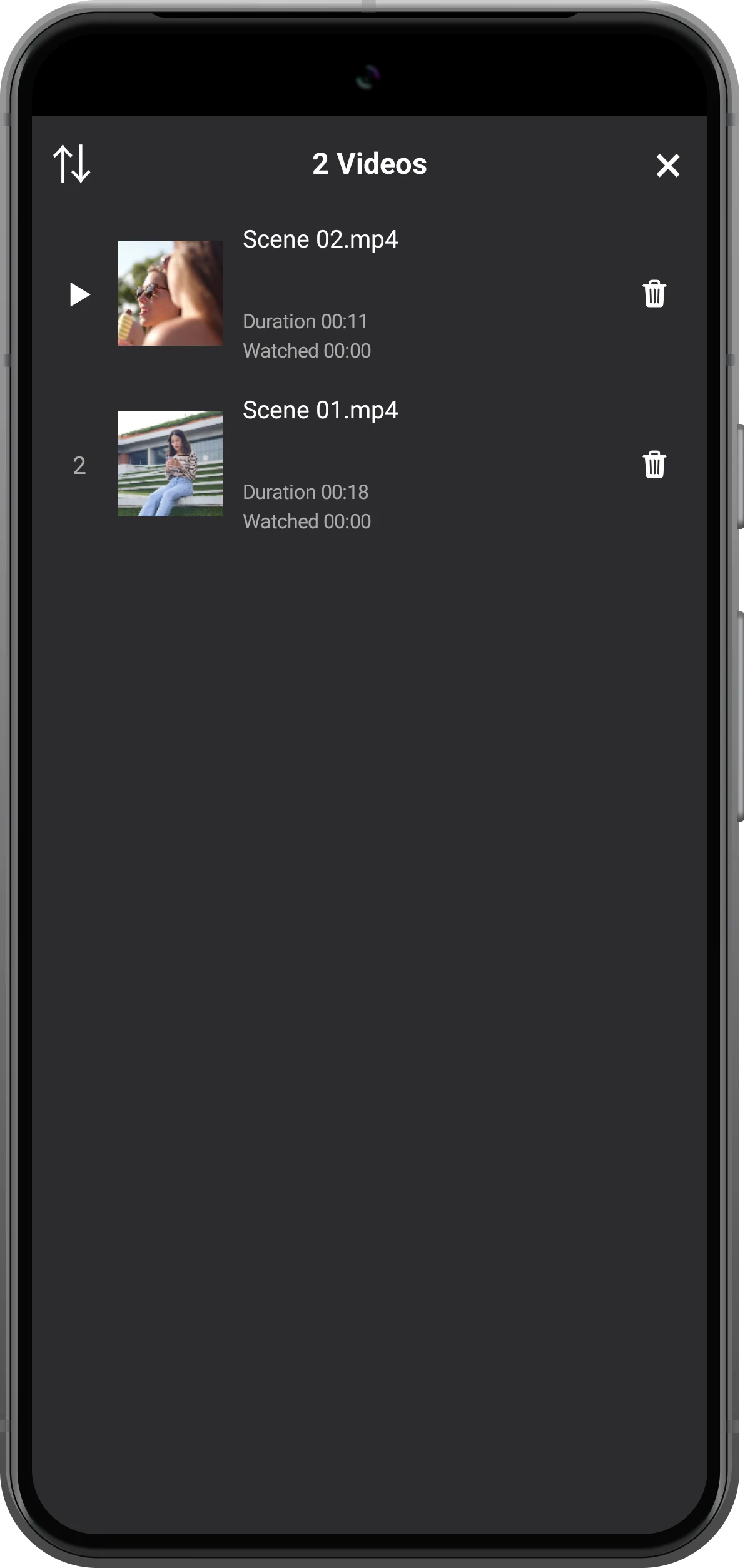
Reveal the player controls and open the list button. Check filenames, durations, and the current entry. The upper list here contains Scene 02 followed by Scene 01.
Switch the playlists together
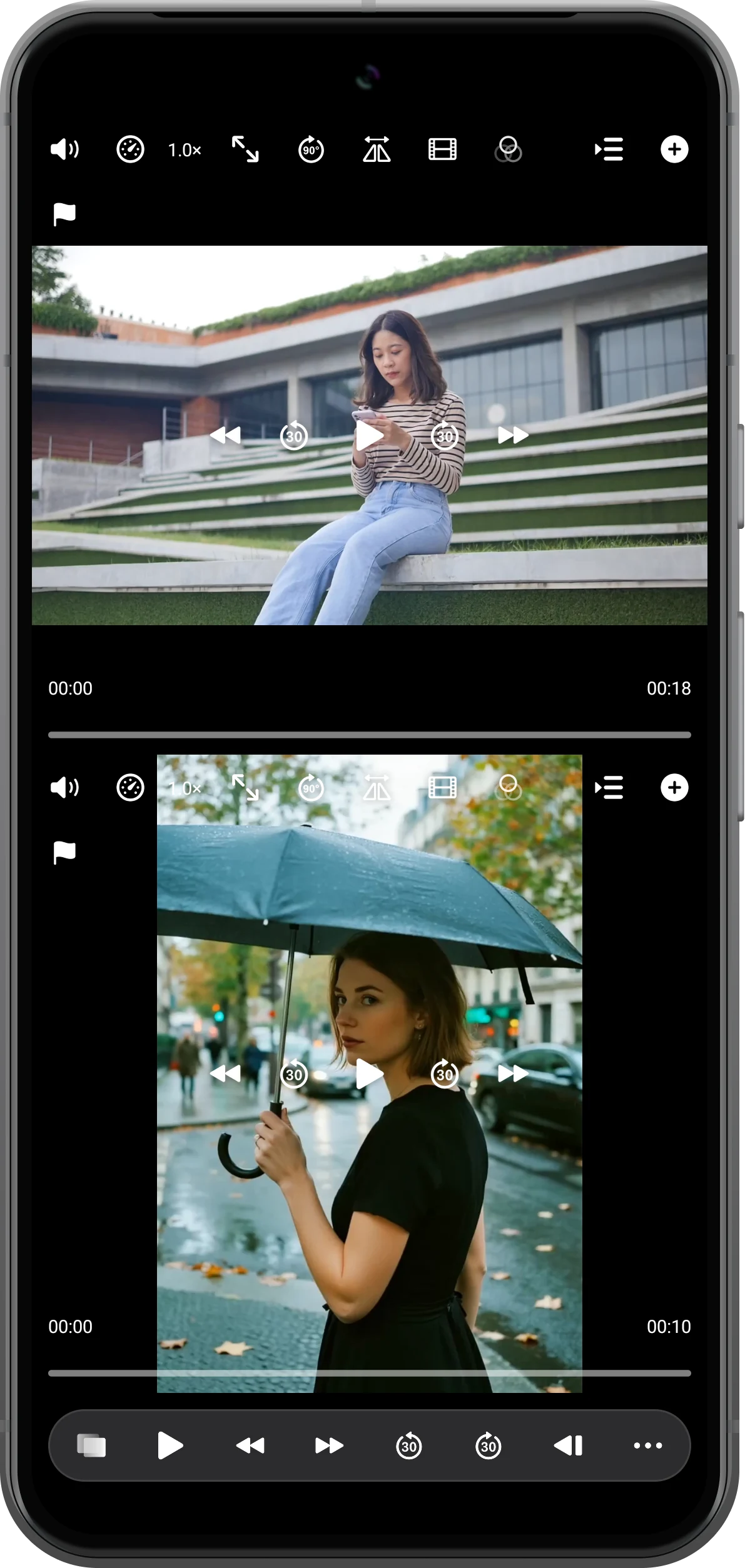
Use Next on All Players to move both panes to their next clip. Use Previous on All Players to return. In the test, the ice-cream and outdoor views switch to the steps and umbrella views together.
More possibilities
Useful details
Check these details as you follow the steps.
Each pane keeps its own collection
The global action advances each playlist; it does not merge the lists into one. A playlist with fewer items may reach a different stage from a longer one.
Save a useful arrangement
Use a workspace bookmark to reopen the composition later, keeping the original files and access permissions available. Bookmarks require Premium.
Frequently asked questions
Why do my videos occupy separate regions?
Check Playlist in the target pane’s Open menu before selecting the clips. This walkthrough builds a list inside a region, rather than opening one video in every region.
Does switching playlists align the action in the clips?
No. It changes which item each pane plays. Use synchronization points separately when the new clips need to show corresponding moments.
Split Screen Player
Try this with your own media
Open Split Screen Player and follow the steps with files you want to use.

