
Tap a player’s flag button to save its current position. Tap the checkpoint count to open the list, then select an entry to seek back to it.
Find the checkpoint control
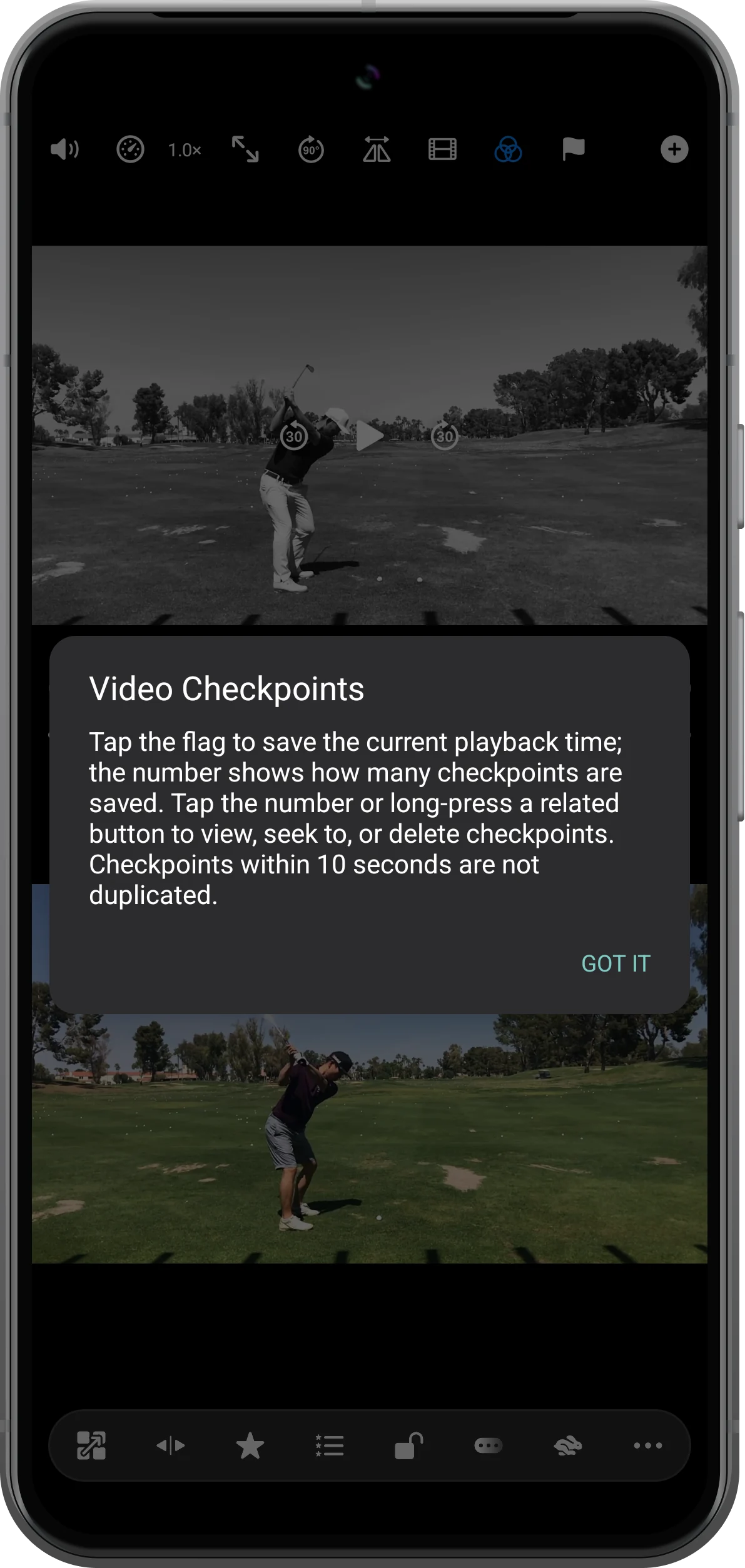
Reveal the video controls and locate the flag. The first-use explanation describes saving a position, opening the list, and avoiding duplicate checkpoints within ten seconds.
Save the important moment
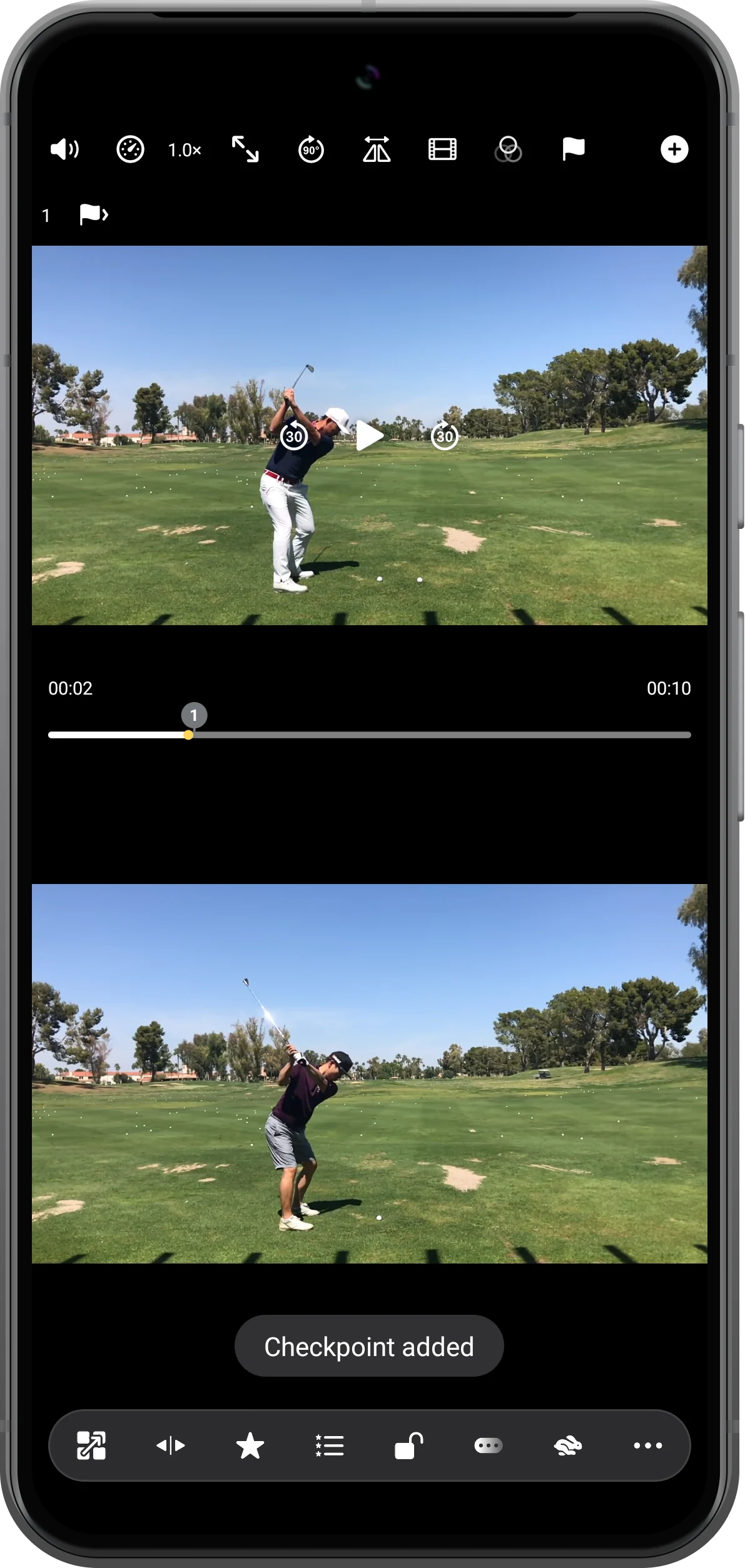
Pause at the position you want to revisit and tap the flag. A count and a marker on the progress bar show that a checkpoint was added; the example marks the swing at about two seconds.
Open the checkpoint list
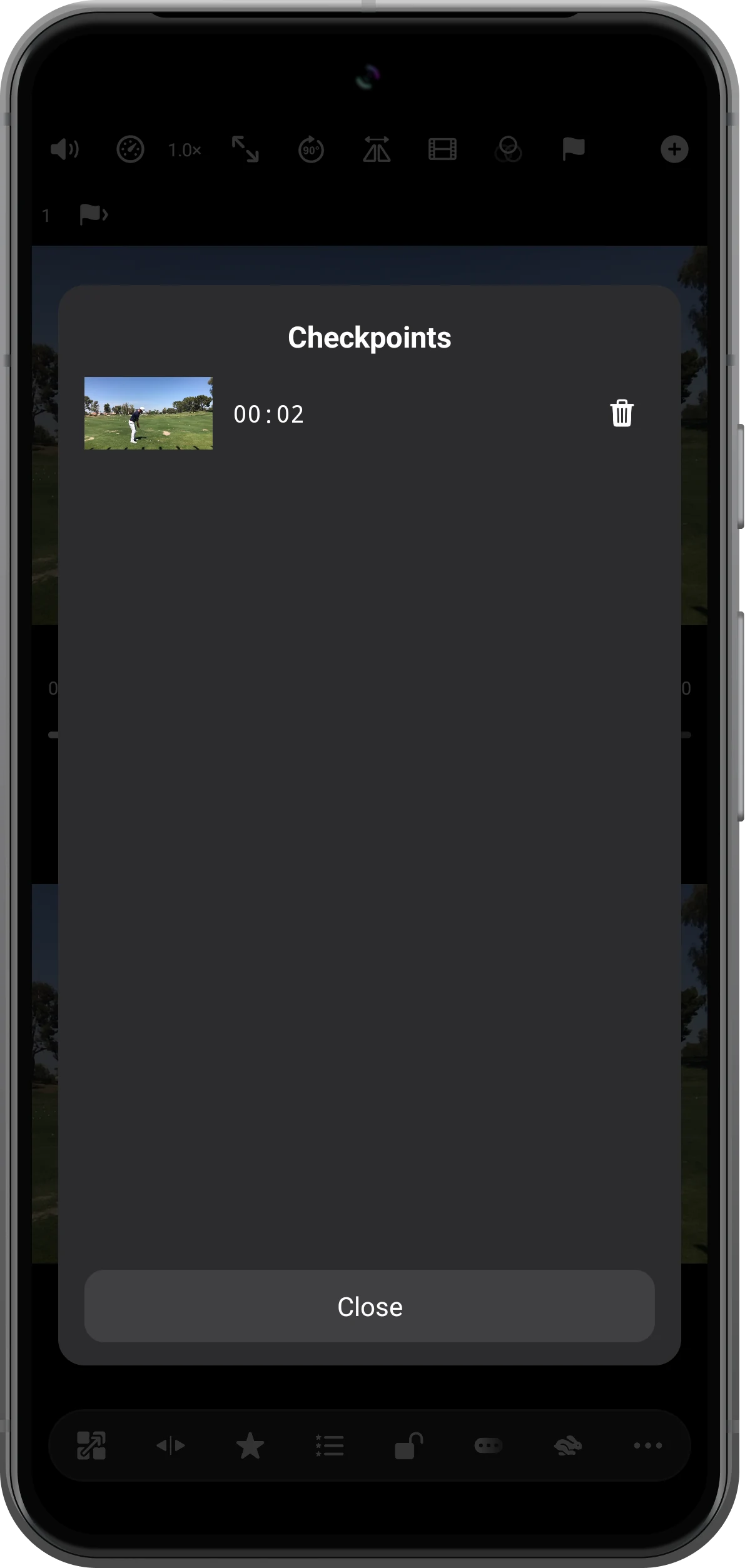
Move to a different part of the clip. Tap the checkpoint count to see the saved thumbnail and time, then choose the entry you want to revisit.
Check the returned position
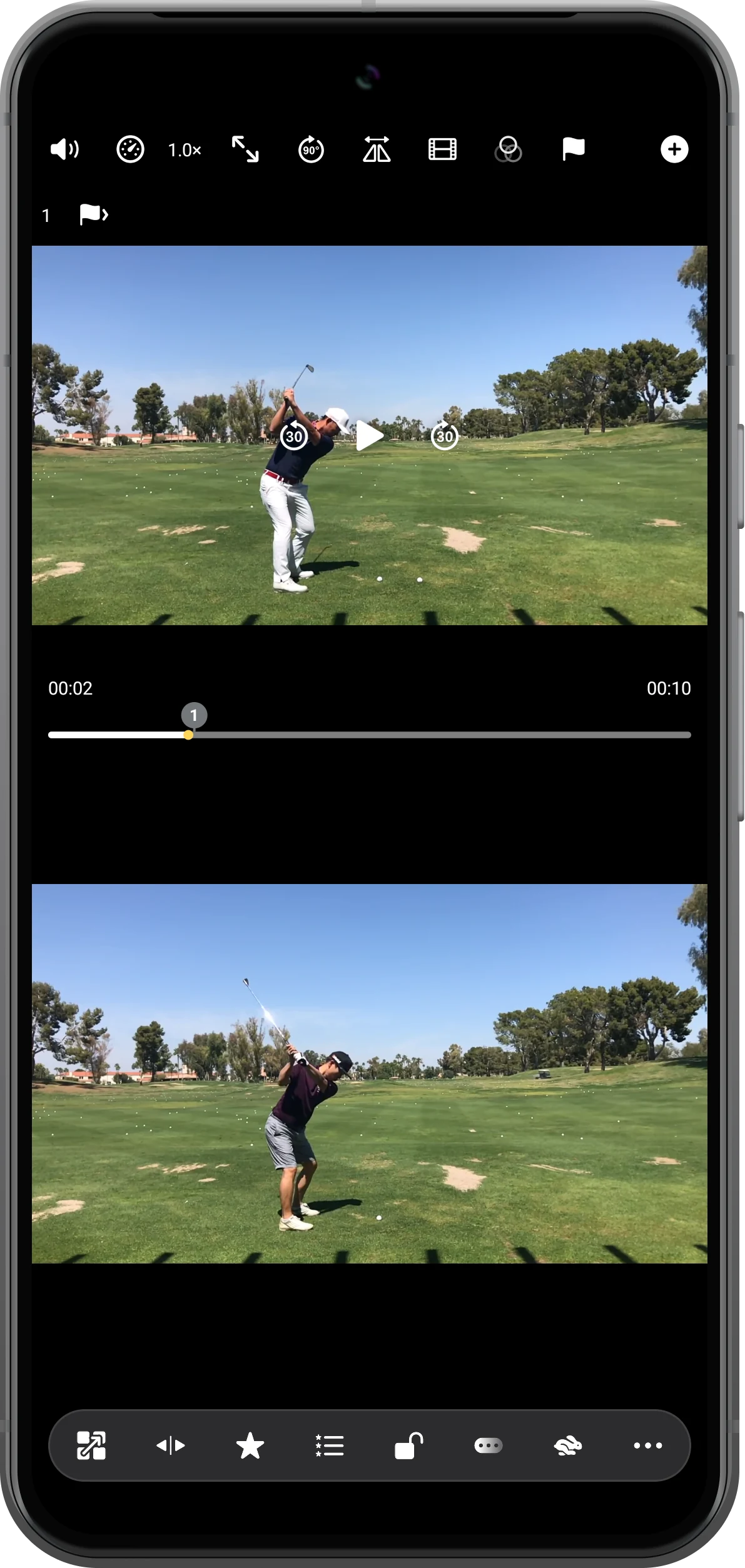
After selecting the entry, inspect the time and picture. In this example the upper video returns from a later moment to the saved two-second position, ready for frame-by-frame review.
More possibilities
Useful details
Check these details as you follow the steps.
Nearby markers are deduplicated
The app avoids adding another checkpoint within ten seconds of an existing one. On a short clip, repeated taps may therefore leave the count unchanged.
Keep the three saving tools distinct
A checkpoint marks a video position. A synchronization point aligns clips. A workspace bookmark saves an arrangement for reopening later.
Frequently asked questions
Why did tapping the flag not add another marker?
Check how close you are to an existing checkpoint. Move more than ten seconds away in a sufficiently long video before adding a separate one.
Can I inspect the saved moment one frame at a time?
Yes. Jump to the checkpoint, pause the player, and enable its filmstrip control to step through nearby frames.
Split Screen Player
Try this with your own media
Open Split Screen Player and follow the steps with files you want to use.

