
Reveal a player’s controls. Use the diagonal-arrows button to change Fit/Fill, the 90° button to rotate, and the mirror button to choose a reflection mode.
Keep the full picture with Fit
Start with Fit when the entire movement must remain visible. A wide golf clip in a tall region leaves black margins; these preserve the full image rather than indicating missing content.
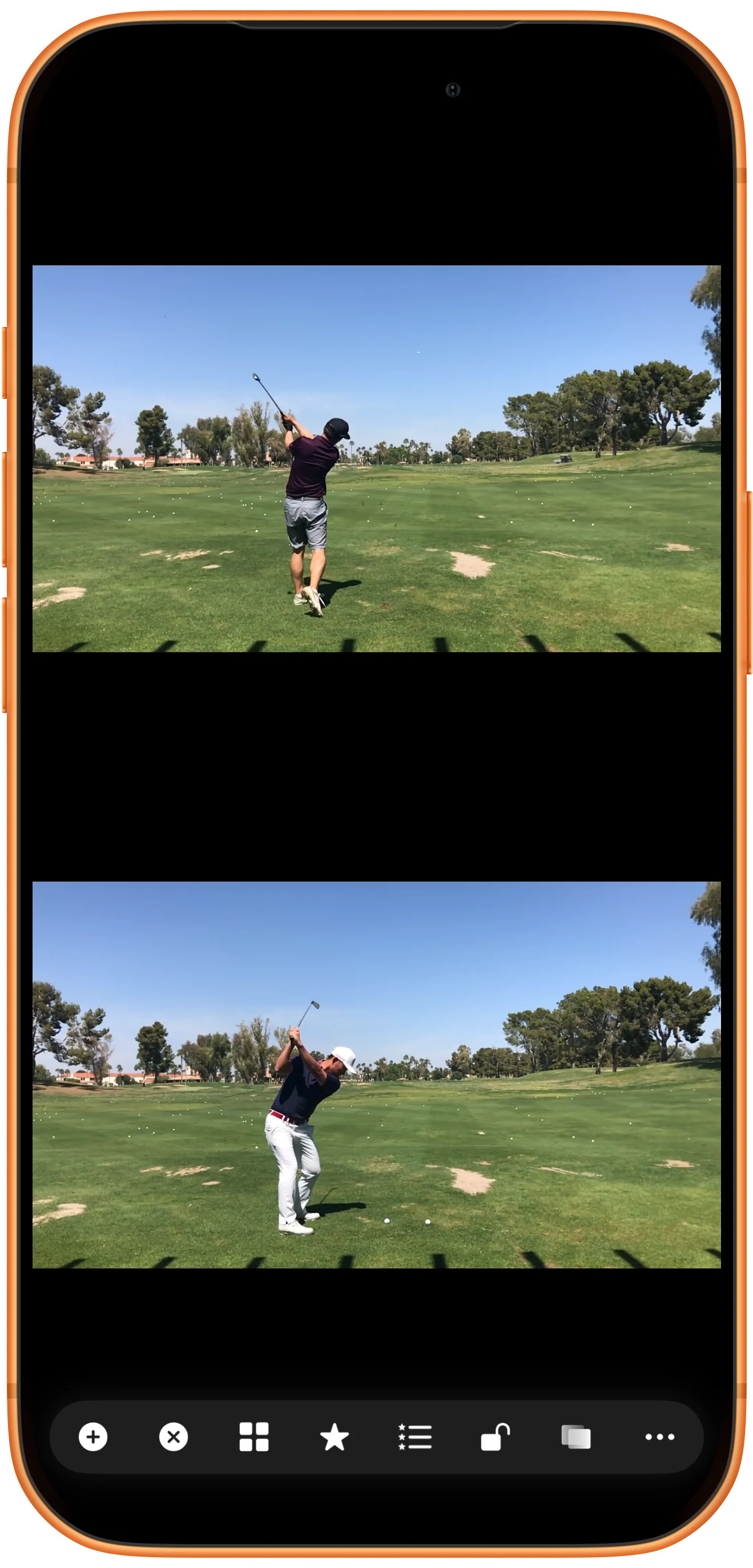
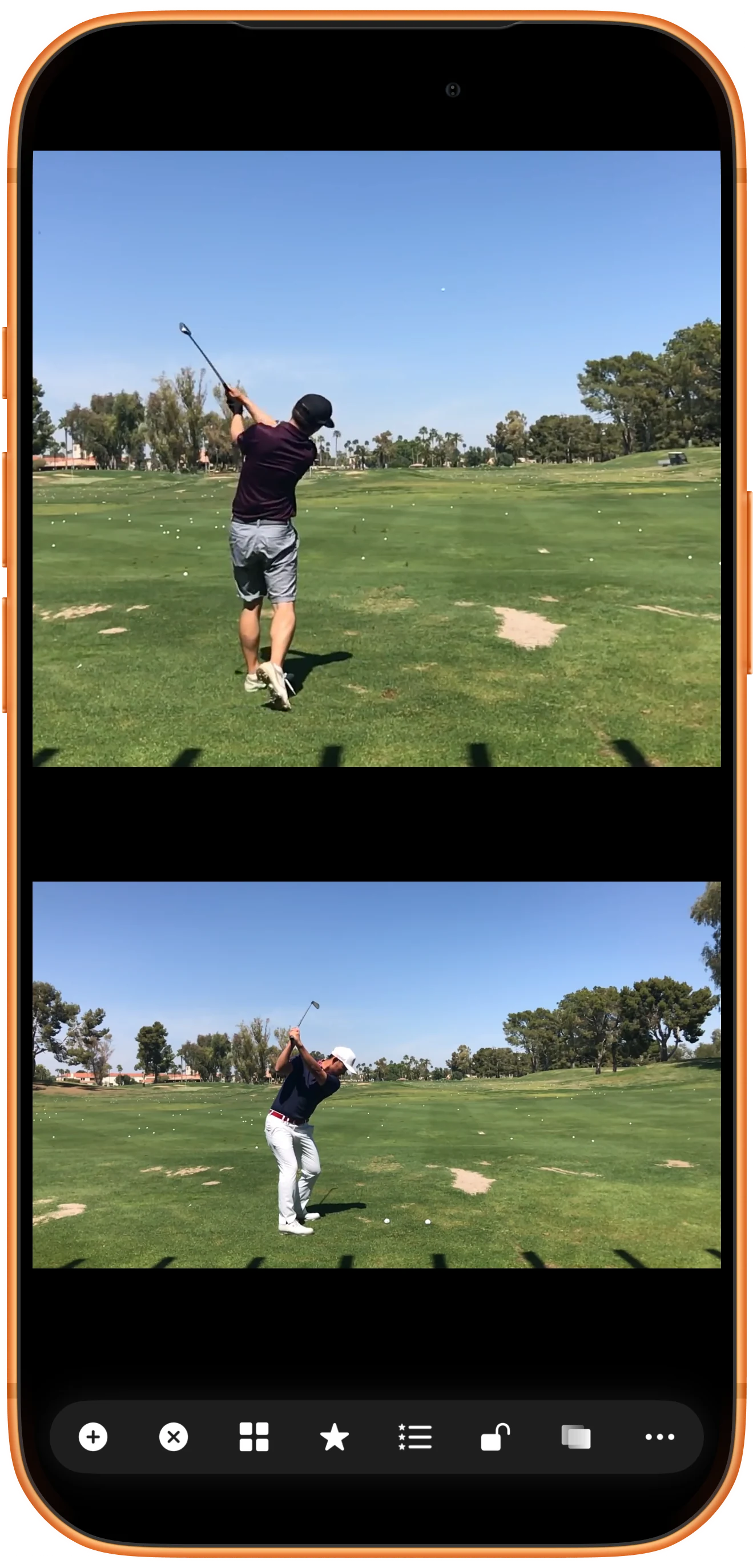
Fill the region when cropping is acceptable
Tap the diagonal-arrows scaling button to change the display mode. Fill uses more of the region but crops part of the image. Check that the athlete and equipment remain visible.
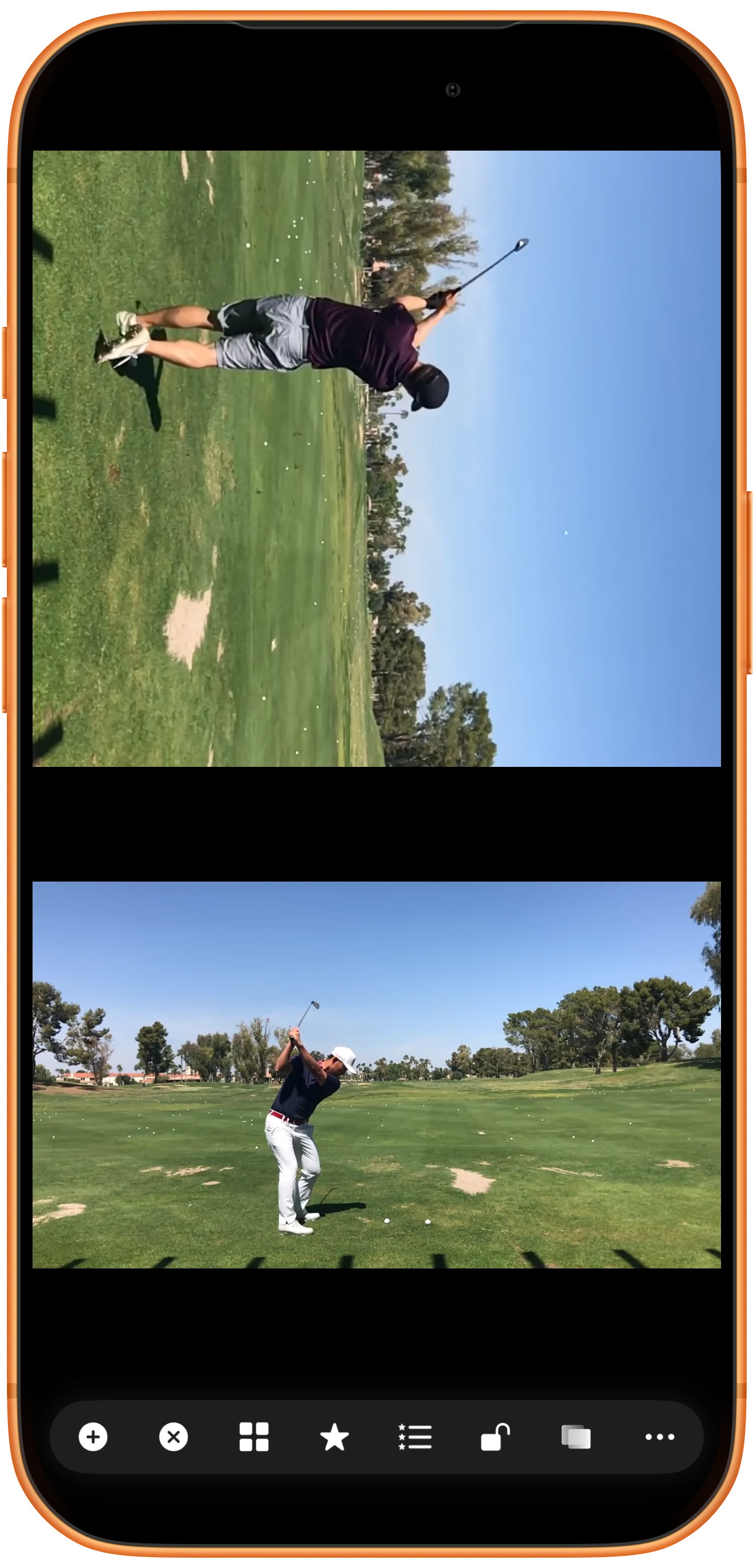
Rotate the video inside its pane
Tap the 90° clockwise button. Only that video’s picture rotates; the lower clip stays unchanged. Repeat in 90° steps to return to the original orientation.
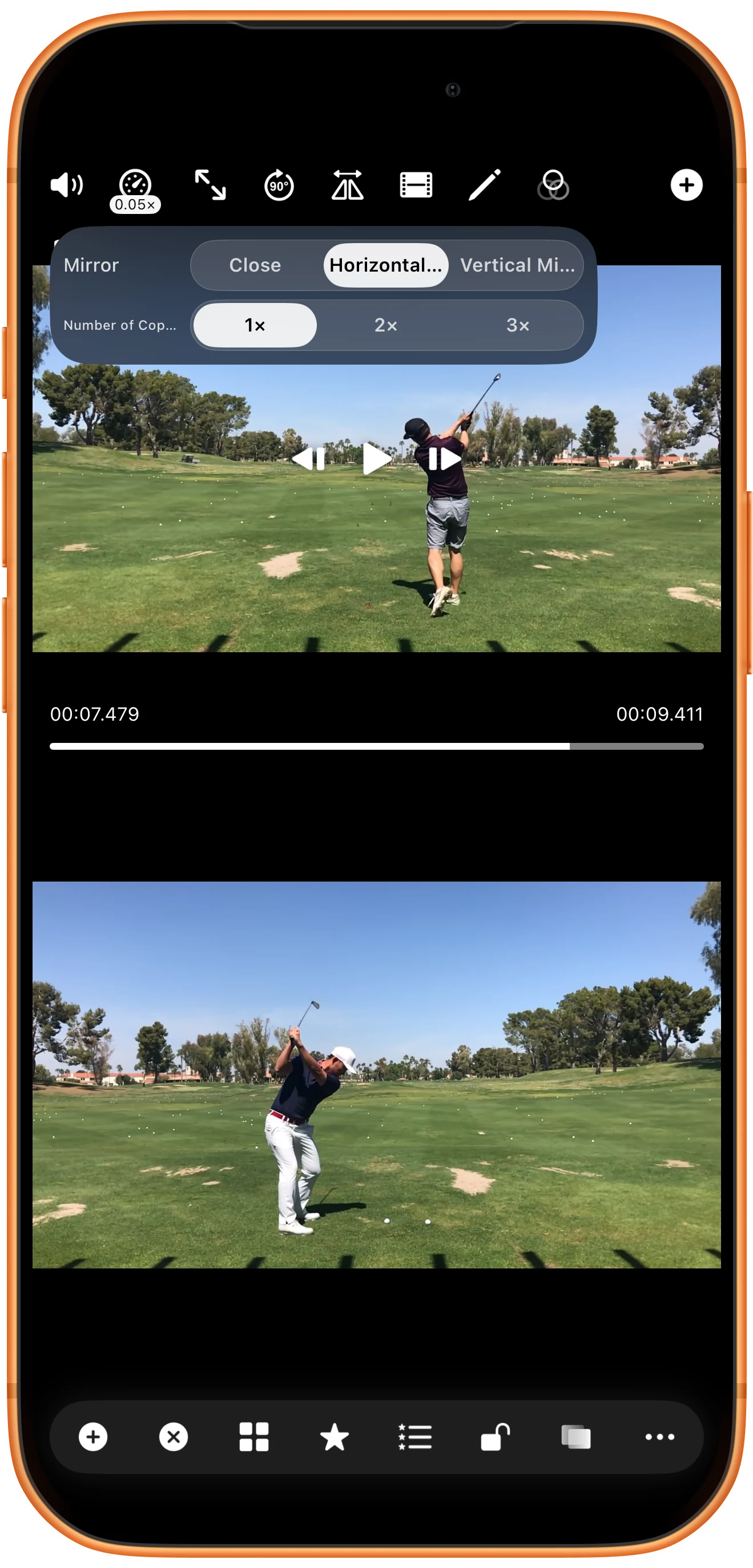
Choose a mirror mode
Open the mirror control and choose Horizontal Mirror. Compare the result with the unchanged lower clip. Select Close in the same panel when you want the unmirrored picture again.
More possibilities
Useful details
Check these details as you follow the steps.
Scaling and layout are different
Fit/Fill changes the picture inside a region. To change the region itself, use the layout resizing tools instead.
Mirroring changes visual handedness
A reflected swing can help compare opposite-handed movements, but it reverses left and right in the display. Keep that in mind when discussing technique.
Frequently asked questions
Will these controls edit my original file?
No. They change the player’s presentation. Rendering a new file is a separate export operation.
Why does Fill hide part of the video?
It enlarges the picture to fill a region with a different aspect ratio. Switch back to Fit when the full frame is more important than removing margins.
Split Screen Player
Try this with your own media
Open Split Screen Player and follow the steps with files you want to use.

