
Open the overlapping-circles Looks button in a player, choose a preset and intensity, and tap Done. Use All Looks from the bottom toolbar to apply a shared treatment.
Open the preset selector
Reveal the upper player’s controls and tap its overlapping-circles icon. The Looks panel shows Original and the available presets with a preview.
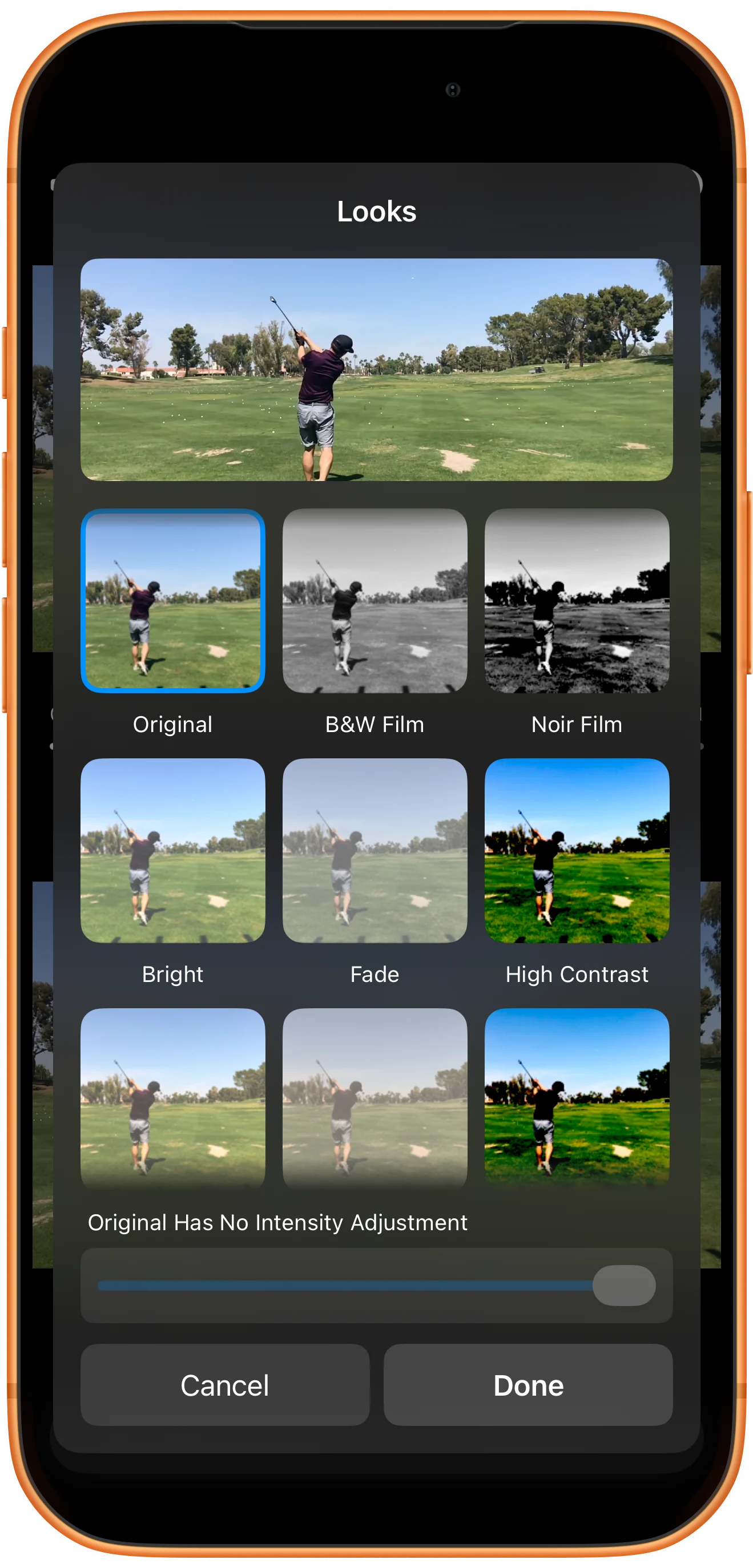
Choose a look and intensity
Select B&W Film and adjust Intensity. The example uses 100%. Inspect the preview before tapping Done; use Cancel if you do not want to keep the change.
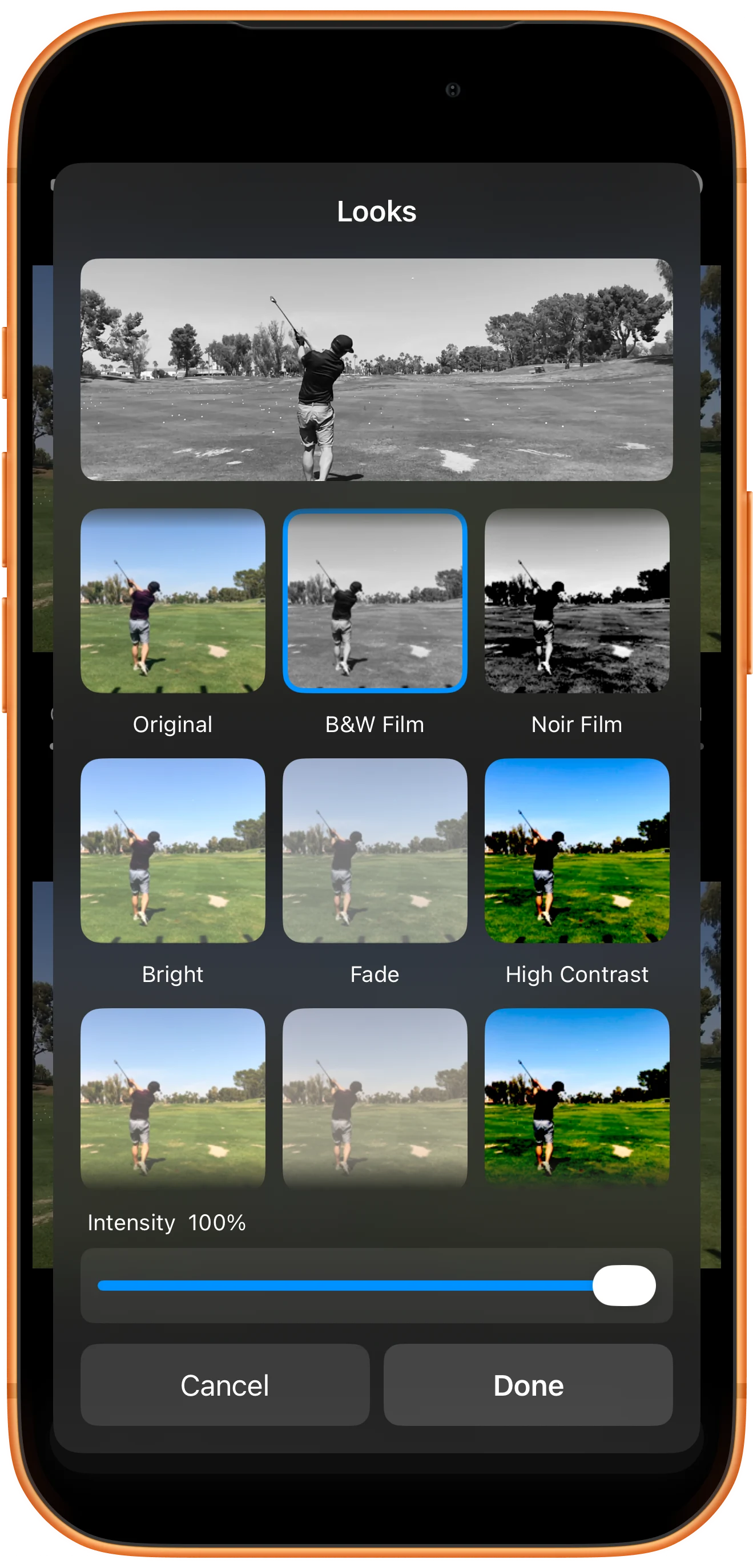
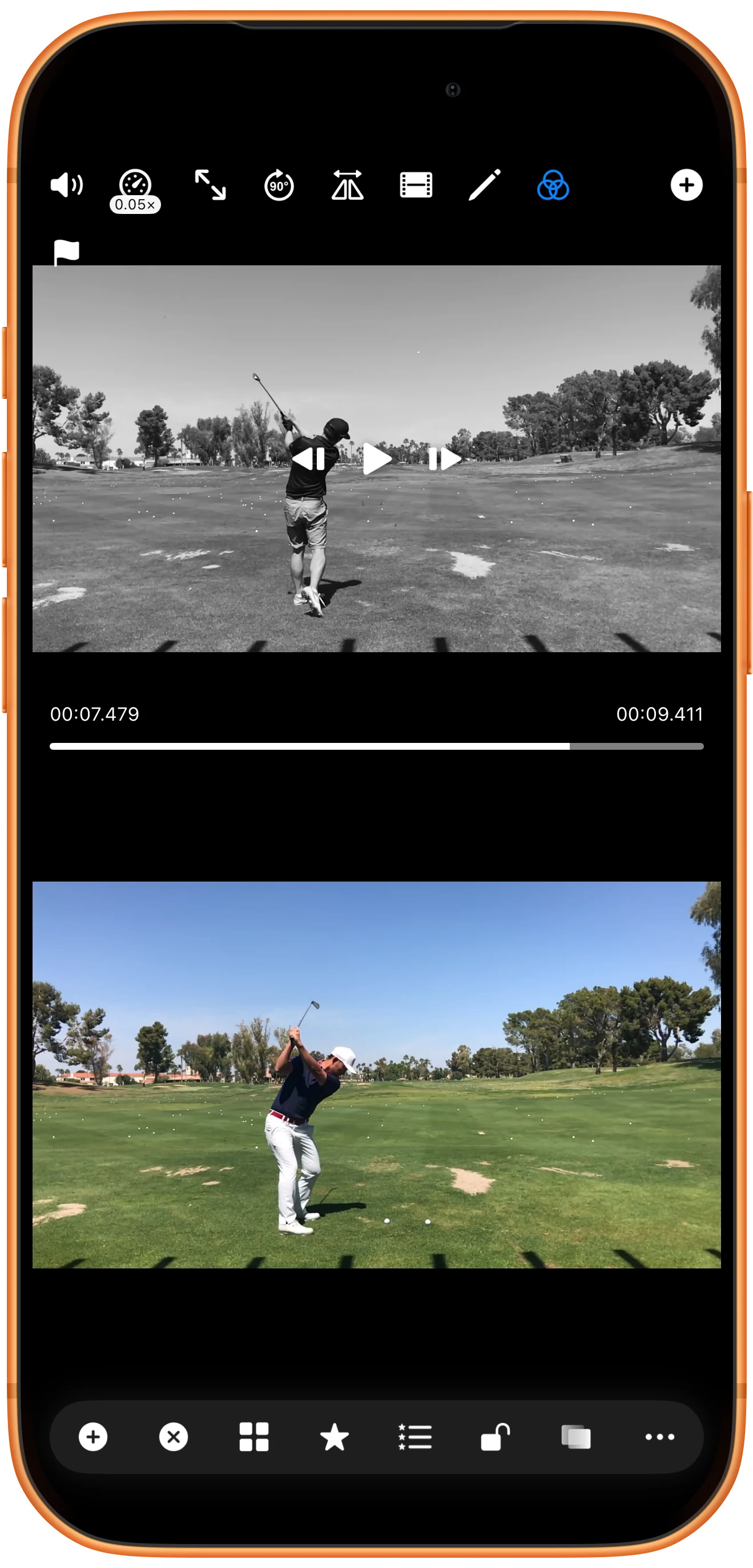
Check the individual result
Return to the split screen. The upper clip is black and white while the lower one remains in color, showing that the individual button affected only its own pane.
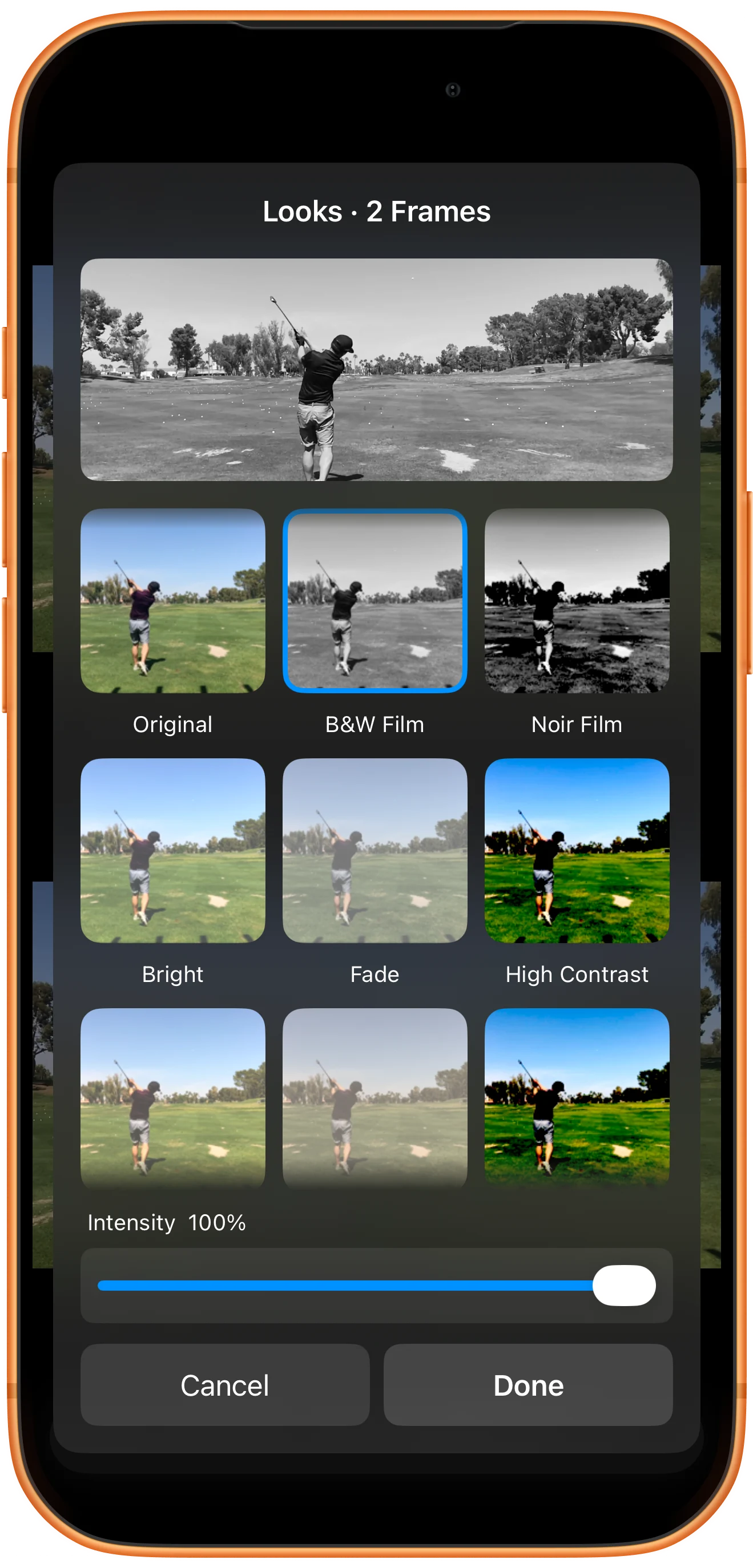
Apply a look to all visible panes
Open All Looks from the bottom toolbar. Check the title Looks · 2 Frames, select the treatment, and tap Done. Both visible videos now use it.
More possibilities
Useful details
Check these details as you follow the steps.
Restore the original appearance
Open the same individual or global panel, select Original, and tap Done. Original has no intensity adjustment.
The sources remain unchanged
Looks changes how the app displays the media. Keep the original files for other uses; applying a preset here does not overwrite them.
Frequently asked questions
Why did only one video change?
You opened that player’s Looks button. Use All Looks on the bottom toolbar when the visible panes should share the effect.
Can I adjust the strength of Original?
No. Original removes the treatment, so its intensity control is not available. Choose another preset to adjust intensity.
Split Screen Player
Try this with your own media
Open Split Screen Player and follow the steps with files you want to use.

