
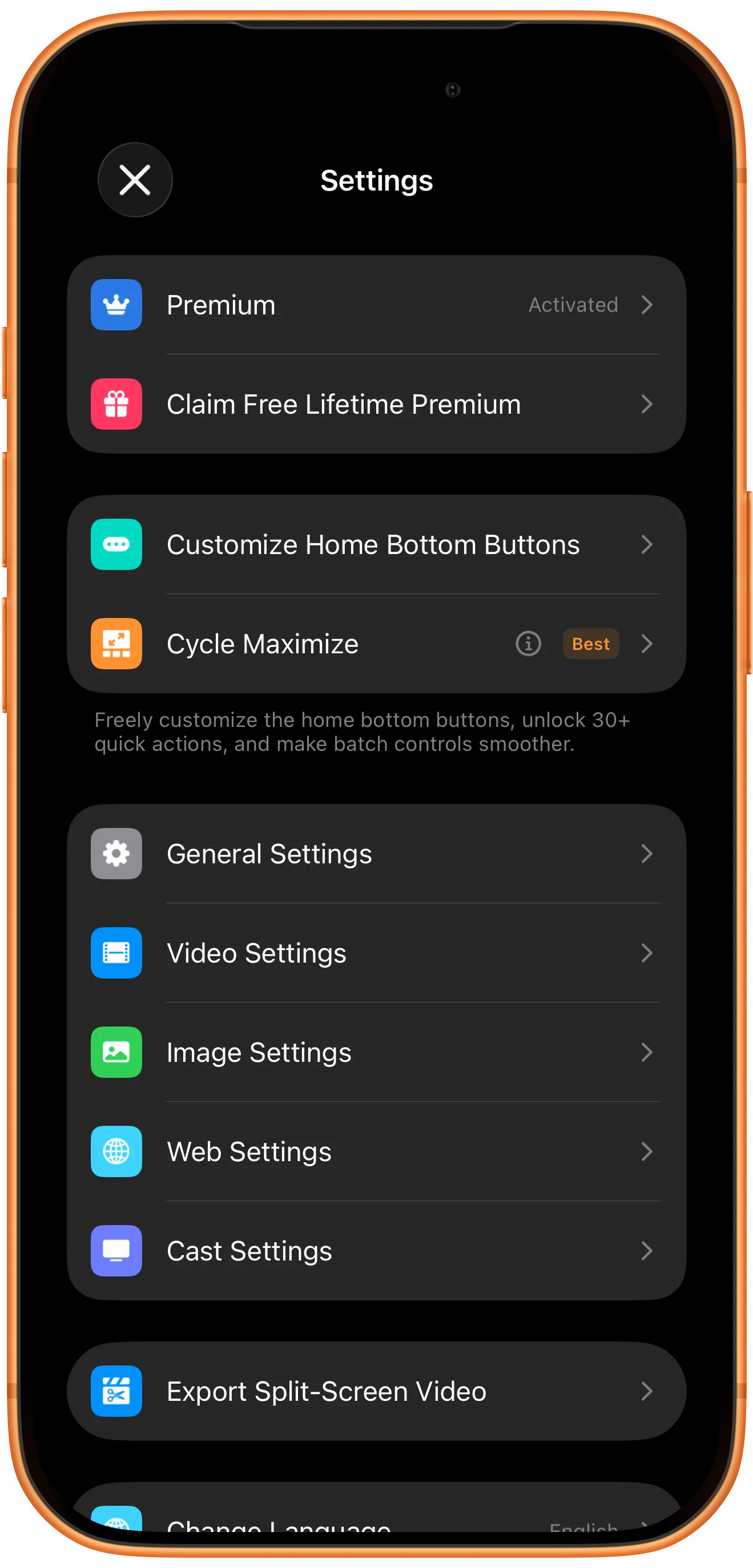
Open More (…) → Customize Home Bottom Buttons. Add actions with + under Not Added, arrange them under Added, then tap the checkmark. Return to the player and scroll the toolbar to reach buttons outside the visible area.
Open the toolbar editor
Tap More (…) in the player to open Settings. Choose Customize Home Bottom Buttons. The preview at the top shows the toolbar order; Added contains your current buttons.
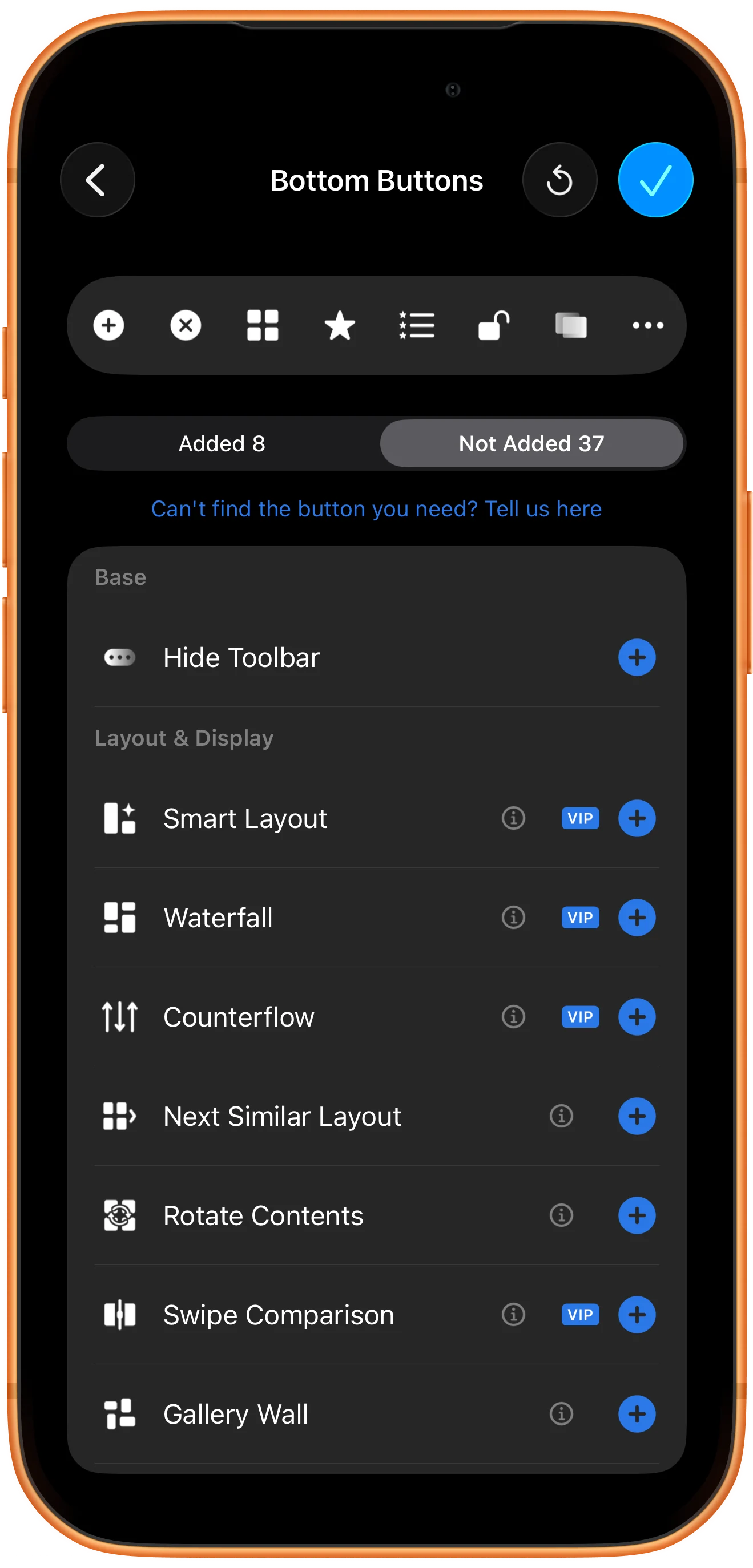
Add a useful action
Select Not Added. Find an action and tap its blue + button. The example adds Swipe Comparison. A VIP badge indicates a paid feature; adding its shortcut does not purchase or activate Premium.
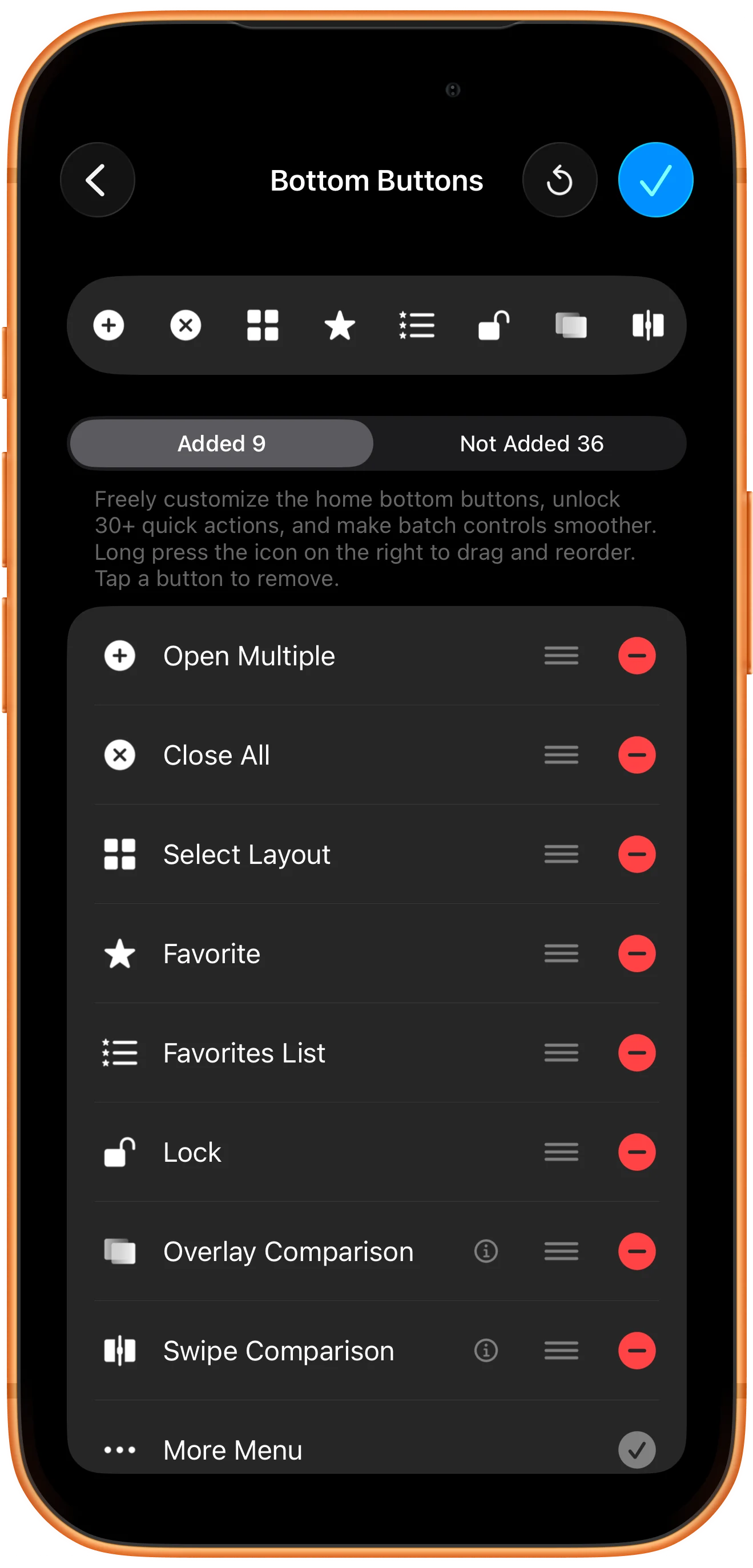
Review the added buttons
Return to Added. Long-press the handle on the right to drag a button into your preferred order. Tap a red minus to remove a shortcut you do not need. The More Menu entry remains available so you can return to Settings.
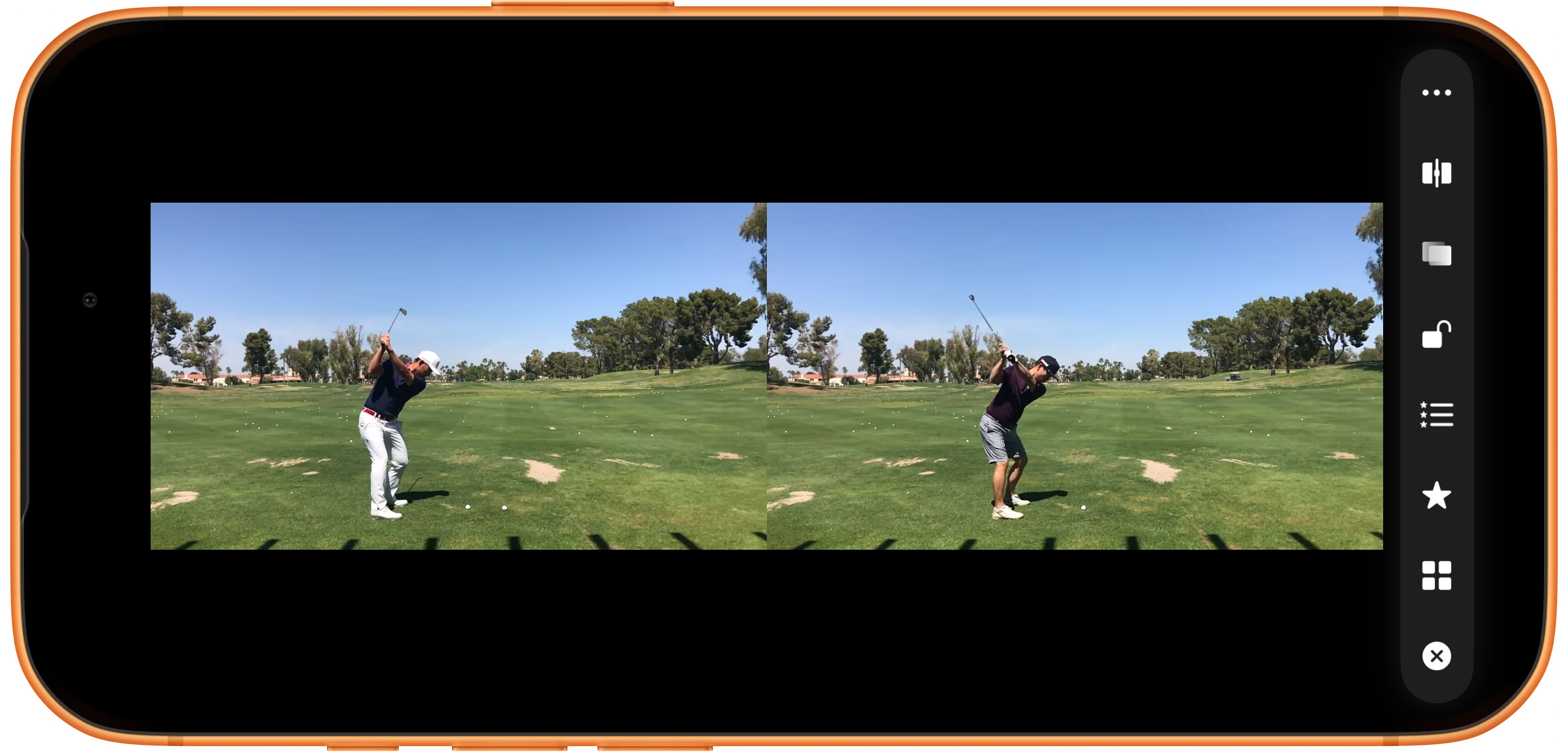
Save and use the toolbar
Tap the checkmark at the top right, close Settings, and locate the action in the player. Swipe along the toolbar if it is outside the visible section. A landscape layout places the toolbar vertically, so scroll it up or down.
More possibilities
Useful details
Check these details as you follow the steps.
Group controls by task
Keep playback, comparison, and layout shortcuts together. Start with a few useful actions rather than adding every available button at once.
Read the action name and help
Similar icons can act on different targets. Use the information button where available, and check whether an action affects the selected video or all players before applying it.
Frequently asked questions
Does removing a toolbar button delete my videos?
No. Removing a shortcut changes the toolbar. It does not remove source files. Actions such as Close All are separate commands that close the current playback regions.
Why can I not see a button I added?
Check that it appears under Added, save with the checkmark, and scroll the player’s toolbar. The visible section depends on screen orientation and how many buttons you have added.
Split Screen Player
Try this with your own media
Open Split Screen Player and follow the steps with files you want to use.

