
Load two videos in separate regions, open Swipe Comparison, and align their framing and action. Use Divider Direction for a vertical, horizontal, or diagonal split. Minimize the panel to inspect the result; guides can provide a fixed reference.
Open both videos and enter Swipe Comparison
Choose a two-region layout and load one video per region using Videos. Add Swipe Comparison through More (…) → Customize Home Bottom Buttons → Not Added if needed. Return to the player and tap its toolbar button. The A and B thumbnails identify the two sources.
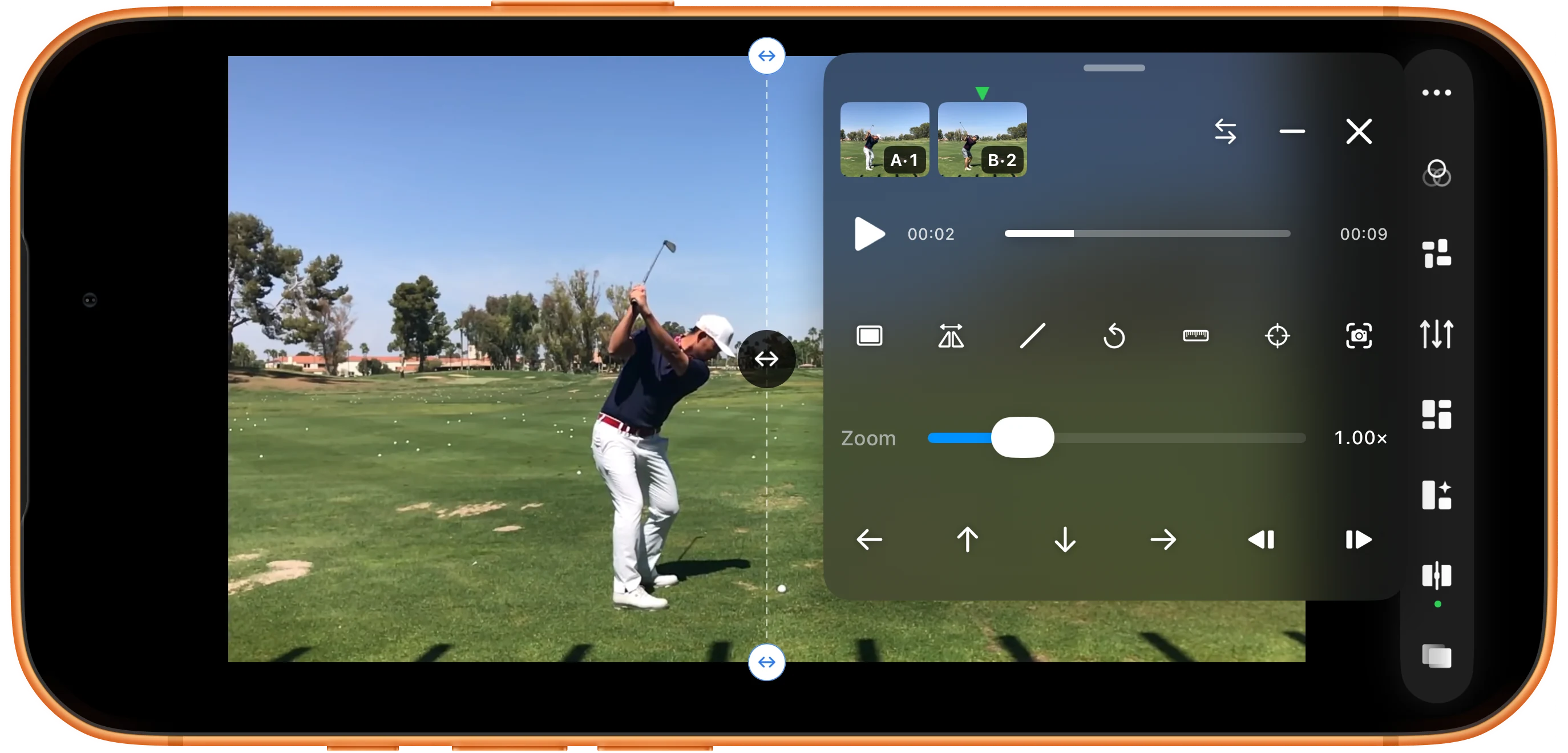
Align the picture and the action
Select each thumbnail and pause at the same phase of the swing. Use the frame buttons to refine the moment. Under Alignment, start with Center, then use Zoom, nudge arrows, or mirroring as needed. For linked playback, configure the corresponding points in Time Sync and apply Synchronized playback.
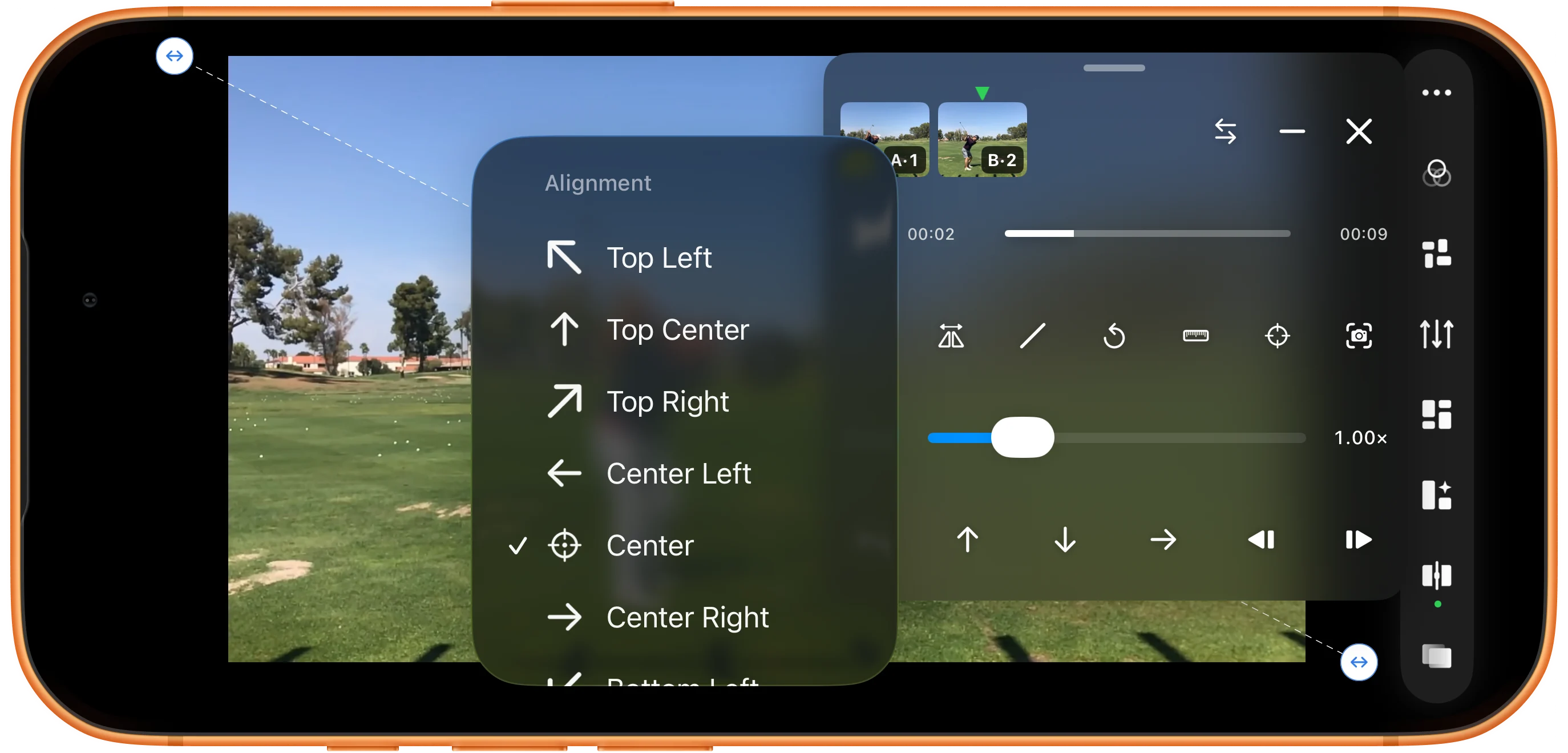
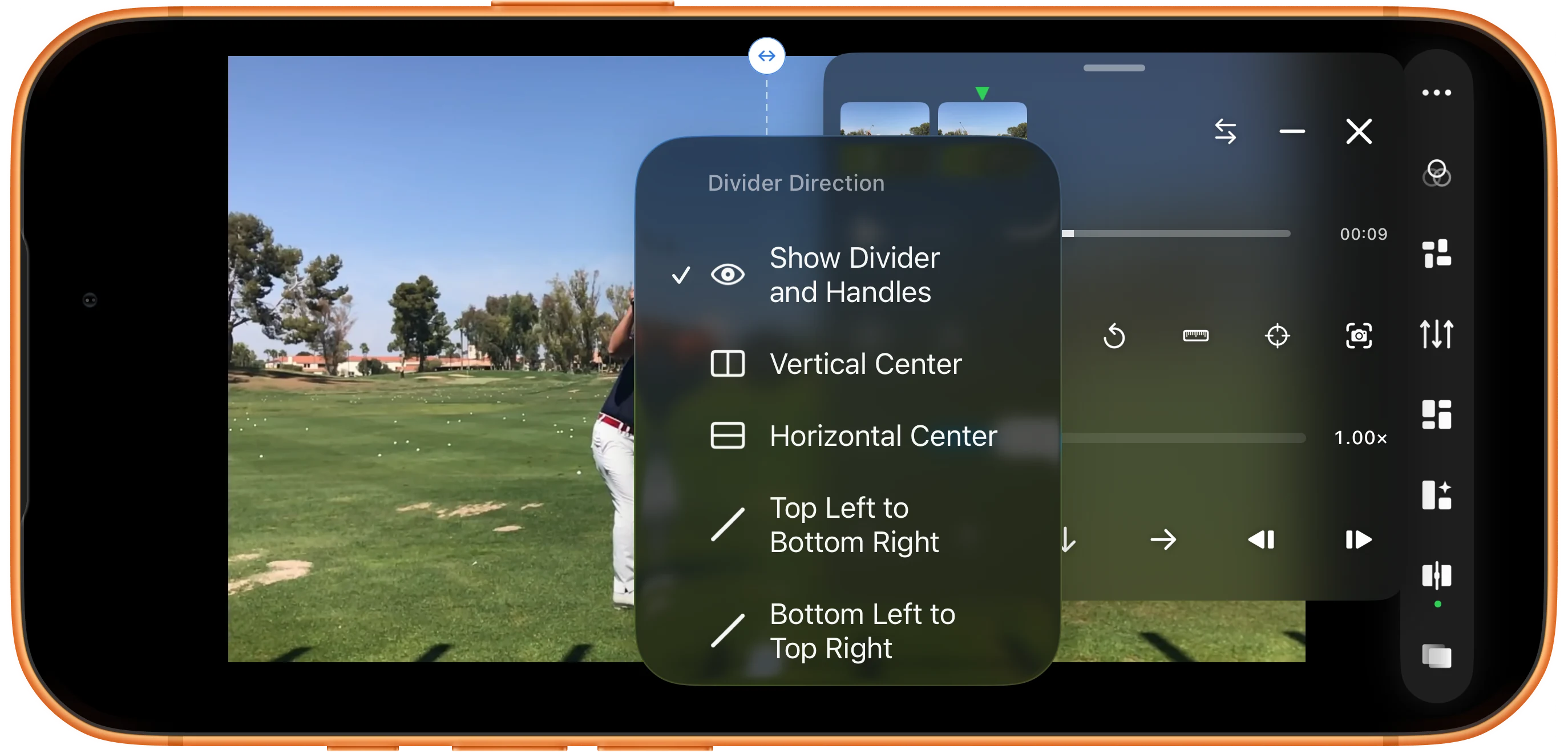
Choose a divider direction
Open Divider Direction and try Vertical Center, Horizontal Center, or Top Left to Bottom Right. Keep Show Divider and Handles enabled to see the controls. Drag the line’s center to move the split, or its endpoints to adjust the angle. The swap button exchanges A and B.
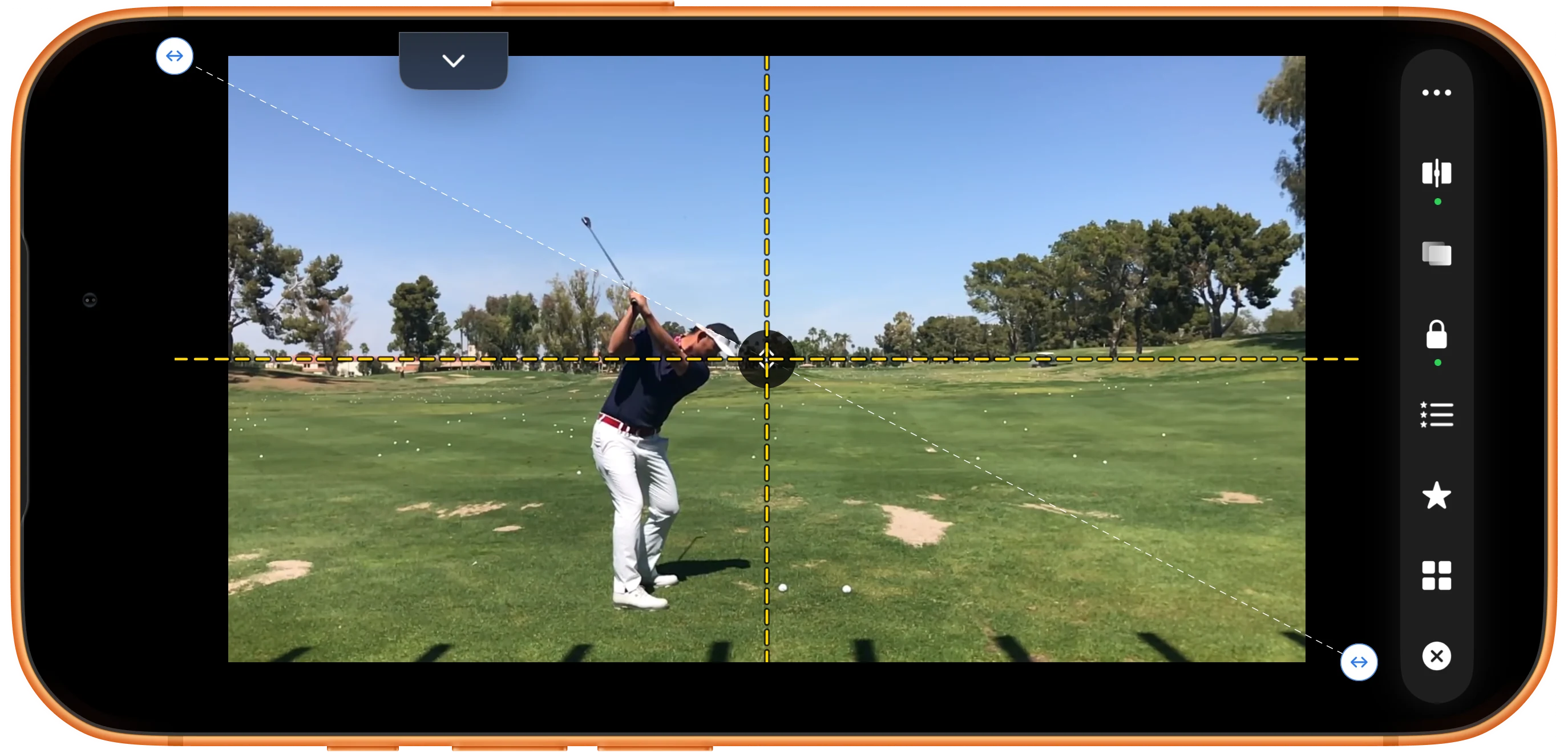
Add guides and inspect the difference
Open Guides and enable Show Guides. Choose a horizontal, vertical, or crosshair reference. Tap the minus button to minimize the panel, compare the body and club, then reopen it when you need adjustments. Exit Swipe Comparison to return to your previous split-screen layout.
More possibilities
Useful details
Check these details as you follow the steps.
Use comparable camera positions
Similar camera height, distance, and framing make the result easier to interpret. Position and scale adjustments do not correct perspective differences. Compare one phase at a time when the swings have different tempos.
Separate viewing from saving
Changing the divider or guide lines adjusts this comparison view; it does not overwrite your clips. Viewing a comparison is not the same as exporting a combined video file.
Frequently asked questions
How is this different from Overlay Comparison?
Swipe Comparison reveals different sources on opposite sides of a line. Overlay Comparison places transparent layers on the same canvas. Use a divider for a clear boundary and opacity when you want to see both images in the same area.
Do matching timestamps mean the swings are synchronized?
No. Recordings can start at different moments. Find the same visible action in both videos and set corresponding sync points if you want linked playback. A sync point aligns one event; it does not automatically match different swing tempos throughout.
Split Screen Player
Try this with your own media
Open Split Screen Player and follow the steps with files you want to use.

