
Add Waterfall to the bottom toolbar, tap it to enter the mode, then tap it again to open Waterfall settings. Use Add videos, choose the clips, and enable Auto-scroll after choosing the direction and size.
Open Waterfall and add videos
Tap Waterfall in the toolbar. Videos already open can be carried into this mode. Tap Waterfall again for Waterfall settings, then choose Add videos. In the source menu, select Videos to open local clips.
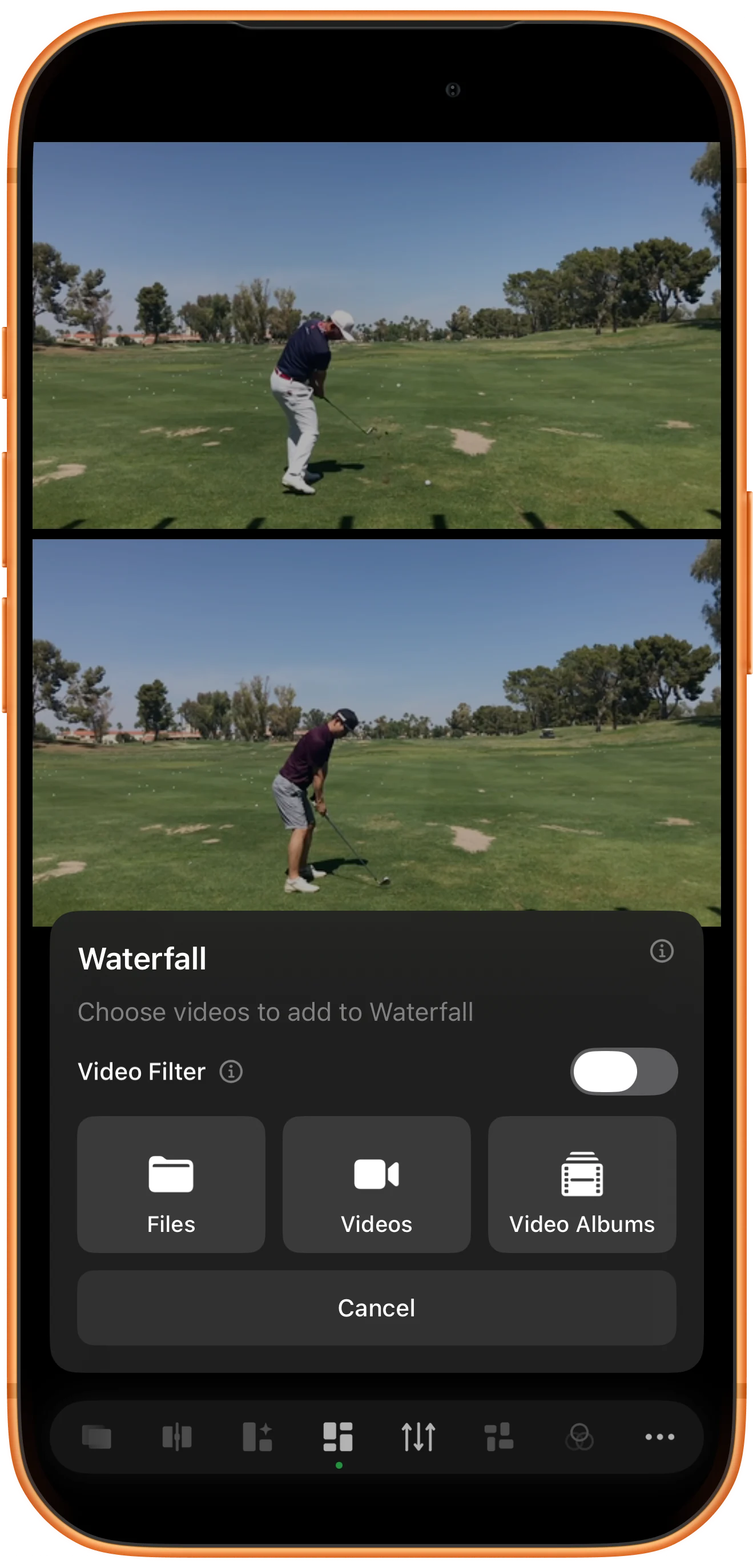
Select a varied group of clips
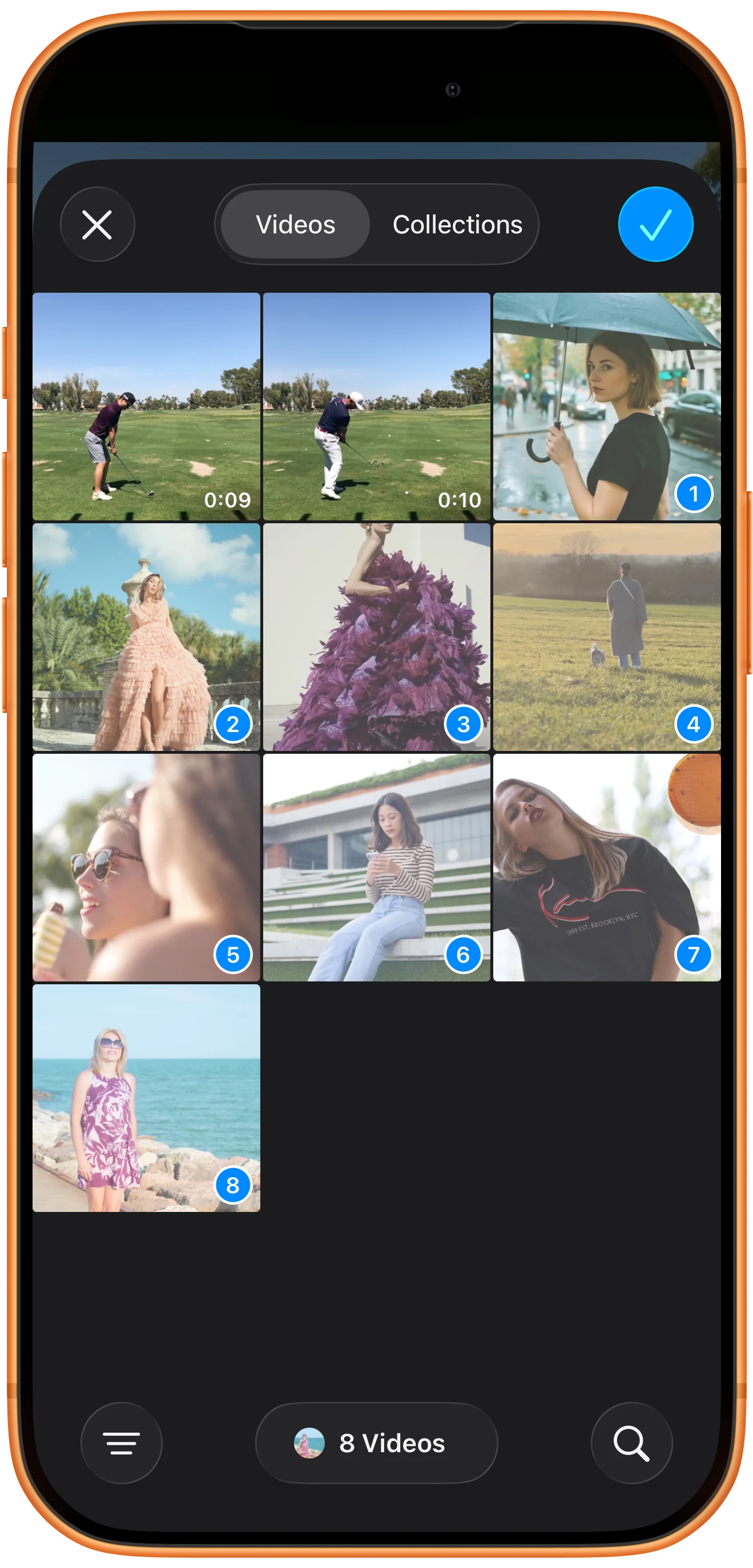
Select several portrait and landscape videos, then confirm the selection. Start with a modest collection so individual clips remain large enough to see. Added clips join the existing waterfall; they do not need identical dimensions or durations.
Choose the layout and enable scrolling
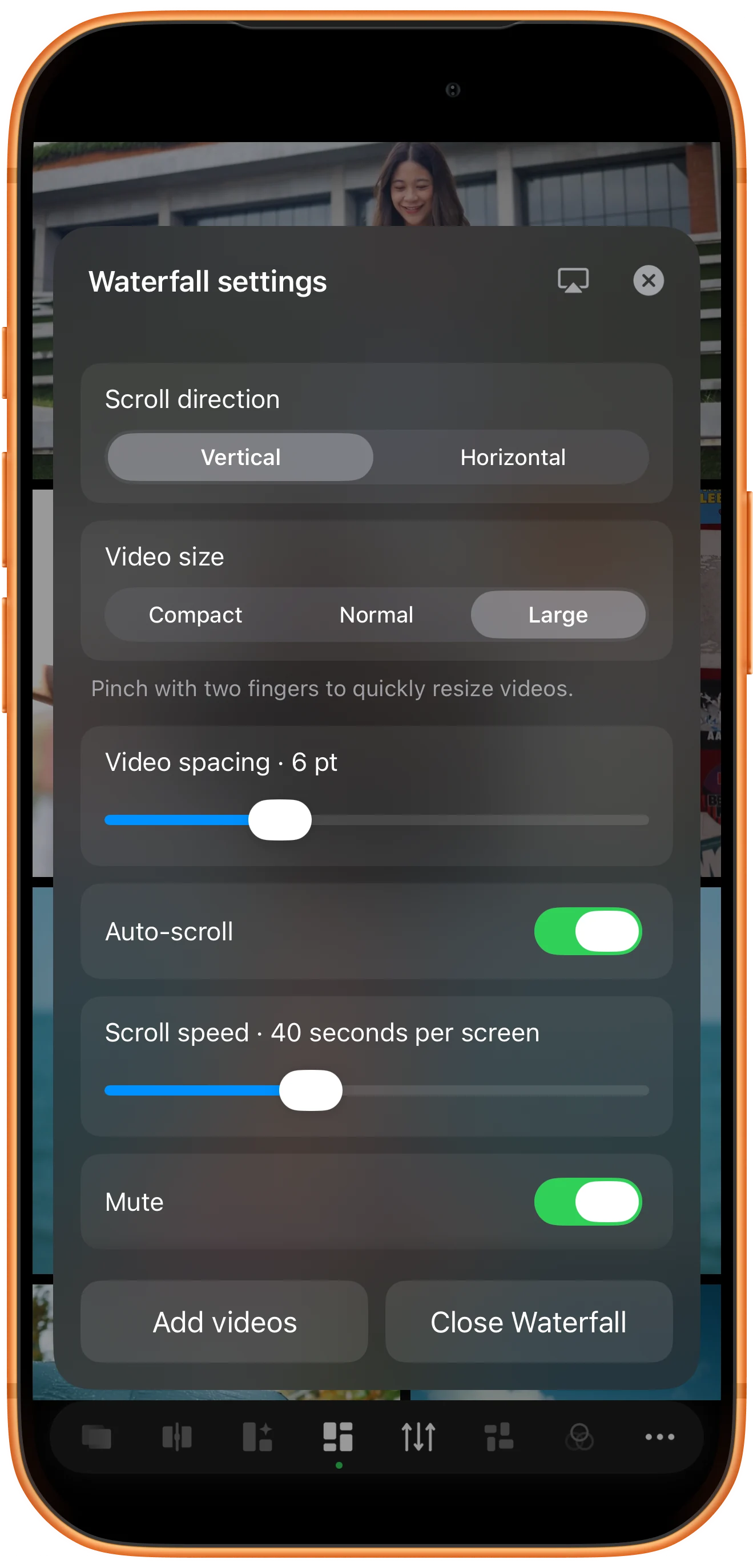
Set Scroll direction to Vertical or Horizontal. Choose Compact, Normal, or Large under Video size, then adjust Video spacing. Enable Auto-scroll and use Scroll speed to set the time needed to travel one screen. Keep Mute enabled when you want a silent display.
Watch the moving mosaic
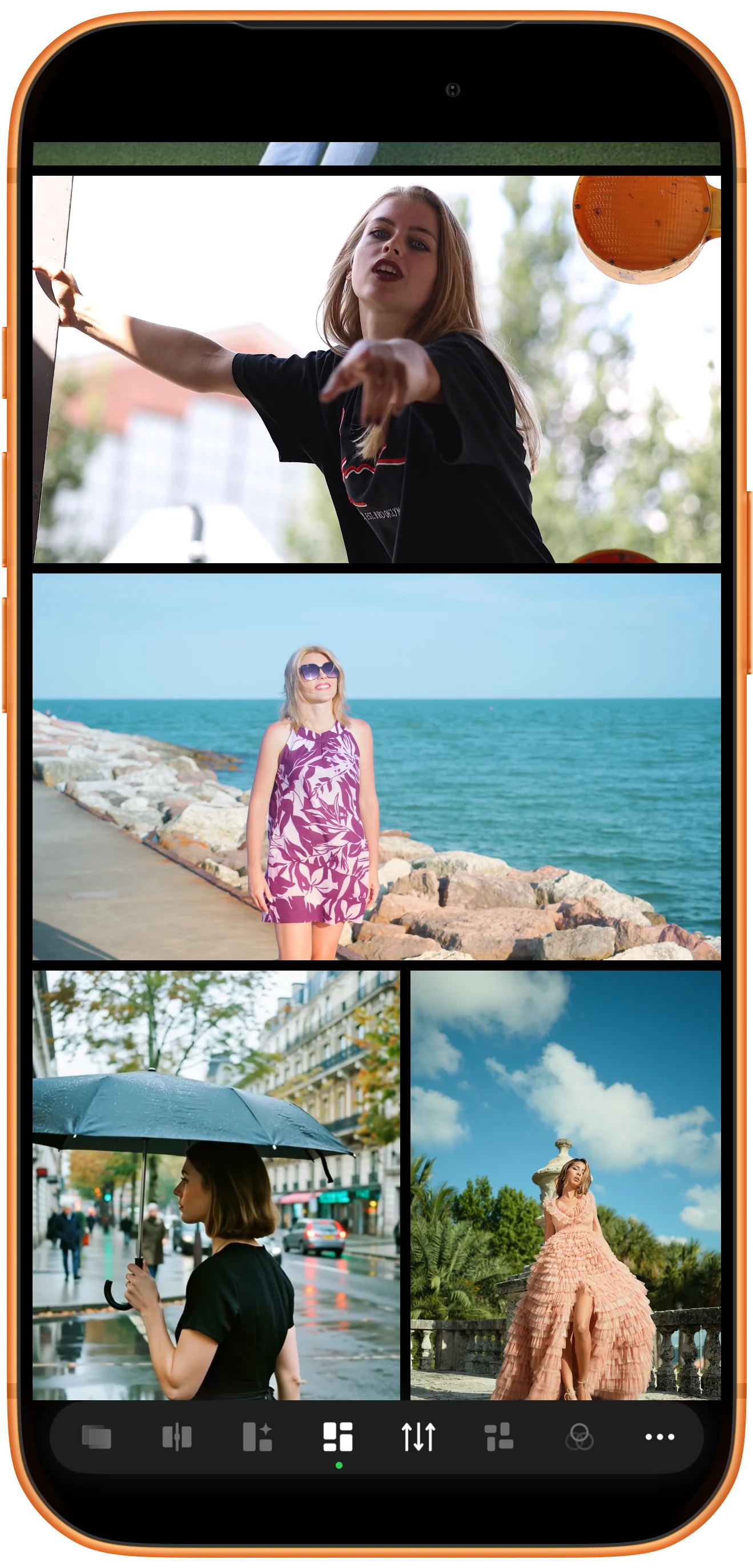
Close the settings panel to watch. If all clips fit on screen, choose larger cards or add more clips so there is content to scroll through. Tap a video to reveal its progress and removal control. To leave the mode, reopen settings and choose Close Waterfall.
More possibilities
Useful details
Check these details as you follow the steps.
Scrolling speed is not playback speed
Scroll speed controls how quickly the layout moves, not how fast a person moves inside a clip. A larger seconds-per-screen value makes the mosaic travel more slowly.
Remove a card without deleting its source
The removal control takes a video out of the current waterfall. It does not delete the original video from your photo library or local files.
Frequently asked questions
Why does Auto-scroll appear to do nothing?
The current collection may fit inside the visible area. Increase Video size or add more videos, close the settings panel, and check the layout again.
How is Waterfall different from Counterflow?
Waterfall arranges videos into one scrolling composition. Counterflow uses separate rows or columns that move in alternating directions. Choose Counterflow when you want that opposing movement.
Split Screen Player
Try this with your own media
Open Split Screen Player and follow the steps with files you want to use.

