
Open Counterflow from the bottom toolbar, then tap it again for Counterflow settings. Add videos, choose Vertical with Columns or Horizontal with Rows, and enable Auto-scroll.
Add clips to Counterflow
Tap Counterflow to enter the mode. Tap it again to open settings, choose Add videos, then select Videos. Confirm several clips. When switching directly from Waterfall, the existing flow clips can be carried across.
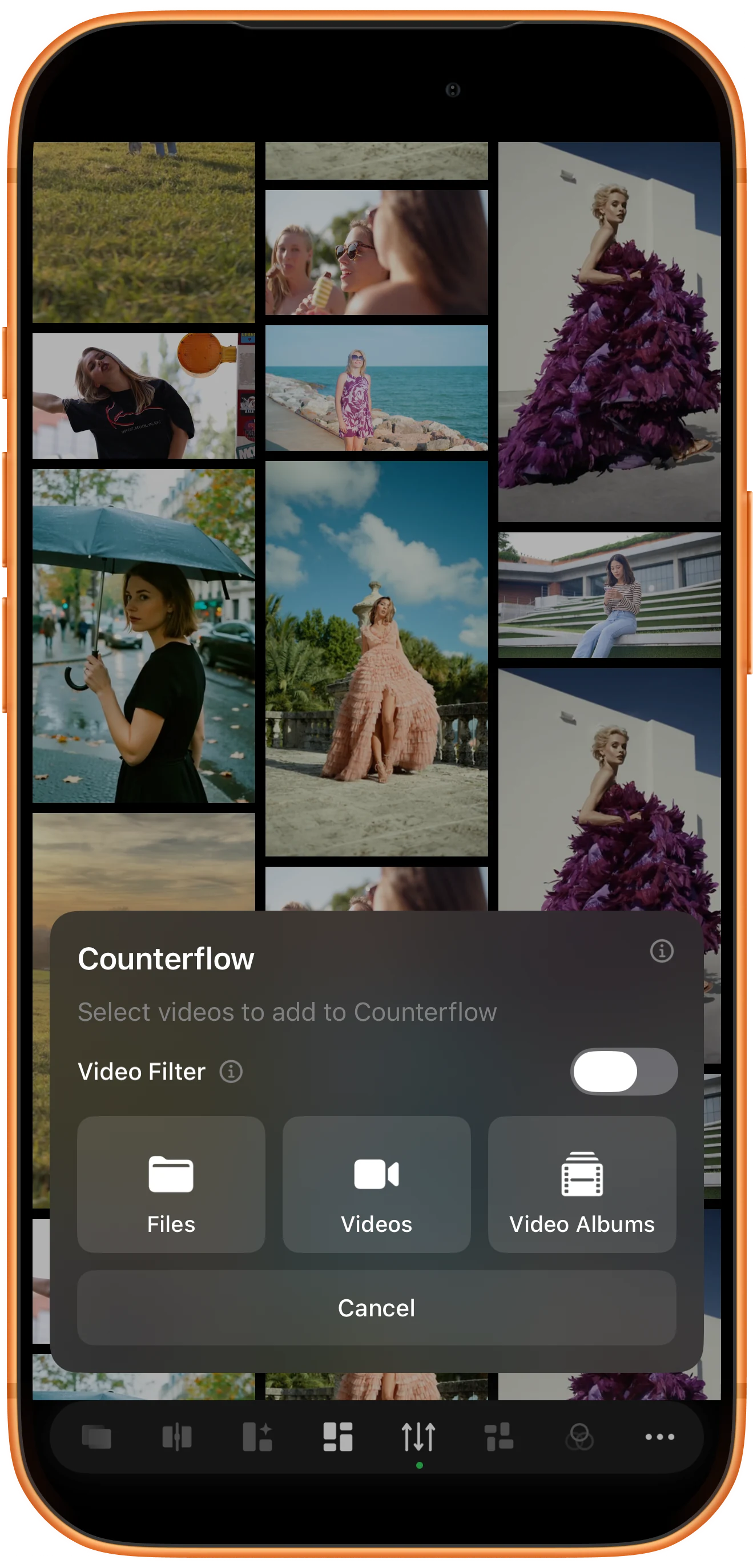
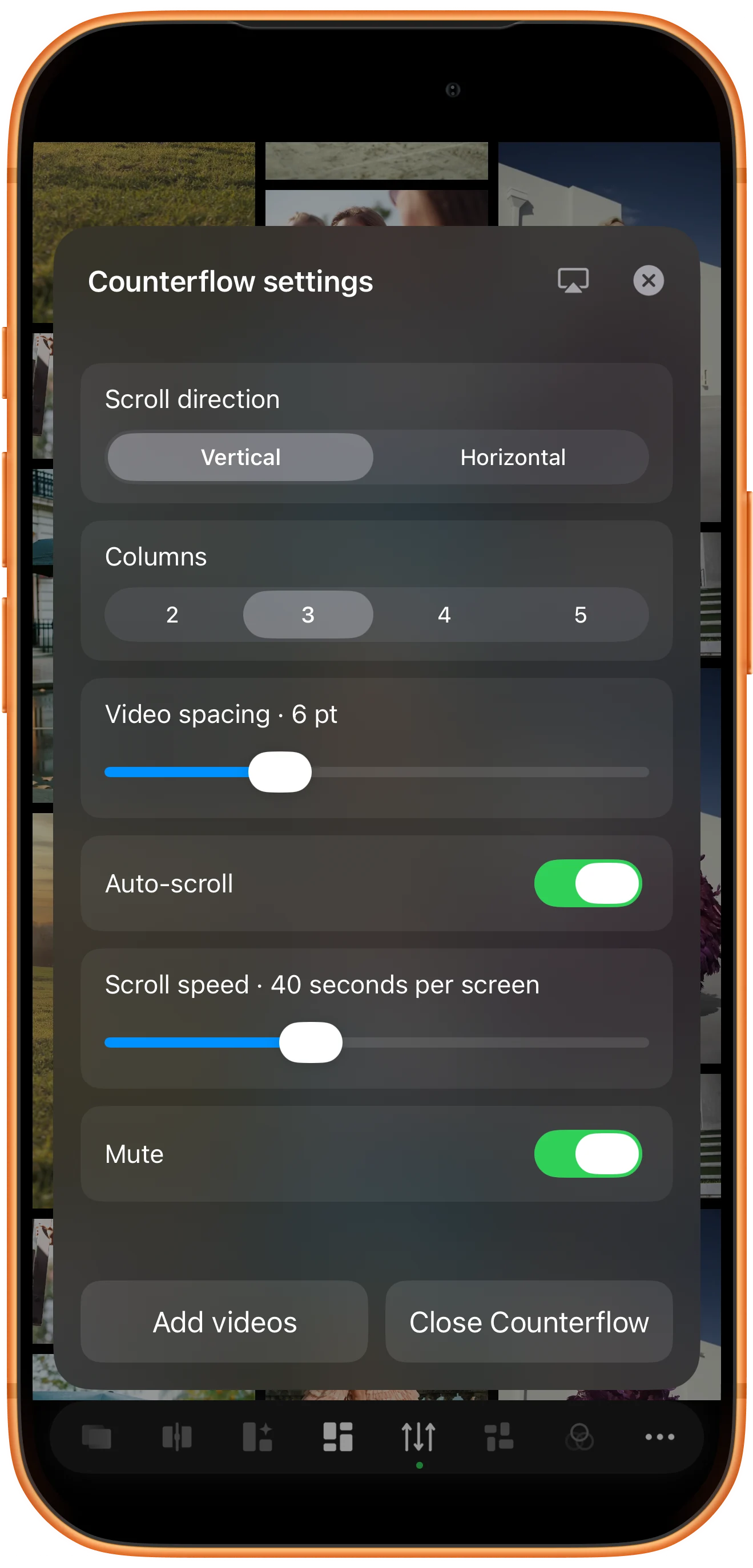
Create opposing columns
Choose Vertical under Scroll direction. The next control is Columns, with two to five tracks. Start with three columns to make the opposing movement easy to see. Adjust Video spacing, enable Auto-scroll, and keep Mute on for a silent display.
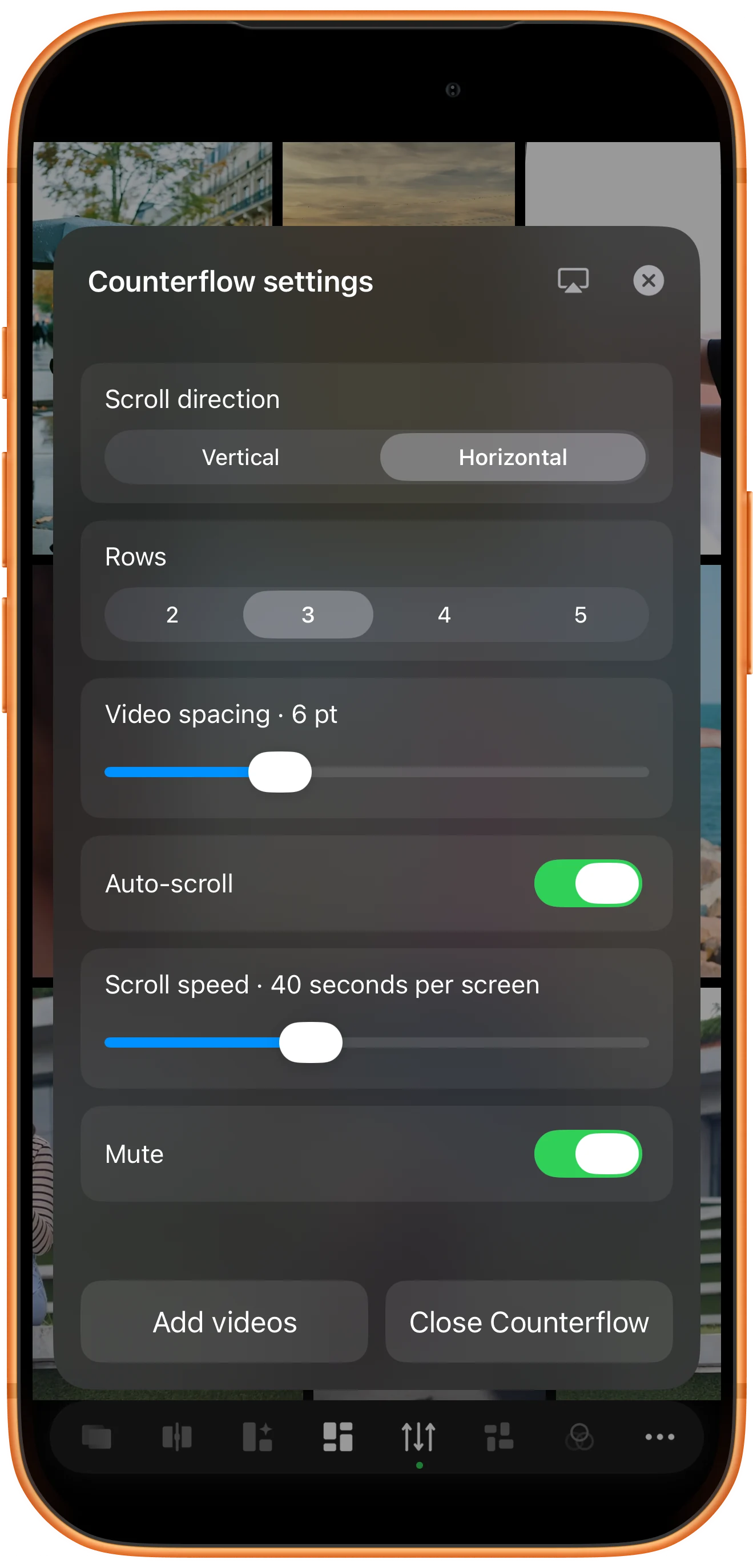
Try horizontal rows
Select Horizontal to change the layout into rows. The same count control becomes Rows. Use Scroll speed to set the travel time per screen; more seconds means slower movement. This changes the motion of the arrangement, not the playback speed of the clips.
Watch and fine-tune the result
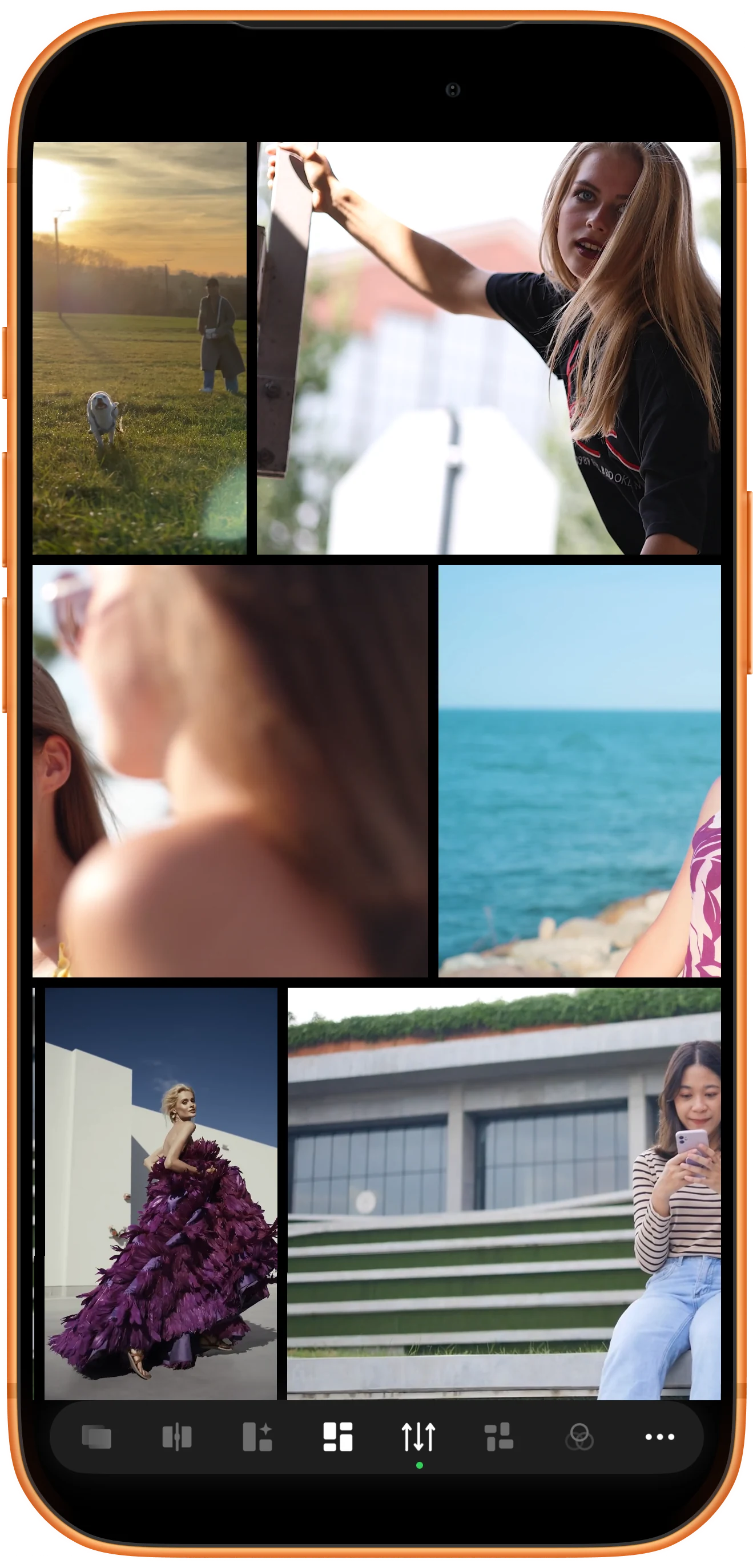
Close the settings panel and watch the neighboring tracks move in opposite directions. Reopen Counterflow settings to change the count or speed. To return to the ordinary split-screen workspace, choose Close Counterflow and confirm.
More possibilities
Useful details
Check these details as you follow the steps.
Repeated clips are part of the flowing layout
A clip can appear more than once along a track as the layout repeats. Seeing repeated cards does not by itself mean you imported duplicate files.
Choose the track count for the screen
More rows or columns show more clips at once but make each one smaller. Start with two or three on a phone, then increase the count if the subjects remain readable.
Frequently asked questions
Can I use portrait and landscape videos together?
Yes. The example mixes both orientations. Their proportions affect the length of each card within its row or column, so the wall does not require identically shaped clips.
Can I stop the movement without closing Counterflow?
Yes. Turn off Auto-scroll in Counterflow settings. The movement of the arrangement stops; this switch is separate from the playback of the videos themselves.
Split Screen Player
Try this with your own media
Open Split Screen Player and follow the steps with files you want to use.

