
Add Cycle Solo Audio and Mute All Players to the bottom toolbar. Tap Cycle Solo Audio to select one audible player and tap again to move to the next.
Prepare two playing videos
Load a video in each region and start playback. Reveal both players’ controls and locate their speaker icons so you can follow which one is muted.
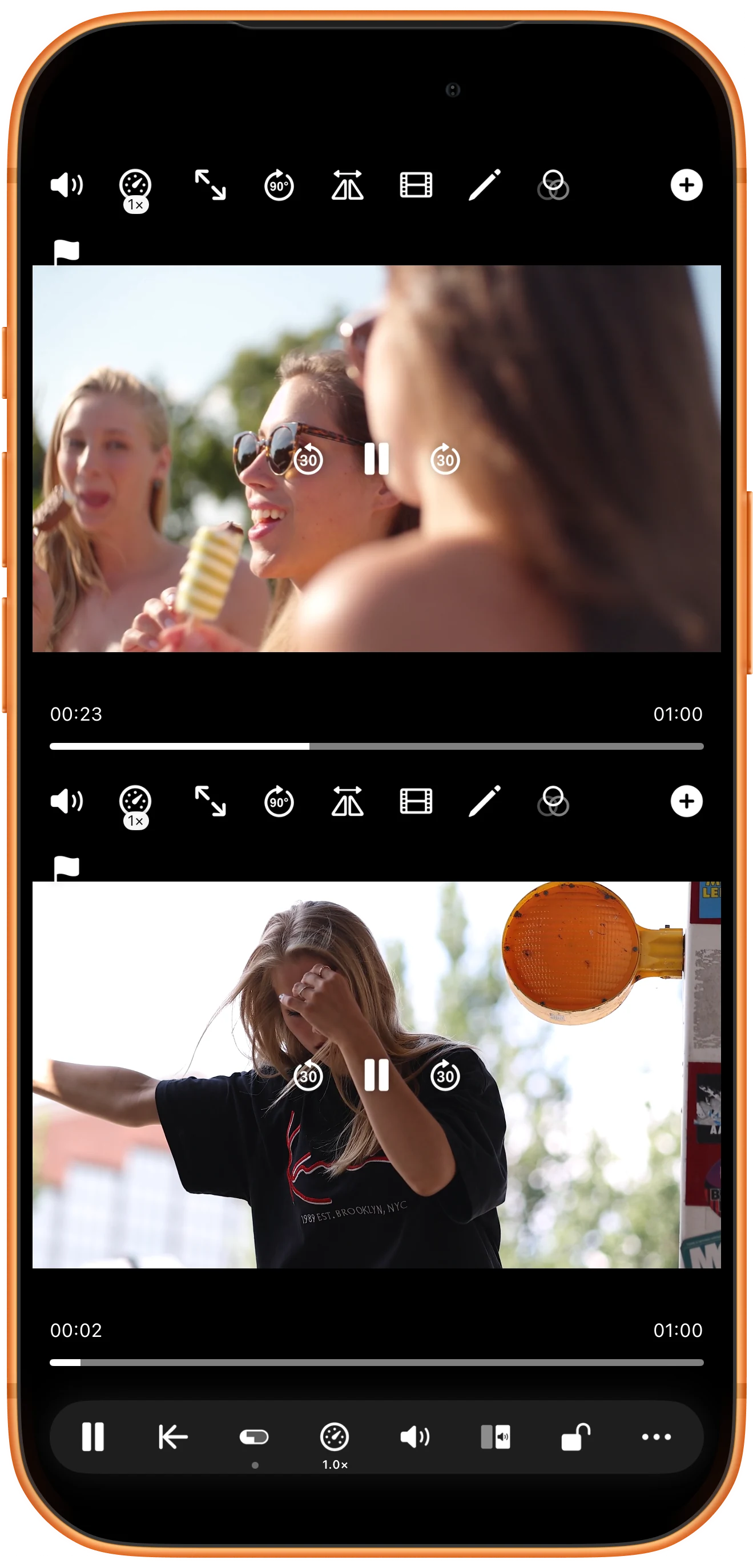
Listen to the first player
Tap Cycle Solo Audio. Its toolbar indicator shows 1; the upper speaker remains enabled while the lower speaker is crossed out. Both pictures can keep moving.
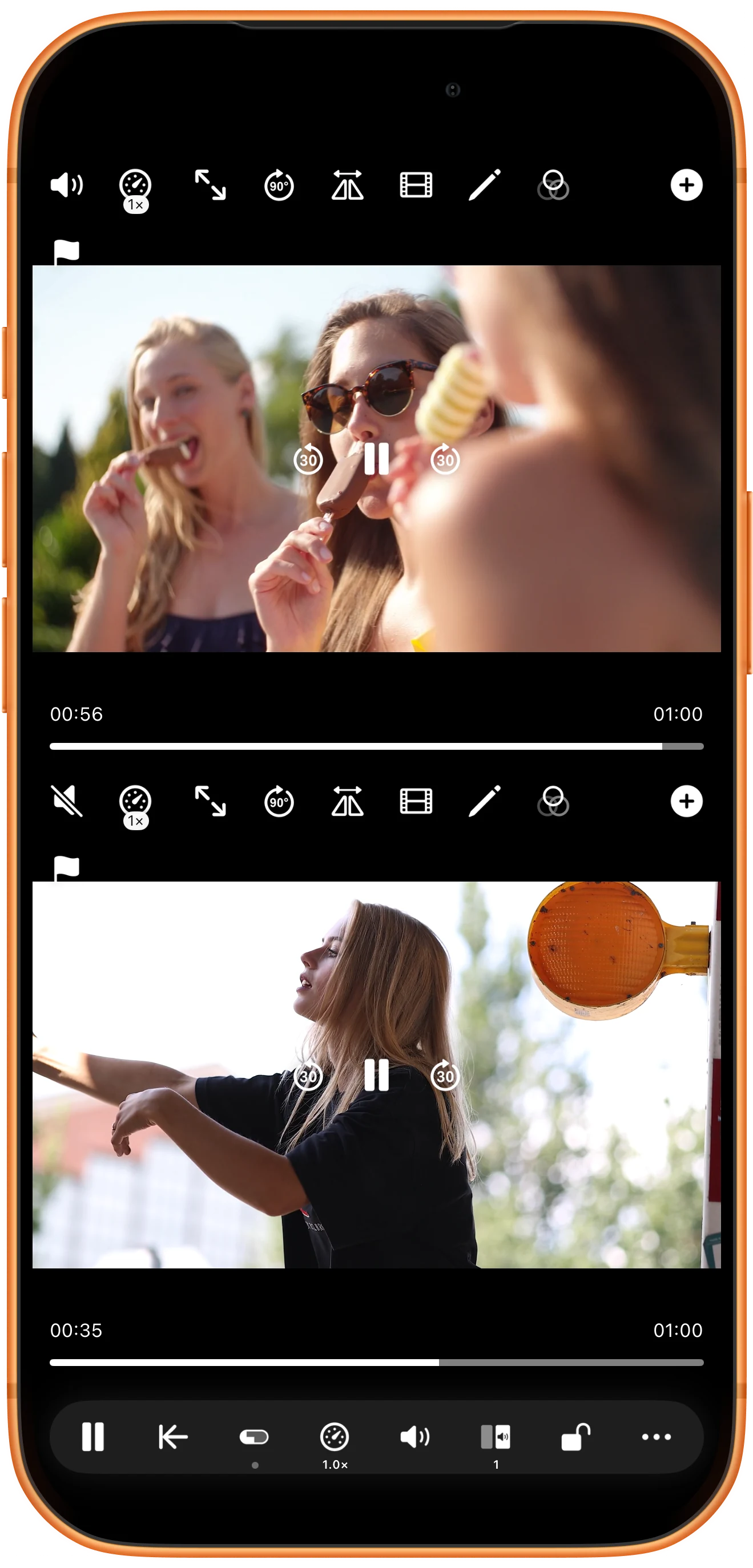
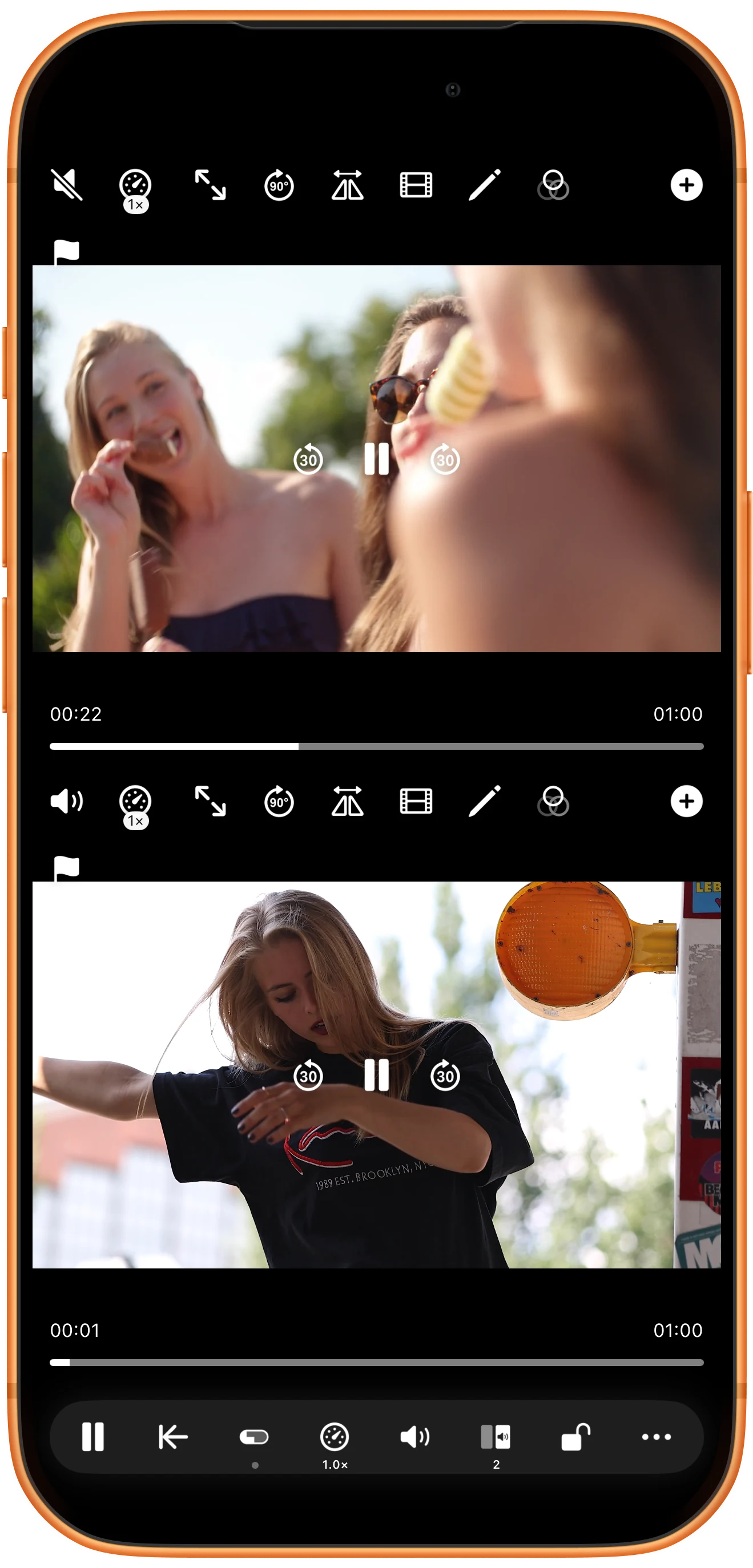
Cycle to the next player
Tap the same button again. The indicator changes to 2 and the speaker states swap, allowing you to follow the second clip’s sound while keeping both views visible.
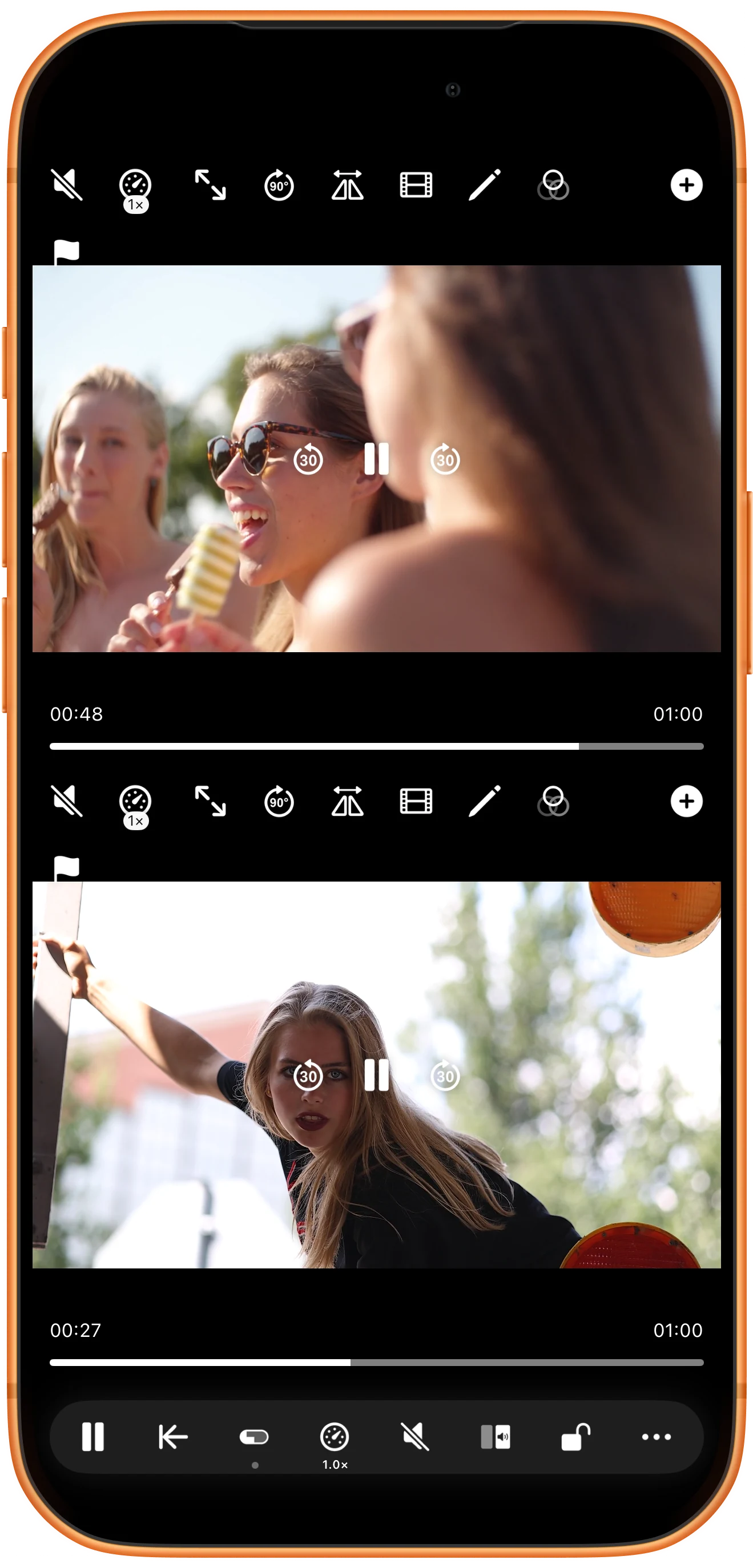
Silence the whole workspace
Tap Mute All Players when you want no sound from either video. Both speaker icons become crossed out. You can later use an individual speaker button to unmute just that pane.
More possibilities
Useful details
Check these details as you follow the steps.
Check the source, not just its format
A file can contain an audio track filled with silence. If no sound is heard, check the source in addition to the speaker state and system volume.
Muting does not pause video
The audio controls change which player supplies sound. Use the separate playback controls when you also want the pictures to stop.
Frequently asked questions
Can I mute one player manually?
Yes. Reveal that player’s controls and tap its speaker button. Check the other speaker icon as well, especially if linked controls are enabled.
Does solo audio combine or export the soundtracks?
No. It chooses the audible player while viewing. Use video export and its audio settings to create a separate finished file.
Split Screen Player
Try this with your own media
Open Split Screen Player and follow the steps with files you want to use.

