
Add Pause All Players, Global Progress Bar, and Restart All Players to the bottom toolbar. Use them to toggle playback, move the shared progress position, and return the videos to the beginning.
Start all videos together
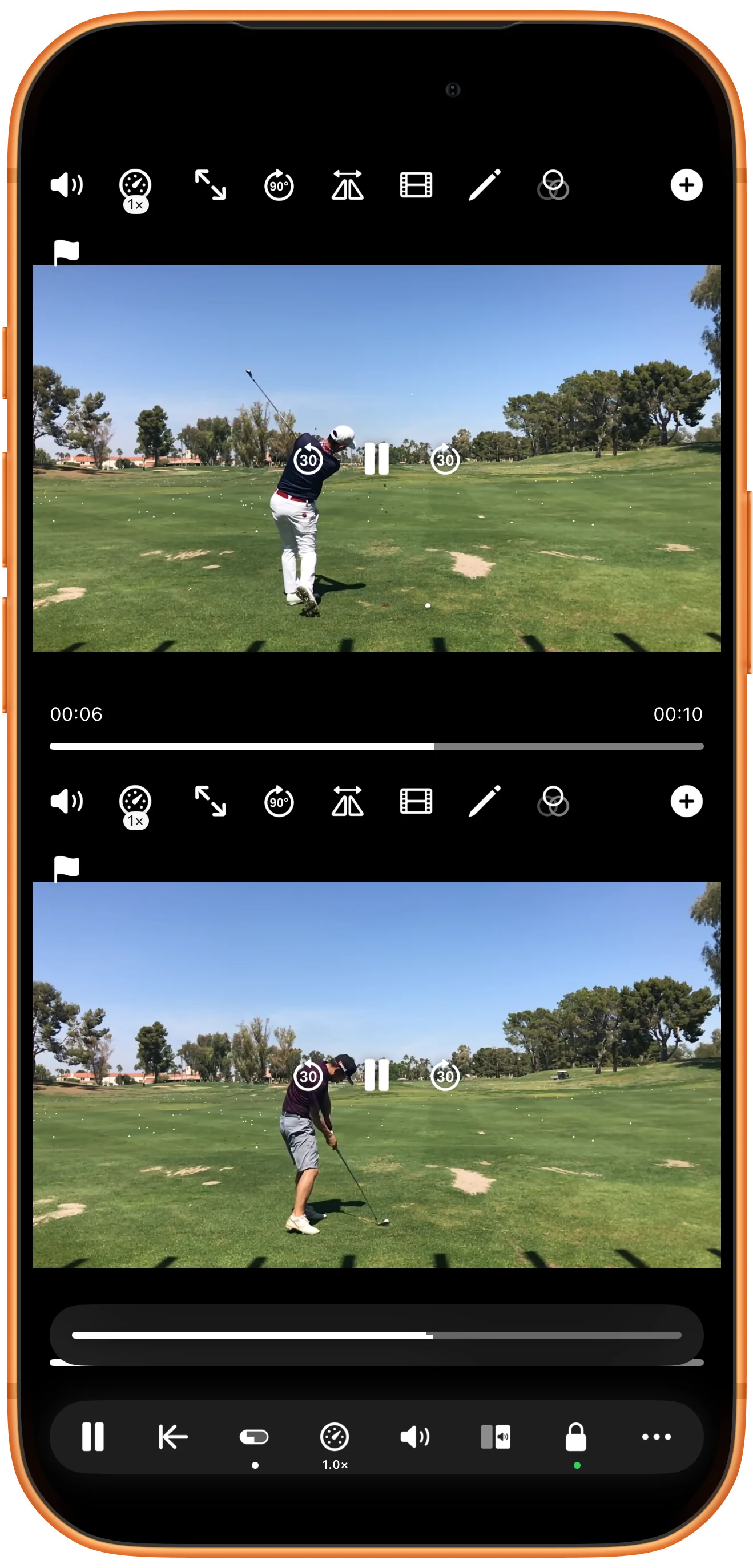
Tap Pause All Players when the videos are paused. The button toggles the playback state; the pause icons in both panes show that both are now playing.
Pause the entire comparison
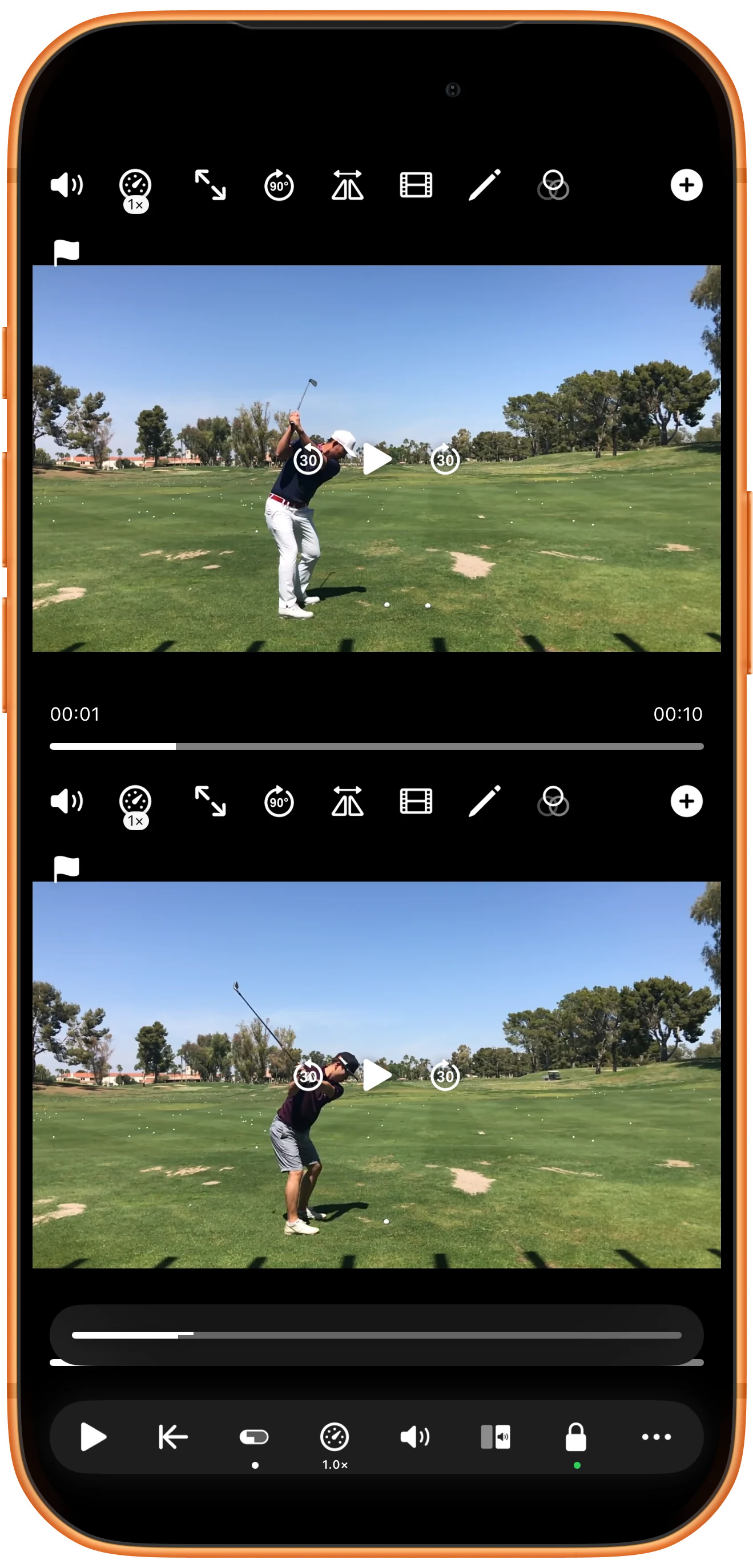
Tap the same toolbar button again. Check that both panes show Play and that their pictures stop changing before inspecting a detail.
Seek with the shared progress bar
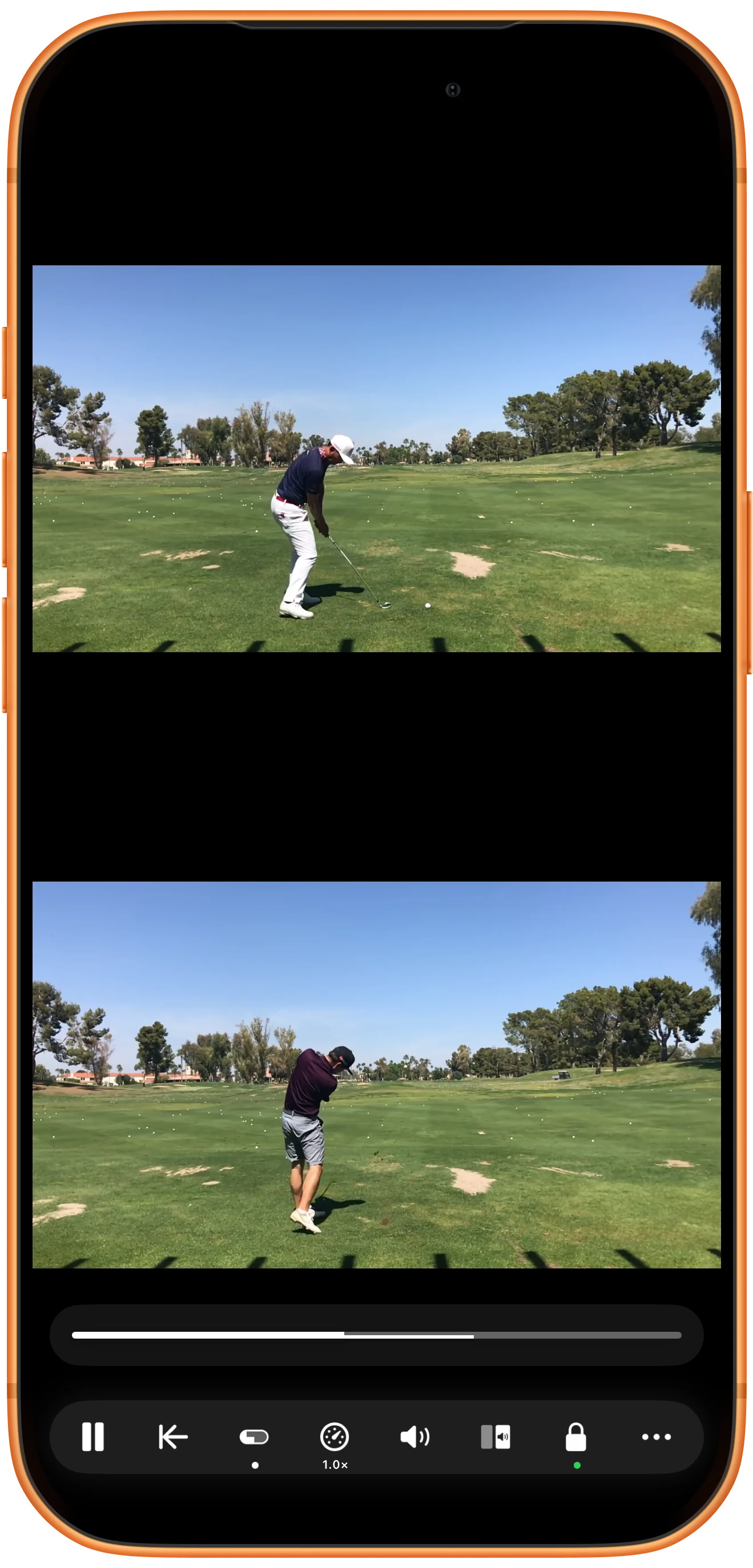
Tap Global Progress Bar to show the extra slider and drag it. Without Synchronized playback, this seeks by percentage of each video, so clips of different lengths can show different elapsed times.
Return to the beginning
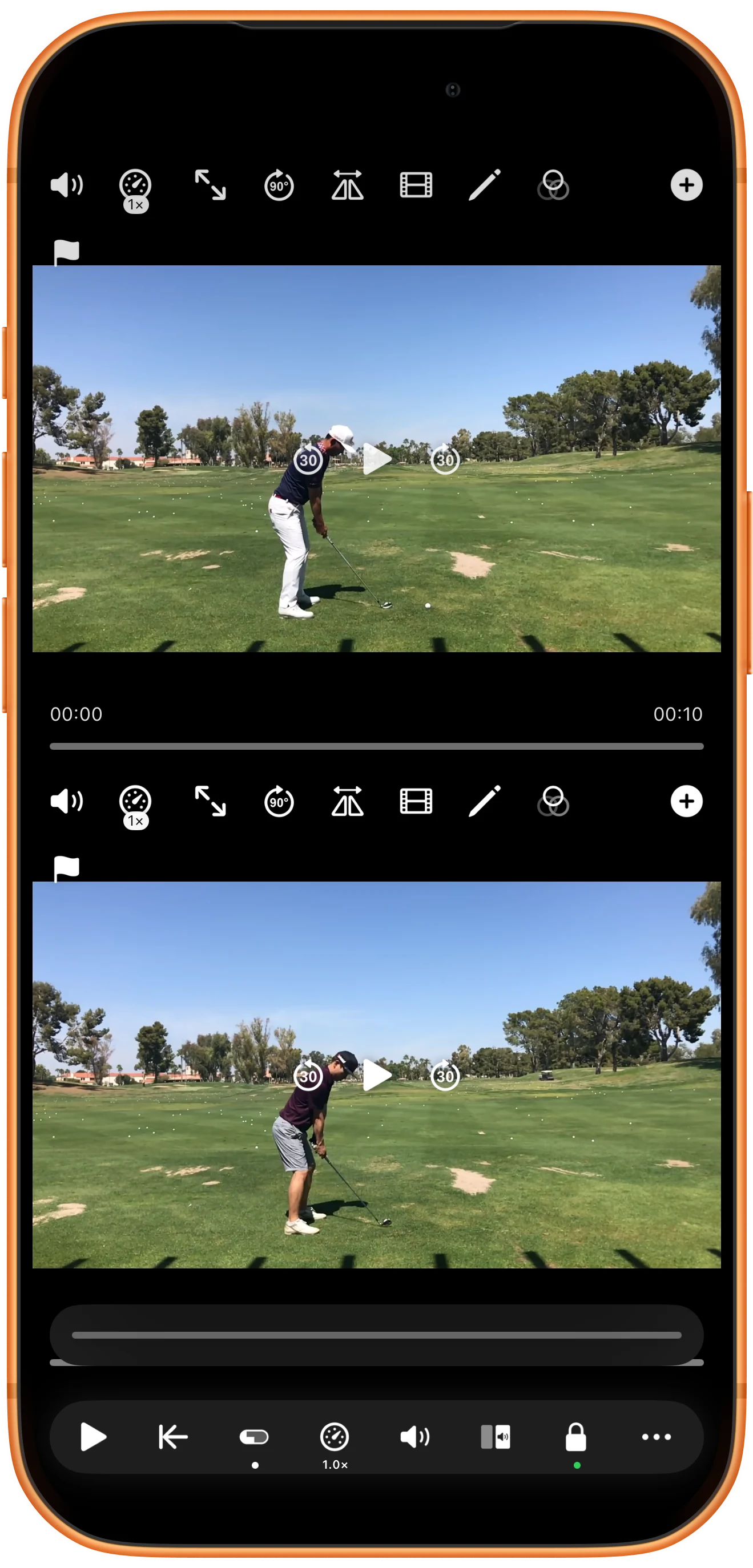
Use Restart All Players to return the videos to their start. In this example both were paused and remain paused at zero. Tap the global playback button when ready to review again.
More possibilities
Useful details
Check these details as you follow the steps.
Link individual player controls when useful
Turn on Lock to link individual player controls; the toolbar shows a closed lock with a green indicator. In this workspace, pressing Play in one pane starts both. Lock does not lock the touchscreen.
Use sync points for matching action
A shared percentage does not align events recorded at different times. Use Sync Point and set reference points when the action must stay matched.
Frequently asked questions
Why do the times differ after global seeking?
Without synchronization, the slider represents a fraction of each clip’s duration. The same fraction can correspond to different numbers of seconds.
Does the Lock button prevent accidental touches?
No. It links playback controls across players. It is not a screen-touch lock.
Split Screen Player
Try this with your own media
Open Split Screen Player and follow the steps with files you want to use.

