
Tap a video’s speed gauge to cycle its rate and open Video Speed. Use Change Speed for All Players in the bottom toolbar to set every player to a common rate.
Find the individual speed control
Tap a video to reveal its controls. The gauge and value belong to that pane; the upper video starts at 1× in this example.
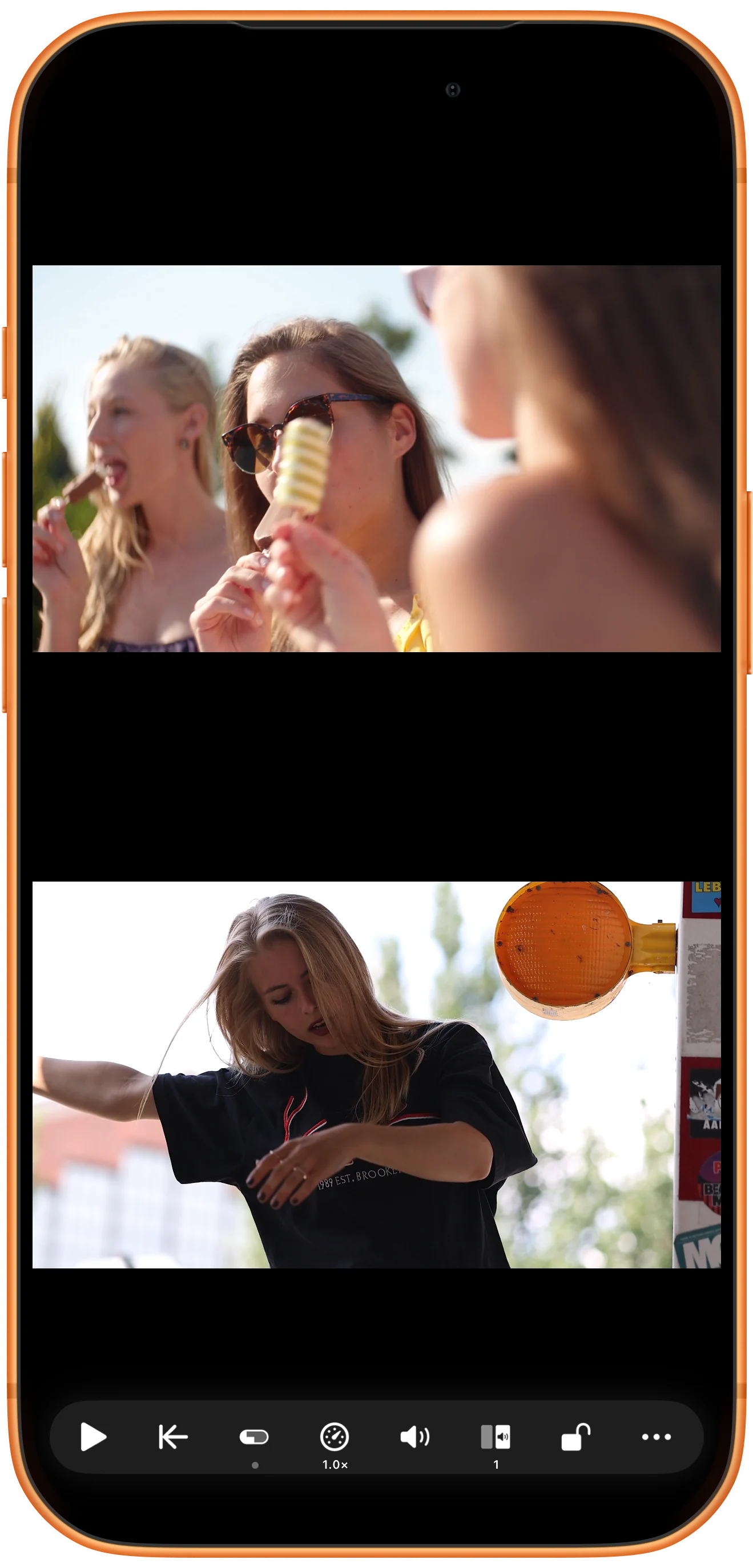
Change one video’s rate
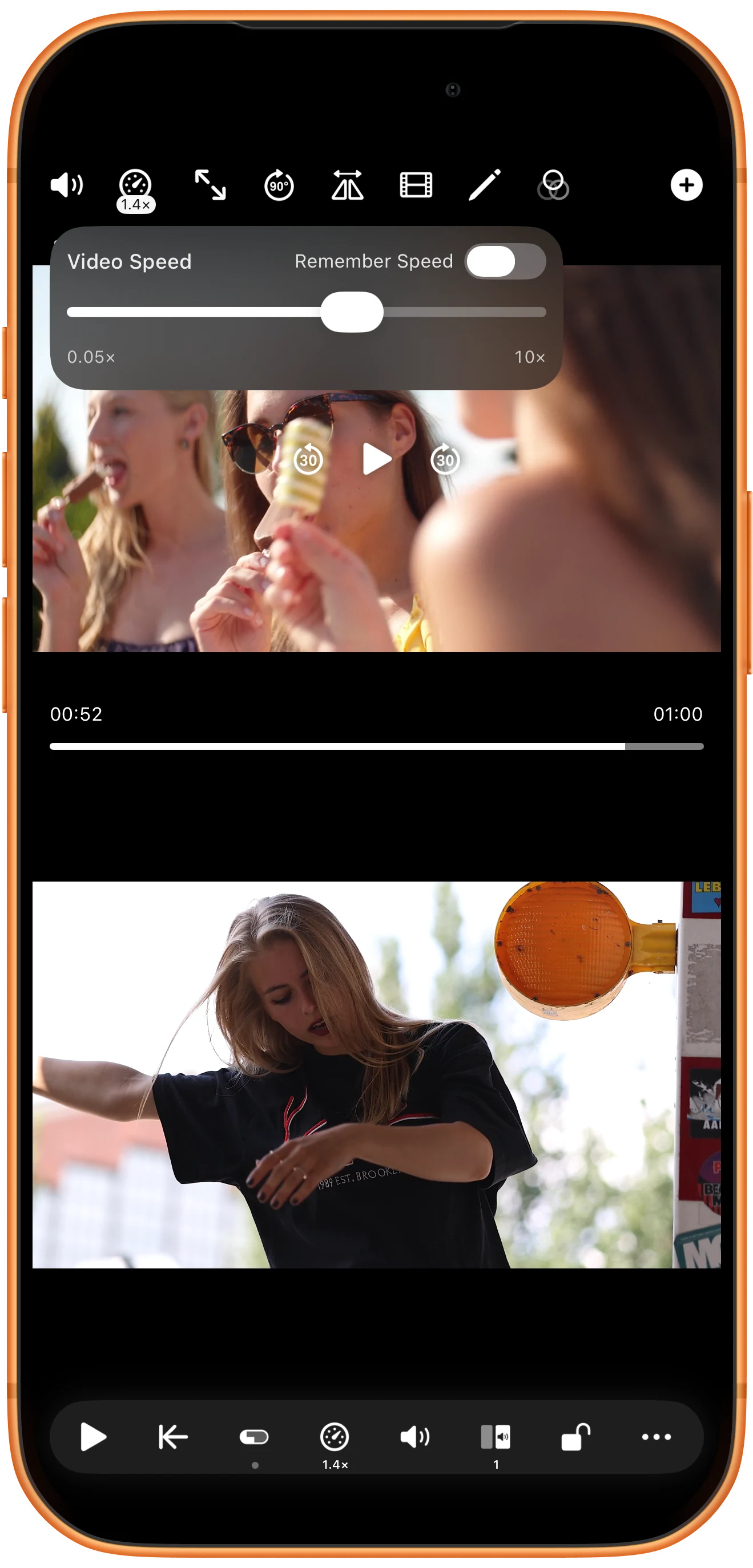
Tap the speed gauge to advance to the next rate and reveal Video Speed. The example reaches 1.4×. The panel also offers a speed slider; Remember Speed is a separate preference.
Set a common speed
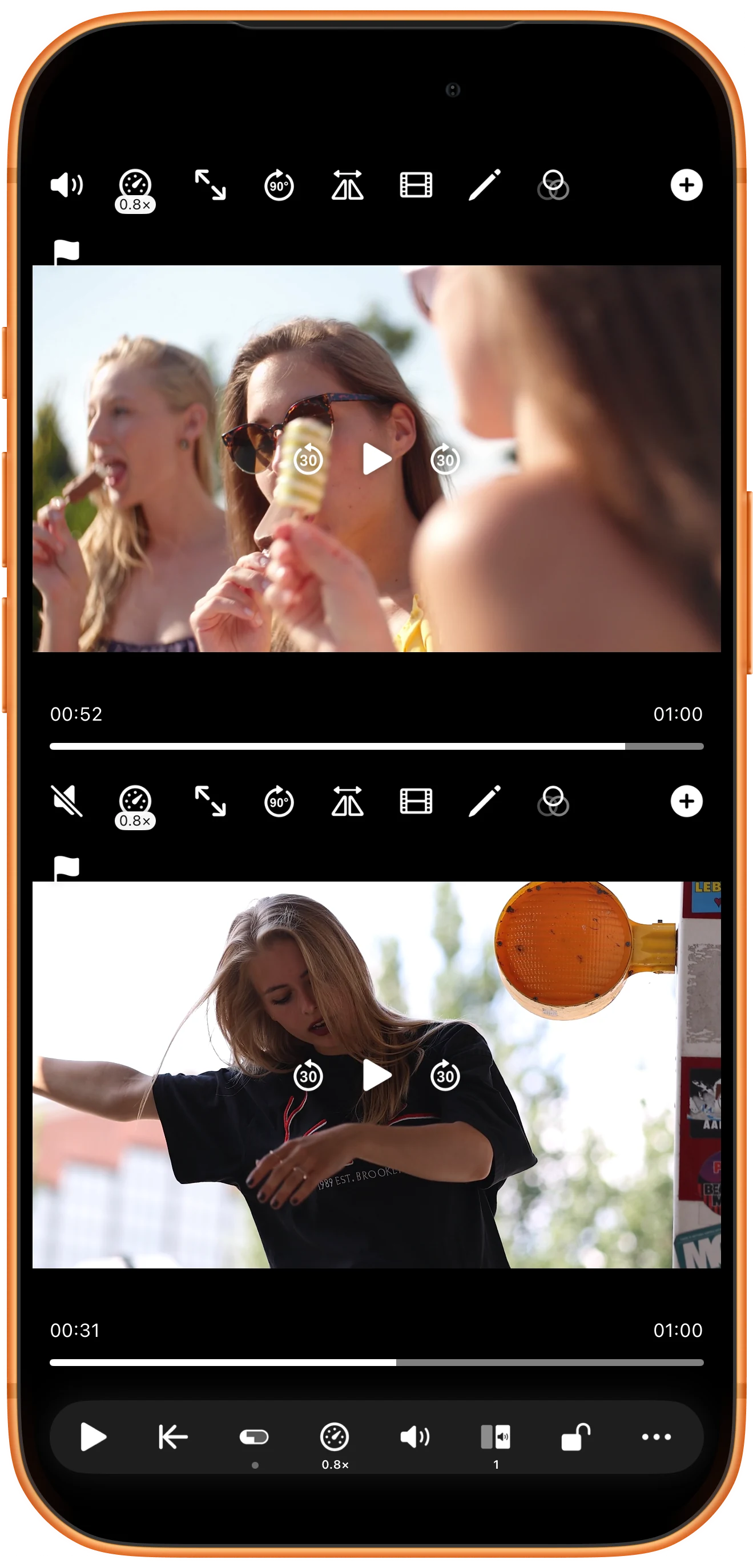
Tap Change Speed for All Players repeatedly to cycle the available rates. Check both panes: the example reaches 0.8× for both videos.
Return to normal playback
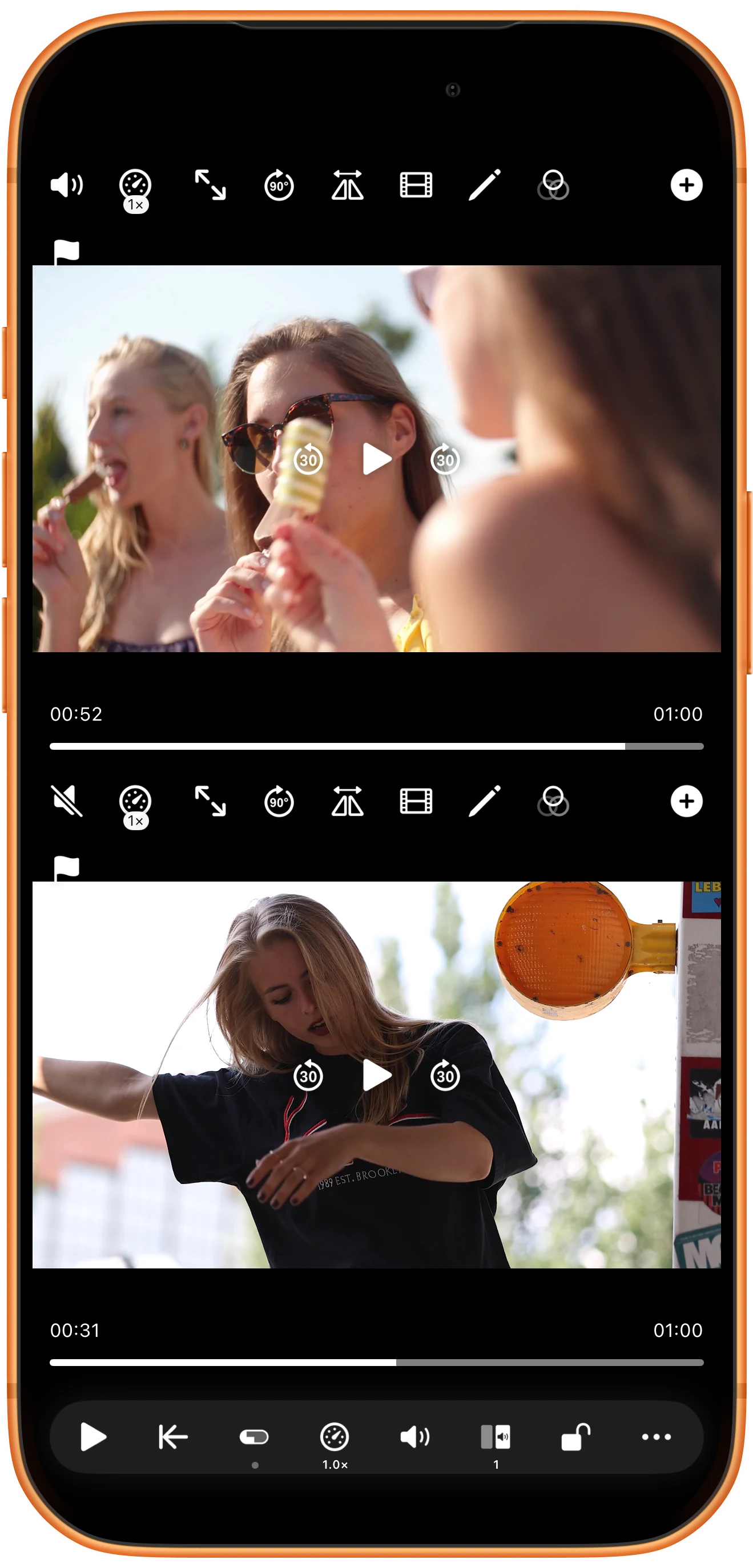
Continue cycling the global speed to 1×. Reveal each pane’s controls to check its rate, then resume playback. Pausing and changing speed are separate controls.
More possibilities
Useful details
Check these details as you follow the steps.
Temporary speed controls
The toolbar also offers Long-Press Fast Forward and Long-Press Slow Motion. These apply while held and restore the previous rate when released. Disable synchronization before using them; the temporary multiplier depends on your settings.
Viewing speed and exported files
Changing playback speed does not create a new file. Use the separate split-screen exporter and check its timing settings when you need an output video.
Frequently asked questions
Why did another pane’s speed change too?
Check Lock and Synchronized playback. Linked controls can propagate a single-pane change; turn them off for independent adjustment.
How do I keep a different speed?
Use the individual gauge or the global speed action for a sustained change. Temporary long-press controls return to the earlier rate when released.
Split Screen Player
Try this with your own media
Open Split Screen Player and follow the steps with files you want to use.

