
On iPhone or iPad, choose a preset split-screen layout and add at least two videos. Use Adjust Layout Size to drag the yellow dividers, then use Rearrange Content to drag a clip onto another region and swap them.
Start with a preset and add both shortcuts
Choose a preset with at least two regions, then open “Customize Home Bottom Buttons” and add Rearrange Content and Adjust Layout Size.
Divider resizing works with preset layouts. It may be unavailable for custom or smart-generated layouts, maximized views, and comparison modes.
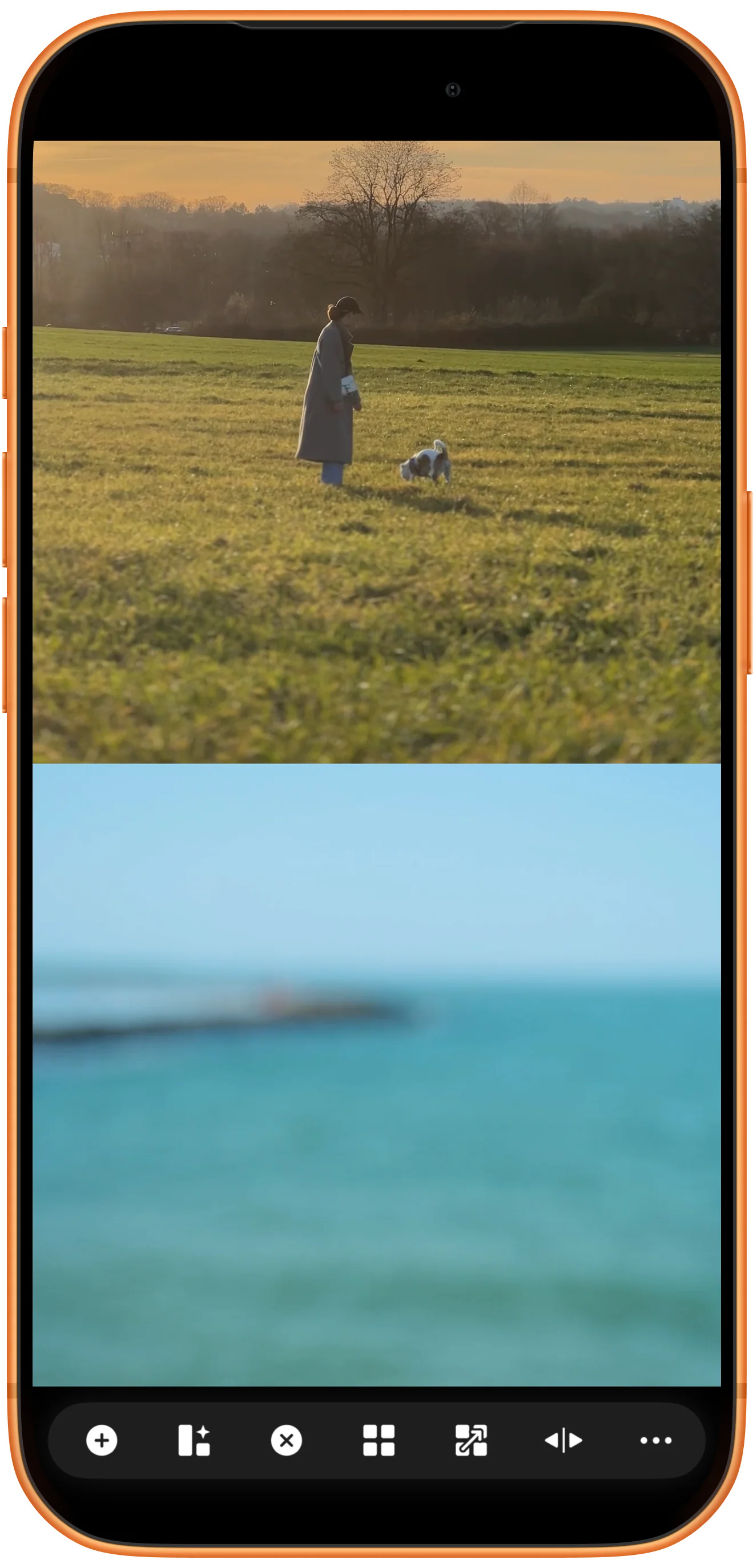
Drag a yellow divider to resize regions
Tap Adjust Layout Size. In edit mode, drag a yellow horizontal or vertical divider so the important video gets more space, then tap the checkmark.
Resize records are saved on the device by default and can be restored when you open the same preset again. This can be disabled in General settings.
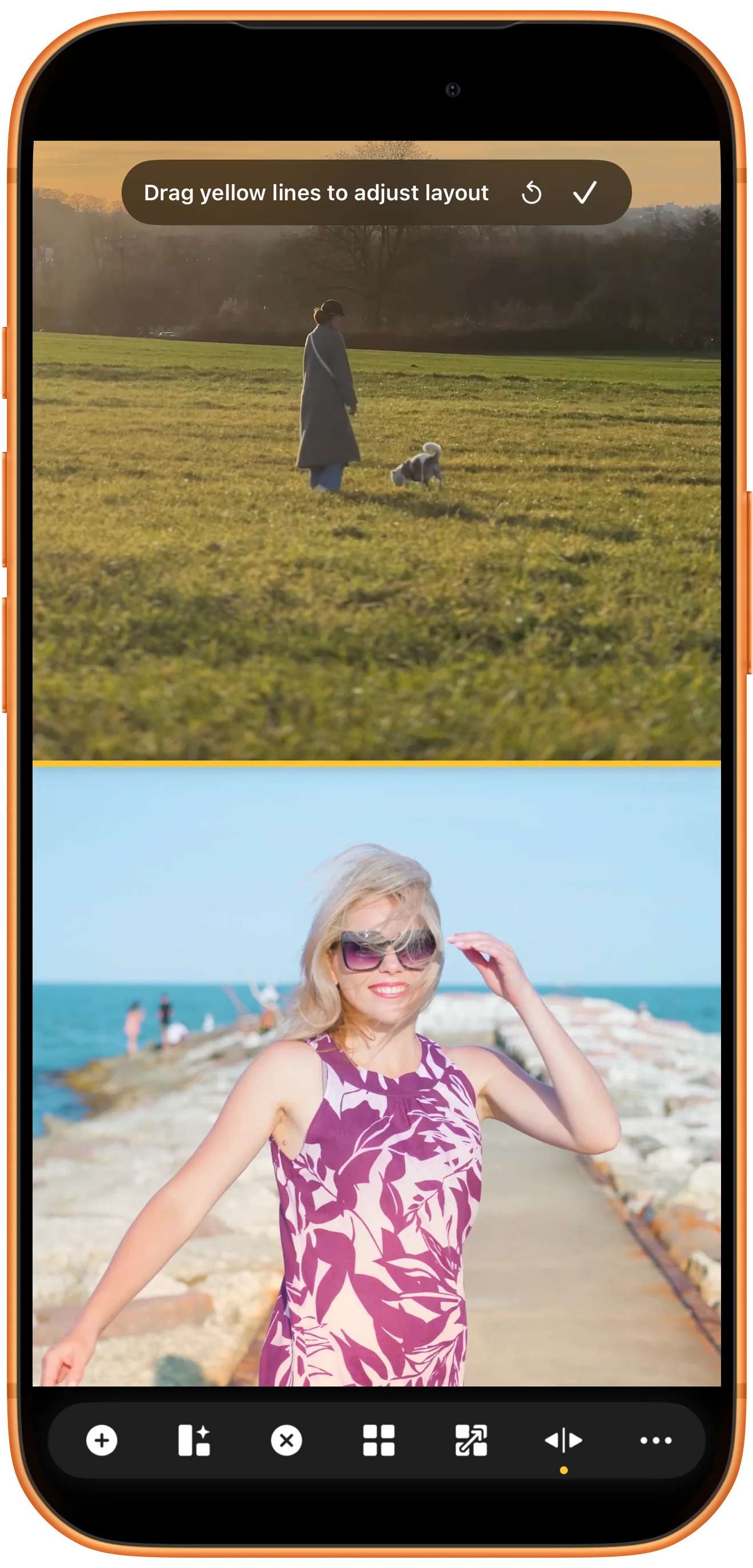
Open content-position mode
Tap Rearrange Content. A drag handle appears over every occupied region, and playback pauses to prevent accidental video controls while moving content.
Drag into an empty region to move the clip, or onto an occupied region to swap the two contents.
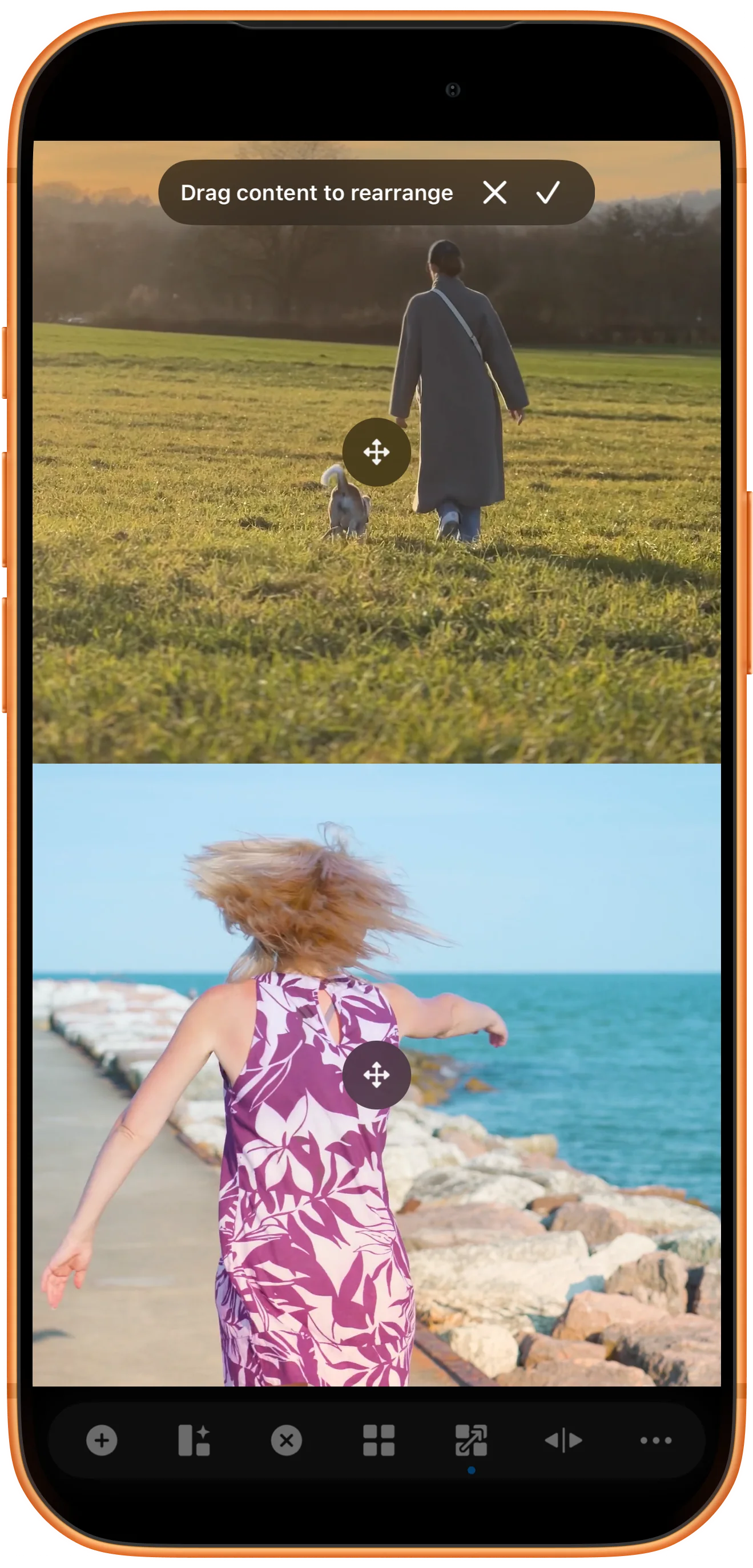
Move the content and finish
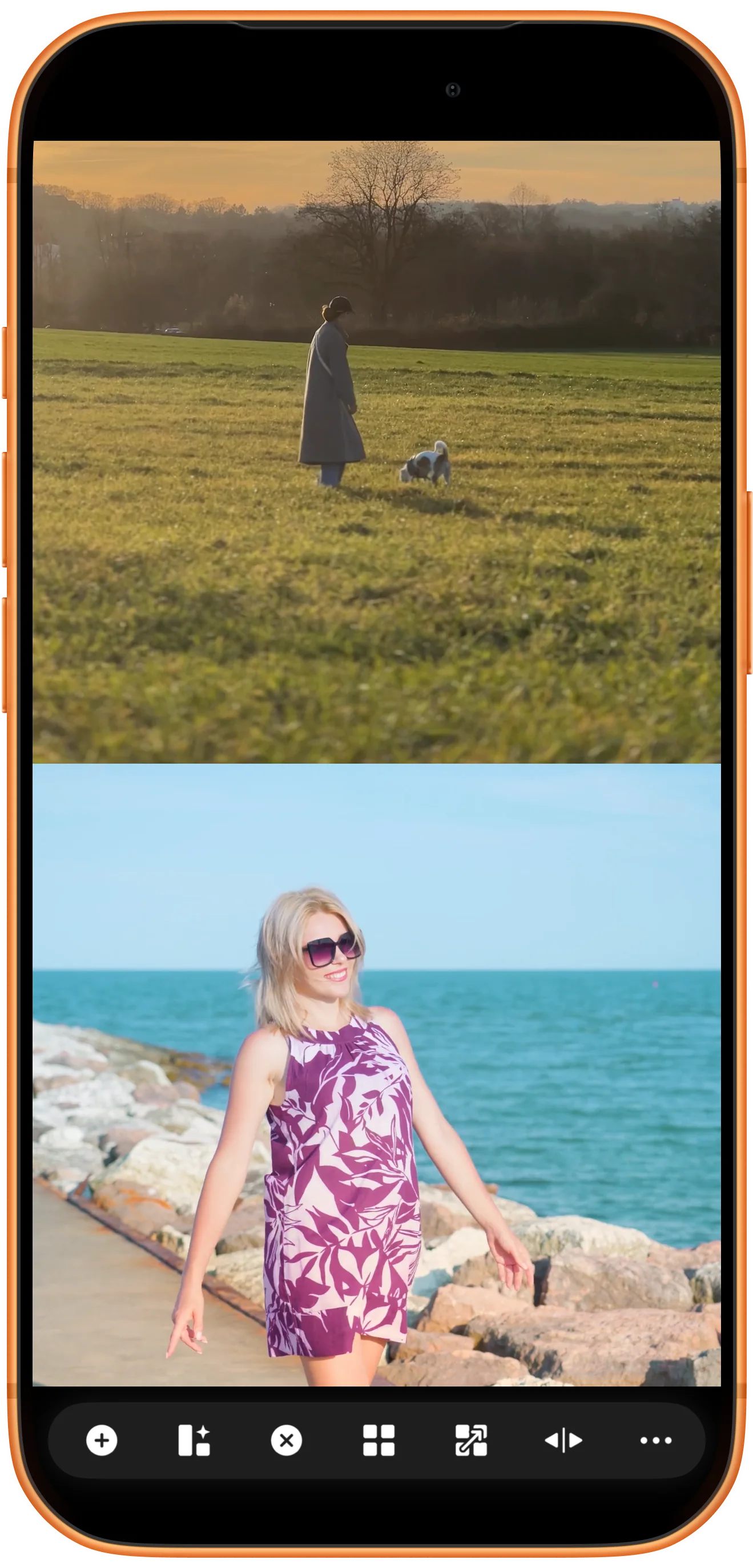
Hold the handle in the middle of a region and drag it to the destination. Tap the checkmark when the swap is complete to return to normal playback.
After finishing, each video still has its own controls, and group play, pause, and mute remain available.
More possibilities
Use size and position to show what matters
Region proportions affect more than appearance: they change what viewers can read and compare on the phone, tablet, or external display.
Emphasize one view and keep the reference
Enlarge the main video while keeping another angle, instruction clip, or timing reference visible.
Swap positions without reopening files
Content-position mode changes only the destination region, making it quick to move the main view to a better location.
Start smart, then fine-tune with a preset
For a mixed set of orientations, use Smart Layout to explore useful arrangements, then choose a similar preset when you need draggable dividers.
See the Smart Layout guideFrequently asked questions
Why is Adjust Layout Size disabled?
Common reasons include a custom or smart-generated layout, a single-region layout, a maximized view, or an active overlay/swipe comparison. Switch to a multi-region preset first.
Will the resized layout be saved?
By default, the resize record stays on the current device and is restored when the same preset is opened again. You can turn off layout-size records in General settings.
Does resizing crop the original video file?
No. It only changes the display region in the workspace. Fit may show bars and Fill may crop the displayed frame, but the original file is unchanged.
Can I draw completely custom regions?
Use a custom layout when you need arbitrary region geometry. Yellow-divider resizing is the faster option for modifying an existing preset.
Split Screen Player
Give the important view more room
Download Split Screen Player on iPhone or iPad, open two videos, and try resizing and swapping their regions.

