
Open Split Screen Player on iPhone or iPad, add Smart Layout to the bottom toolbar, choose videos from your album or files, then select one of the recommended arrangements. The app automatically places portrait and landscape clips according to their dimensions.
Add Smart Layout to the bottom toolbar
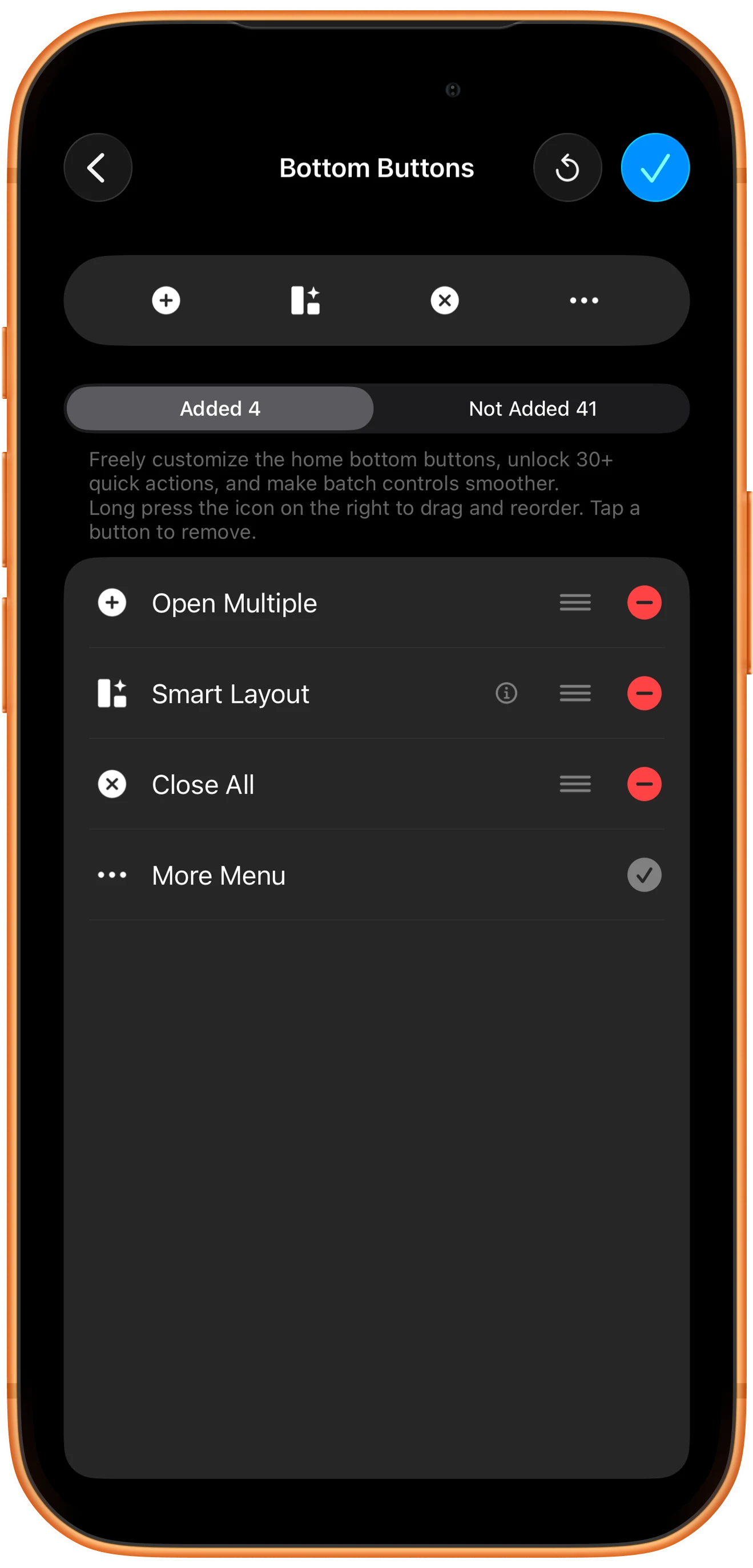
Open “Customize Home Bottom Buttons” from More and make sure Smart Layout is added. Move it near the front if you use it often.
The same screen can add Select Layout, Rearrange Content, and Adjust Layout Size.
Choose the videos to arrange together
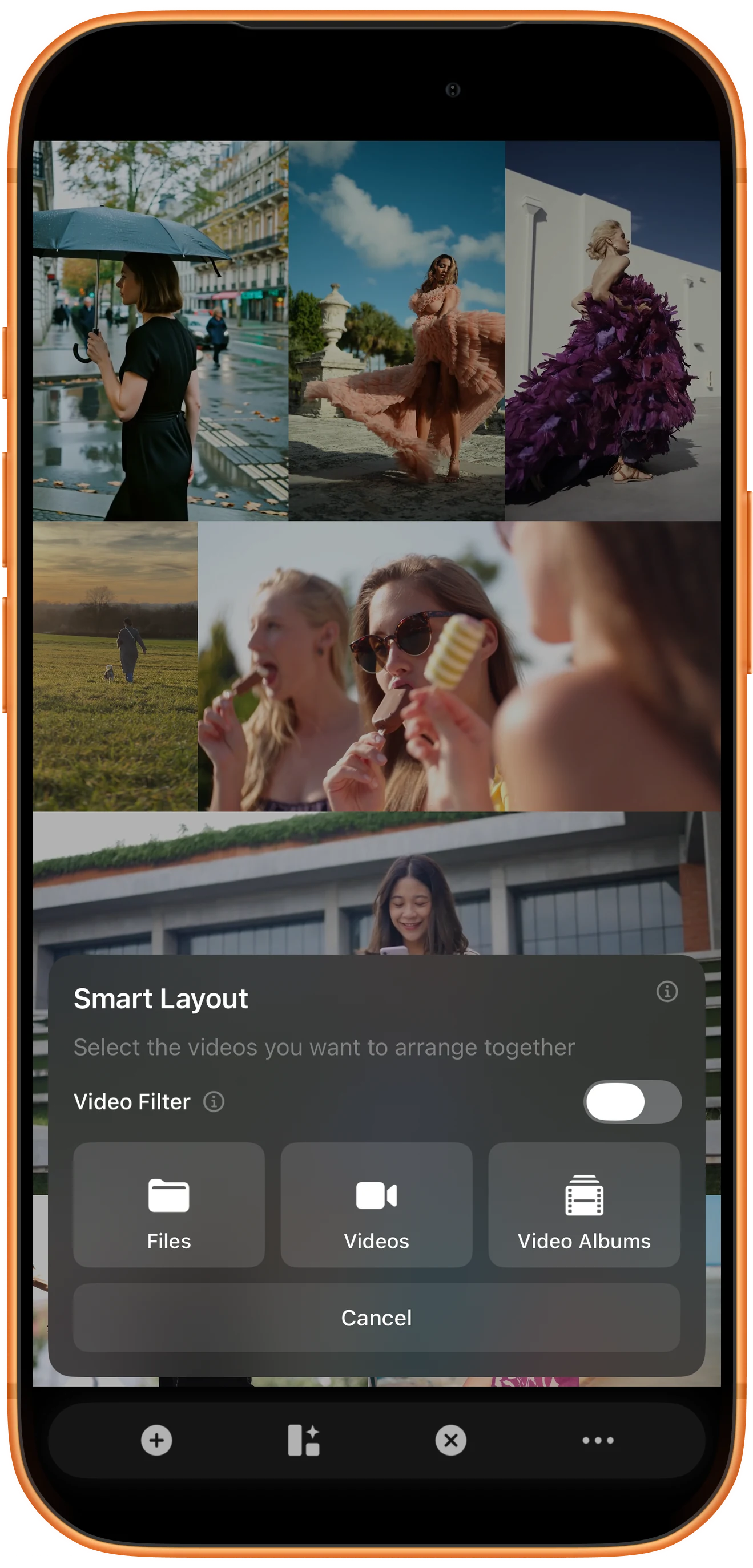
Tap Smart Layout, then choose album videos or files. For filtering, enable Video filter, select the candidate videos, then choose the rule to apply.
Select the complete group for this session because the suggestions depend on both video count and orientation.
Compare the recommended layouts
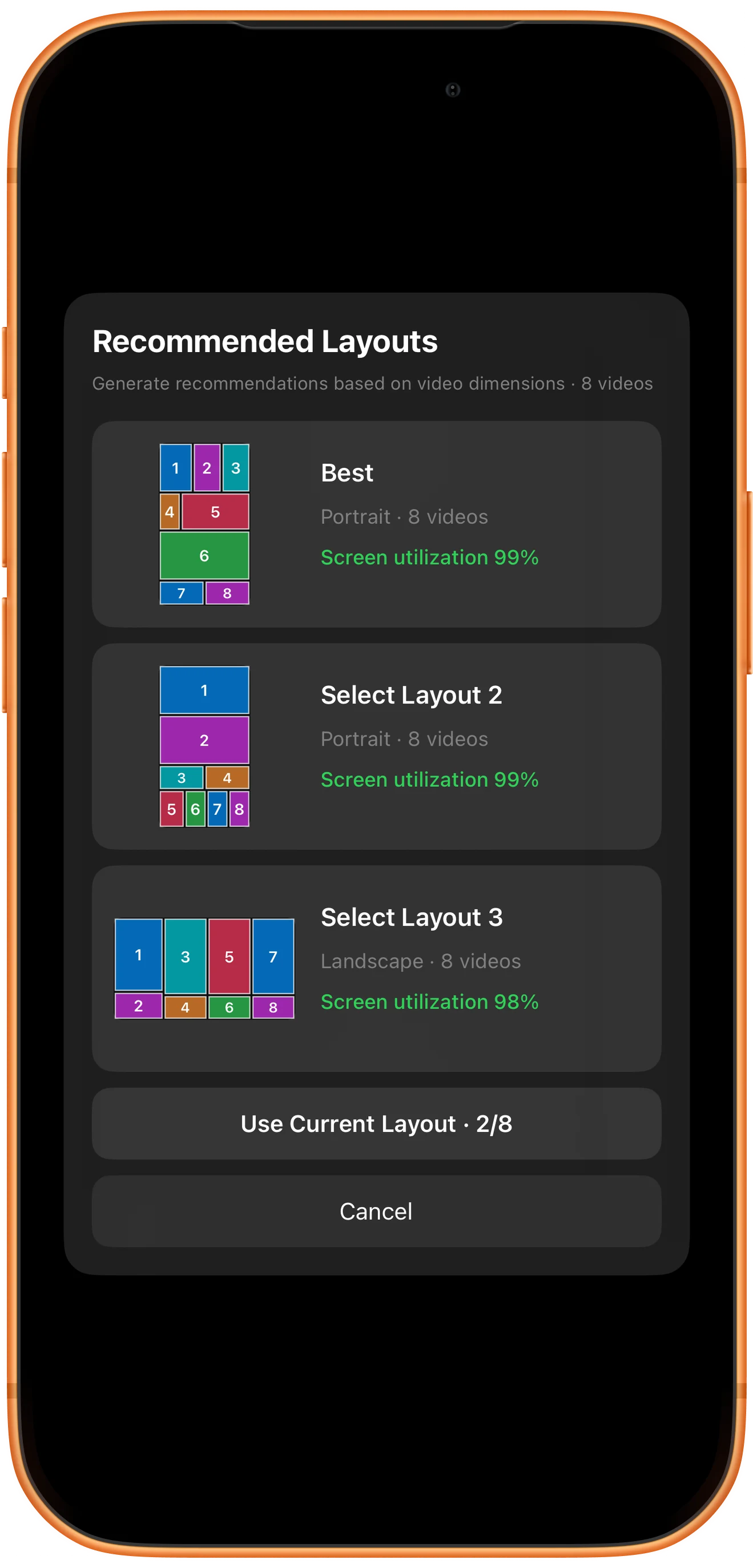
Review Best and the alternative layouts. Each option identifies portrait or landscape orientation, video count, and screen utilization. Pick the one that matches how you are holding the device.
Screen utilization measures how efficiently the regions fill the display. It does not guarantee that every clip is uncropped; use Fit or Fill when needed.
Apply the layout and control each video
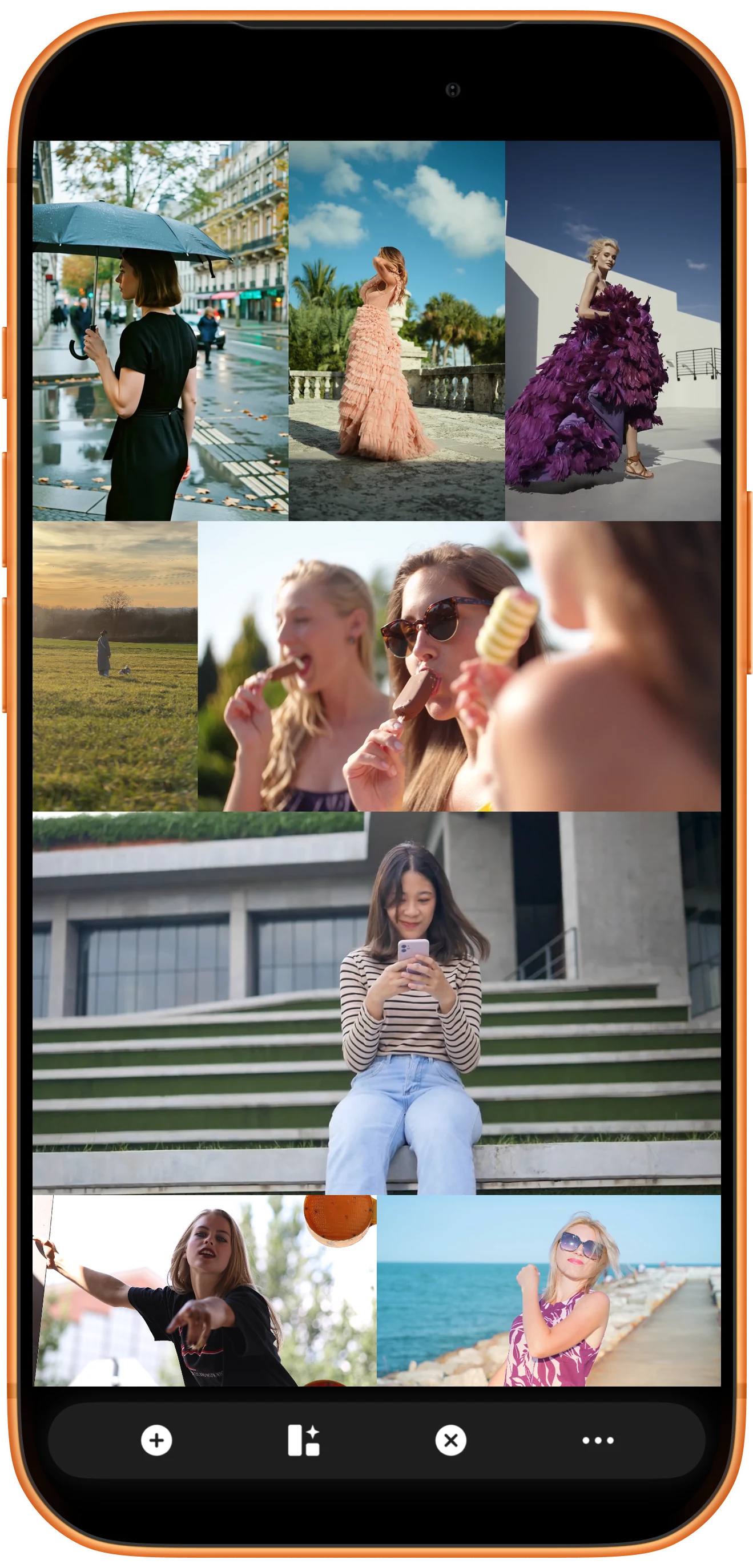
After you choose a suggestion, the videos open in their assigned regions. Each clip still has individual playback and display controls, while the bottom toolbar can control them as a group.
If the result is not right, run Smart Layout again for another suggestion or use Select Layout for manual control.
More possibilities
When Smart Layout is most useful
It is especially useful for a mixed set of orientations and aspect ratios. Let the app solve the overall arrangement first, then fine-tune individual clips.
Mix portrait and landscape sources
Travel, training, monitoring, and multi-camera footage often mixes orientations. Recommendations place narrow and wide clips into better-matched regions.
Choose from several efficient options
You are not limited to one answer. Compare portrait, landscape, and different region groupings for a phone, tablet, or external display.
Resize and rearrange after choosing a preset
To emphasize one clip, switch to a preset layout, drag its yellow dividers, or swap content positions.
See the resize and rearrange guideFrequently asked questions
How many videos can Smart Layout arrange?
Split Screen Player supports layouts with up to 36 regions. Smooth simultaneous playback still depends on device performance, resolution, codec, and frame rate.
Does Smart Layout modify the original videos?
No. It only changes where each video appears in the current workspace; it does not trim, overwrite, or alter the source files on your device.
Why does a clip still have black bars or cropping?
Recommendations match regions to video dimensions, but a region may not have the exact same aspect ratio. Switch between Fit and Fill, then adjust zoom or position if needed.
Can I export the arranged videos as one file?
Yes. After checking layout, crop, and playback order, open Export Split-Screen Video to choose ratio, resolution, audio, and time range, then render one file.
Split Screen Player
Let every orientation find a better place
Download Split Screen Player on iPhone or iPad, select a mixed group of clips, and compare the layouts Smart Layout suggests.

