
Open Sleep Timer from the bottom toolbar, choose a preset or Custom duration, and start playback. The toolbar counts down; when it expires, the app pauses playback and dims its window.
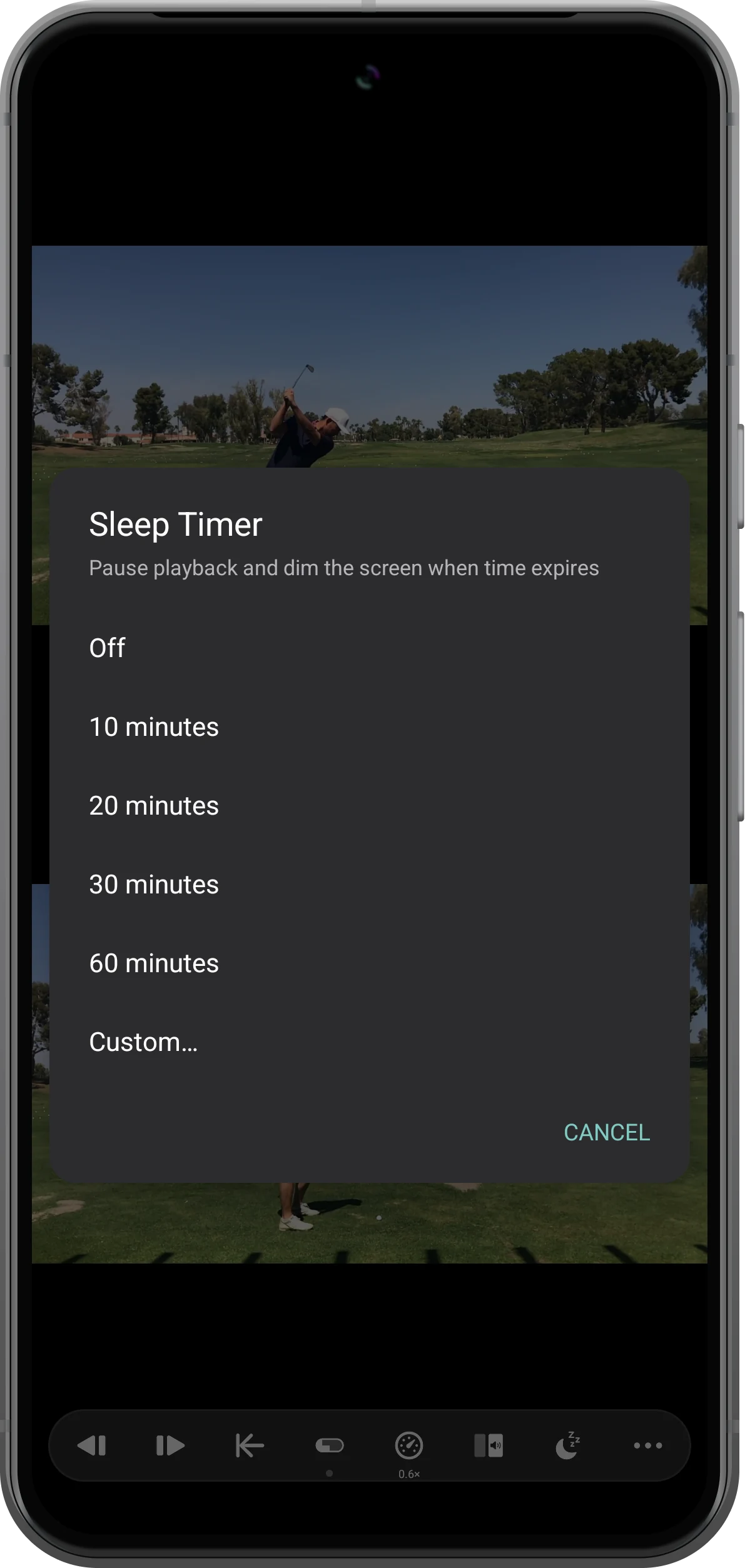
Open the timer choices
Tap Sleep Timer. Choose 10, 20, 30, or 60 minutes, or use Custom. Off is available here when you want to cancel an active timer.
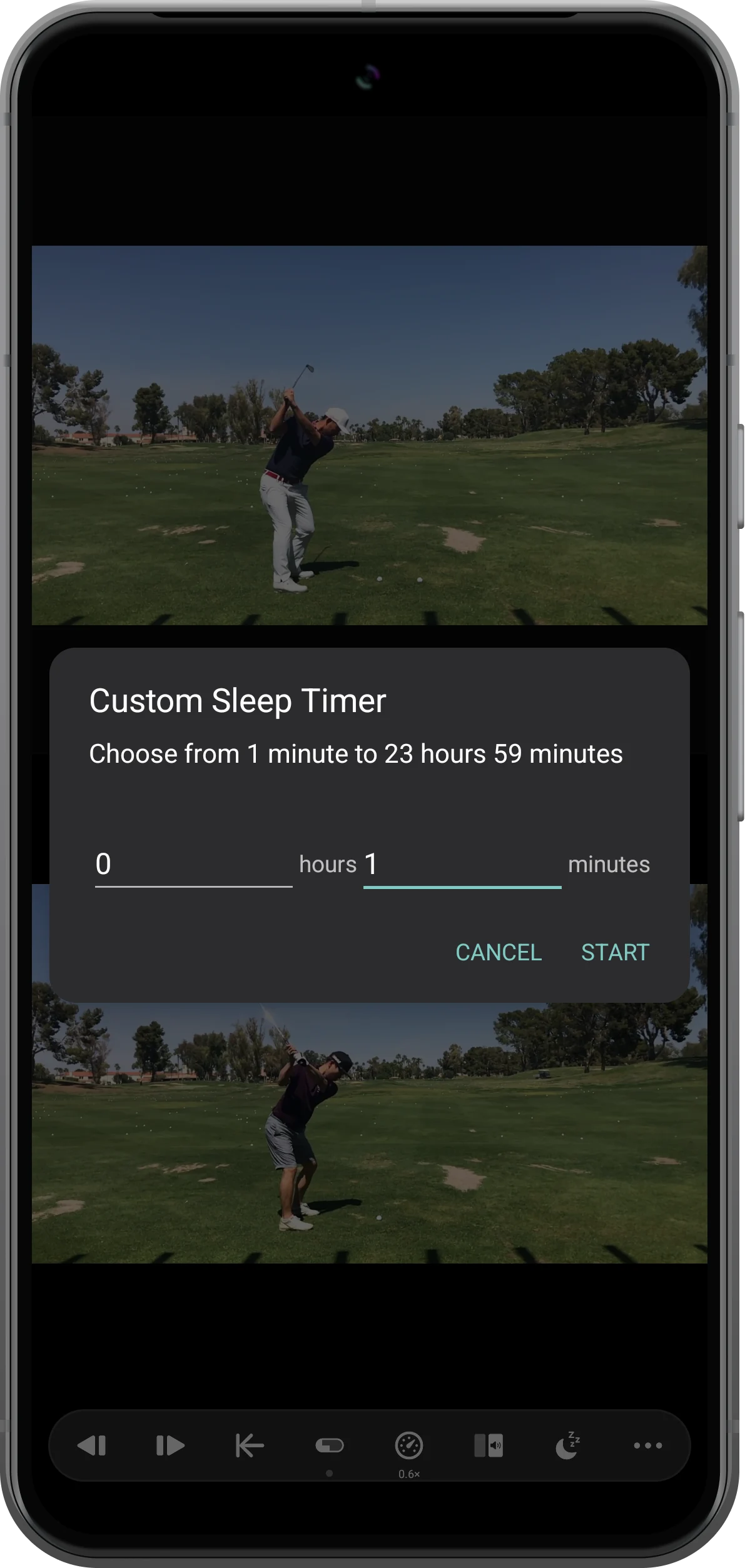
Set a custom duration
Choose Custom and enter hours and minutes. The example uses zero hours and one minute. Confirm the value; the supported range is one minute to 23 hours 59 minutes.
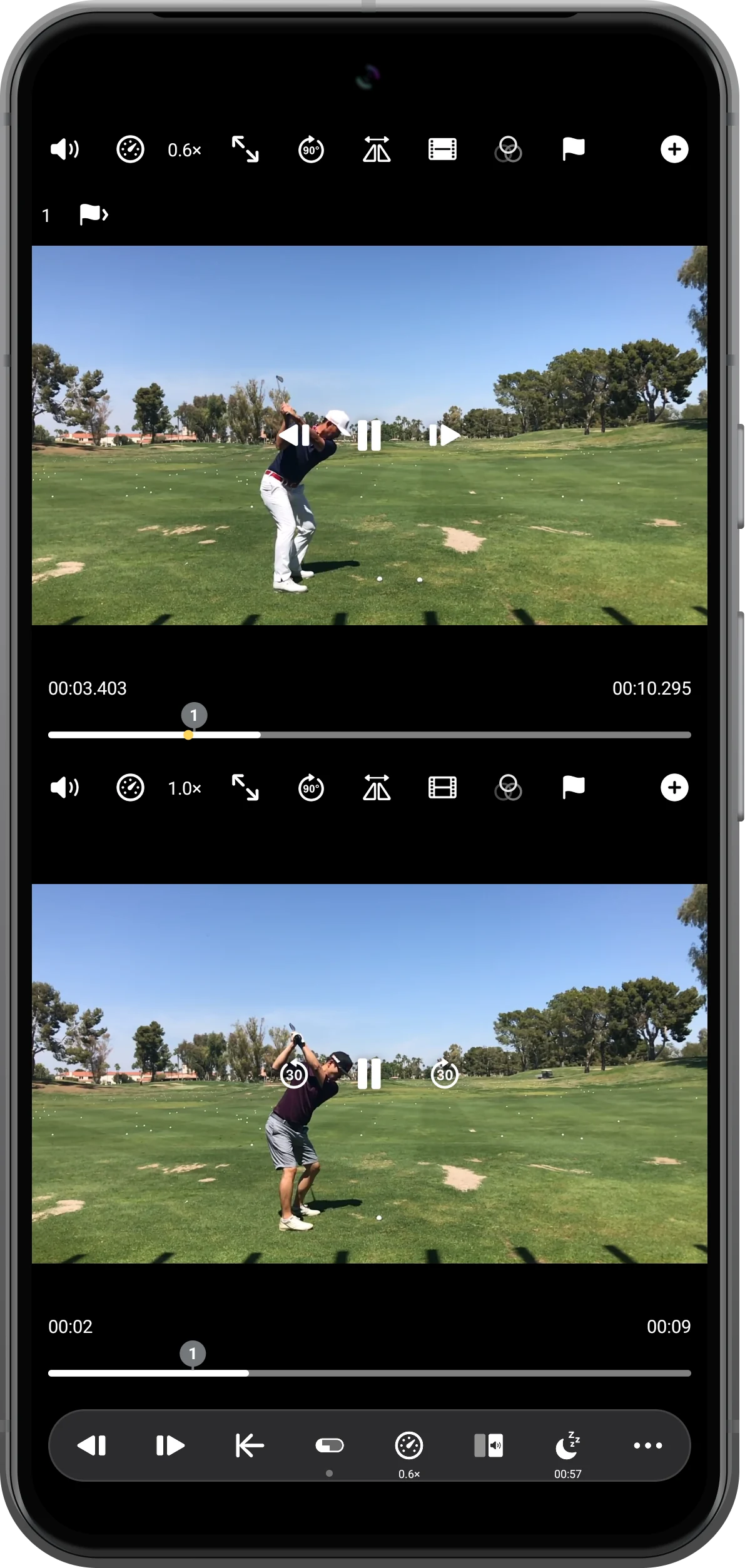
Start playback and check the countdown
Return to the workspace, play the videos, and check the timer’s remaining time on the toolbar. Setting a timer does not replace the normal Play control.
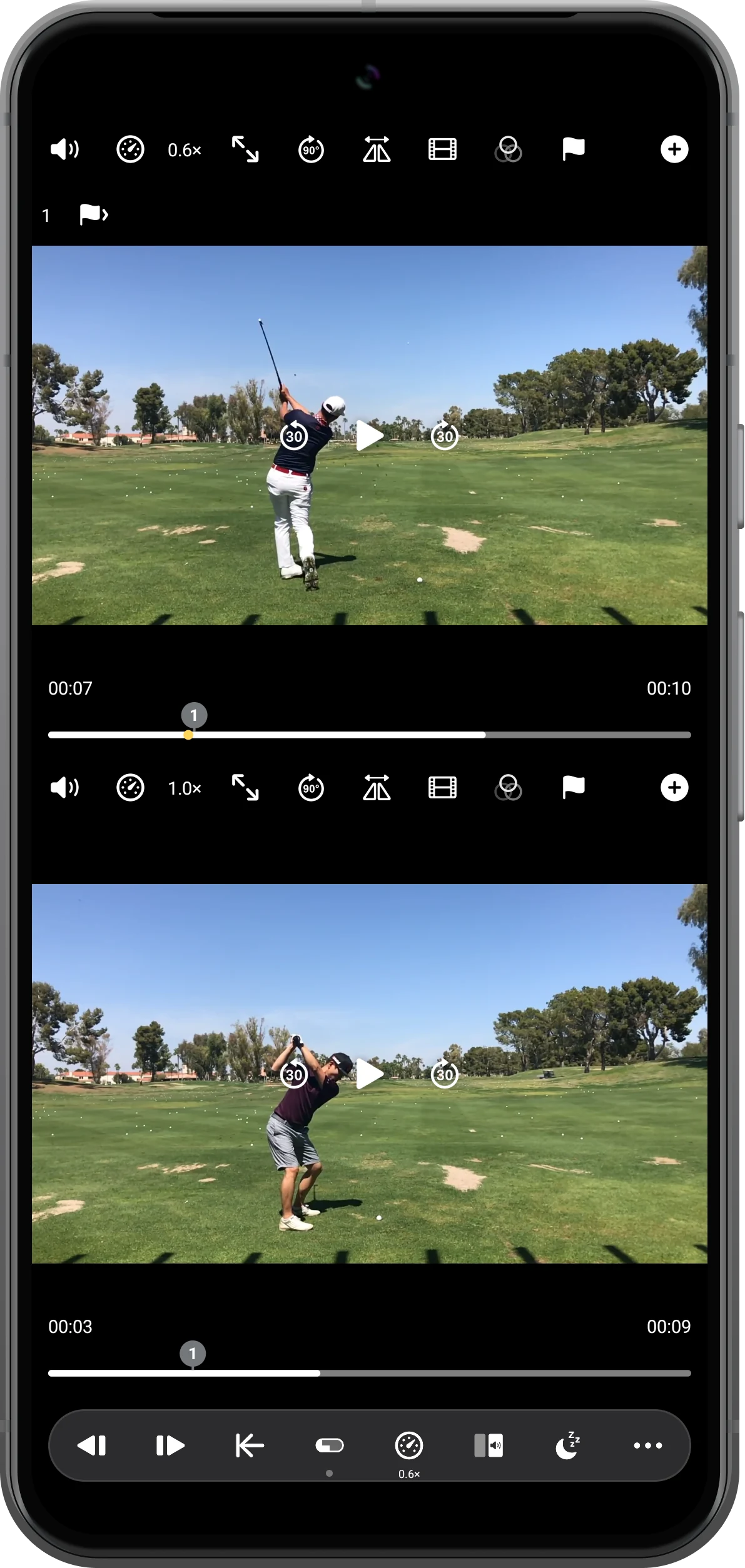
Confirm that playback stops
At expiry, verify that the videos are paused. In the test, both panes show Play and stop at different positions. The timer countdown disappears; the app also lowers its window brightness.
More possibilities
Useful details
Check these details as you follow the steps.
Cancel from the same menu
Open Sleep Timer again and select Off if you no longer want it to stop playback. Do this before the deadline when continuing a viewing session.
The timer does not power off the phone
It controls playback and the app window. It is not a device shutdown timer and does not delete or export your media.
Frequently asked questions
Does the timer start playback for me?
Use the ordinary Play controls to begin playback, then check both the video state and timer countdown.
Why is the screen darker afterward?
Dimming the app window is part of the timer’s expiry behavior, alongside pausing playback. A screenshot may not show the physical brightness change.
Split Screen Player
Try this with your own media
Open Split Screen Player and follow the steps with files you want to use.

