
Open a page through Web/Stream, play its video, then tap Mini Player beside the address bar. Choose the detected video to open it in an empty region, or select a destination when all regions are occupied.
Open and play the source page
Tap a region’s plus button → Web/Stream, enter the page address and choose Webpage. Start the embedded video so the app can identify the media.
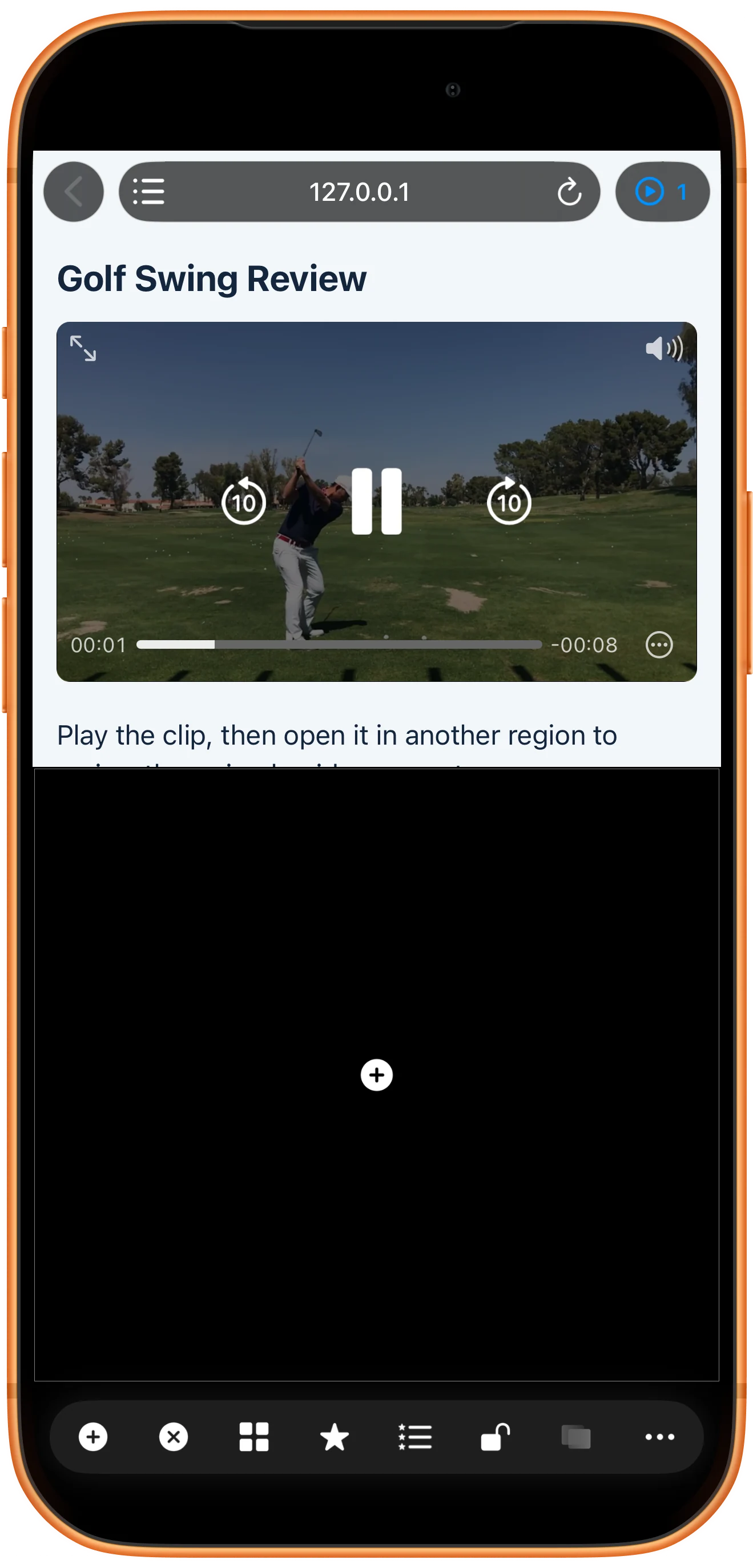
Inspect the detected video
Tap Mini Player beside the web address. Its number is the detected count. Match the title, duration and dimensions before choosing an item; detection alone does not guarantee playback.
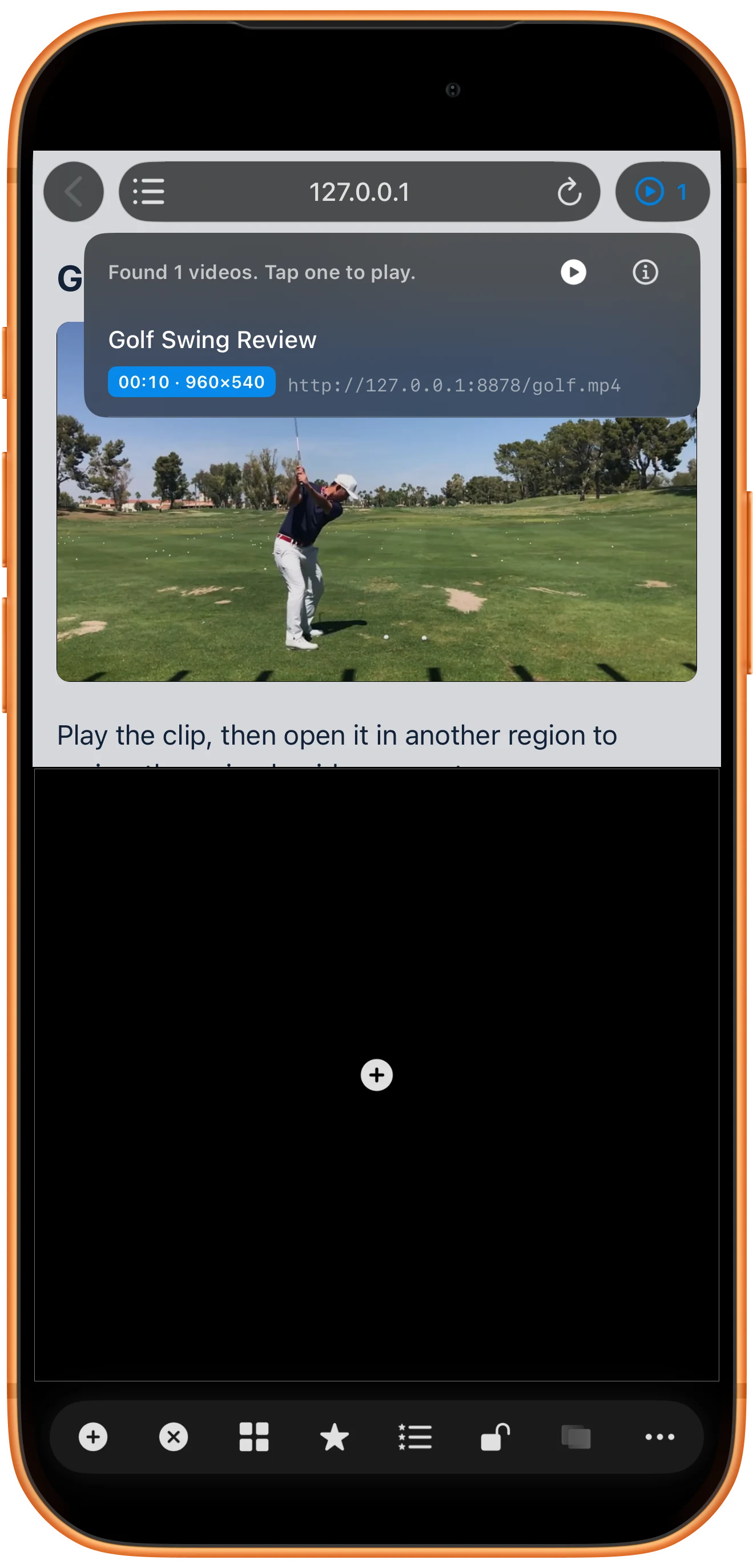
Open it in another region
Tap the matching item. An empty region receives the video automatically. If none is empty, Choose Playback Location asks which region’s current content to replace.
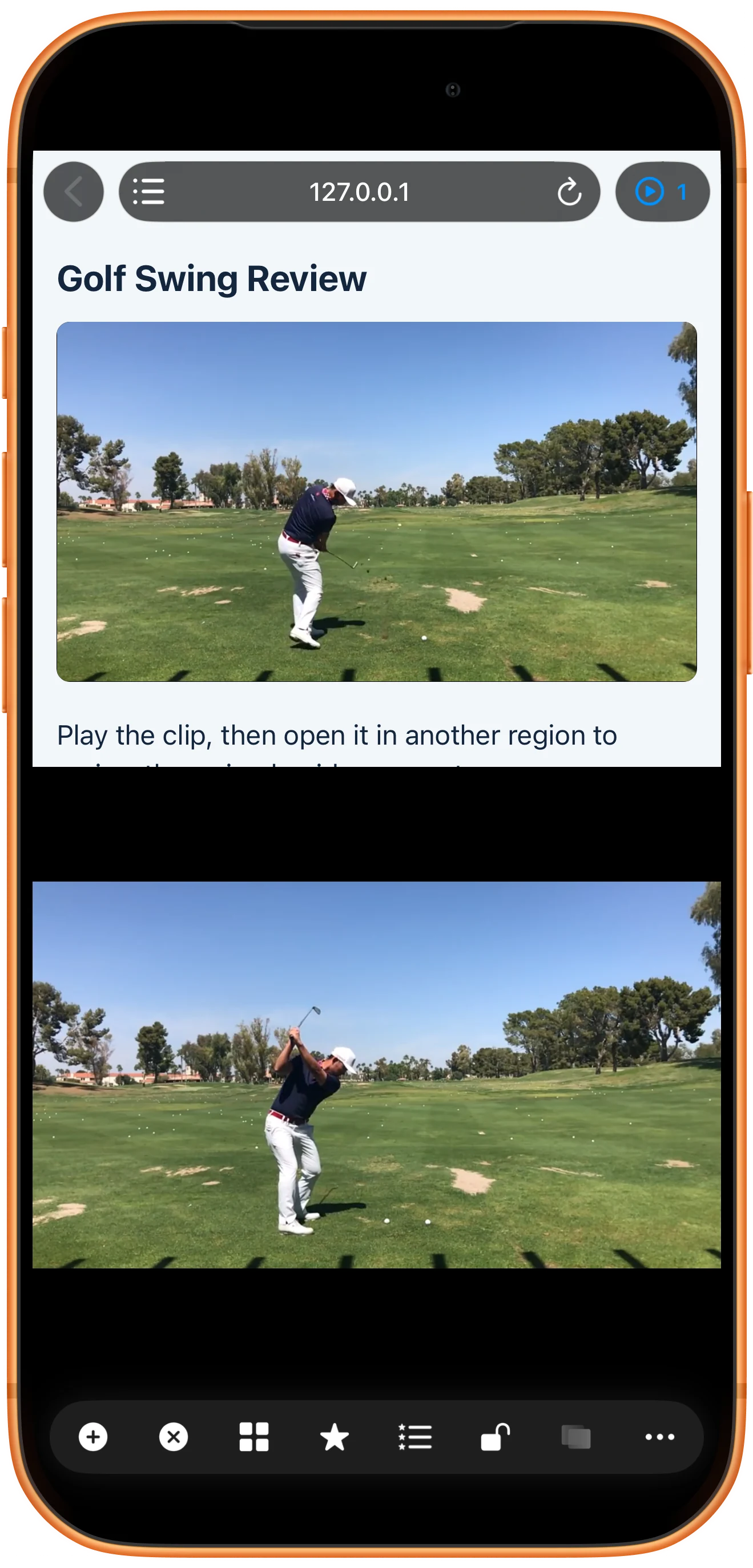
Use the player separately
Tap the new video for its controls. Pause or resume it independently. Return to Source Webpage opens the original page again when you need the surrounding text or another video.
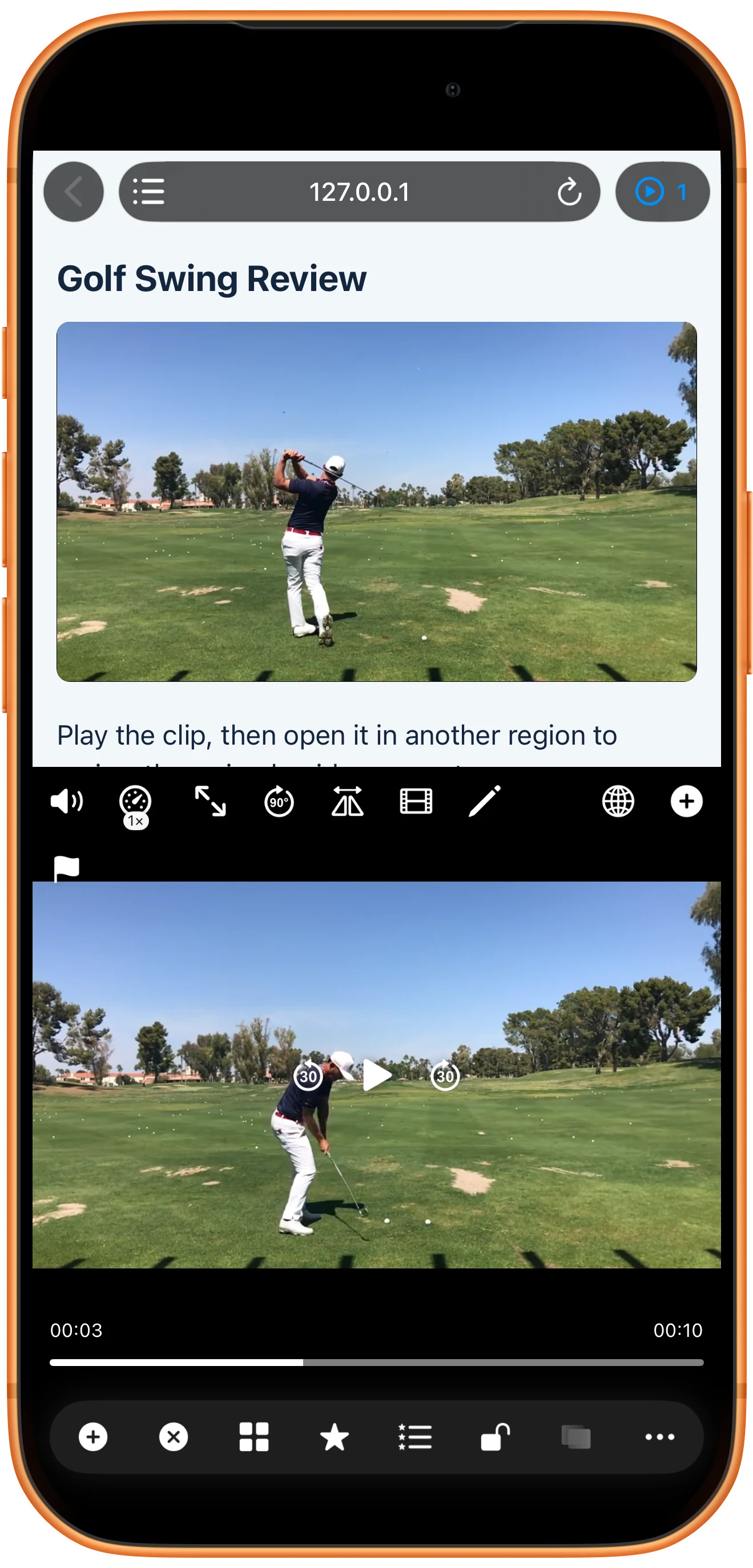
More possibilities
Useful details
Check these details as you follow the steps.
The source must remain playable
Expiring media addresses, authentication, content protection and server behavior can prevent playback. Return to the source page and start the video again before retrying. This feature does not grant access to restricted content.
Keep one audio source
Mute the webpage or the independent player if both produce sound. The two playheads are independent; use compatible local files and Sync Point for precise comparison.
Frequently asked questions
Why is Mini Player empty?
Start a video in the page and check again. Some sites do not expose a compatible source. A detected entry may also be an advertisement rather than the video you wanted.
Does this download the video?
No. Opening it in a player is a playback workflow, not an offline download. Keep network access and use media you are authorized to access.
Split Screen Player
Try this with your own media
Open Split Screen Player and follow the steps with files you want to use.

