| 01 Batch open | Choose and fill multiple player regions in one operation. | Free |
| 02 Close all | Close every currently open source. | Free |
| 03 Select layout | Open the preset, favorite, and custom layout library. | Free |
| 04 Add bookmark | Save the current sources, layout, playback positions, and related state. | Free |
| 05 Bookmark list | Open saved workspaces and restore them later. | Free |
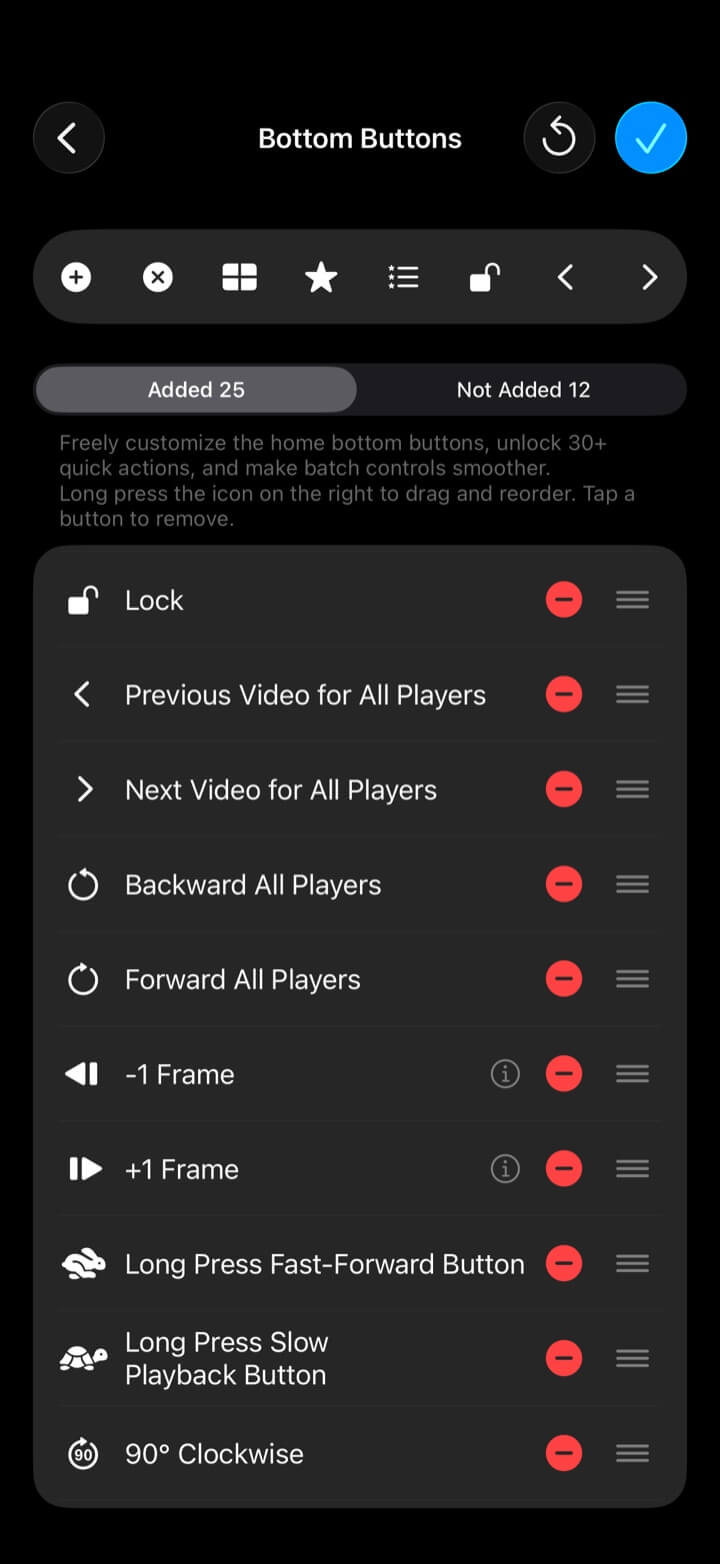
| 06 Lock | Lock the workspace to prevent accidental edits. | Free |
| 07 Export | Open split-screen video export. | Free |
| 08 Comparison snapshot | Capture the current multi-view comparison as an image. | Free |
| 09 Download | Open supported download actions; availability depends on region and source. | Free |
| 10 More | Open all commands that are not placed directly on the bottom bar. | Free |
| 11 Previous video for all | Move every compatible player to its previous playlist item. | VIP |
| 12 Next video for all | Move every compatible player to its next playlist item. | VIP |
| 13 Play / pause all | Start or pause every compatible video together. | VIP |
| 14 Backward all | Seek all compatible videos backward by the configured amount. | VIP |
| 15 Forward all | Seek all compatible videos forward by the configured amount. | VIP |
| 16 −1 frame | Step every compatible video backward by one frame. | VIP |
| 17 +1 frame | Step every compatible video forward by one frame. | VIP |
| 18 Previous checkpoint for all | Jump each video to its own previous checkpoint. | VIP |
| 19 Next checkpoint for all | Jump each video to its own next checkpoint. | VIP |
| 20 Fit / fill all | Toggle the content mode of every player. | Free |
| 21 Restart all | Return every compatible video to the beginning. | Free |
| 22 Reload all web pages | Reload every web source in the current layout. | Free |
| 23 Next bookmark | Restore the next saved workspace. | VIP |
| 24 Next same-orientation bookmark | Cycle only through bookmarks with the current orientation. | VIP |
| 25 Global progress | Use one progress slider to seek all compatible videos. | VIP |
| 26 Playback speed for all | Change the speed of every compatible video together. | VIP |
| 27 Hold to fast-forward | Temporarily accelerate playback while the button is held. | Free |
| 28 Hold for slow playback | Temporarily slow playback while the button is held. | Free |
| 29 Mute all | Mute or restore all compatible audio. | Free |
| 30 Solo audio cycle | Keep one player audible and cycle the audio focus. | Free |
| 31 Sleep timer | Stop playback after the selected time. | Free |
| 32 Sync to video | Open Sync Point to align the same action across videos. | VIP |
| 33 Maximize cycle | Temporarily maximize each region in turn; hold to restore the layout. | Free |
| 34 Next matching layout | Switch to another layout with the same count and orientation. | Free |
| 35 Rotate contents forward | Move the open sources through the current layout regions. | Free |
| 36 Adjust layout size | Drag dividers to resize the current layout and save the result. | VIP |
| 37 Rotate all media 90° | Rotate compatible media clockwise by 90 degrees. | Free |
| 38 Adjust video position | Drag sources between regions while preserving playback state. | Free |