
In Gallery settings, open Content → Add → Album images. Select photos, choose the number of frames in Photo grouping, and distribute the pictures. Set the interval and order in More → Images.
Choose the photos for your slideshows
Open Gallery from the toolbar, then Gallery settings → Content → Add → Album images. Use the album selector to show the album you want, select four photos, and tap Done. If access is limited, grant access only to the pictures you intend to use.
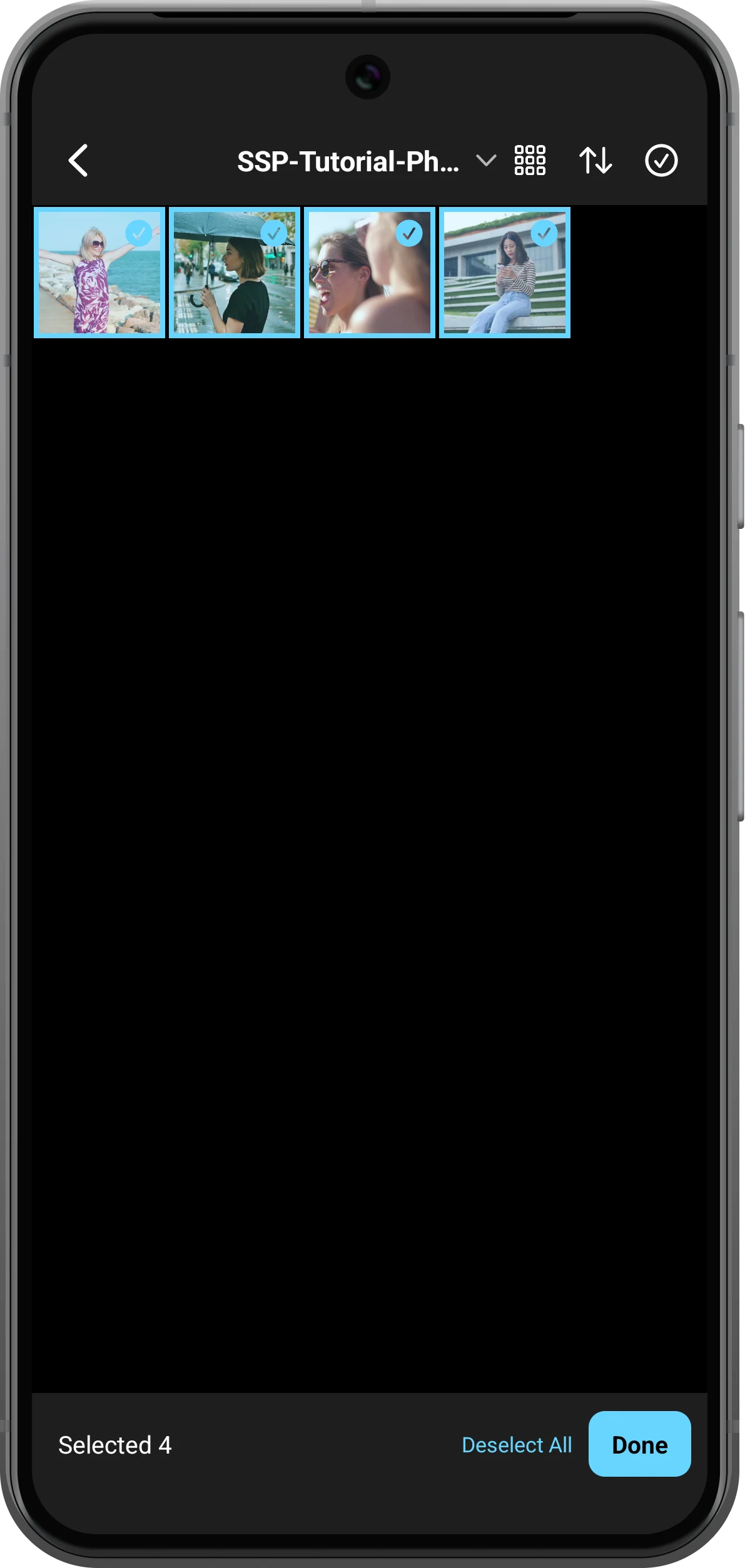
Divide the photos between frames
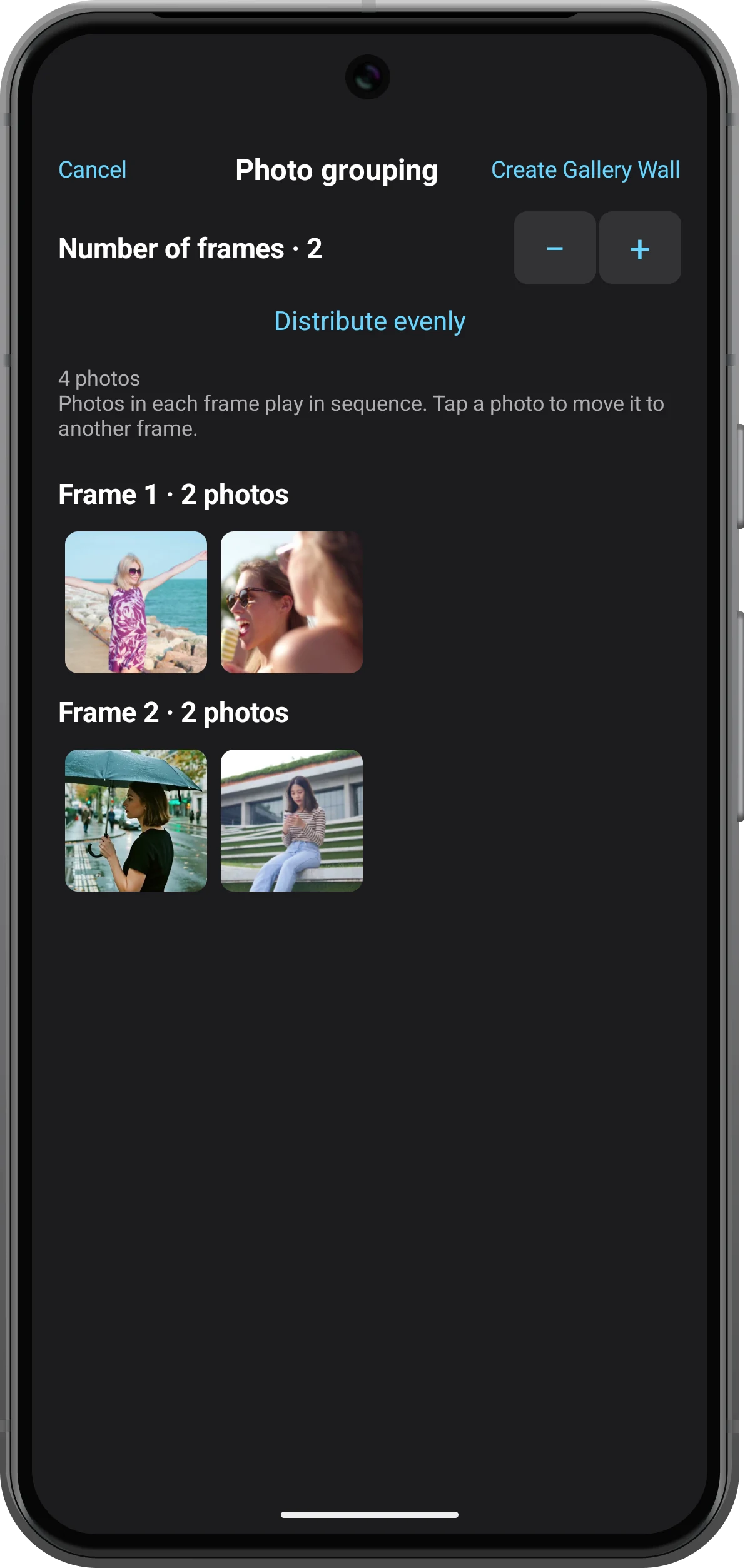
In Photo grouping, set Number of frames to 2. Choose Distribute evenly and check that each frame contains two pictures, then tap Create Gallery Wall. You can review the groups before creating them; a frame with only one picture stays on that picture.
Set the slideshow timing and order
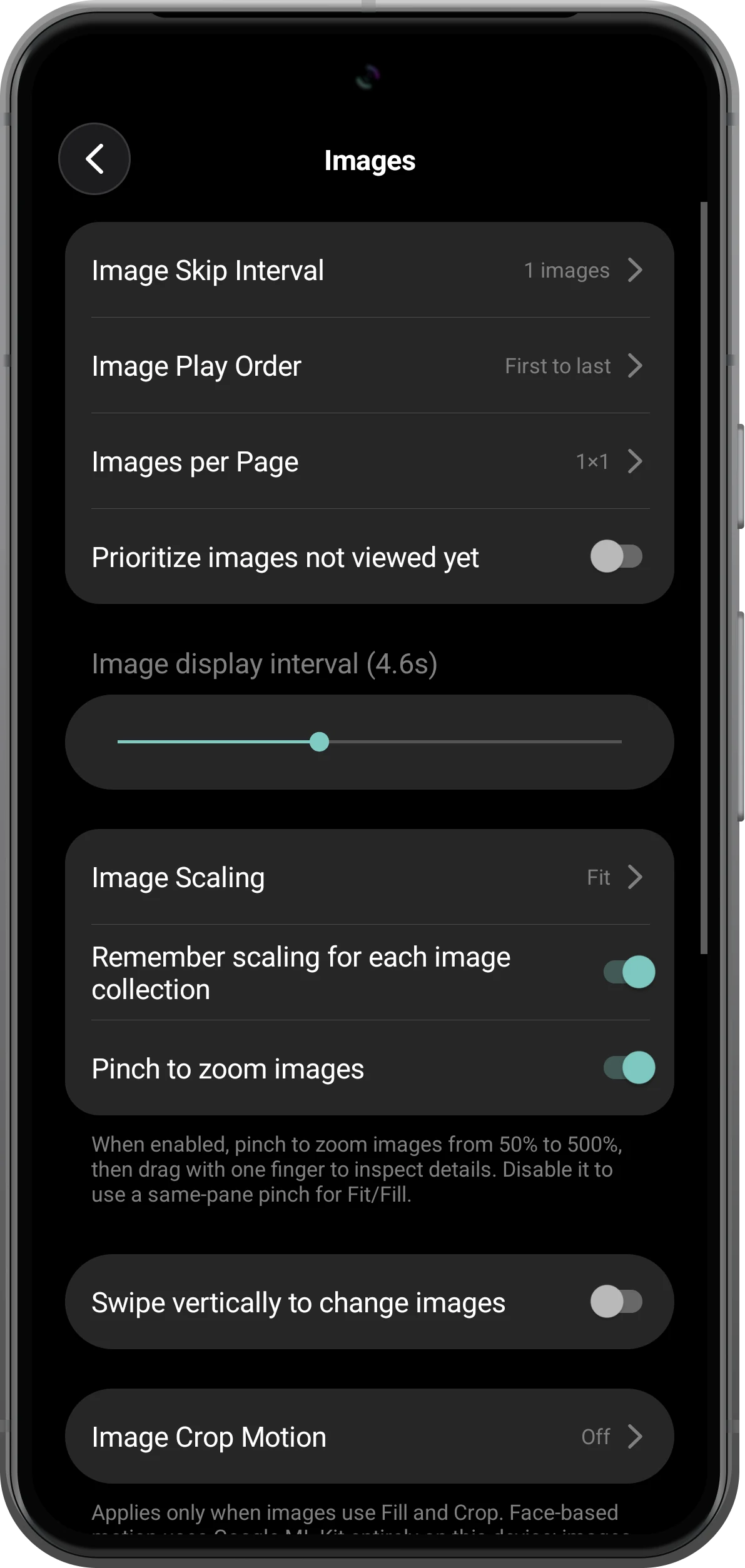
Open More → Images. Check Image Display Interval and Image Play Order; the example uses 4.6 seconds and First to last. Last to first and Random are also available. These are image settings, so they are different from video speed and waterfall scrolling speed.
Play the gallery and save it
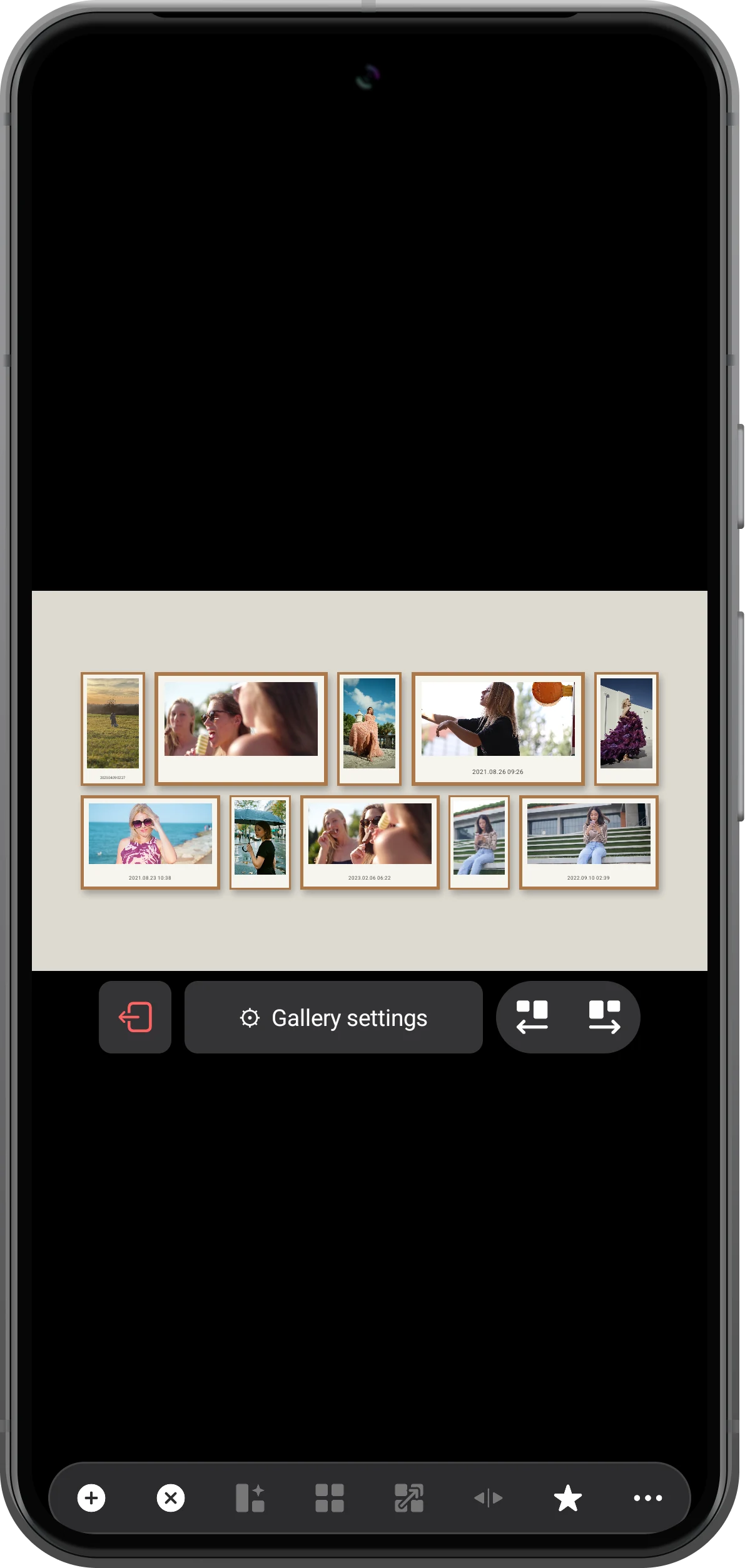
Return to the gallery and watch both photo frames change. The example keeps eight video frames beside them. Use the star in Gallery settings to save a bookmark. After exiting, reopen that bookmark to restore the groups; keep the original photo files available.
More possibilities
Useful details
Check these details as you follow the steps.
Each frame has its own collection
The grouping screen determines which photos belong to each frame. Use it to separate a trip, person, or theme into its own slideshow instead of repeating the whole collection in every frame.
Use the gallery’s composition controls
Choose a composition under Template and adjust borders and background under Style. Selecting a frame lets you change its content without rebuilding the other frames.
Frequently asked questions
Will saving a bookmark create a video file?
No. The bookmark stores a workspace that the app can reopen. It does not render the photo slideshows as a finished video.
Why does a photo frame stay on one image?
Check that the frame contains more than one photo and allow the configured display interval to pass. Also check that the original files are still accessible.
Split Screen Player
Try this with your own media
Open Split Screen Player and follow the steps with files you want to use.

