
Tap Open Multiple → Photos, select four images, then choose Play evenly with all 2 players. Set the timing and order under More → Image Settings.
Choose the photos for your slideshows
Tap Open Multiple on the bottom toolbar and choose Photos. Select four pictures and tap the checkmark. The sample photos are stills from the demonstration videos.
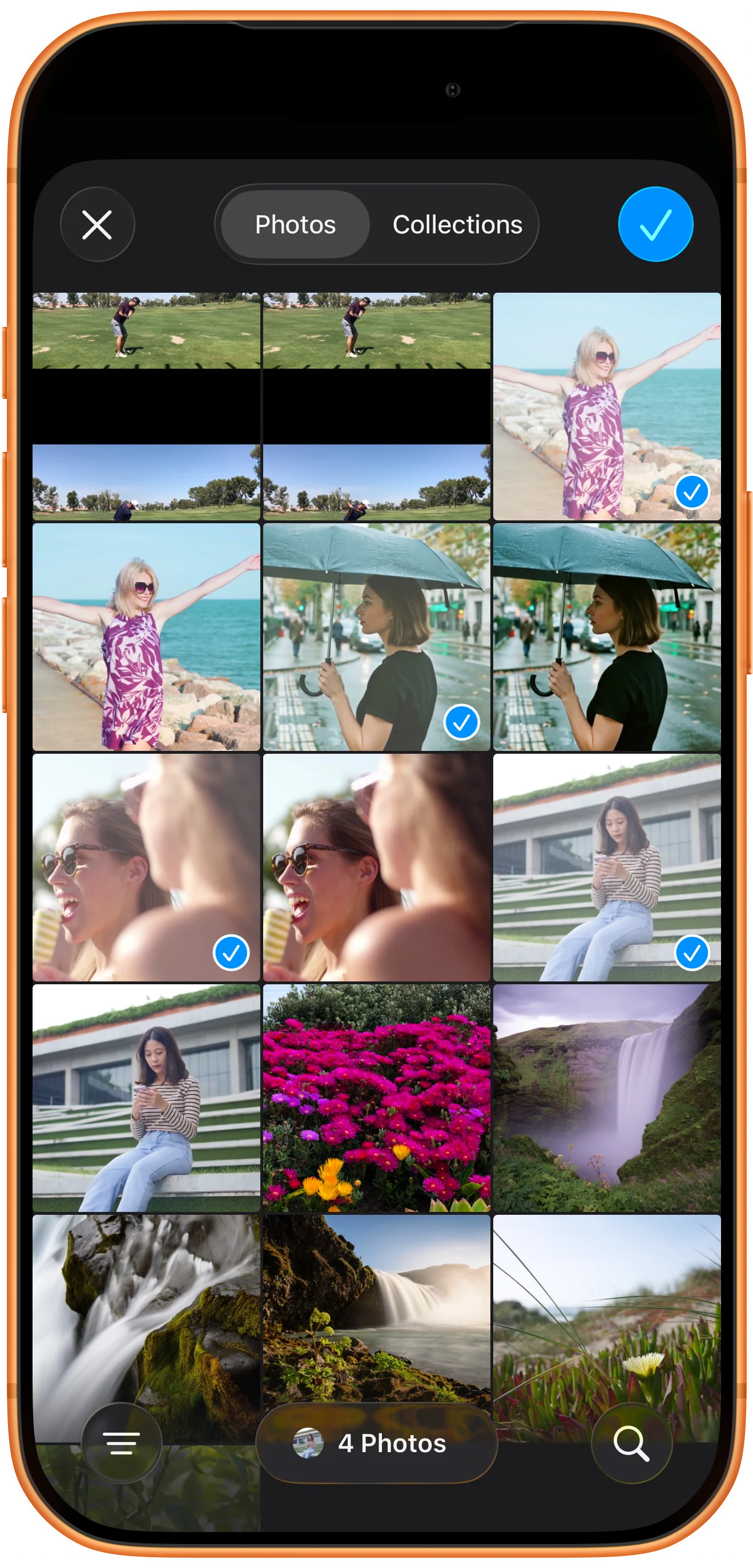
Divide the photos between frames
In Open 4 photos, choose Play evenly with all 2 players, approx. 2 per player. Each of the existing two panes receives a separate group. The single-player option would place all four photos in one pane.
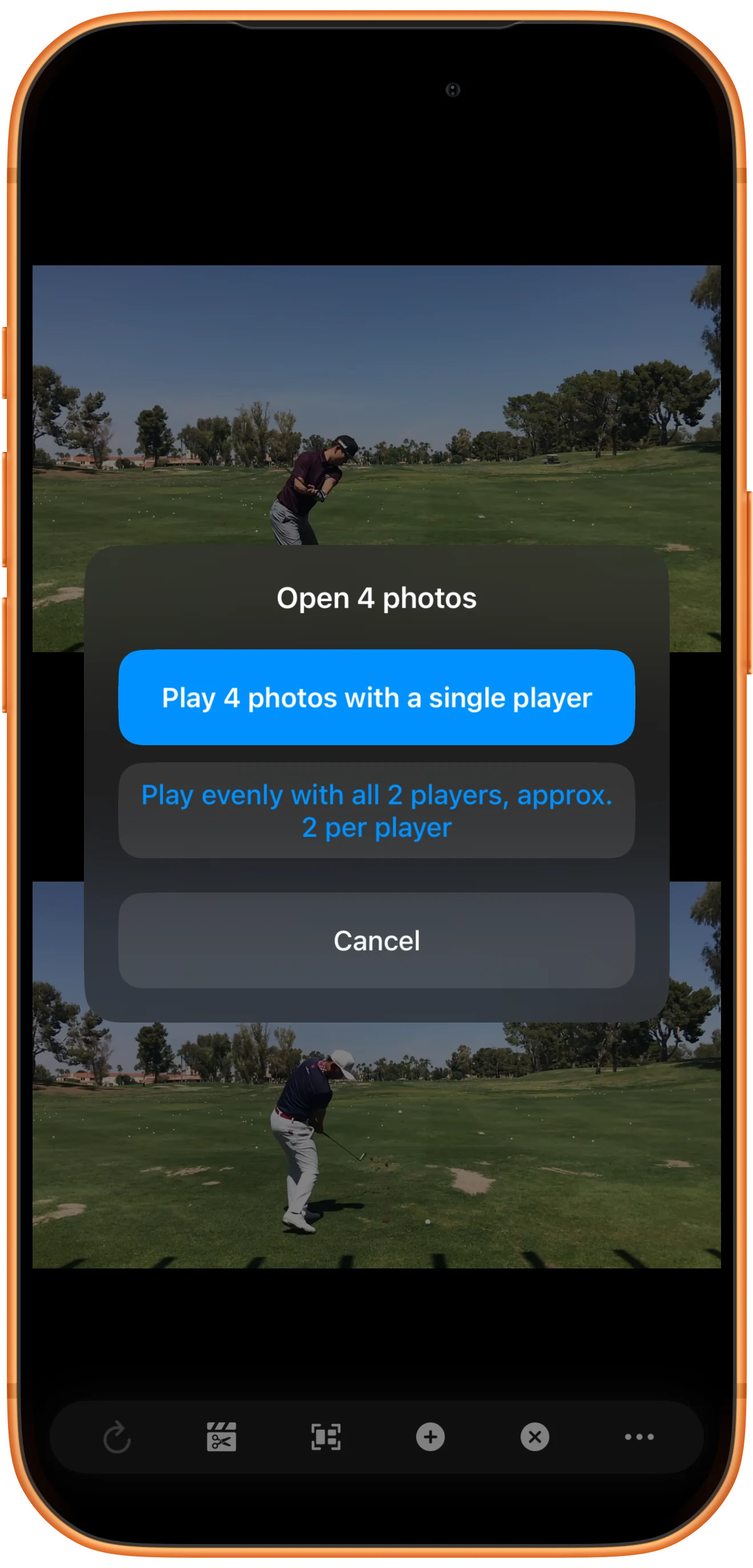
Set the slideshow timing and order
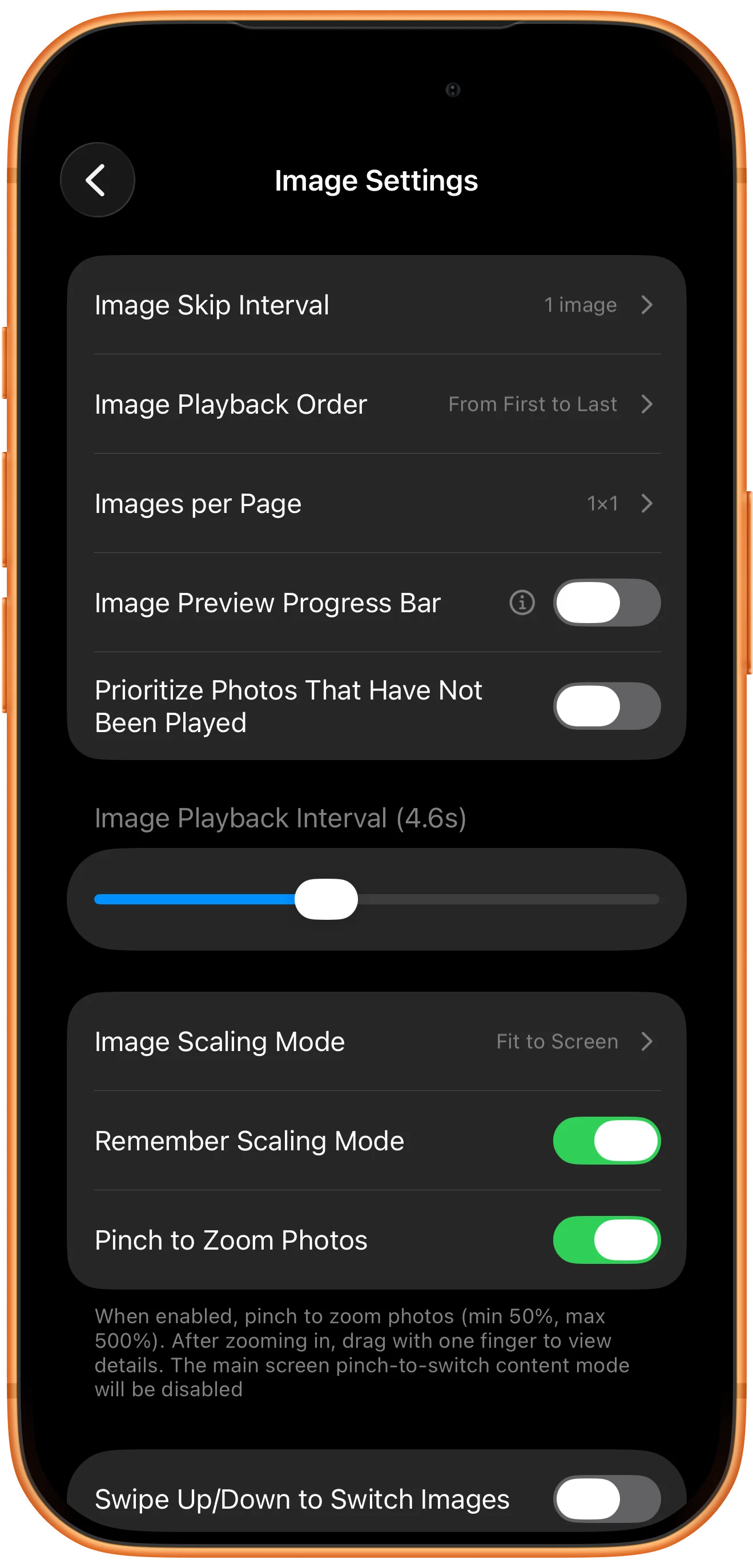
Open More → Image Settings. Check Image Playback Interval and Image Playback Order. This example uses 4.6 seconds and From First to Last, with Images per Page set to 1×1.
Play the two slideshows
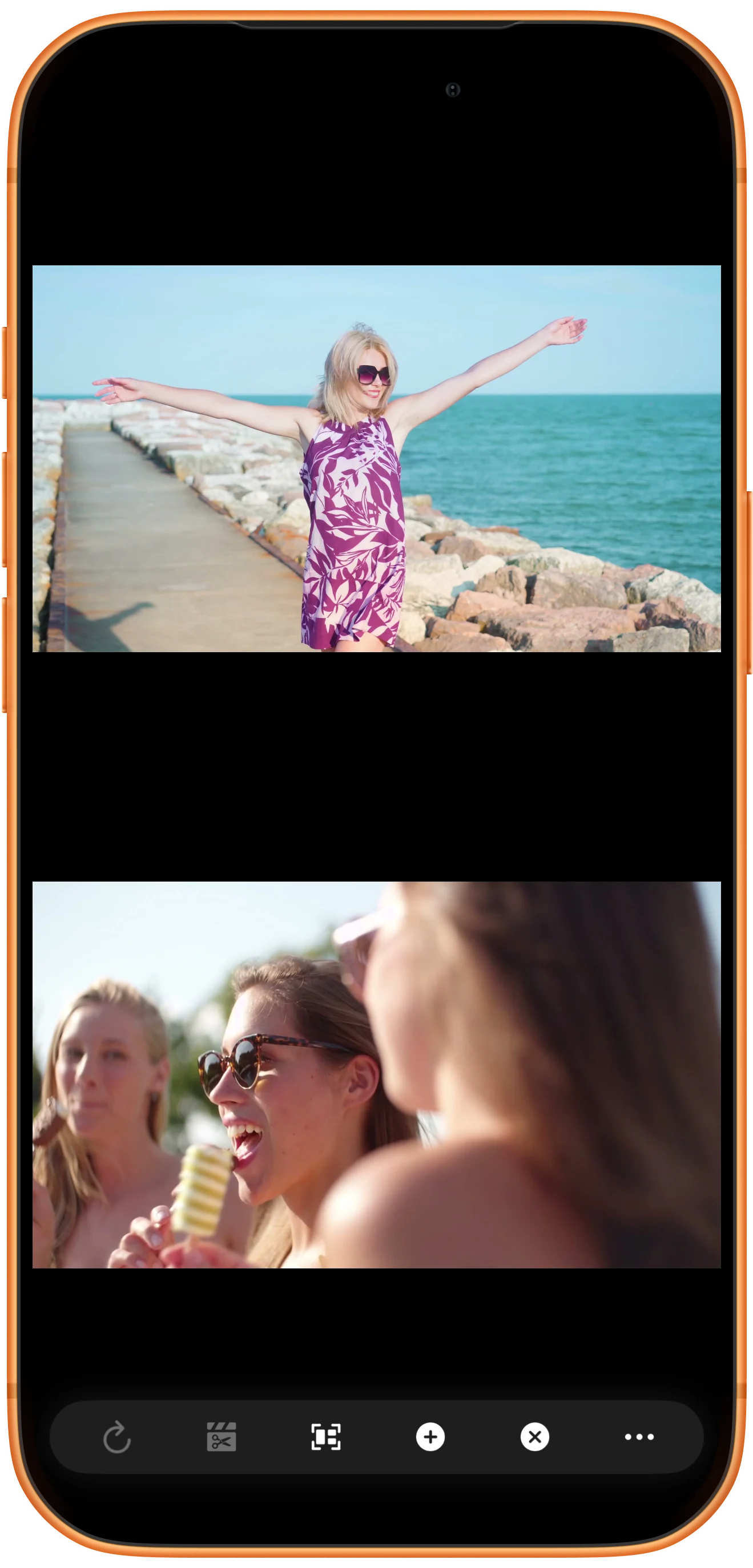
Return to the workspace and watch the pictures change. Each pane cycles through its own two images. Tap a pane to reveal its controls and pause or resume that slideshow independently.
More possibilities
Useful details
Check these details as you follow the steps.
Each frame has its own collection
The grouping screen determines which photos belong to each frame. Use it to separate a trip, person, or theme into its own slideshow instead of repeating the whole collection in every frame.
Check the page size
Images per Page controls how many photos appear on a page. Keep it at 1×1 for the single-photo slideshows shown here.
Frequently asked questions
Will saving a bookmark create a video file?
No. The bookmark stores a workspace that the app can reopen. It does not render the photo slideshows as a finished video.
Why does a photo frame stay on one image?
Check that the frame contains more than one photo and allow the configured display interval to pass. Also check that the original files are still accessible.
Split Screen Player
Try this with your own media
Open Split Screen Player and follow the steps with files you want to use.

