
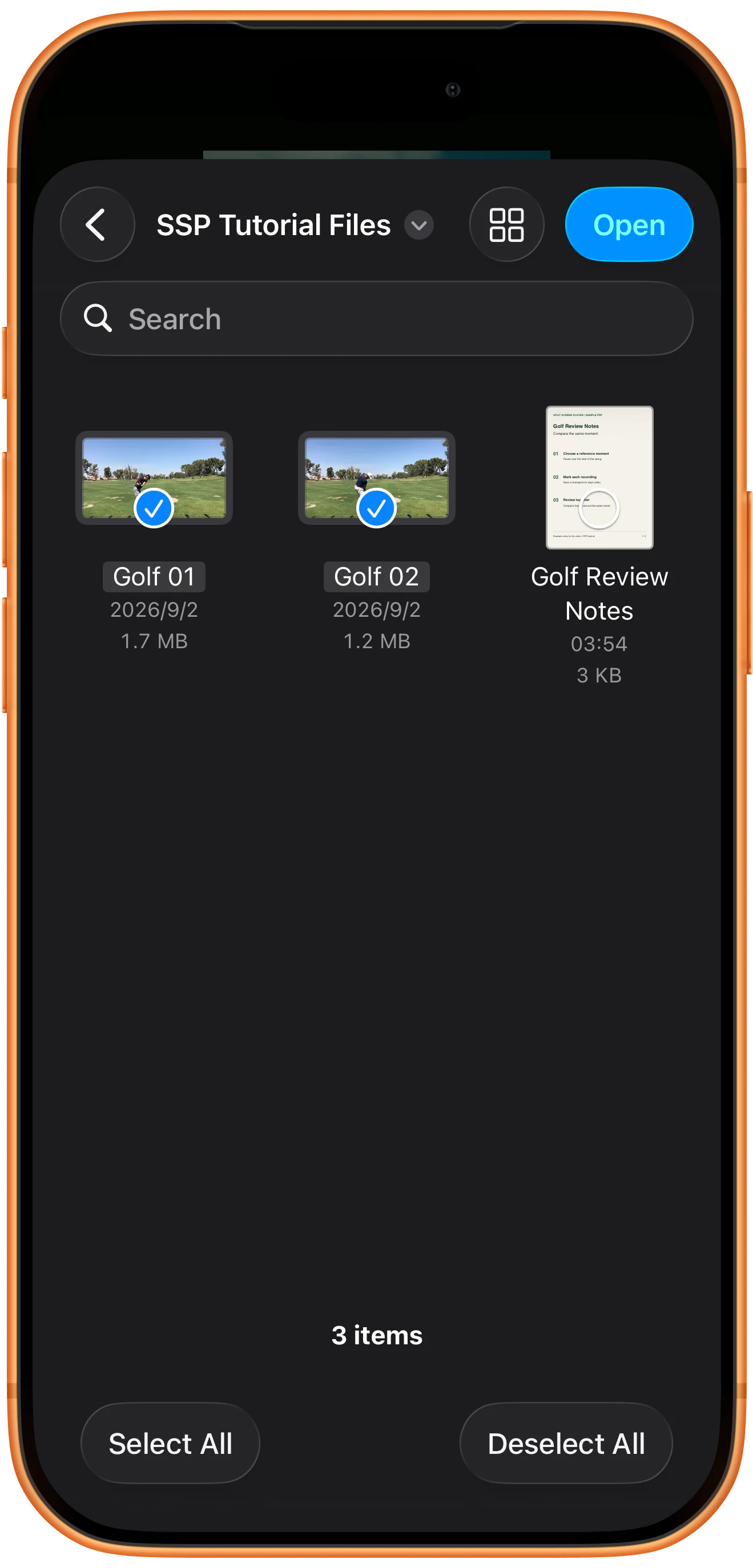
Tap Open Multiple → Files. Select individual videos and tap Open, or enter a dedicated video folder and tap Open without selecting files. This example opens two golf clips in two panes.
Use the bottom toolbar's Open
Tap Open Multiple on the bottom toolbar, then Files. Leave Video Filter off for this example. A pane’s own + button has a different scope.
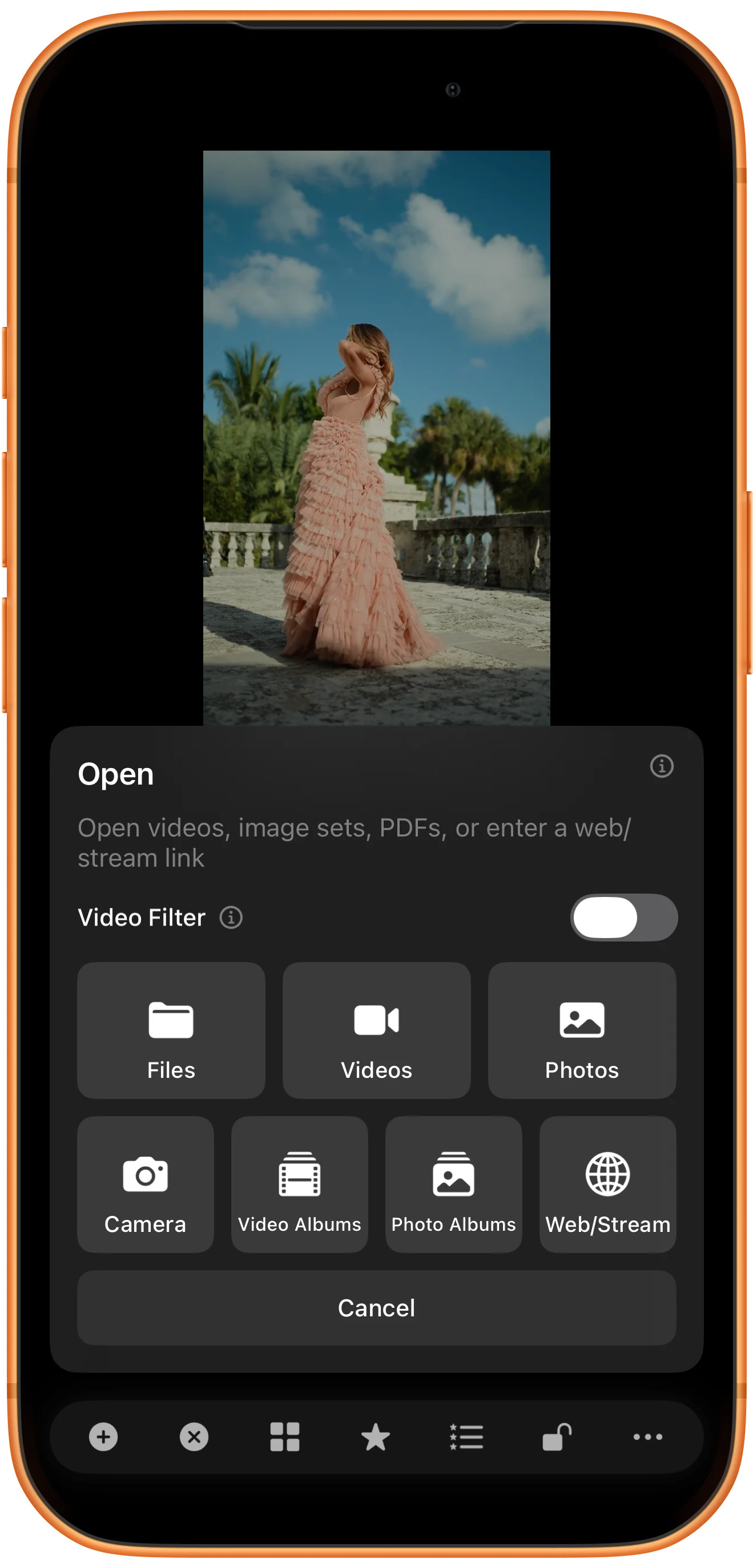
Select individual videos
Browse to your media folder. Tap Golf 01 and Golf 02 so that both have checkmarks, then tap Open. You can select a subset without opening the entire folder.
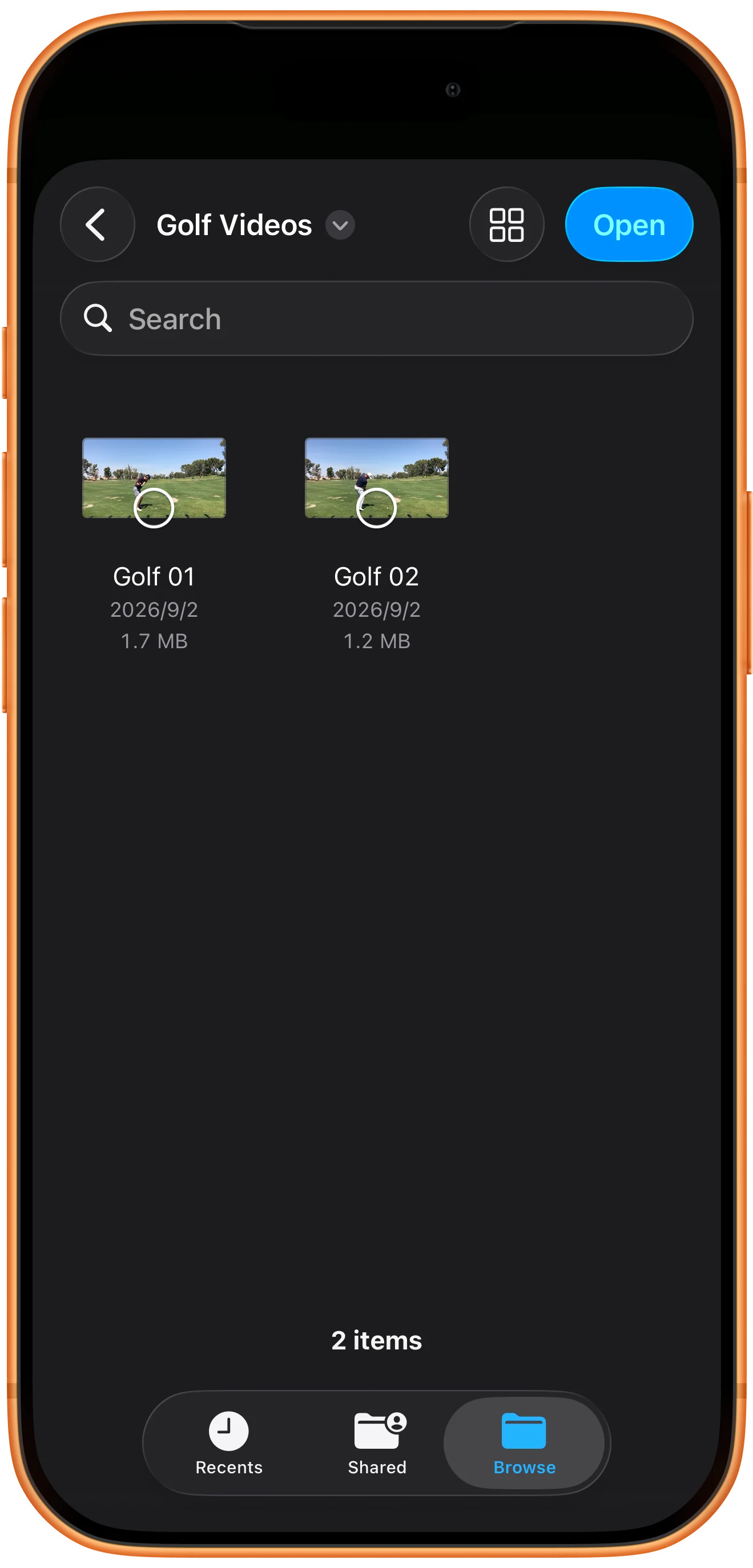
Or open a whole video folder
Open Files again and enter Golf Videos, a dedicated folder containing the two clips. Leave both files unselected and tap Open to choose the current folder.
Check the imported workspace
Wait for the import and start playback in both panes. The two clips are opened separately. Save a workspace bookmark to retain the arrangement for another session.

More possibilities
Useful details
Check these details as you follow the steps.
Choose the correct entry point
Use the bottom toolbar to fill the workspace from several files. Use a pane’s own + button when you want to replace content in that particular region.
Reopen with a bookmark
We saved the folder workspace, used Close All, and restored it through Favorites List. Both golf clips played again. Keep the originals accessible; the bookmark is not a media backup.
Frequently asked questions
Is the video order fixed?
Check the imported panes. Individual selection and folder import may produce different orders; arrange the result before saving a bookmark.
Does importing make the workspace restore automatically?
Save the arrangement with Favorite and reopen it from Favorites List. Keep files in place and retain their access permissions rather than relying on automatic recovery.
Split Screen Player
Try this with your own media
Open Split Screen Player and follow the steps with files you want to use.

