
Scroll the document slightly to reveal its filename and floating page controls. The first page reads 1/2. The video above has its own playback controls.
Open the document pane
Keep the video in one pane. In the other pane, tap + to open Open, leave Playlist off and choose Files. Use the pane's button so that you replace only that pane.
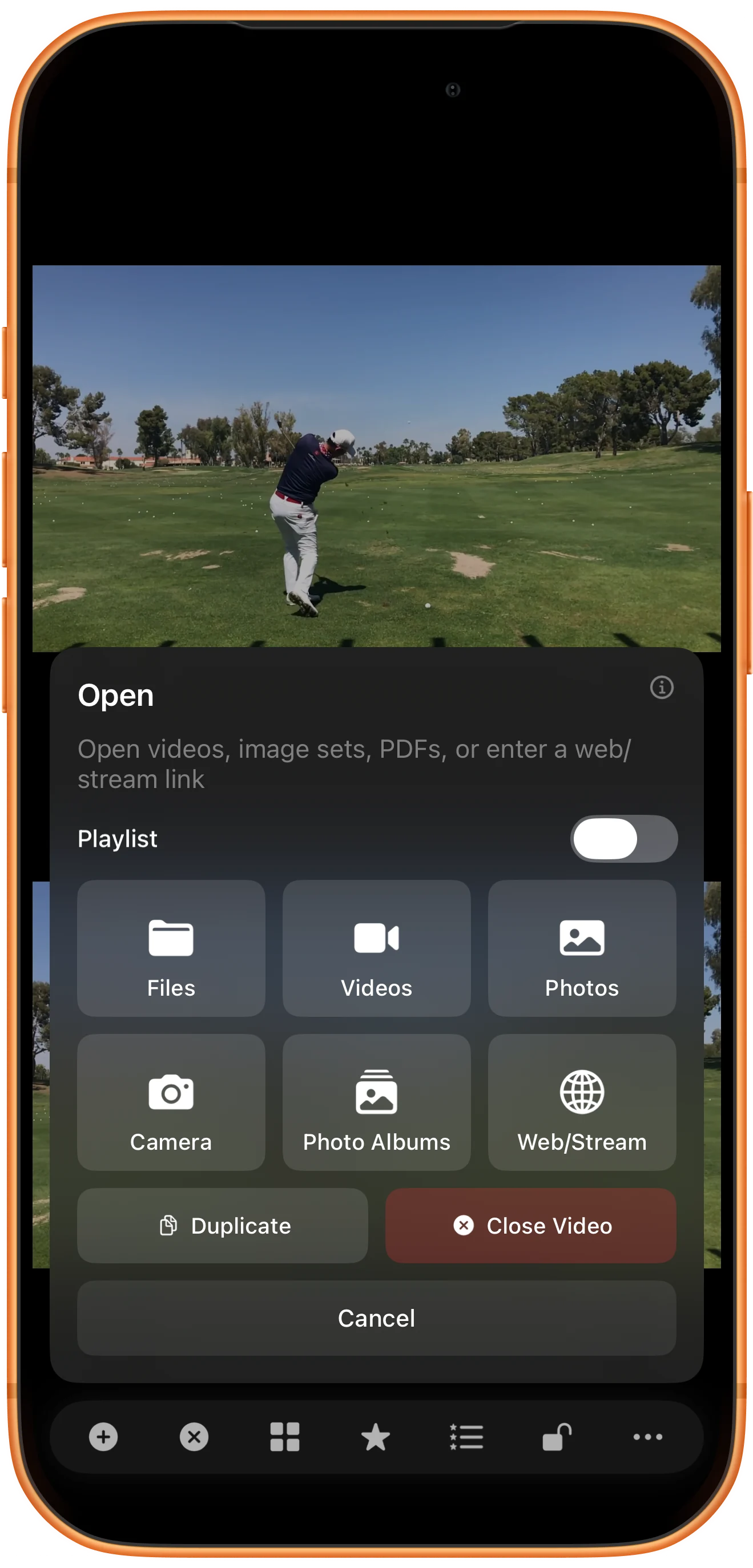
Select a local PDF
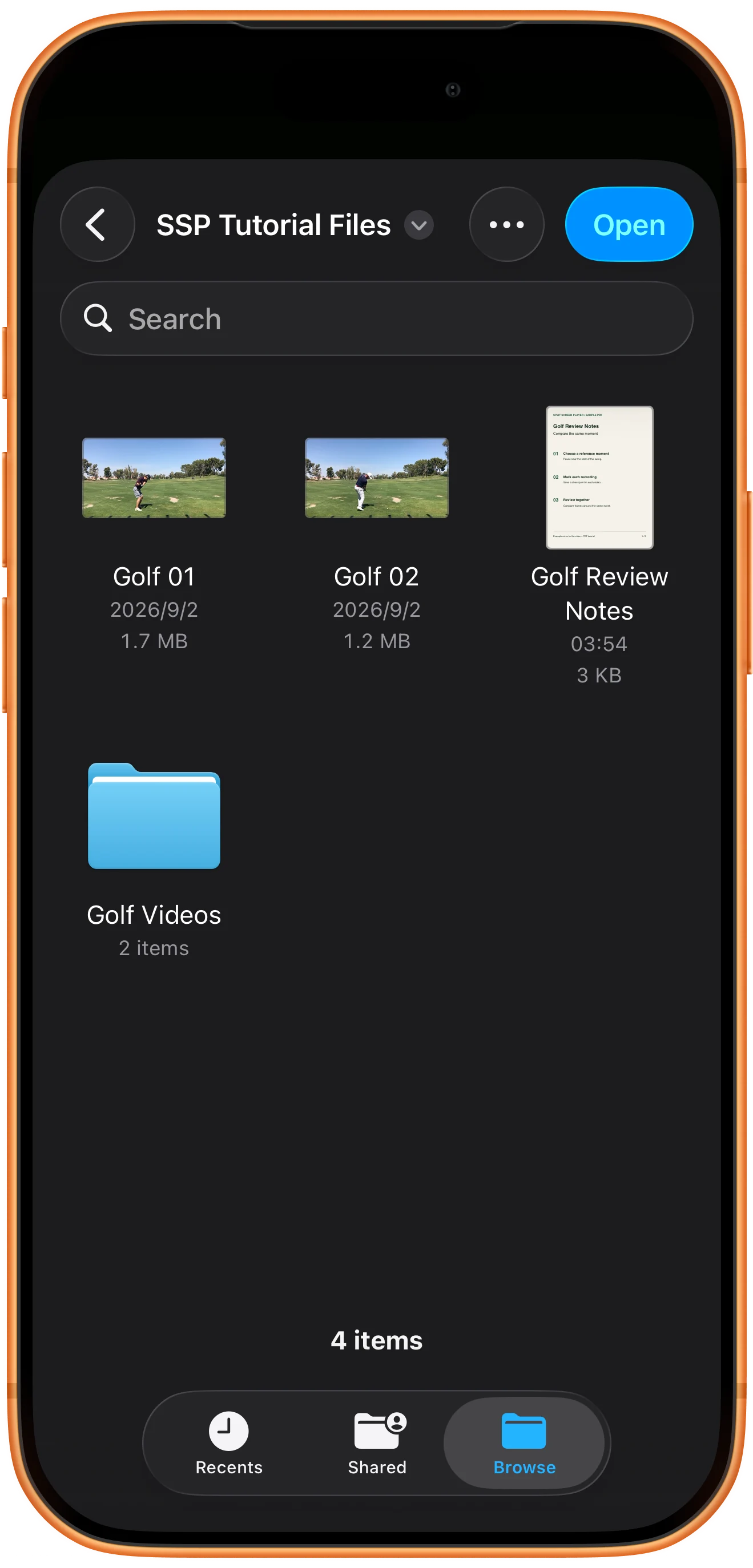
Navigate to your document folder in iPhone or iPad's file picker and tap the PDF. Here the file is Golf Review Notes.pdf. Wait for the first page to render.
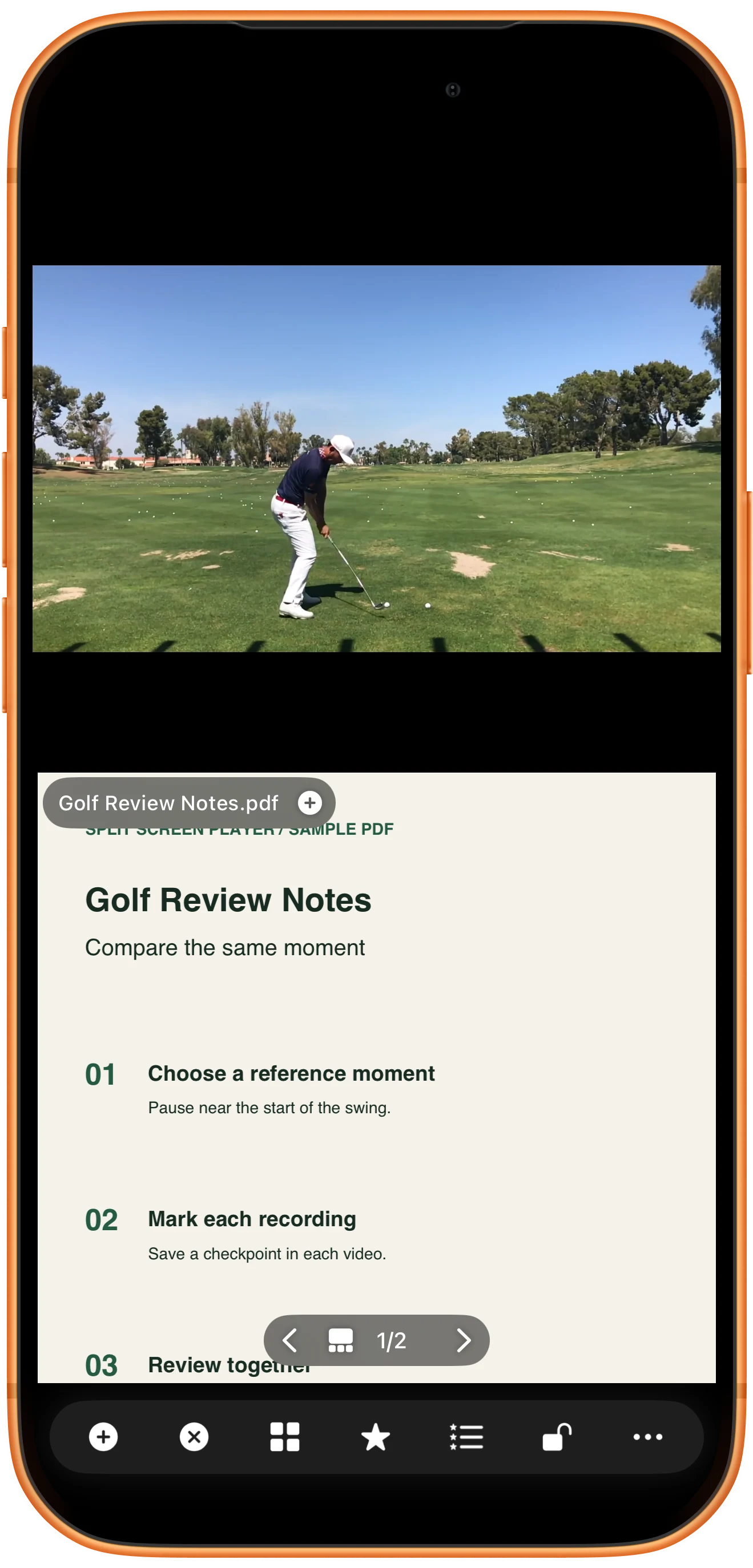
Reveal the page controls
Scroll the document slightly to reveal its filename and floating page controls. The first page reads 1/2. The video above has its own playback controls.
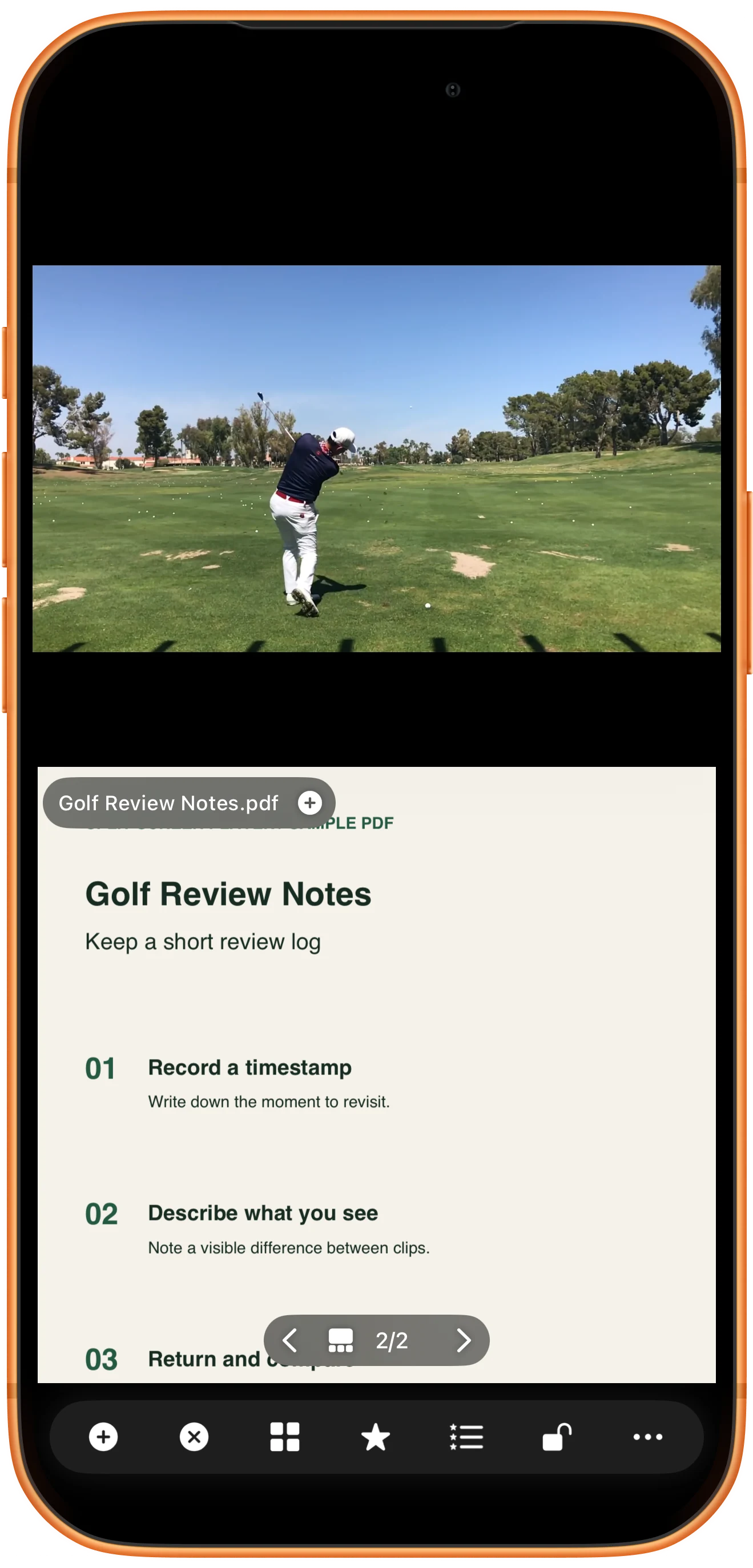
Turn the page while watching
Tap the right arrow to move to page 2; the left arrow goes back. The video remains in its pane while you read and navigate the document.
More possibilities
Useful details
Check these details as you follow the steps.
Zoom the notes
Double-tap the document to enlarge it, then drag to inspect another area. Double-tap again to return to a page view. Zooming affects the document pane, not the video.
Use a reference image instead
For image notes, choose Photos in the target pane. Keep the video in the other pane and use the image browser for reference material.
Frequently asked questions
Will turning PDF pages pause the video?
In the tested workspace, page navigation and double-tap zoom did not stop the local video. Use the video pane's pause button when you want to examine one moment.
Can I edit or annotate the PDF here?
This guide covers viewing, page navigation and zoom. Use a PDF editor to change the source document; do not treat the player as an annotation editor.
Split Screen Player
Try this with your own media
Open Split Screen Player and follow the steps with files you want to use.

